
Written byJanet BashorunUpdated on Dec 17, 2025

Brief introduction: To clone desktop operating system to SSD is one of the most effective ways to boost your computer's performance and responsiveness. Moving your operating system to a solid-state drive (SSD) not only speeds up your boot times but also enhances the overall user experience through quicker applications and file access. This comprehensive guide will walk you through the entire OS cloning process, ensuring a smooth transition and optimal performance with Tatasoft Disk Clone.
In this article
Step 1: Prepare your SSD
Ensuring a successful OS migration process on your desktop starts here. Gather the necessary components:
Step 2: Connect the SSD
Install your new SSD into your desktop. This can involve a physical installation inside your case or connecting it externally via a USB-to-SATA adapter. Ensure that your system recognizes the new SSD through Disk Management.
Step 3: Launch Tatasoft Disk Clone
Start Tatasoft Disk Clone for Windows on your computer. Designed for user-friendliness, it will guide you seamlessly through each stage of the OS cloning operation.
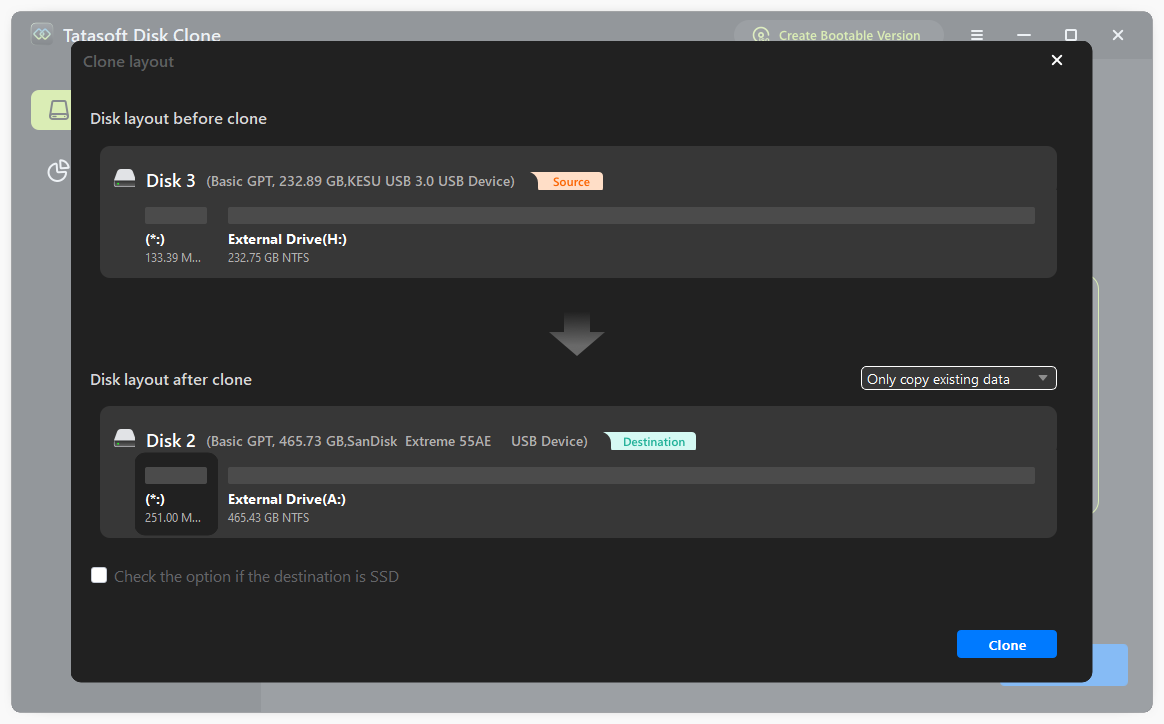
Step 4: Select the Source and Destination disks for cloning
Switch to 'Disk Clone', you will:

Step 5: Configure OS cloning settings
Tatasoft provides various options, allowing you to customize your OS cloning process:
Step 6: Initiate the Cloning Process
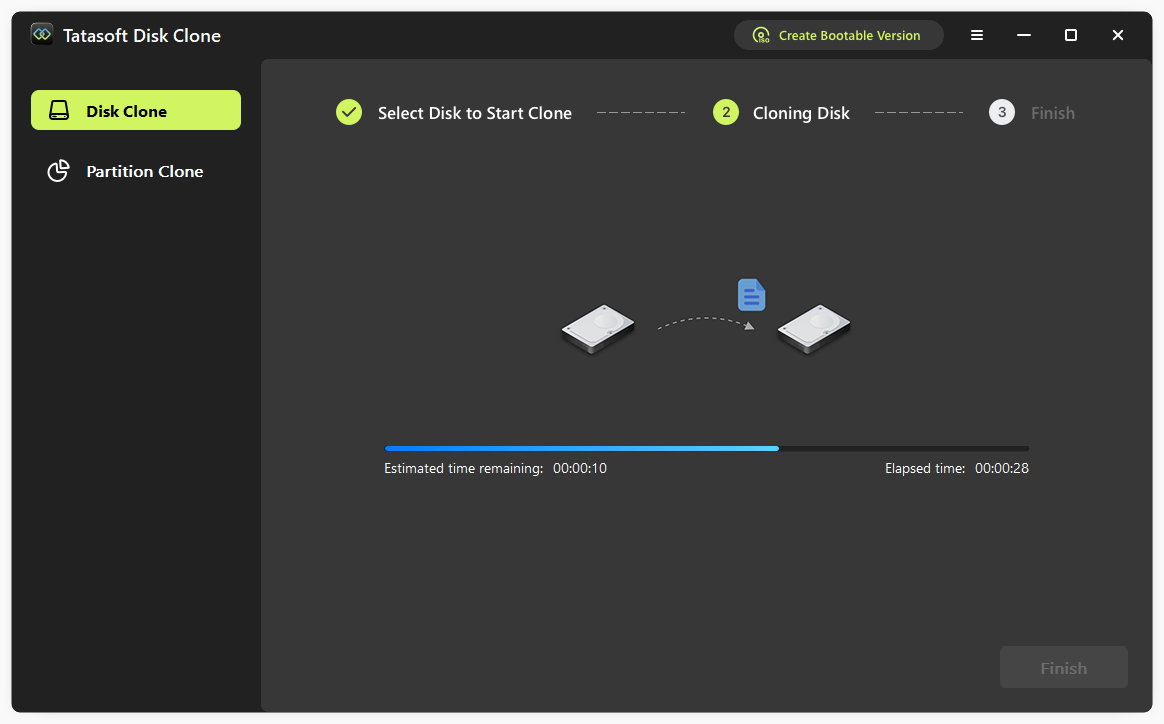
Once all settings are confirmed, commence the system cloning process. The duration may vary depending on data size and drive speeds. Monitor the cloning progress in real-time through Tatasoft.
Step 7: Set your new SSD as the boot drive
After transferring the operating system to SSD, set the new SSD as the boot drive if necessary:
When preparing to clone your desktop operating system to an SSD, it’s crucial to initializing the new SSD correctly:
Initializing New SSD
If the brand-new SSD has never been used before, it must be initialized using Windows Disk Management tool upon first connection. Follow these steps to Initialize your new SSD using Windows:
By properly initializing your SSD, you prepare it for an efficient and organized installation of your desktop operating system, enhancing performance and usability.
When transferring your operating system to an SSD on desktop, you generally have two options: cloning your existing setup or performing a fresh installation:
Cloning involves creating an exact replica of your current operating system, applications, and files on the new SSD. Tools like Tatasoft Disk Clone is commonly used. The key benefits include:
Continuity: You retain all your settings and files, minimizing the disruption to your established workflows.
However, cloning may also carry drawbacks, particularly if your existing system has accumulated issues or clutter. Cloning an OS may transfer existing system issues such as HDD-related issues (fragmentation, redundant data) or malware to the SSD.
A fresh installation involves installing the operating system directly onto the SSD without any prior data being copied over. This method has its own set of benefits:
The downside, however, is that you will need to reinstall all applications and transfer files manually, which can be time-consuming.
Ultimately, the choice between system cloning and fresh installation depends on your specific needs:
By weighing these options carefully, you can select the best approach for cloning your desktop operating system to an SSD.
Cloning your desktop operating system to an SSD unlocks transformative benefits that significantly enhance both performance and efficiency. By following the detailed steps outlined in this guide and utilizing Tatasoft's innovative cloning solutions, you can effortlessly move your system to SSD without reinstallation while enjoying improved speed, reliability, and overall user experience.
At Tatasoft, we help future-proof your computing with SSDs. Experience the speed difference in your daily tasks.
A dedicated technical writer at Tatasoft with over four years of specialized expertise in computing technology. She crafts actionable, user-centric content for tech niches, specializing in disk cloning, data management, and video solutions for Windows and Mac.
Read full bio
This article has been approved by Ben Lee. Ben's dedication to excellence and his comprehensive knowledge of Windows and Mac technologies make him an essential part of any technical writing team. With a career marked by continuous learning and adaptation to new technologies, Ben remains at the forefront of the ever-evolving tech landscape.