
Written byJanet BashorunUpdated on Feb 04, 2026

Brief introduction: Clone C drive to new SSD with ease to boost system speed, expand storage, or secure a full backup. This process captures your entire OS, applications, and files for a seamless transition. In this guide, we’ll show you how Tatasoft Disk Clone for Windows simplifies the partition copy process for a faster, more reliable PC.
In this article
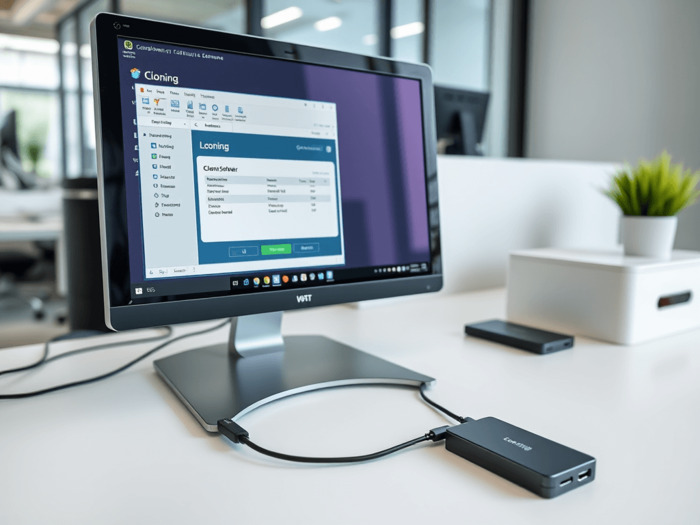
Cloning is the process of creating an exact copy of the source C drive, including all files, settings, and the operating system. This method captures the entire disk structure, making it possible to replicate system configurations and applications. The software reads the data on the source drive and writes it directly to the destination drive, ensuring all information is preserved in its original format. It is particularly useful when you want to migrate your operating system to an SSD without reinstalling everything from scratch.
Why Choose an SSD for Your C Drive?
Upgrading from a traditional HDD to a Solid State Drive (SSD) offers:
1. Check System Compatibility: Verify that your computer hardware and BIOS/UEFI settings support the new SSD. Check the specifications for compatibility with the new SSD you plan to install.
2. Clean Up C Drive Junk: To speed up the process, delete temporary files and system junk from your C drive. Reducing the amount of data ensures a more efficient partition copy.
3. Backup the Destination Disk: The cloning process will completely overwrite and format the target SSD. If you have any existing data on the new SSD, back it up to an external drive or cloud storage before proceeding.
4. Gather Necessary Tools:
Step 1: Install Tatasoft Cloning Software
Step 2: Connect Your New SSD
Connect the new SSD to your computer using a USB or SATA cable, or use an external hard drive enclosure to connect it as a portable drive.
Step 3: Launch Tatasoft and Select Partition Clone
Pro Tip for a Bootable System: If your current system has a System Reserved Partition or an EFI partition, we highly recommend using the Disk Clone feature instead of just copying partitions. This ensures that all boot-related data is transferred correctly, making the new SSD 100% bootable.
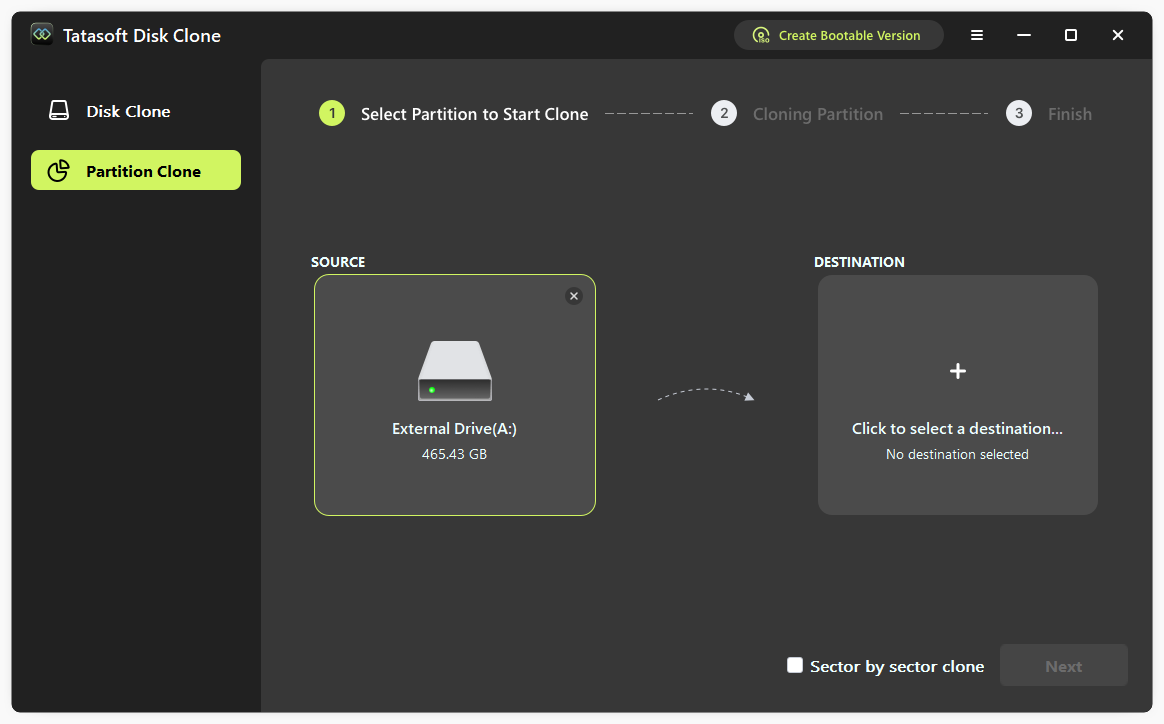
Step 4: Choose Source and Destination Drives
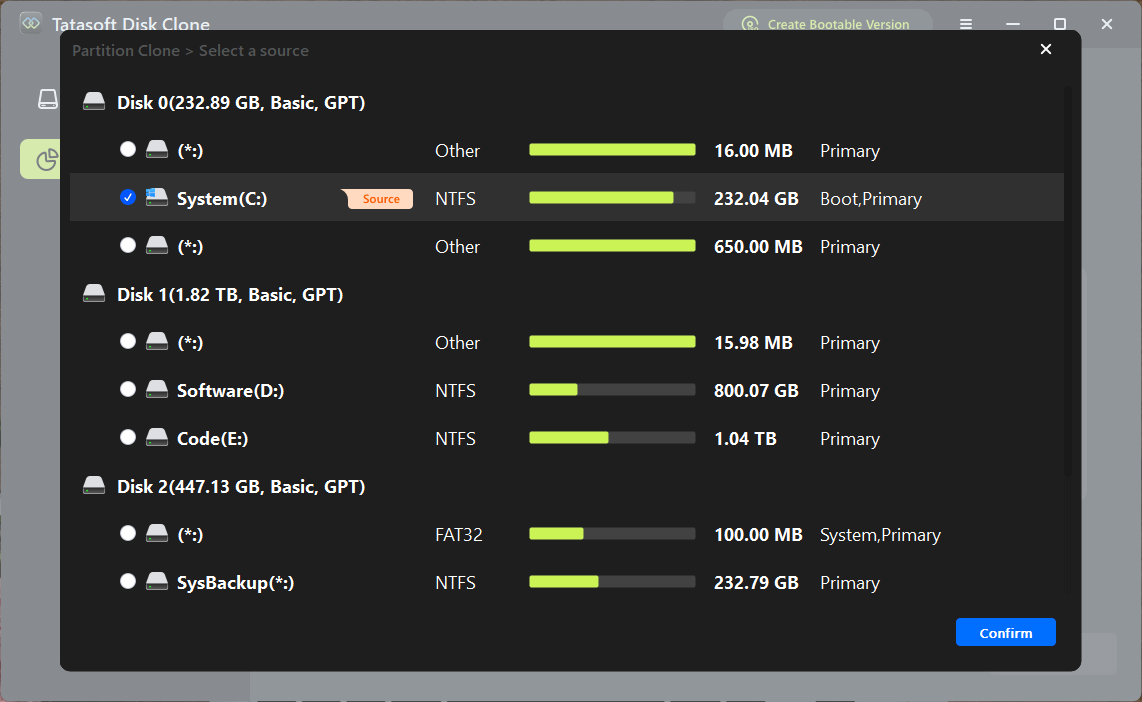
Step 5: Start the Partition Cloning Process
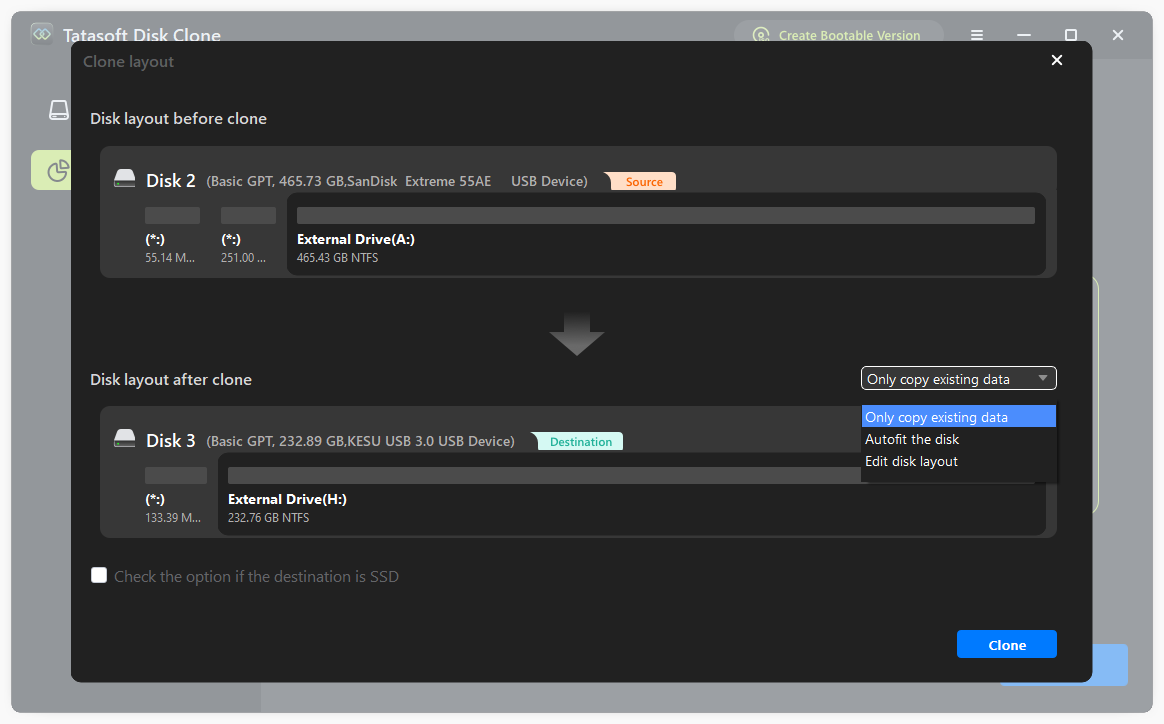
Once you receive the completion notification, restart your computer. Enter the BIOS/UEFI settings to set the new SSD as the primary boot device. This is the final step to successfully clone system partition to a new SSD and enjoy enhanced speed.
After you clone C drive to new SSD, follow these essential steps to ensure your system boots correctly and runs at maximum speed:
1. Change BIOS/UEFI Boot Order (Crucial)
The most common reason a computer won't boot after cloning is that it is still trying to boot from the old drive.
2. Enable TRIM Support
TRIM is vital for maintaining the speed and lifespan of an SSD. It helps the OS inform the SSD which data blocks are no longer in use. Tatasoft has provided this option during the cloning process.
3. Verify Alignment and Partition Status
A successful hard drive to SSD migration should result in "4K alignment."
4. Deal with the Old Drive
Once you’ve confirmed the new SSD is stable for a few days:
5. Monitor SSD Health Regularly
Use professional tools to monitor the health and temperature of your new drive. Regular maintenance ensures that your partition copy software investment continues to pay off with a fast, stable system.
Clone C drive to new SSD with ease to instantly boost your system speed and secure your data. By following the steps in this guide - from cleaning up system junk to selecting the professional Tatasoft Disk Clone for Windows - you ensure a seamless transition without the need to reinstall your OS or applications.
Remember, for systems with a System Reserved Partition, using the Disk Clone feature is the most reliable way to move OS to an SSD and guarantee it remains bootable. Whether you are looking to clone Windows 11 to a new SSD or simply want a faster computing experience, professional software makes the difference.
A dedicated technical writer at Tatasoft with over four years of specialized expertise in computing technology. She crafts actionable, user-centric content for tech niches, specializing in disk cloning, data management, and video solutions for Windows and Mac.
Read full bio
This article has been approved by Ben Lee. Ben's dedication to excellence and his comprehensive knowledge of Windows and Mac technologies make him an essential part of any technical writing team. With a career marked by continuous learning and adaptation to new technologies, Ben remains at the forefront of the ever-evolving tech landscape.