
Written byJanet BashorunUpdated on Jan 06, 2026

Brief introduction: Partition copy software is essential for effective disk data management, enabling exact partition duplicates for data backup, migrations, and storage upgrades—while saving time and preventing data loss for tech enthusiasts, IT professionals, and casual users alike. This guide overviews the top 5 reliable partition cloning options to help you make an informed choice for your data management requirements.
In this article
Partition copy software allows you to create exact replicas of disk partitions, ensuring that all data, system settings, and applications are preserved. These tools are crucial in various scenarios such as:
Understanding the importance of partition copy software is crucial for maintaining data security and ensuring recovery options are in place.
When evaluating partition copy software, consider the following key features:
To help you make an informed decision, we've compiled a list of the best partition copy software available, based on performance, features, and user reviews. The evaluation of partition copy software was conducted based on specific criteria such as:
Test Environment
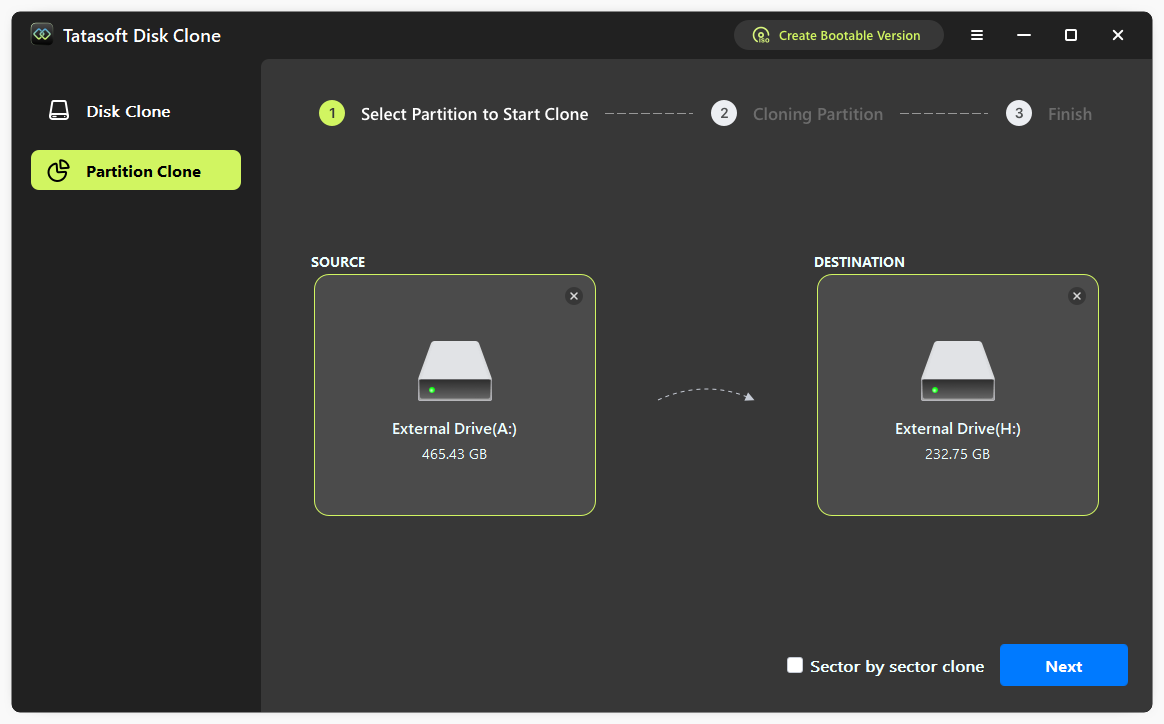
Tatasoft Disk Clone for Windows is known for its user-friendly interface and fast cloning speeds, making it ideal for both beginners and experienced users. It offers both file-by-file and sector-by-sector cloning options. The software supports cloning between different partition sizes and file systems, and includes features like partition resizing and error checking to ensure data integrity. Its pricing starts at $19.95/month.
Pros
Cons
How to clone a partition with Tatasoft
Testing Experience
During testing, Tatasoft completed a typical 256 GB partition clone in under 10 minutes, showcasing its efficiency and reliability. Data integrity checks post-cloning confirmed a 100% success rate, with no loss or corruption.
Authoritative Reviews
Tatasoft Disk Clone Software
"I recently used Tatasoft Cloning Software for partition copying, and it exceeded my expectations! The process was incredibly straight forward. I was able to clone my system partition to a new drive without any issues. Plus, their customer support was responsive and helpful when I had questions.
lf you need reliable partition copy software, l highly recommend Tatasoft."
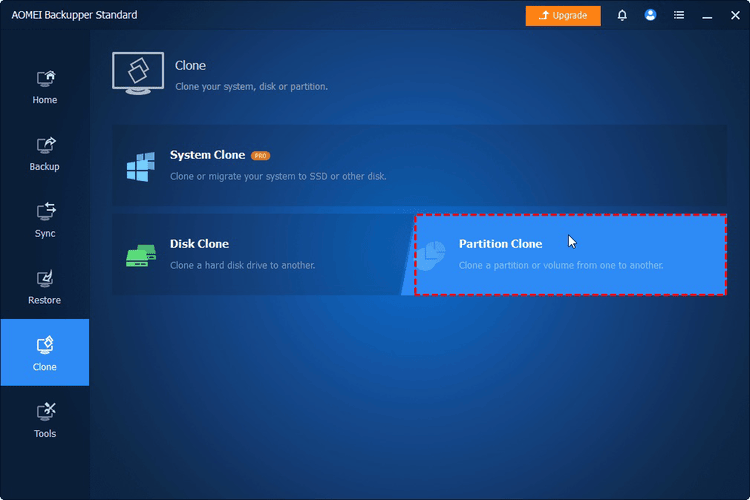
AOMEI Backupper offers versatile functionality for full, incremental, and differential backups. It supports SSD partition alignment, partition resizing during cloning, full compatibility with all Windows versions, and a free edition for personal use (clone data partitions only), with pricing starting at $39.95 per year.
Pros
Cons
How to Operate
Testing Experience
AOMEI Backupper effectively cloned a disk in around 20 minutes while providing multiple backup options for various user needs. Data integrity was verified through checksums, confirming successful cloning.
Authoritative Review
A Powerful Clone software
"AOMEI Backupper helps me a lot with handling data transfers (like clone ssd to nvme) and backup features for files and systems. I really like this free and easy-to-use software. If others are willing to try it, I think AOMEI Backupper will give you a pleasant surprise."
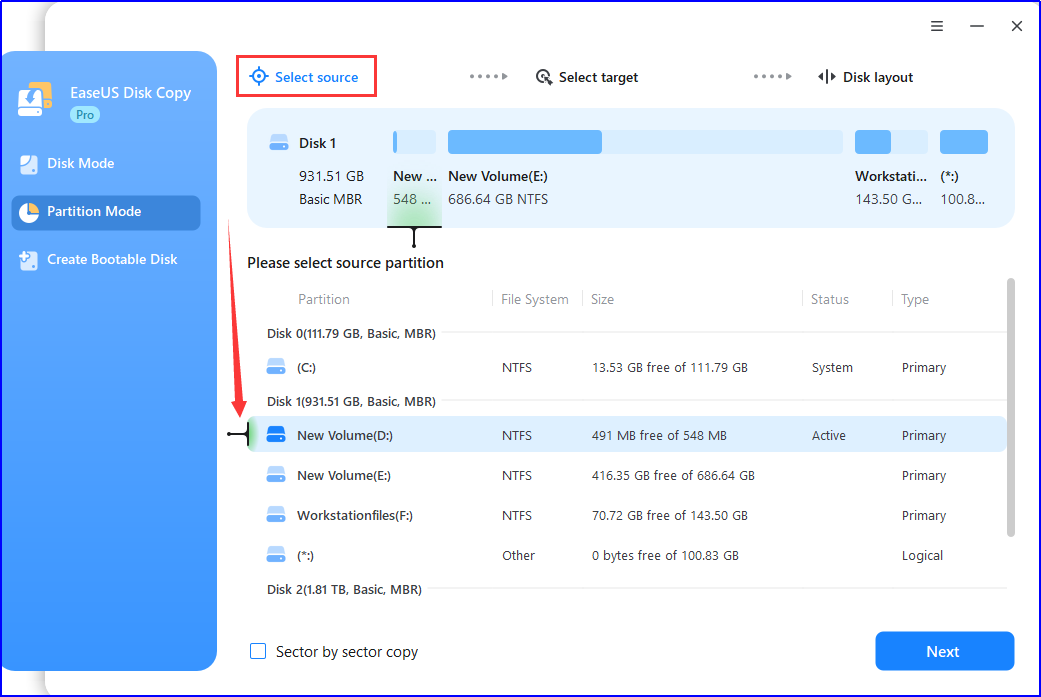
EaseUS Disk Copy is an efficient disk cloning software that enables users to transfer data from one drive to another seamlessly. It is designed for easy Windows OS migration or upgrade of storage devices, ensuring a quick and reliable copy of entire disks or specific partitions.
Pros
Cons
How to Operate
Testing Experience
During testing, EaseUS Disk Copy successfully cloned a 100GB partition in approximately 12 minutes. The software maintained high data integrity throughout the process.
Authoritative Review
W10 vs W11 system disk cloning
"I had a confusing problem today. It was about cloning a W11 drive. I had only done W10 drives before. First time for a W11 drive. W11 apparently identifies the active system drive as C: whether or not it is internal or external. In W10 it didn't do that so I was confused. Initially I thought that the cloned drive wasn't booting, but it actually was. Customer Support helped me identify what happened."
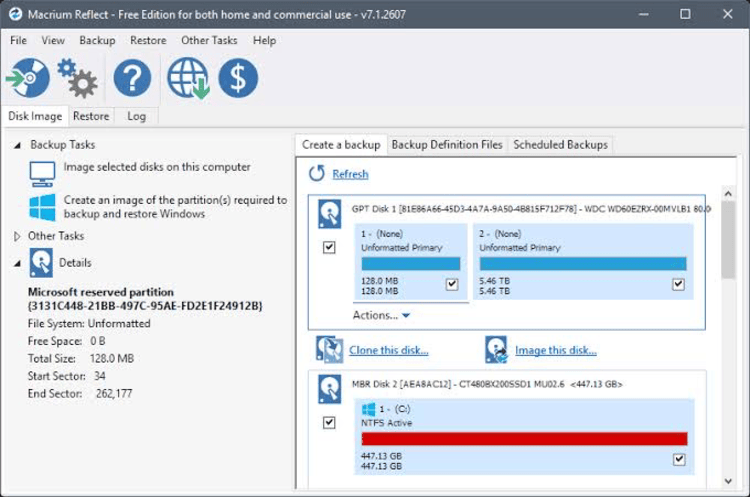
Macrium Reflect is tailored for users seeking advanced features in disk imaging and partition cloning, particularly suitable for IT professionals. The annual pricing begins at $39.95.
Pros
Cons
How to Operate
Testing Experience
Macrium Reflect succeeded in managing large backups during our tests, cloning a 1TB disk in about 35 minutes. While powerful, it required a bit more expertise than Tatasoft, particularly in understanding its features.
Authoritative Review
It's interface is a little clumsy
"It's interface is a little clumsy, and the process of just cloning a drive trying. It took two tries for the drive to be cloned, and I'm still uncertain if the clone is functional."
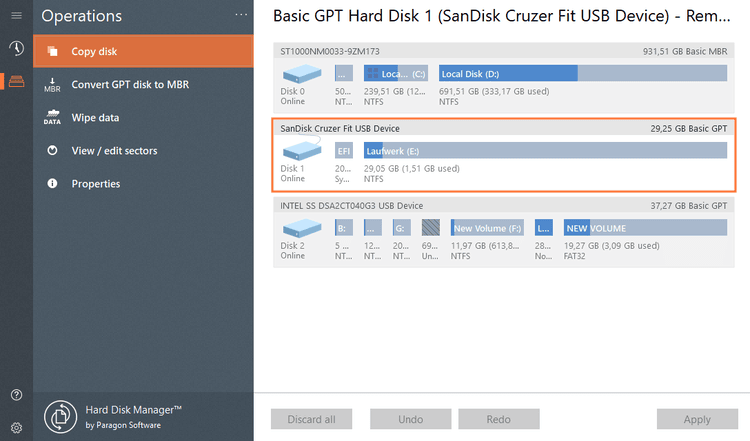
Paragon Hard Disk Manager is a premium partition copy software that combines powerful cloning capabilities with comprehensive disk management tools. New Drive Copy functionality creates an exact, uncompressed replica of your system’s hard drive onto another drive. Pricing starts at $19.95 per year, exclusively for home users.
Pros
Cons
How to Operate
Testing Experience
Paragon Hard Disk Manager demonstrated reliable performance during testing, successfully completing a cloning operation in under 30 minutes. Despite its effectiveness, the complex interface may pose challenges for those unfamiliar with such tools. Data integrity checks confirmed that all data was accurately replicated.
Authoritative Review
Paragon Partition Manager
"I tried Paragon Partition Manager Community Edition on my Windows 10 machine. I had a USB device that Windows refused to recognise after I had used it with a Disk Clone software that apparently messed up the partionon table. The registration process was a bit cumbersome, but the software worked great. Very capable and easy to use."
| Software | Cloning Speed | User Experience | Partition Copy Options | Incremental Backup | Cost (USD) |
|---|---|---|---|---|---|
| Tatasoft Disk Clone | Very Fast | Excellent | Yes | No | $19.95/Month for 2 computers |
| AOMEI Back Upper | Fast | Good | Yes | Yes | $19.95/Month for 2 computers |
| EaseUS Disk Copy | Fast | Excellent | Yes | No | $19.95/Month for 1 computer |
| Macrium Reflect | Moderate | Fair | Yes | Yes | Free/ $39.95 for 1 computer |
| Paragon Hard Disk Manager | Moderate | Fair | System Only | Yes | $19.95/Year for 1 computer |
While partition copy software offers numerous advantages, users may face certain challenges, including:
Partition copy software has a variety of applications, including:
Choosing the right partition copy software is crucial for effective data management and system optimization. This roundup of the top 5 software solutions highlights the diversity in features, usability, and potential challenges associated with each option.
When choosing partition copy software, consider your specific needs, including the type of storage devices you use, your technical expertise, and the features you require. The tools listed in this guide offer a range of options to suit different users, from free, beginner-friendly solutions to premium tools with advanced capabilities. Notably, Tatasoft Disk Clone offers impressive speed and an intuitive interface, making it a strong contender for users seeking efficiency and ease of use.
A dedicated technical writer at Tatasoft with over four years of specialized expertise in computing technology. She crafts actionable, user-centric content for tech niches, specializing in disk cloning, data management, and video solutions for Windows and Mac.
Read full bio
This article has been approved by Ben Lee. Ben's dedication to excellence and his comprehensive knowledge of Windows and Mac technologies make him an essential part of any technical writing team. With a career marked by continuous learning and adaptation to new technologies, Ben remains at the forefront of the ever-evolving tech landscape.


