
Written byJanet BashorunUpdated on Mar 05, 2026

Brief introduction: Cloning your HDD to an NVMe Solid State Drive (SSD) for Windows 11/10 can revolutionize your computing experience. By upgrading to an NVMe SSD, you’ll benefit from significantly improved speed, reliability, and efficiency, making it a smart choice for enhancing OS performance. This guide will walk you through the entire process of cloning HDD to an NVMe SSD, ensuring a smooth transition while maintaining data integrity. We will also highlight the advantages of using Tatasoft disk cloning software, making HDD upgrade as seamless as possible.
In this article
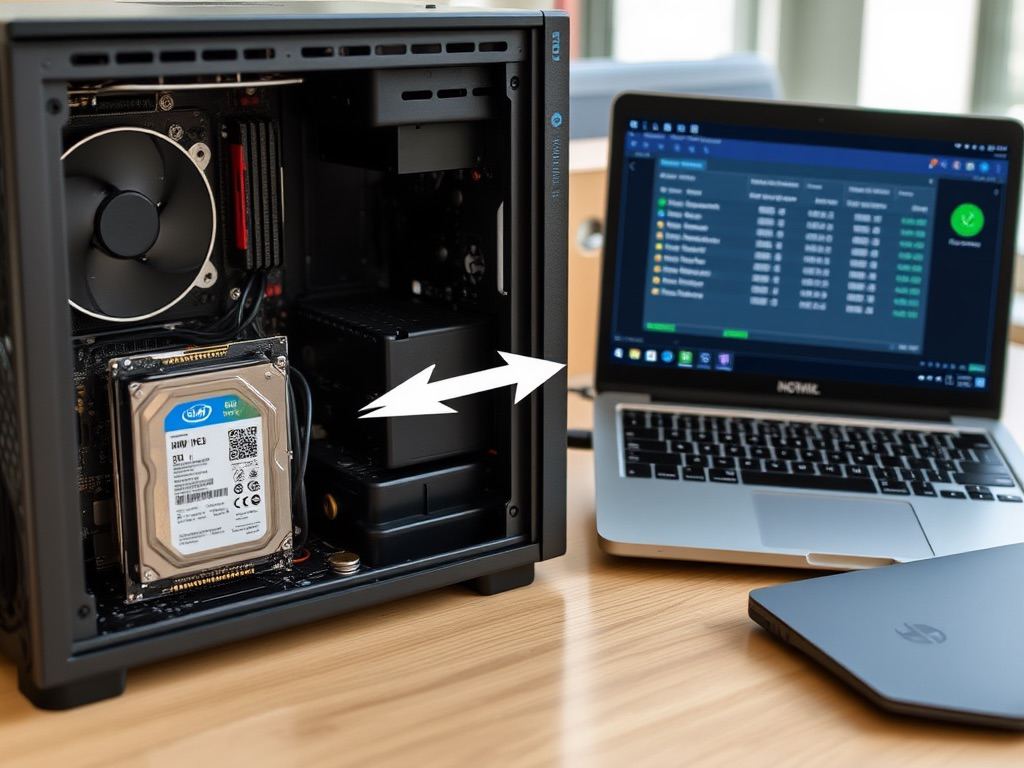
Before diving into the HDD cloning process, it's crucial to understand why NVMe SSDs are a preferred choice over HDDs on Windows:
Before you begin the process of cloning your HDD to an NVMe SSD in Windows 11/10, there are 5 steps you should take to prepare:
1. Backup Your Data
Always start with a complete backup of your data on the destination NVMe SSD if it has. This precaution ensures that if the target drive will be erased during the cloning process, your important files remain safe.
2. Choose the Right HDD Cloning Software
Selecting the right disk cloning software is vital for a successful cloning process. Tatasoft Disk Clone for Windows is highly recommended due to its user-friendly interface and powerful features that facilitate the cloning of HDDs to NVMe SSDs seamlessly for Windows 11/10/8/7/Vista.
3. Install the NVMe SSD
Physically install the NVMe SSD into your computer. Make sure to follow the manufacturer's instructions for installation, ensuring that the drive is securely connected to the motherboard.
4. Ensure Enough Space
Make sure that the NVMe SSD has enough space to accommodate all the data from your HDD.
5. Clean up the HDD
If necessary, consider cleaning up unnecessary files on your source HDD to free up space and improve cloning efficiency.
Step 1: Install the NVMe SSD
Step 2: Download and Install Tatasoft Disk Clone, then Launch it
Step 3: Switch to Disk Clone and Select Disks to Clone

Step 4: Configure NVMe SSD Cloning Options
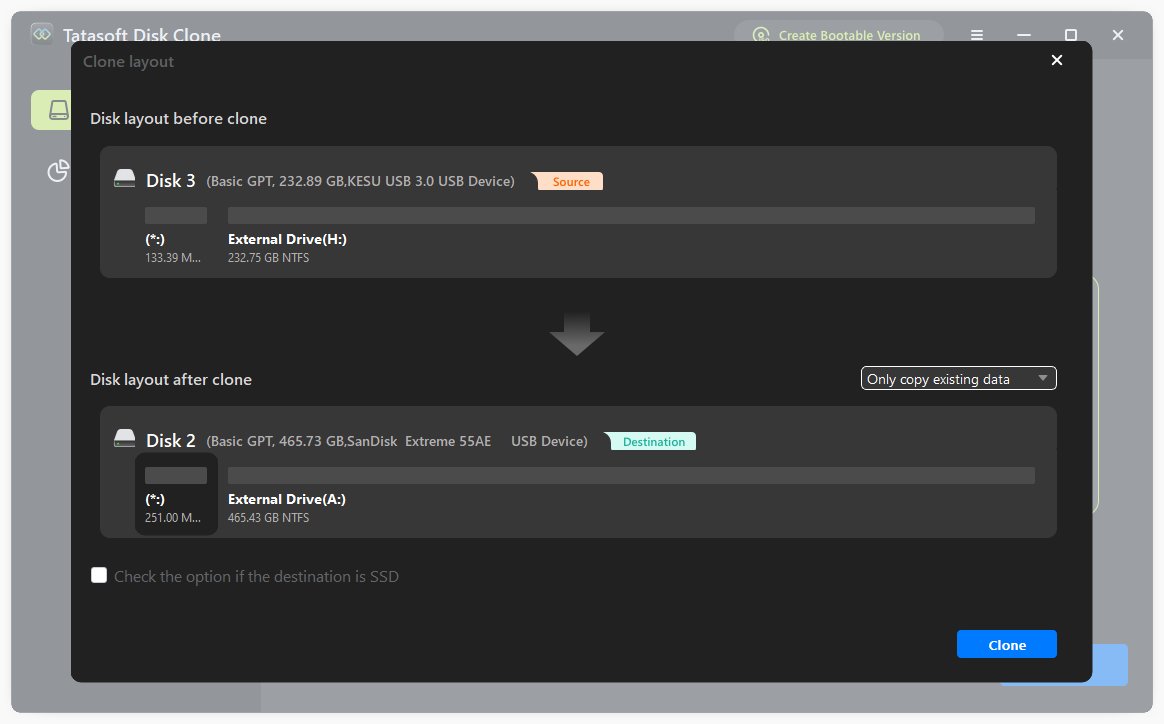
Step 5: Start the HDD Cloning Process
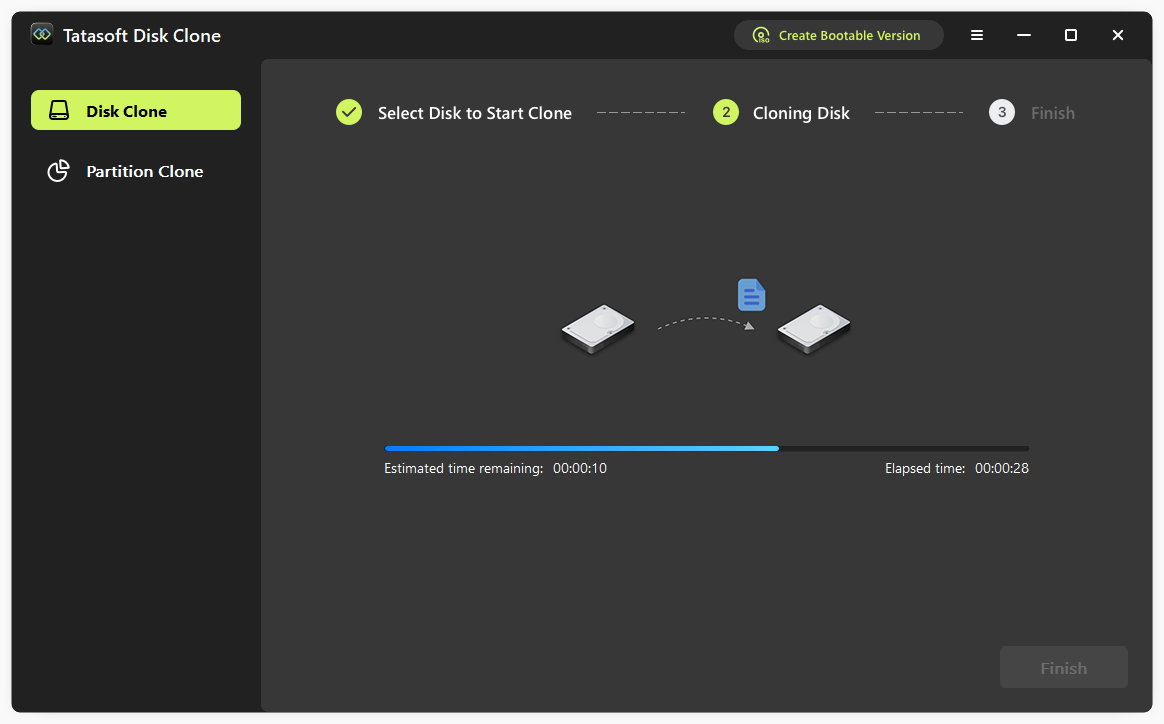
Step 6: Change Boot Order in BIOS
If you are cloning a system disk to NVMe SSD, to boot from your new NVMe SSD, you must change the boot order in your BIOS settings as below:
After rebooting, your system should now boot from the NVMe SSD. Enjoy your new NVMe SSD and you’ll notice improved performance and faster load times for applications and games.
Expert Insight: When cloning an HDD to an NVMe SSD, data integrity is paramount to prevent corruption or loss. Use cloning software with built-in verification - this feature cross-checks source and destination data post-cloning, ensuring byte-perfect transfer. Tools like Tatasoft often include such safeguards, minimizing risks from incomplete or faulty copies. Additionally, back up critical data beforehand as a fail-safe, preserving your files even if the cloning process encounters issues.
After successfully cloning your HDD to NVMe SSD, consider the following:
1. Enable TRIM Support
To maintain performance over time, ensure that TRIM support is enabled or check the box before "check the option if the destination is SSD" during the cloning process. This feature allows the OS to inform the SSD which blocks of data are no longer considered in use, helping to manage unused data blocks effectively.
2. Update Firmware
Check the manufacturer's website for any firmware updates for your NVMe SSD. Keeping the firmware updated can improve performance and ensure compatibility with your system.
3. Monitor SSD Health
Use monitoring software to keep an eye on the health of your NVMe SSD. This can help you catch any potential issues early, ensuring the longevity of the drive.
While cloning your hard disk to NVMe SSD is generally straightforward, you might encounter some issues. Here are common problems and their solutions:
1. Insufficient Space on the Target Drive
If the NVMe SSD does not have enough space for the data being cloned, you may need to delete unnecessary files from the source HDD before cloning.
2. Cloning Process Fails
If the cloning process fails, ensure that:
3. Boot Issues After Cloning
If your computer fails to boot from the NVMe SSD after cloning:
Cloning your HDD to an NVMe SSD is an excellent way to enhance your computer's performance and storage capabilities. By following this comprehensive guide, you can ensure a smooth and successful HDD to SSD cloning process while leveraging tools like Tatasoft disk cloning software for optimal results.
Understand the benefits, prepare adequately, and follow the detailed steps provided to make the transition to an NVMe SSD seamless. Experience improved speed, efficiency, and reliability with modern storage technology. Utilize Tatasoft Disk Clone to simplify your HDD upgrade today!
A dedicated technical writer at Tatasoft with over four years of specialized expertise in computing technology. She crafts actionable, user-centric content for tech niches, specializing in disk cloning, data management, and video solutions for Windows and Mac.
Read full bio
This article has been approved by Ben Lee. Ben's dedication to excellence and his comprehensive knowledge of Windows and Mac technologies make him an essential part of any technical writing team. With a career marked by continuous learning and adaptation to new technologies, Ben remains at the forefront of the ever-evolving tech landscape.