
Written byJanet BashorunUpdated on Jan 20, 2026

Brief introduction: Copying a partition to another drive using CMD (Command Prompt) can be a vital task for data management, backup, or system migration. Manually moving data between drives can be time-consuming. For advanced users, Windows offers built-in command-line tools to migrate data. This guide will walk you through the technical process of using Command Prompt (CMD) to copy partitions for free and introduce a more efficient, "one-click" alternative – Tatasoft Disk Clone for those who want to avoid the risks of manual coding.
In this article
Before diving into partition copy steps, it's essential to understand what partitions are and how they function within your hard drive. A partition is a section of a hard drive that is treated as a separate volume by the operating system. Each partition can hold its file system, making it possible to run multiple operating systems or organize data efficiently.
Types of Partitions
Why Copy Partitions?
There are several reasons you might want to copy a partition:
To copy data from one partition (e.g., D: drive) to another (e.g., E: drive) or clone a hard drive using the command prompt, we rely on the xcopy command. This command is powerful enough to copy all files, folders, and subdirectories, including hidden and system files.
Step 1: Open Command Prompt as Administrator
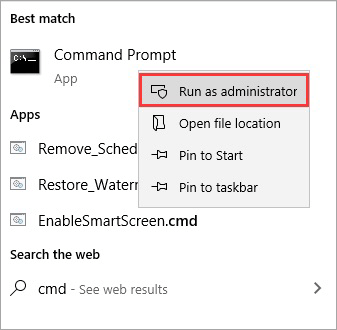
To start, you need to open Command Prompt with administrative privileges. This allows you to execute commands that require elevated permissions: Click on the Start menu > Type "cmd" in the search bar > Right-click on Command Prompt and select Run as administrator. Or Press Win + S, type cmd.
Step 2: Identify the Source and Destination Drives
Before copying, ensure you know the letter of your source partition (e.g., D:) and the destination partition (e.g., E:). You need to identify the source partition (the one you want to copy) and the destination drive (where you want to copy the data).
cmd
diskpart
list disk
cmd
select disk X (replace X with your disk number)
list volume
Step 3: Copying the Partition
While CMD does not have a direct command to copy partitions, you can use the `xcopy` command for file-level copying or third-party partition copy tools for a bit-by-bit clone. Here’s how to use `xcopy` to copy files from a partition:
Exit `diskpart` by typing:
cmd
exit
cmd
xcopy D:\ E:\ /s /e /h
In this command:
Once the copying process is complete, navigate to the destination drive to ensure all files have been copied correctly. Check for missing files or folders to ensure a successful transfer.
While free, using CMD has significant drawbacks:
If you are looking to create an exact 1:1 copy of a partition (sector-by-sector), or if you need to migrate your Operating System to a new SSD without reinstalling Windows, CMD is not enough.
For those who prefer a graphical interface or need to clone an entire partition, we recommend Tatasoft Disk Clone for Windows. It is a professional utility designed to simplify the cloning process, ensuring data integrity and bootability.
Step 1: Download and Install Tatasoft Disk Clone for Windows
Step 2: Launch Tatasoft and choose Partition Clone
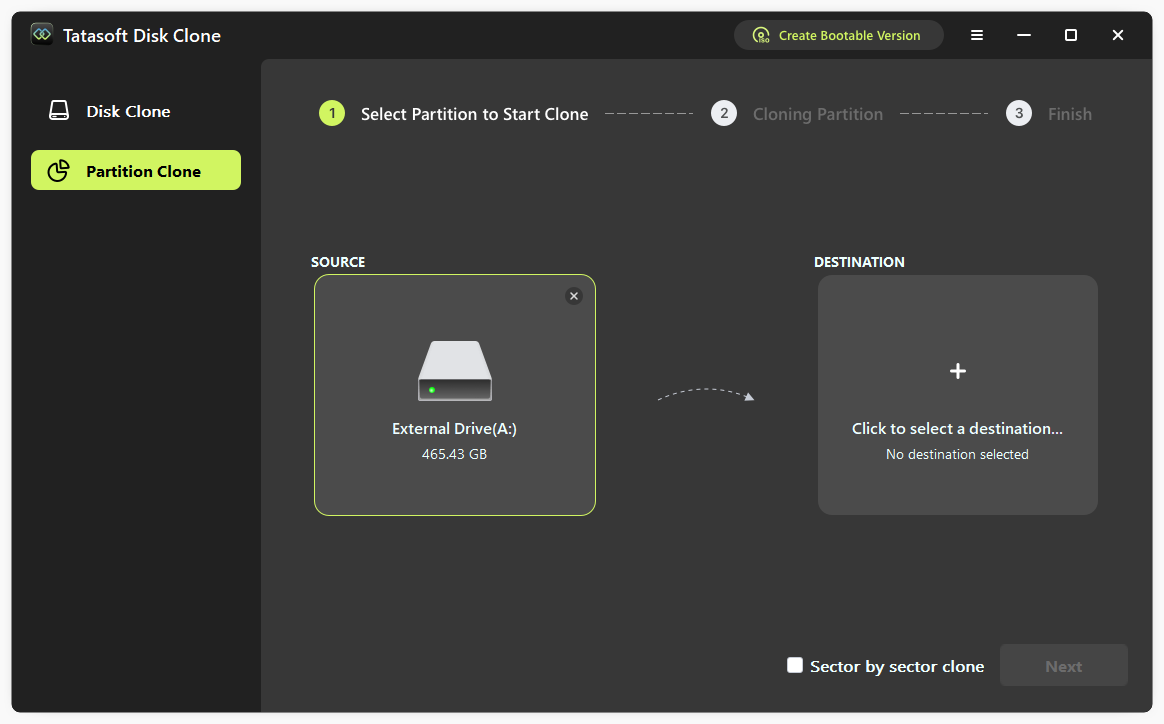
Step 3: Select the source and destination drive
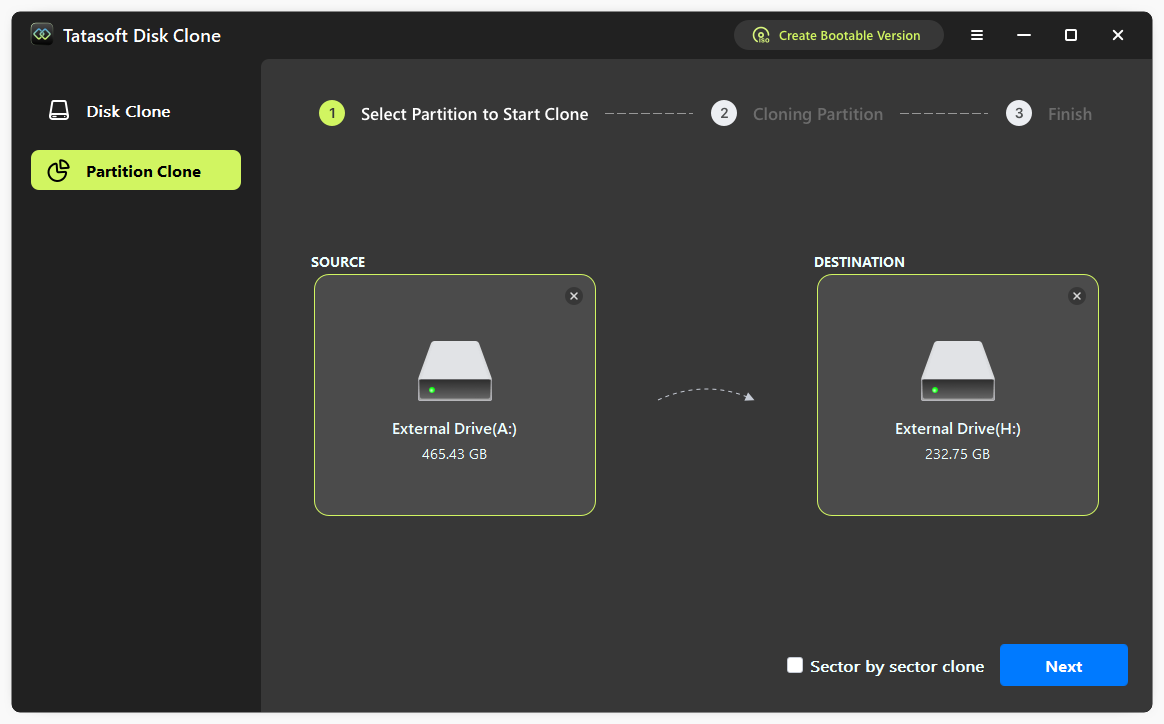
Step 4: Start the partition cloning process
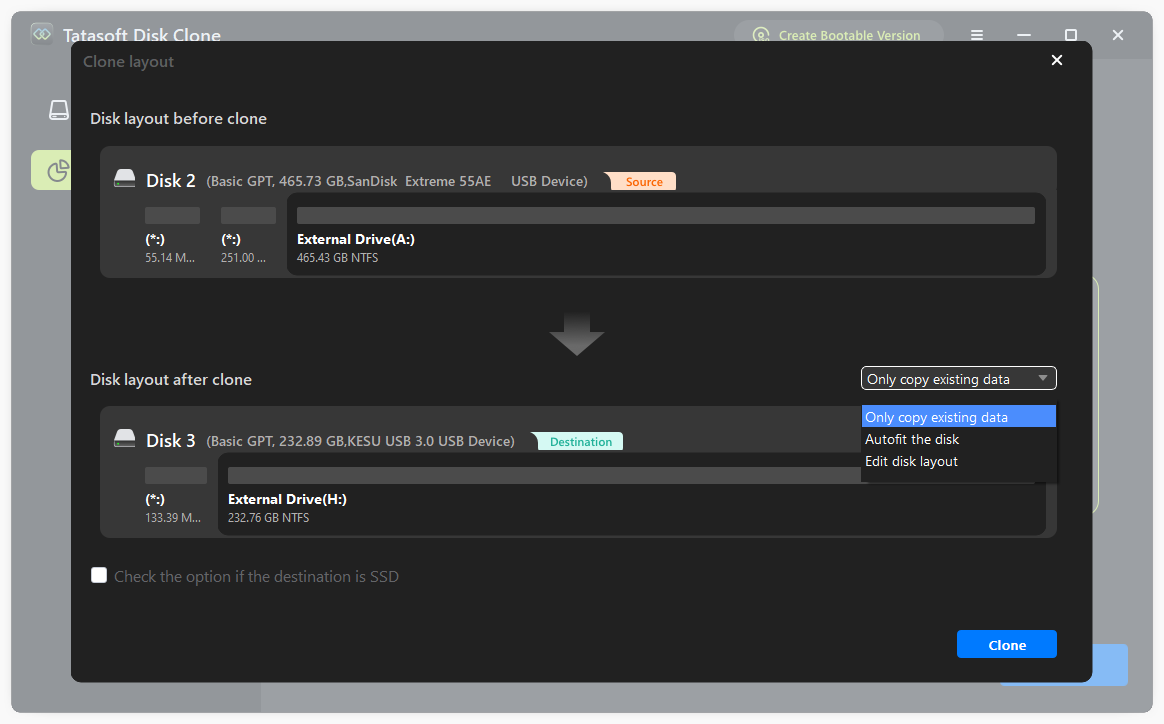
Tatsoft will handle the entire process, providing a visual progress bar and estimated completion time. After cloning, navigate to the destination drive to check if the files and structure match the original partition. This ensures that the cloning process was successful.
While performing a partition copy is generally straightforward, you may encounter some issues. Here are a few common problems and how to resolve them:
1. Backup Important Data
Before performing any cloning or copying operations, it’s crucial to back up important data on the destination drive to prevent accidental loss.
2. Disk Space Requirements
Ensure that the destination drive has sufficient space to accommodate the entire partition. Cloning operations can fail if there is not enough space.
3. File System Compatibility
Check that the file systems of the source and destination drives are compatible. For instance, copying from NTFS to FAT32 may cause issues with file size limits.
4. Use Reliable Partition Copy Software
When using third-party partition copy tools, choose reputable software like Tatasoft Disk Clone to minimize the risk of data corruption or loss during the cloning process.
Common Issues and Troubleshooting
1. Cloning Process Fails
If the cloning process fails, check for error messages that may indicate what went wrong. Ensure that the destination drive is properly connected and has enough space.
2. Inaccessible Destination Drive
If the destination drive is not accessible, verify that it is formatted correctly and recognized by your operating system. You may need to format the drive before cloning.
3. Missing Files After Copying
If files appear to be missing after the copying process, double-check the source partition and ensure that all files were copied. Using `xcopy` with the `/h` option can help include hidden files.
Copying a partition to another drive using CMD is an invaluable skill for anyone looking to manage their data effectively, perform system migrations, or back up important files. However, for critical tasks like upgrading a hard drive or moving an operating system, the command line lacks the necessary features to ensure a bootable, stable result. For a secure, fast, and error-free experience, we recommend using Tatasoft Disk Clone for Windows. It takes the complexity out of partition management and ensures your data is moved safely.
By following the steps outlined in this guide and implementing best practices, you can confidently copy partitions while safeguarding your valuable data now.
Yes, using either CMD or cloning software ensures that your data remains intact during the copying process.
Technically, commands like xcopy or robocopy only perform file-level copying. While they move your data, they do not copy the Master Boot Record (MBR), GUID Partition Table (GPT), or boot sectors. If you need to make the destination drive bootable, a dedicated tool like Tatasoft Disk Clone is required to ensure all system configurations and hidden boot files are preserved.
This usually happens for two reasons:
1.Permissions: You aren't running Command Prompt as an Administrator.
2.In-use Files: CMD cannot copy files that are currently being used by the operating system. To bypass these restrictions, using a professional utility like Tatasoft Disk Clone is more effective, as it uses Volume Shadow Copy Service (VSS) to copy files even while they are open.
No, native Windows Command Prompt tools (like xcopy) do not support sector-by-sector (bit-by-bit) cloning. They only see files and folders. If your source partition has a specific file system structure or deleted data you wish to recover, you should use Tatasoft Disk Clone, which offers a "Sector-by-Sector Clone" mode for an exact 1:1 replica.
Standard CMD commands like xcopy do not show a real-time progress bar; they only list file names as they are copied, which can be confusing for large transfers. For a visual interface with estimated time remaining and a clear progress percentage, Tatasoft Disk Clone provides a much more user-friendly experience compared to the blinking cursor of the command line.
A dedicated technical writer at Tatasoft with over four years of specialized expertise in computing technology. She crafts actionable, user-centric content for tech niches, specializing in disk cloning, data management, and video solutions for Windows and Mac.
Read full bio
This article has been approved by Ben Lee. Ben's dedication to excellence and his comprehensive knowledge of Windows and Mac technologies make him an essential part of any technical writing team. With a career marked by continuous learning and adaptation to new technologies, Ben remains at the forefront of the ever-evolving tech landscape.