
Written byJanet BashorunUpdated on Dec 17, 2025

Brief introduction: Disk Cloning vs. Disk Imaging presents a fundamental choice in the world of data management and backup solutions. While both serve similar purposes, they have distinct characteristics that make them suitable for different scenarios. This guide will help you understand their differences, advantages, disadvantages, and when to use each method. Additionally, we will introduce Tatasoft Disk Cloning Software, streamlining your disk cloning and backup processes.
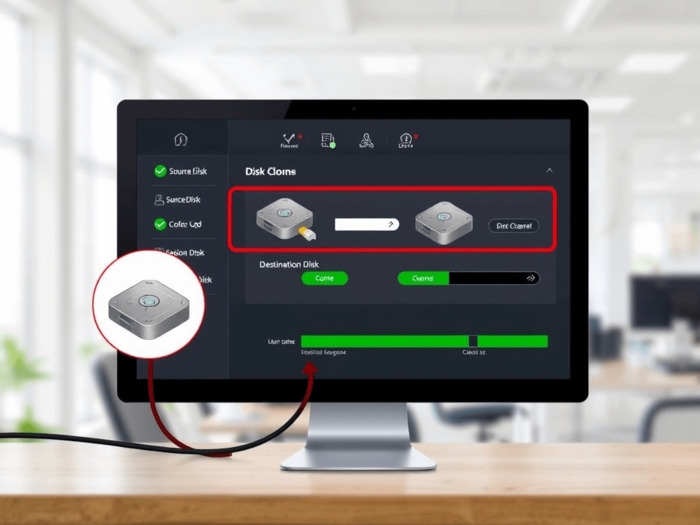
Disk cloning is the process of creating a direct copy of a hard drive or SSD to a target disk. This means that every bit of data, including the operating system, applications, settings, and all files, is replicated on a new drive. The resulting clone is an exact duplicate of the source drive.
| Advantages of Disk Cloning | Disadvantages of Disk Cloning |
|---|---|
|
|
Disk imaging, on the other hand, creates a single file (image file) that contains all the data on the disk in a compressed format. This image file can be saved on another disk or medium, allowing users to manage data backups more efficiently.
| Advantages of Disk Imaging | Disadvantages of Disk Imaging |
|---|---|
|
|
| Feature | Disk Cloning | Disk Imaging |
|---|---|---|
| Backup Type | Exact duplicate | Compressed image file |
| Storage | Requires another physical disk | Can be stored on various media |
| Speed of Recovery | Fast, immediate replacement | Slower, full restoration |
| Compression | Typically uncompressed | Often compressed to save space |
| Encryption | Rarely supported | Commonly supported |
| Flexibility | Limited to entire drive | Selective restoration available |
| Incremental or Differential Options | No | Yes |
| Use Case | Quick replacements/deployments | Long-term backups/disaster recovery |
Use Disk Cloning When:
Use Disk Imaging When:
When deciding between disk cloning and disk imaging, several factors should influence your choice:
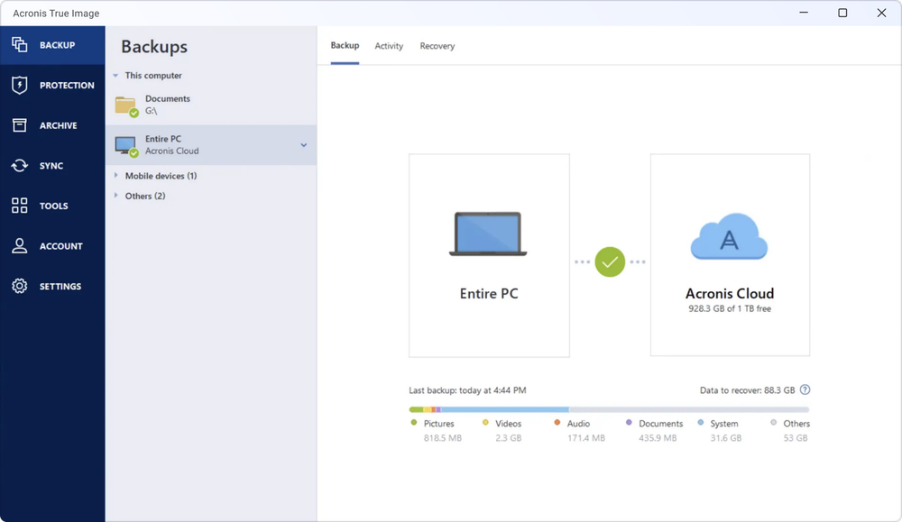
Regardless of your choice between disk cloning and disk imaging, using an efficient disk cloning tool like Tatasoft disk cloning software or backup software like Acronis True Image can simplify the process significantly.
Step-by-step guide to clone a hard drive with Tatasoft Disk Clone

Steps to image a hard drive with Acronis True Image
Understanding the practical applications of disk cloning and disk imaging can further clarify the necessity of these processes:
In the debate of Disk Cloning vs. Disk Imaging, the best choice ultimately hinges on your individual requirements and preferences. Cloning offers a straightforward method for complete data transfer and quick recovery, while imaging provides a more flexible, space-efficient solution for incremental or differential backups and selective restoration.
No matter which option you choose, utilizing a tool like Tatasoft Cloning Software or Acronis True Image can simplify the process and enhance the effectiveness of your data management strategy. By understanding both methodologies, users can protect their data more efficiently and ensure that they are well-prepared for any future data loss incidents.
A dedicated technical writer at Tatasoft with over four years of specialized expertise in computing technology. She crafts actionable, user-centric content for tech niches, specializing in disk cloning, data management, and video solutions for Windows and Mac.
Read full bio
This article has been approved by Ben Lee. Ben's dedication to excellence and his comprehensive knowledge of Windows and Mac technologies make him an essential part of any technical writing team. With a career marked by continuous learning and adaptation to new technologies, Ben remains at the forefront of the ever-evolving tech landscape.