
Written byJanet BashorunUpdated on Jan 28, 2026

Brief introduction: Upgrade Lenovo Legion 5 SSD is one of the smartest moves a gamer or power user can make to improve speed, responsiveness, and storage capacity. The Lenovo Legion 5 is already a powerful gaming laptop, but upgrading its SSD can significantly enhance overall performance—cutting load times, improving multitasking capabilities, and ensuring that games and applications launch in seconds.
In this article
Unlike reinstalling your system from scratch, duplicating your existing drive ensures all your settings, files, and games remain intact. With Tatasoft Cloning Software, the upgrade process is smooth, reliable, and beginner-friendly, making it the preferred choice for both casual gamers and professionals who want to maximize their machine's potential.
The Lenovo Legion 5 is designed with gamers in mind, which means flexibility in its storage options. Depending on the specific model, it may come equipped with a variety of configurations, such as:
This versatile architecture means you can either:
While the Lenovo Legion 5 ships with adequate storage, demanding users often find themselves running out of space or experiencing slower-than-desired performance. Here’s why an SSD upgrade is crucial for maximizing your gaming experience:
1. Enhanced Gaming Performance: Faster SSDs significantly reduce texture pop-ins, shorten load screens, and provide a smoother in-game experience. This is particularly important for fast-paced games where every second counts.
2. More Storage for Modern Games: With many AAA titles requiring over 100GB of space, storage can fill up quickly. Upgrading ensures you can install more games without the hassle of constant deletions or managing disk space.
3. Faster Multitasking: Gamers often stream, edit, and play simultaneously. An upgraded SSD allows for seamless switching between applications without lag, which can be crucial during intense gaming sessions.
4. Longer Device Lifespan: SSDs are generally more durable than HDDs, extending the reliability and lifespan of your Legion 5. This means fewer hardware issues over time, allowing you to enjoy your investment for years to come.
Not sure if it’s time to upgrade? Watch for these telltale signs that indicate your laptop might benefit from an SSD upgrade:
1. Sluggish Boot Times: If Windows takes longer than 30 seconds to load, your current SSD may be too small or underperforming. Quick boot times are essential for a smooth user experience.
2. Game Load Bottlenecks: Prolonged waits on loading screens in popular titles like Cyberpunk 2077 or Call of Duty are clear red flags that your storage solution is inadequate.
3. Storage Warnings: If you constantly receive warnings about low storage space, it indicates that you might need more capacity to handle your gaming and application needs effectively.
4. Frequent Freezing or Lag: Even with ample RAM, slow storage can drag everything down, leading to frustrating gameplay and workflow interruptions.
Upgrading ensures your laptop keeps pace with modern demands without the need for a complete machine replacement.
To avoid mistakes during the upgrade process, run through this checklist:
Back Up Data: Even if you’re cloning your old drive, it’s wise to keep an external backup for safety. This protects against potential data loss.
Check BIOS Settings: Determine whether your system operates under UEFI or Legacy Boot, as this may affect the installation process.
Clean Up Files: Deleting unnecessary files can help shorten the cloning time and streamline the process.
Gather Tools: Ensure you have a small screwdriver set, thermal paste (if required), and your new SSD ready for installation.
Prepare Software: Download Tatasoft Cloning Software ahead of time to ensure a smooth data transfer process.
Upgrade Solution: Before buying an SSD, it’s important to decide how you want to upgrade your Legion 5. Your options include:
1. Primary Drive Replacement: Swap out your original SSD for a larger, faster NVMe drive. This option is ideal for gamers who want maximum performance without juggling multiple drives.
2. Dual SSD Setup: If your Legion 5 has a second M.2 slot, you can add another SSD while keeping the original. This is perfect for users who want separate drives for games, work, or personal files.
3. SSD + HDD Hybrid: Keep a large HDD for bulk files like movies, backups, or raw footage, while your SSD runs your OS and games. This setup balances capacity with speed.
Example: A professional video editor may prefer a dual-SSD setup for speed and organization, while a gamer might swap the primary drive for a high-capacity NVMe to fit all their games in one place.
Select SSD: Once you’ve chosen your upgrade path, the next step is picking the right SSD model. Here’s what matters most:
Instead of reinstalling Windows and all your games, cloning Lenovo Legion 5 SSD is the ultimate shortcut. Here’s how Tatasoft makes it easy:
Step 1: Download and Install Tatasoft Cloning Software
Install the software on your Lenovo Legion 5 to prepare for the migration.
Step 2: Connect the New SSD
Use a USB-to-NVMe or USB-to-SATA adapter (depending on your SSD type) to connect the new drive externally to your laptop.
Step 3: Launch Tatasoft and Select Source Drive
Open the software and choose your current SSD (the one inside your Legion 5) as the source drive.
Step 4: Choose the Destination Drive
Select the newly connected SSD as the destination drive where all data will be copied.

Step 5: Start the Cloning Process
Tatasoft will automatically handle partition alignment, sector transfers, and OS migration, ensuring the new SSD is bootable.
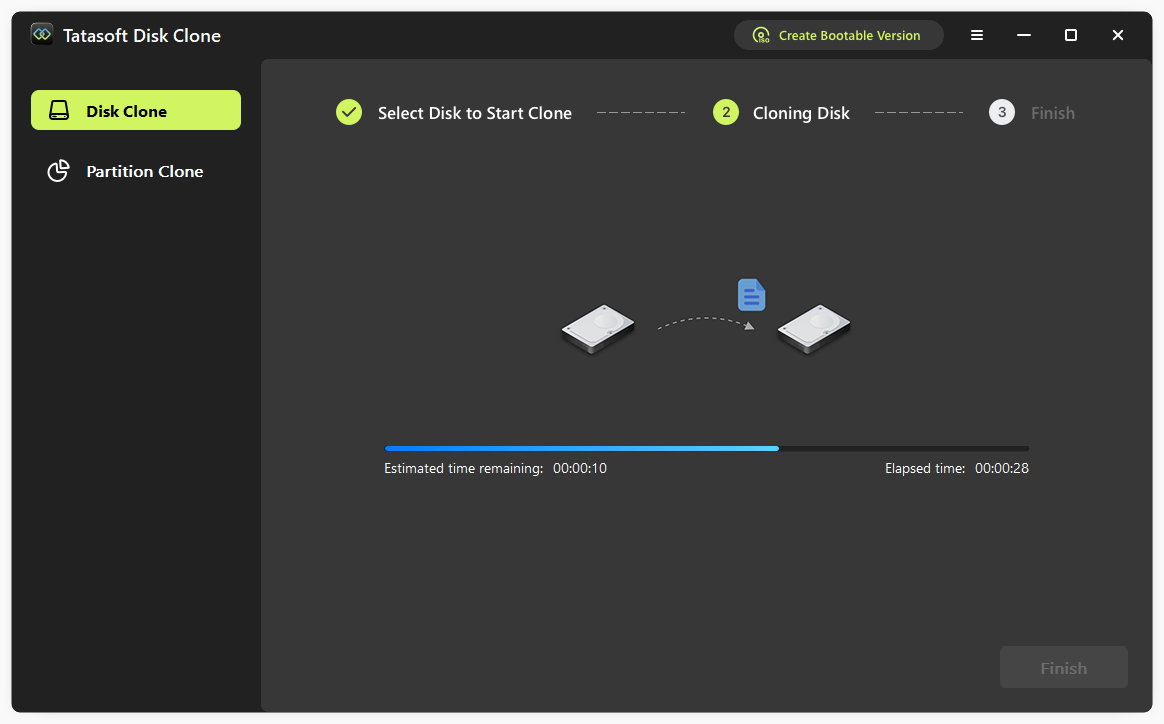
Step 6: Install the New SSD Internally
Once cloning is complete, power down your Legion 5, replace or add the new SSD inside the laptop, and secure it properly.
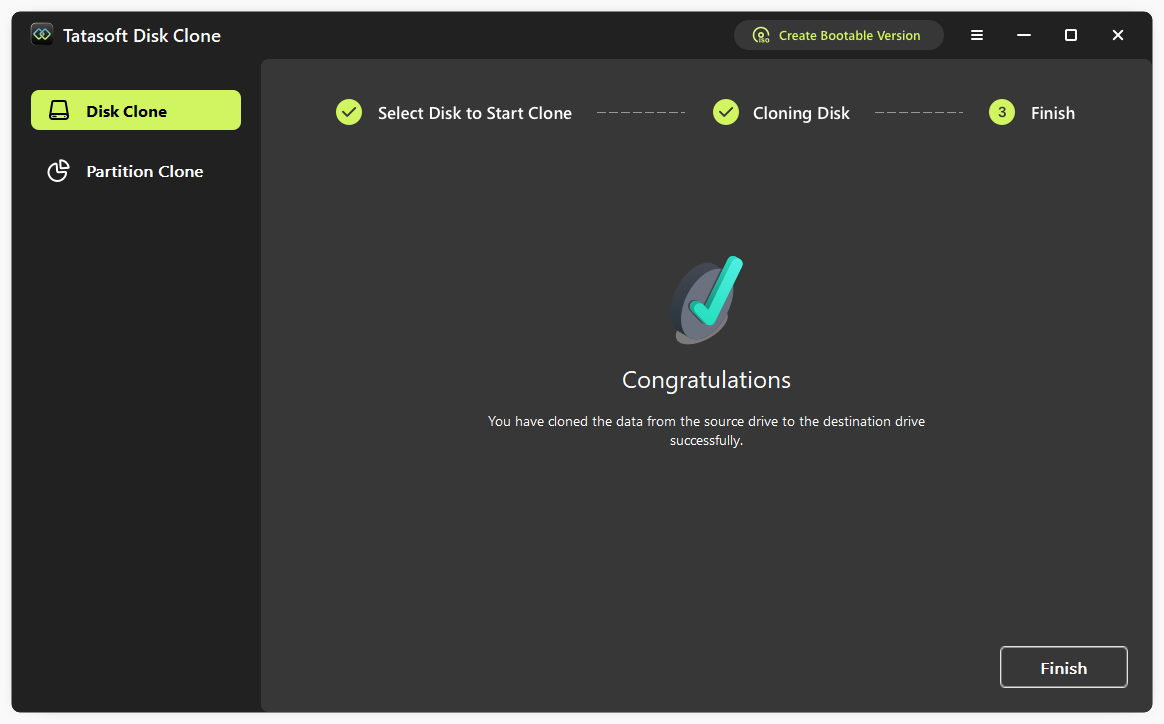
Step 7: Set Boot Priority (if required)
Enter the BIOS settings and make sure the new SSD is selected as the primary boot drive.
Unlike manual migration, Tatasoft ensures your new SSD is bootable and optimized for gaming performance, allowing you to enjoy your upgraded system immediately.
Once your Lenovo Legion 5 is running on a new SSD, the improvements are almost immediate:
Many gamers describe the experience as akin to having a “brand-new laptop” without the need for a costly replacement.
Once upgraded, proper maintenance is essential to ensure long-term performance and reliability:
Upgrade Lenovo Legion 5 SSD is one of the most effective enhancements for gamers, professionals, and creators alike. From significantly shorter load times to smoother multitasking capabilities, the benefits are both immediate and profound.
With the right preparation, a solid understanding of Lenovo’s storage layout, and Tatasoft Cloning Software, you can carry out the upgrade with confidence, ensuring your Legion 5 performs at its peak for years to come.
Don’t wait until lag or storage shortages slow you down. Upgrade your Lenovo Legion 5 SSD today with the help of Tatasoft and experience peak performance built for the future.
A dedicated technical writer at Tatasoft with over four years of specialized expertise in computing technology. She crafts actionable, user-centric content for tech niches, specializing in disk cloning, data management, and video solutions for Windows and Mac.
Read full bio
This article has been approved by Ben Lee. Ben's dedication to excellence and his comprehensive knowledge of Windows and Mac technologies make him an essential part of any technical writing team. With a career marked by continuous learning and adaptation to new technologies, Ben remains at the forefront of the ever-evolving tech landscape.