
Written byJanet BashorunUpdated on Dec 17, 2025

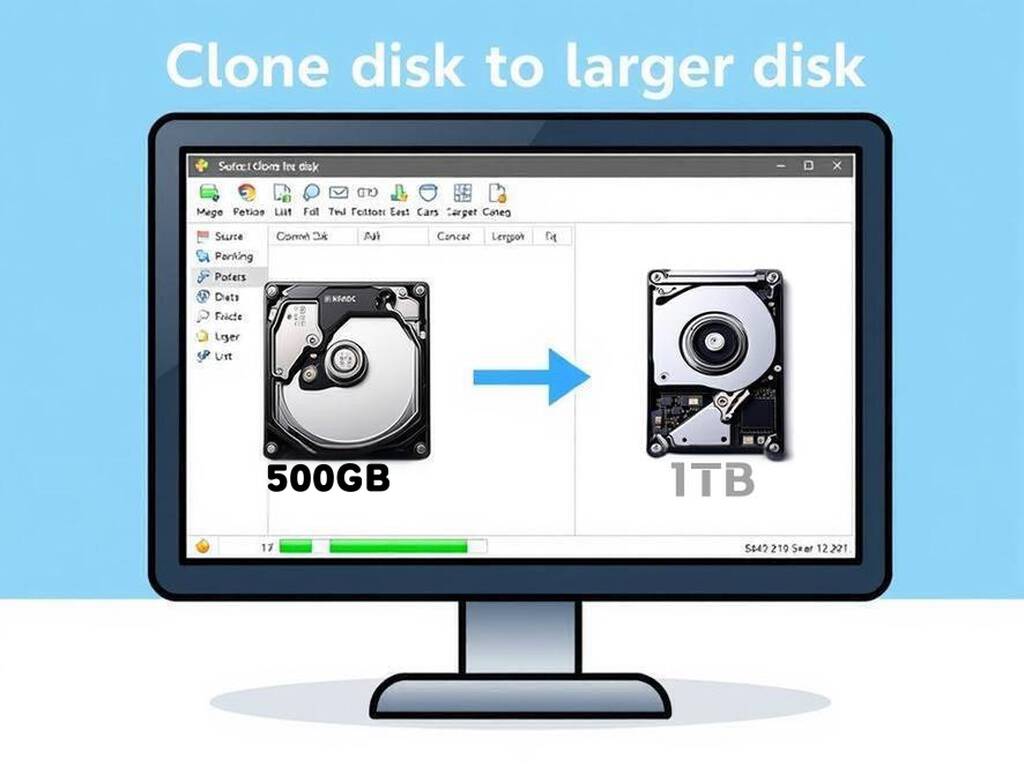
Brief introduction: Cloning a disk to a larger disk provides the easiest storage upgrade solution, enabling full system migration, including OS, applications, and personal files without reinstallation. Whether you need faster SSD performance, expanded capacity for growing data, or seamless drive replacement, disk cloning ensures zero downtime transition. In this article, we’ll explore the benefits of cloning your disk, provide a detailed step-by-step guide using Tatasoft Disk Clone, and share essential tips for a successful upgrade to larger drives.
In this article
1. Enhanced Storage Capacity
Transitioning to a larger disk gives you the room needed to store more applications, pictures, videos, and files without fear of running out of space. With data sizes continually growing, this upgrade is often essential.
2. Improved Performance
A larger disk often goes hand-in-hand with newer technology, such as upgrading to a lager SSD, which provides faster read and write speeds. This means quicker boot times and improved performance for your applications.
3. Data Preservation
Cloning OS disk keeps your current operating system, settings, and files intact. The result? A hassle-free experience where there's no need to reinstall software or redo your personalized settings.
4. Time-Saving Efficiency
Cloning your disk allows you to transfer everything in one go. Rather than spending hours reinstalling programs and transferring files manually, you can have everything ready on your new disk in significantly less time.
Essential Pre-Cloning Checklist Before diving into the cloning process, it’s vital to properly prepare:
Step 1: Connect the New Larger Disk to your PC
Step 2: Launch Tatasoft Disk Clone and Select Disk Clone
Step 3: Select Source and Target Drives to Clone

Step 4: Configure Disk Cloning Settings
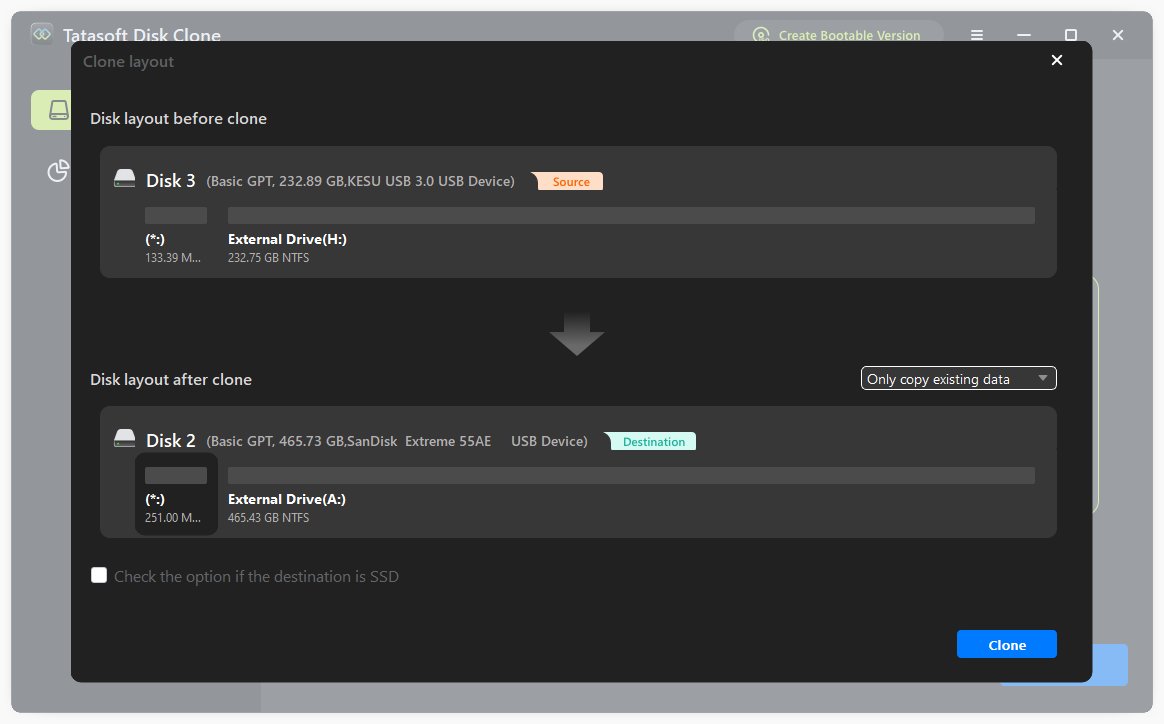
Step 5: Start the Cloning Process
Step 6: Set Your System to Boot from the New Disk
If you are cloning hard drive with OS, to make the larger disk your primary drive:
Step 7: Validate Operation
Expert Insight: To successfully clone a disk to a larger one, prioritize data integrity and security. First, check files and system settings, and run diagnostics to identify potential source drive issues. Using reliable disk cloning software like Tatasoft Disk Clone, which offers automatic data verification - ensures accurate file replication, reduces corruption risks, and provides a smooth transition to larger storage.
1. Optimize Your New Disk
After cloning, consider optimizing your new and larger disk for enhanced performance. If using an SSD, ensure TRIM is enabled for efficient data management or remember to check the option if the destination is SSD.
2. Regular Backups
Even with a new disk, maintaining regular backups is key. Actively backup your data to avoid future losses.
3. Keep Software Updated
Ensure that your Tatasoft disk cloning software is regularly updated. This ensures you benefit from enhancements, improved algorithms, and security updates that enhance the cloning process and protect your data.
Despite careful preparations, you may encounter challenges while cloning your smaller disk to a lager one. Here are some common issues and solutions:
1. Insufficient Space on Target Disk
If you receive notifications about insufficient space:
2. Cloning Errors or Failures
If the cloning process fails or encounters errors:
3. System Fails to Boot from New Disk
If your system does not boot from the new larger disk:
Cloning your disk to a larger disk can significantly improve your system's functionality, offering not just extra space but enhanced speed and performance. By following the steps outlined in this guide and leveraging Tatasoft Disk Clone, you can ensure a smooth transition to your new storage solution. Remember, the process not only secures your current data but also positions you for future growth in your digital storage needs. Regular maintenance and backups will further protect your investment, allowing you to enjoy the increased capabilities without worry.
Unlock your system's full potential and ensure your data is secure by downloading Tatasoft Disk Clone today. Additionally, it also clones hard drive to a smaller SSD, as long as the SSD can accommodate all the data from the source disk. Experience the simplicity and effectiveness of disk cloning with Tatasoft's reliable solutions. Happy cloning!
A dedicated technical writer at Tatasoft with over four years of specialized expertise in computing technology. She crafts actionable, user-centric content for tech niches, specializing in disk cloning, data management, and video solutions for Windows and Mac.
Read full bio
This article has been approved by Ben Lee. Ben's dedication to excellence and his comprehensive knowledge of Windows and Mac technologies make him an essential part of any technical writing team. With a career marked by continuous learning and adaptation to new technologies, Ben remains at the forefront of the ever-evolving tech landscape.