
Written byJanet BashorunUpdated on Jan 08, 2026

Brief introduction: Upgrading your HP laptop to a Solid State Drive(SSD) isn’t just a hardware tweak—it’s a game-changer for performance and speed. Experience faster boot times, smoother multitasking, and snappier app launches by transiting from a traditional HDD to an SSD, all while skipping the hassle of reinstalling your system. Dive into a straightforward, step-by-step guide to cloning HP laptop to an SSD seamlessly with Tatasoft Disk Clone.
In this article
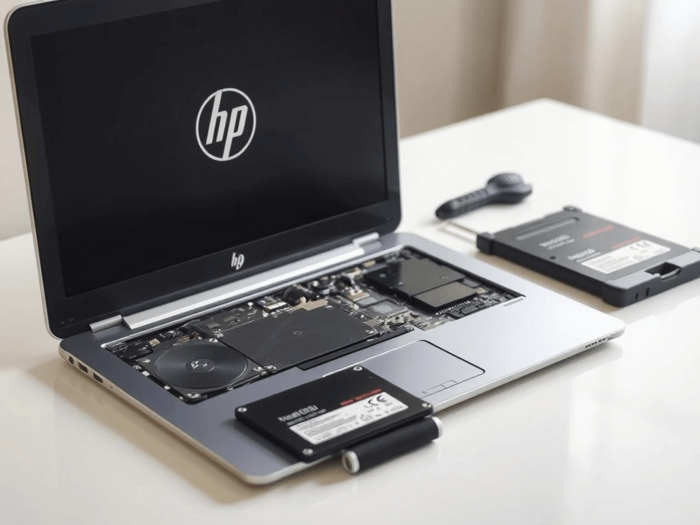
1. Enhanced Speed and Performance
One of the most significant advantages of upgrading your HP laptop to an SSD is the dramatic increase in speed. SSDs can read and write data much faster than HDDs, resulting in quicker boot times, faster application launches, and improved multitasking capabilities if migrating your Windows OS to an SSD. For HP laptops, SSD boot time is typically under 20 seconds, compared to over a minute with HDDs.
2. Improved Reliability and Durability
SSDs have no moving parts, making them more resistant to physical damage from drops or bumps. This increased durability ensures that your data remains safe, which is especially beneficial for users who frequently travel or use their laptops in various environments.
3. Better Energy Efficiency
Another advantage of upgrading is the energy efficiency of SSDs. They consume less power than HDDs, which can lead to longer battery life for your laptop. This is crucial for users who rely on their laptops for prolonged periods without access to a power source.
4. Quieter Operation
Upgrading your HP laptop to an SSD also means a quieter computing experience. Since SSDs operate silently, you’ll no longer hear the whirring of a hard drive, allowing for a more pleasant working environment, especially during tasks requiring concentration.
1. Determine Compatibility
Before purchasing an SSD, it’s essential to check your HP laptop’s specifications to ensure compatibility. Most modern laptops support SATA III SSDs, but some may require M.2 or PCIe NVMe drives. Consult your laptop’s manual or HP’s official website for detailed specifications.
2. Select the Appropriate Storage Capacity
When upgrading your HP laptop to an SSD, choosing the right storage capacity is crucial. SSDs typically range from 120GB to 2TB or more. Consider your storage needs based on the applications you use, files you store, and any multimedia content you require.
3. Evaluate Brands and Models
Several reputable brands manufacture SSDs, including Samsung, Crucial, and Western Digital. Research different models and read user reviews to find one that suits your performance expectations and budget.
Step 1: Backup Your Data
Before beginning the SSD upgrade process, it’s vital to back up all your important data on the destination SSD. You can use external storage devices or cloud services to ensure your files are secure.
Step 2: Gather necessary tools for upgrading HP laptop to an SSD
You'll need a few tools to complete the upgrade:
Step 3: Clone your HP laptop to an SSD
① Install Tatasoft Disk Clone for Windows to your HP laptop.
② Connect your SSD
③ Launch Tatasoft Disk Clone and choose Disk Clone
④ Select your HP laptop disks for cloning
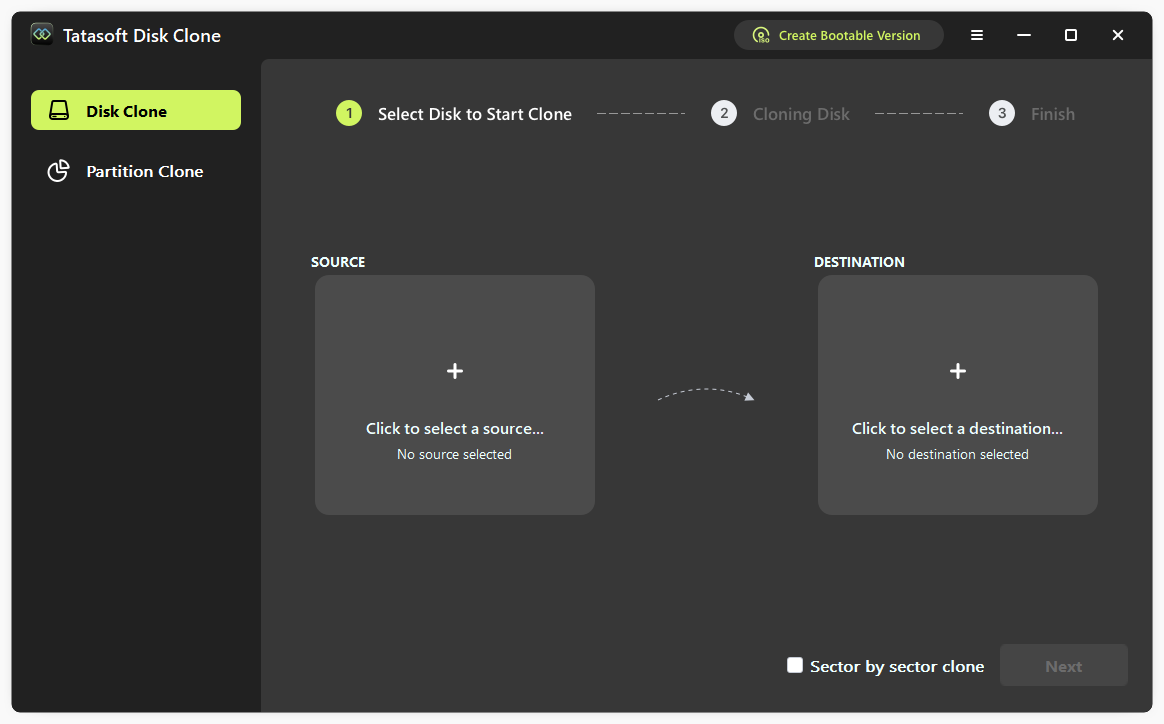
⑤ Configure cloning settings to clone your HP laptop to an SSD
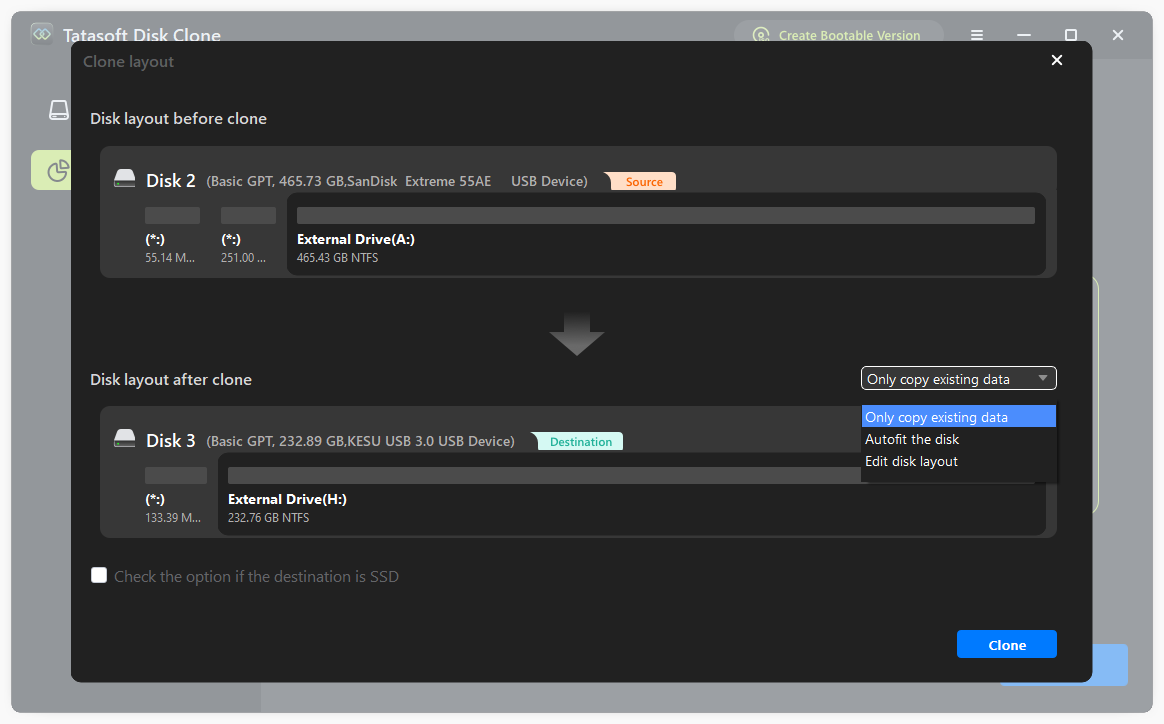
Once the cloning is complete, Tatasoft will notify you. Make sure to check that all your files and the operating system have been successfully transferred.
Step 4: Remove the Old HDD
Step 5: Install the SSD
Step 6: Boot Up and Configure
While upgrading your HP laptop to an SSD can enhance performance, there are several common issues that users may encounter during the process:
Upgrading your HP laptop to an SSD can dramatically enhance its speed, reliability, and overall performance, transforming your computing experience. To ensure a smooth HDD transition, consider using Tatasoft Disk Clone to effortlessly transfer your operating system and data to the new SSD. This user-friendly tool simplifies the laptop hard drive cloning process, making it accessible even for those who may not be tech-savvy.
Ready to experience the difference? Take the first step toward unlocking your laptop's full potential today! Upgrade to an SSD and leverage Tatasoft cloning software for a hassle-free installation.
A dedicated technical writer at Tatasoft with over four years of specialized expertise in computing technology. She crafts actionable, user-centric content for tech niches, specializing in disk cloning, data management, and video solutions for Windows and Mac.
Read full bio
This article has been approved by Ben Lee. Ben's dedication to excellence and his comprehensive knowledge of Windows and Mac technologies make him an essential part of any technical writing team. With a career marked by continuous learning and adaptation to new technologies, Ben remains at the forefront of the ever-evolving tech landscape.