
Written byJanet BashorunUpdated on Feb 10, 2026

Brief introduction: Is your computer feeling sluggish? To copy your Windows installation to an SSD is the single most effective way to breathe new life into your PC. This upgrade provides significantly faster boot times, quicker application launches, and a more responsive user experience compared to traditional HDDs. By using Tatasoft Disk Clone, you can achieve this migration seamlessly without the hassle of reinstalling your operating system, apps, or drivers.
In this article
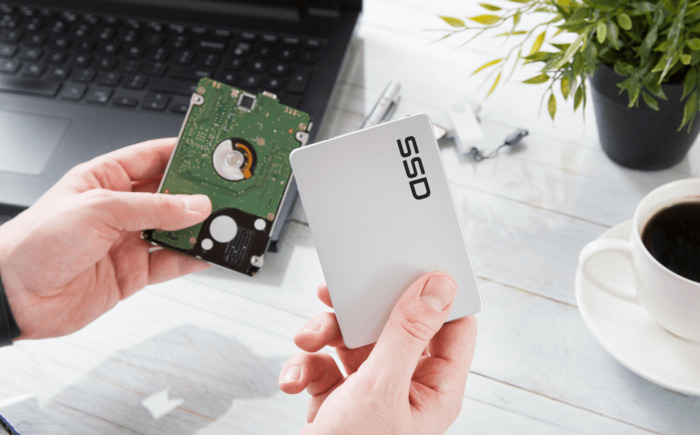
Upgrading Window installation from an HDD to a Solid State Drive (SSD) offers transformative benefits:
1. Enhanced Speed and Performance
One of the primary reasons to copy your Windows installation to an SSD is the dramatic improvement in speed. SSDs can read and write data much faster than HDDs, leading to:
2. Increased Reliability
SSDs are more reliable than HDDs due to their lack of moving parts. This results in:
3. Improved Power Efficiency
SSDs consume less power than HDDs, contributing to:
It is important to understand the technical nuances of your Windows migration. For instance, knowing the difference between disk cloning vs. disk imaging can help you decide the best way to preserve your boot sectors. If you need an exact copy for immediate use, cloning is right for you.
1. Backup Your Data
The destination SSD will be formatted during the process. Securely back up any existing files on that drive to an external hard drive or cloud storage first.
2. Choose the Right SSD
Selecting the appropriate SSD is essential for a successful migration. Consider the following factors:
3. Download Professional Disk Cloning Software
For a seamless migration experience, download Tatasoft Disk Clone for Windows to simplify the process and ensure that your new SSD is a perfect replica of your old drive.
Step 1: Install Your SSD
For Desktops: For desktops, connect the SSD to a SATA port; for laptops, it is highly recommended to connect your new SSD as an external drive (using a SATA-to-USB adapter) to perform the cloning first. Once the migration is complete, you can then physically install the SSD into the laptop.
For brand-new SSDs, perform an initialization first so that Windows can properly detect and access the drive. Open Disk Management, right-click the "Unallocated" space on the new drive, and select Initialize Disk. Special setups might require you to clone dynamic disk to SSD.
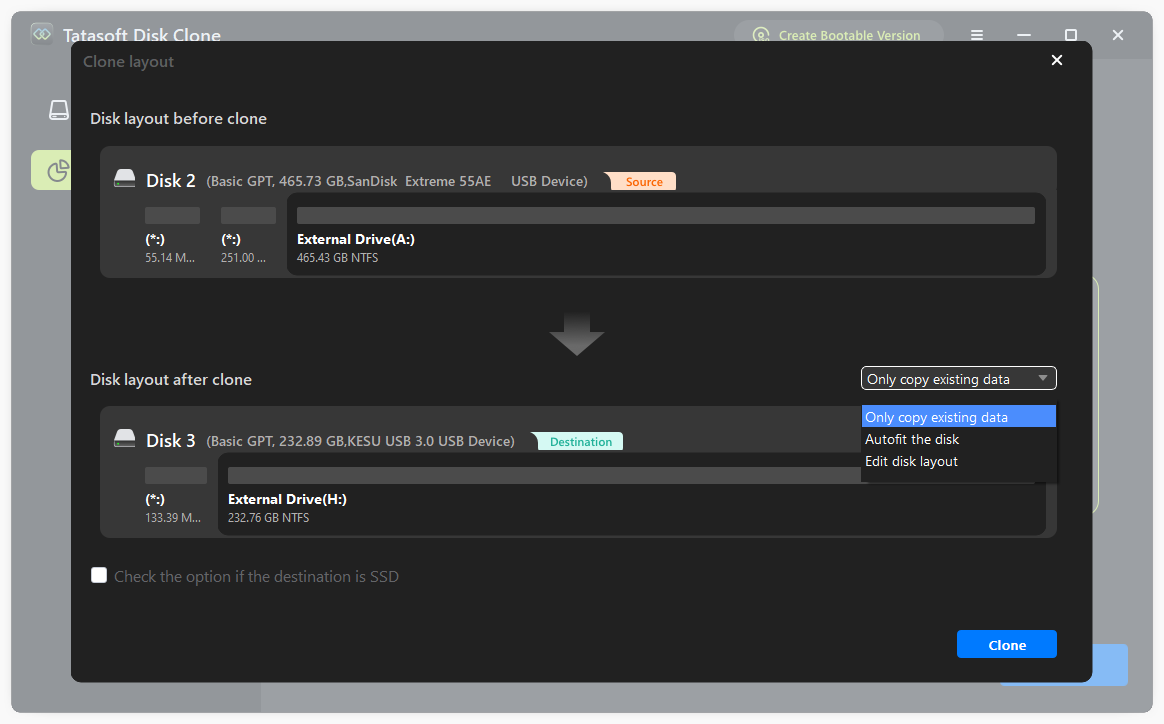
Step 2: Select the Source and Destination Drives for Cloning

Step 3: Start the Cloning Process
Tips: Tatasoft Disk Clone includes an "Optimize for SSD" option (enable TRIM and 4K Alignment). Ensure this is checked to align the partitions correctly, which is vital for SSD longevity and speed.
Step 4: Booting from the New SSD
Once finished, restart your PC and enter the BIOS/UEFI (usually by pressing F2, F12, or Del). Change the boot order so the SSD is the Primary Boot Device. Save and exit; your computer should now load Windows in seconds.
Tips: If you are on the latest OS, follow our guide to move Windows 11 installation to a new drive. Using an older version? See how to clone Windows 10 to SSD.
After successfully migrating your system, follow these essential maintenance steps to preserve your SSD’s peak performance and extend its lifespan.
To copy your Windows installation to an SSD is undoubtedly the most impactful upgrade you can perform to modernize an aging PC. By switching from a mechanical drive to solid-state technology, you eliminate system bottlenecks, drastically reduce boot times, and enjoy a near-instant response from your favorite applications. Using Tatasoft Disk Clone makes this transition risk-free and remarkably simple.
Whether you are performing a routine upgrade, need to replace a failing hard drive or change to a new computer, Tatasoft ensures that your OS, drivers, and personalized settings remain perfectly intact and bootable. Don't let a sluggish system hold back your productivity or gaming experience. Take the leap toward a faster, more efficient computing environment today.
A dedicated technical writer at Tatasoft with over four years of specialized expertise in computing technology. She crafts actionable, user-centric content for tech niches, specializing in disk cloning, data management, and video solutions for Windows and Mac.
Read full bio
This article has been approved by Ben Lee. Ben's dedication to excellence and his comprehensive knowledge of Windows and Mac technologies make him an essential part of any technical writing team. With a career marked by continuous learning and adaptation to new technologies, Ben remains at the forefront of the ever-evolving tech landscape.