
Written byJanet BashorunUpdated on Jan 27, 2026

Brief introduction: To clone Windows 10 to SSD is a vital task for users seeking to enhance their computer's performance. Upgrading from a traditional hard drive to an SSD can significantly improve boot times and application load speeds. This guide will explore the three methods to clone your Windows 10 operating system to an SSD without reinstalling, focusing exclusively on the use of Tatasoft Disk Clone for Windows to ensure a smooth and efficient migration.
In this article
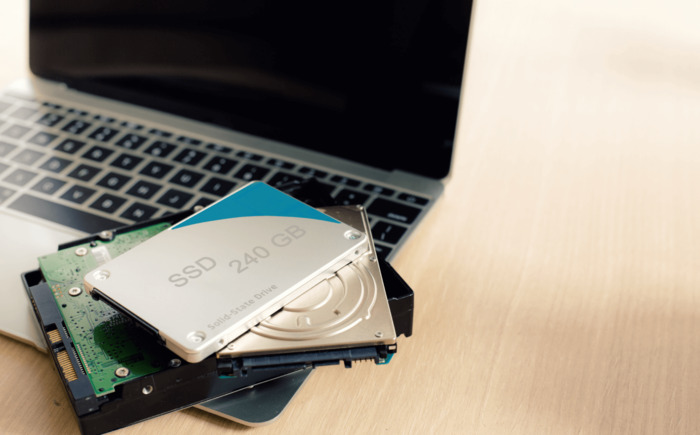
Upgrading from a traditional Hard Disk Drive (HDD) to an SSD offers transformative benefits:
Cloning a hard disk ensures a seamless transition by preserving all your files, settings, and installed programs. If you are looking to move Windows 10 to another drive without reinstalling, cloning is your best solution.
Tatasoft Disk Clone is a professional utility designed for users who want a fast, "no-fail" cloning process. It handles partition alignment automatically to ensure your SSD performs at its peak.
Step 1: Use a USB or SATA connection to attach the SSD to your computer.
Step 2: Launch Tatasoft Disk Clone and select Disk Clone from the main menu.
Step 3: Select your current HDD as the Source and the new SSD as the Destination.

Step 4: Select Edit disk layout from the drop-down menu (if necessary) to configure the target SSD's partition sizes.
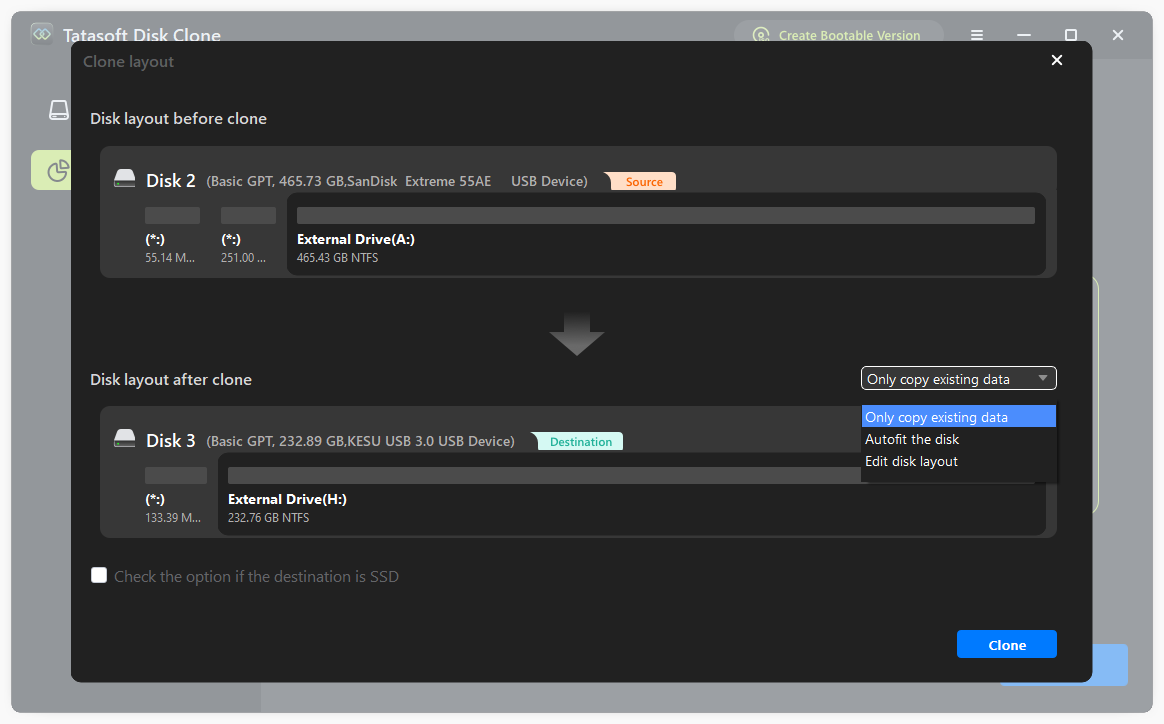
Step 5: Click Clone to begin the process.
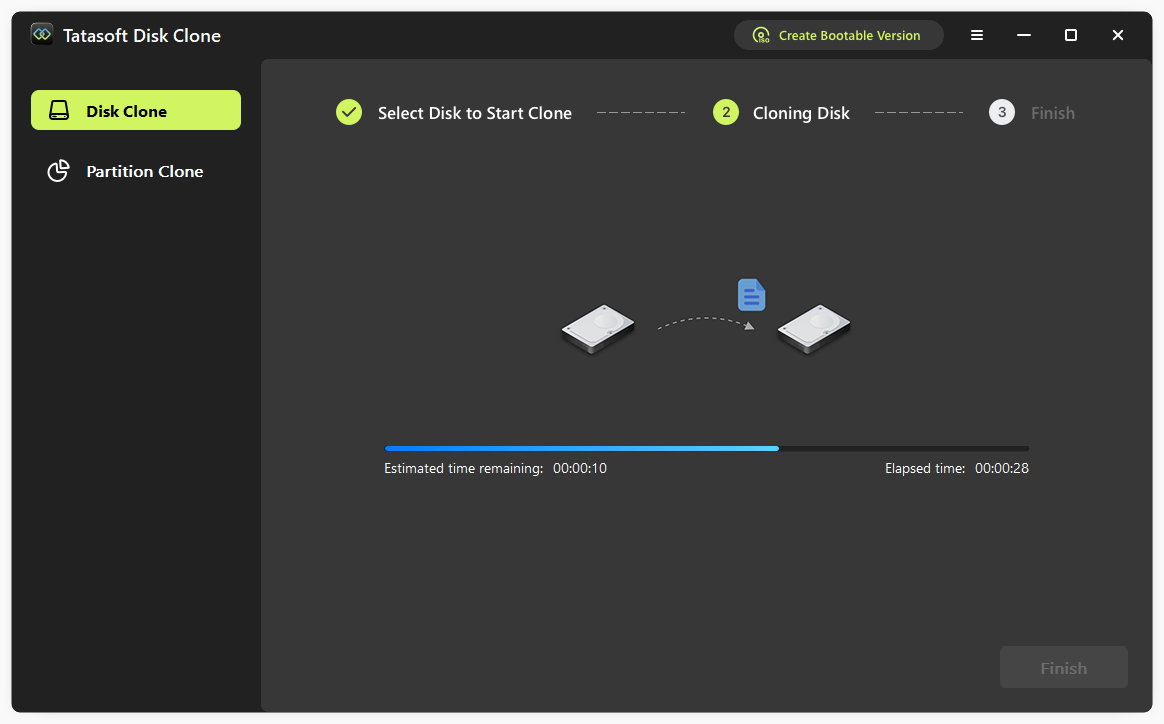
Wait for the cloning to complete; this may take some time depending on the amount of data. Once cloning is complete, shut down your computer and replace the old drive with the new SSD if necessary.
| Pros | Cons |
|---|---|
| Extremely user-friendly; one-click process | Requires software installation. |
| Supports cloning to smaller SSDs. Provides SSD optimization to improve performance. |
|
| Ensures the new drive is bootable without manual fixes. |
Tips: Still using older systems? You can also clone a hard drive in Windows 7 or clone Windows 11 to a new SSD using Tatasoft disk cloning software.
Windows 10 includes a legacy tool called "Backup and Restore" that can create a system image to be "restored" onto a new SSD.
Step 1: Initialize your SSD in Disk Management if it’s new.
Step 2: Navigate to Control Panel > System and Security > Backup and Restore (Windows 7).
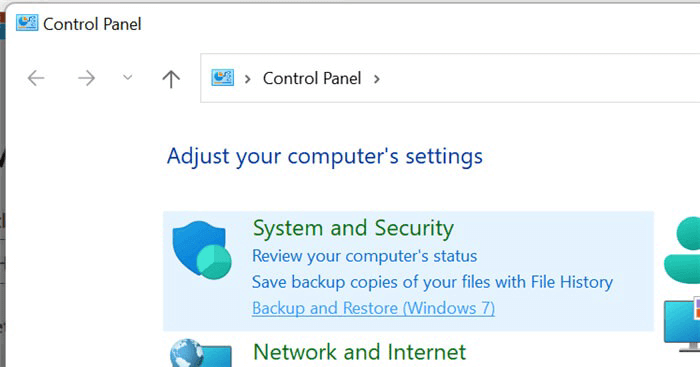
Step 3: Click “Create a system image” and follow the steps to backup Windows 10 on an intermediate external drive.
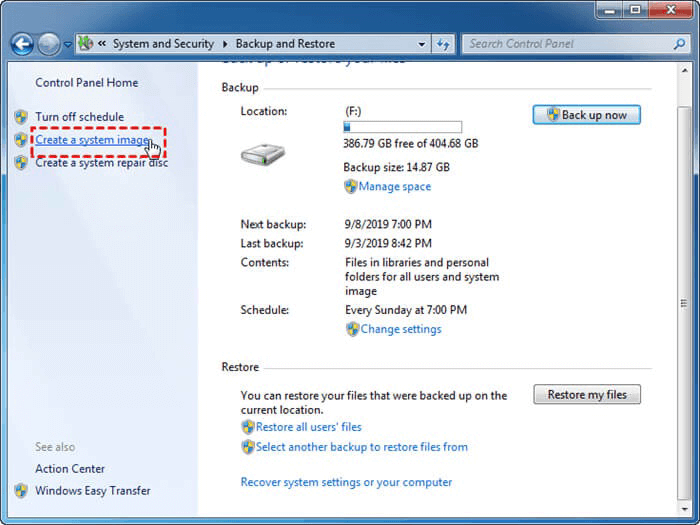
Step 4: Boot from Windows installation media and select System Image Recovery to apply the image to the SSD.
| Pros | Cons |
|---|---|
| No third-party software required. | Very slow and complex; requires an extra middle-man drive. |
| Completely free. | High failure rate if the SSD is smaller than the HDD. |
Advanced users can use the Command Prompt to copy hard drive data in Windows 10. It is important to note that xcopy is a file-level copying tool, not a disk-level imaging tool. While it cannot clone a bootable operating system (like Windows) or hidden partitions, it is excellent for migrating data, folders, and permissions from one drive to another.
Step 1: Run Command Prompt as Administrator: right-click on the Start menu > select “Command Prompt (Admin).”
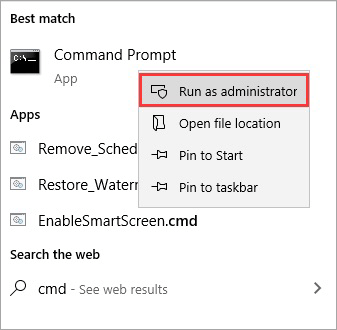
Step 2: Identify Drive Letters. Ensure you know which drive is your Source (e.g., D:) and which is your Target (e.g., E:).
Step 3: Use xcopy SourceDrive:\ TargetDrive:\ /E /H /C /I /K /Y /B to ensure a complete copy of all files, subdirectories, and attributes.
| Pros | Cons |
|---|---|
| Full control over disk partitions. | Copies files, not disk structures; the cloned drive won't start an OS. Cannot copy "live" or locked data due to lack of VSS support. Extremely high risk; one wrong command can erase the wrong drive. |
| No GUI overhead. | Not a true "cloning" solution for most users. |
Cloning Windows 10 to an SSD is the best way to breathe new life into your PC. While Windows has manual tools, they are often cumbersome and prone to errors. Tatasoft Disk Clone provides a safe, streamlined, and efficient way to upgrade your hardware without losing a single file.
The benefits of migrating OS to an SSD are well worth the effort. With Tatasoft, the cloning process becomes straightforward, allowing you to focus on enjoying your upgraded system rather than worrying about the technical details. Ready for a faster PC? Get Tatasoft Disk Clone today and get started on your journey to faster performance. If you encounter any questions or need assistance, our support team is here to help.
A dedicated technical writer at Tatasoft with over four years of specialized expertise in computing technology. She crafts actionable, user-centric content for tech niches, specializing in disk cloning, data management, and video solutions for Windows and Mac.
Read full bio
This article has been approved by Ben Lee. Ben's dedication to excellence and his comprehensive knowledge of Windows and Mac technologies make him an essential part of any technical writing team. With a career marked by continuous learning and adaptation to new technologies, Ben remains at the forefront of the ever-evolving tech landscape.