
Written byJanet BashorunUpdated on Mar 06, 2026

Brief introduction: Learning to install new hard drive is crucial for anyone looking to expand their storage or replace an old hard drive. Whether upgrading to a larger HDD or switching to an SSD, the process may seem challenging but can be seamless with proper tools and guidance. In this article, we will explore how to install a new hard disk in both desktop and laptop computers, including how to migrate data to the new drive with Tatasoft Disk Clone while preserving files and settings.
In this article
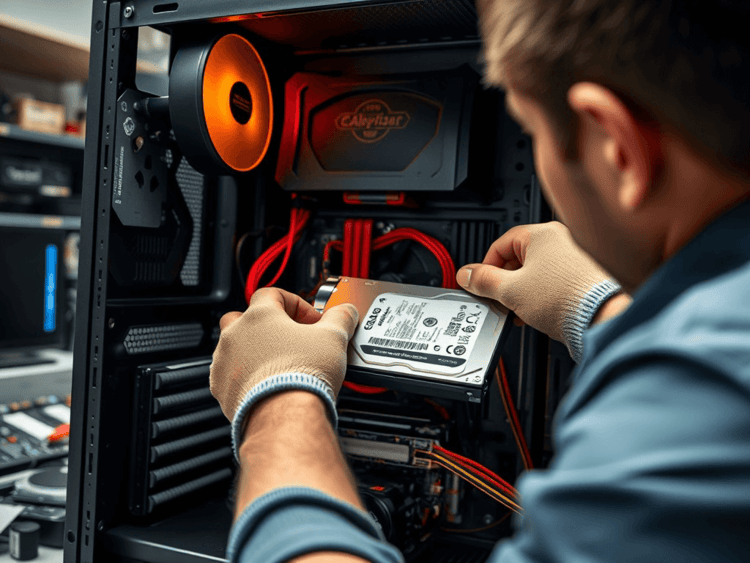
Before diving into the installation process, let’s explore the reasons why you might want to upgrade your hard disk:
1. Increased Storage Capacity: As applications, files, and multimedia content accumulate, you may reach a storage limit. Installing a new hard disk allows you to store more data without the worry of running out of space.
2. Improved Performance: Upgrading to a newer, faster HDD or SSD can significantly enhance your system’s performance, leading to quicker boot times and faster file access.
3. Data Security: Upgrading your hard disk can provide you with the opportunity to improve your data security features, ensuring your files are safe from corruption or loss.
4. Alternative Storage Solutions: As demands for gaming and high-resolution media increase, having an additional or upgraded hard disk can be essential for maintaining smooth performance.
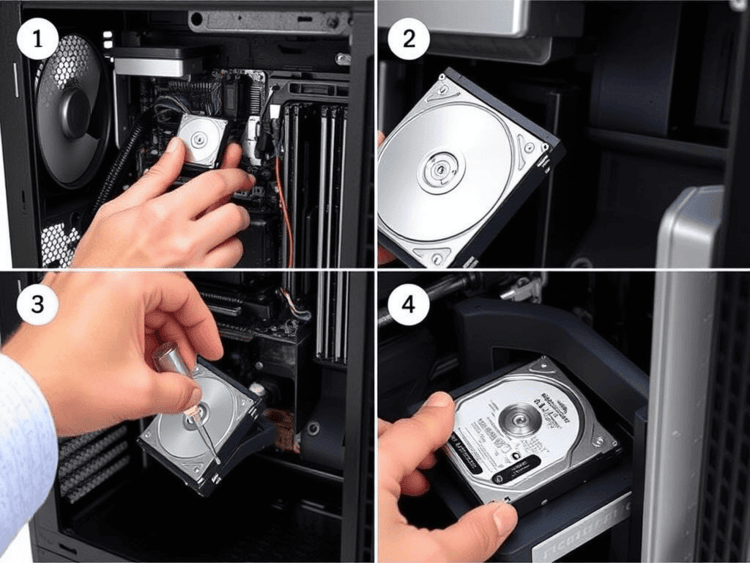
Installing a new hard disk in a desktop computer is usually a straightforward process. Here's how to do it:
Step 1: Gather your tools to install a new hard drive
Before you begin, make sure you have the following items:
Step 2: Power down and unplug the computer
Step 3: Open the computer case
Step 4: Locate the drive bays
Step 5: Install the new hard disk
Step 6: Connect the hard disk
Step 7: Close the computer case
Step 8: Reconnect and power on
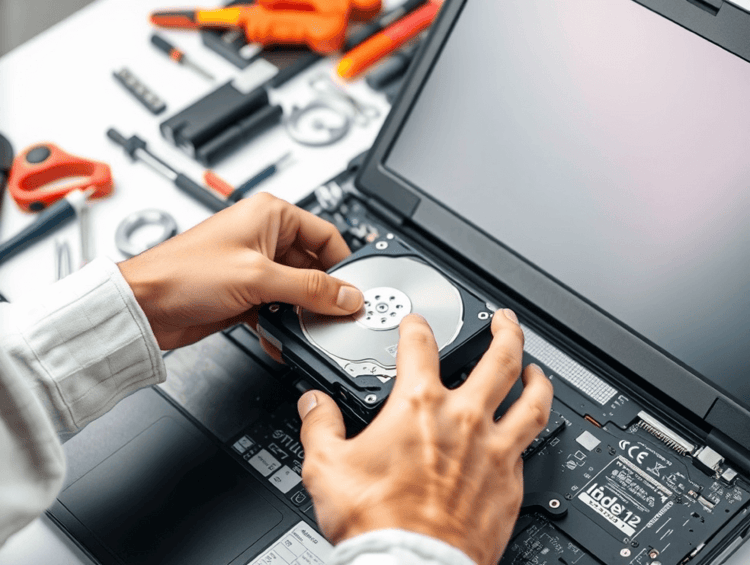
Installing a new hard disk in a laptop can be slightly different due to space constraints. Follow these steps:
Step 1: The tools needed for laptop hard disk installation
Step 2: Power down and unplug the Laptop
Step 3: Remove the battery (if applicable)
Step 4: Open the Laptop case
Step 5: Remove the old hard disk from Laptop
Step 6: Install the new hard disk
Step 7: Close the laptop case
Step 8: Reinstall the battery (if applicable)
Step 9: Power on the laptop
Once the new hard disk is installed, you may want to migrate your operating system or data from the old hard disk to the new one without reinstalling. Here’s a brief overview of how to use Tatasoft Disk Clone to clone your old hard disk:
Step 1: Download and Install Tatasoft: If you haven’t done so yet, install Tatasoft Disk Clone on your computer.
Step 2: Launch Tatasoft and select "Disk Clone".
Step 3: Select Source and destination disk for cloning: Choose the old hard disk as the source and the new hard disk as the destination.
Step 4: Initiate Disk Cloning: Follow the prompts to resize the partitions on the new hard disk and click Clone to start the cloning process. This may take some time, depending on the amount of data.
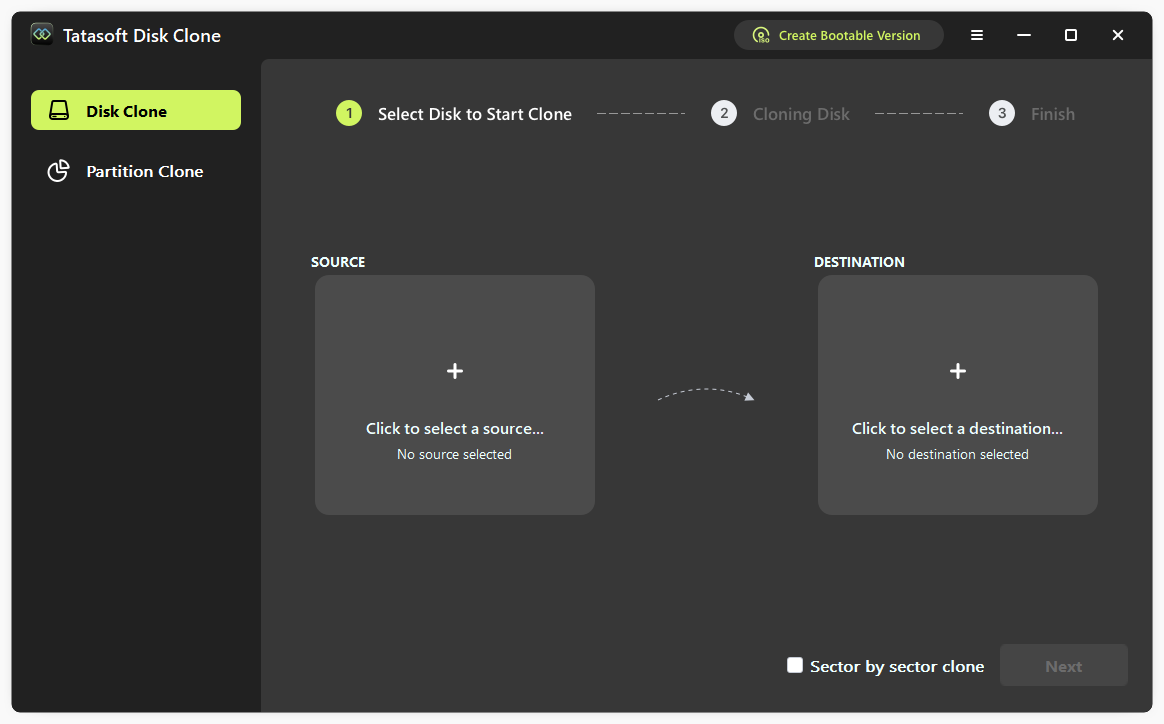
Once the disk cloning is complete, Tatasoft will notify you. You may now shut down your computer and remove the old hard disk if necessary.
Knowing how to install a new hard disk not only provides greater flexibility in managing your storage needs but also significantly enhances your system's overall performance. Whether you're replacing old hard drive or upgrade to SSD; in a desktop or a laptop, this comprehensive guide ensures that you can execute the installation smoothly and confidently. By using Tatasoft Disk Clone, you can effortlessly migrate your data to the new hard drive, preserving your files and settings without hassle.
A dedicated technical writer at Tatasoft with over four years of specialized expertise in computing technology. She crafts actionable, user-centric content for tech niches, specializing in disk cloning, data management, and video solutions for Windows and Mac.
Read full bio
This article has been approved by Ben Lee. Ben's dedication to excellence and his comprehensive knowledge of Windows and Mac technologies make him an essential part of any technical writing team. With a career marked by continuous learning and adaptation to new technologies, Ben remains at the forefront of the ever-evolving tech landscape.