
Written byJanet BashorunUpdated on Mar 06, 2026

Brief introduction: Clonezilla is a powerful open-source disk cloning tool, widely used for creating exact copies of drives and partitions. While favored by IT professionals for its capabilities, its text-based interface can be challenging for many users. Tatasoft cloning software offers an alternative with Clonezilla's core features in a more user-friendly package, featuring an intuitive interface and advanced options for all skill levels.
In this article
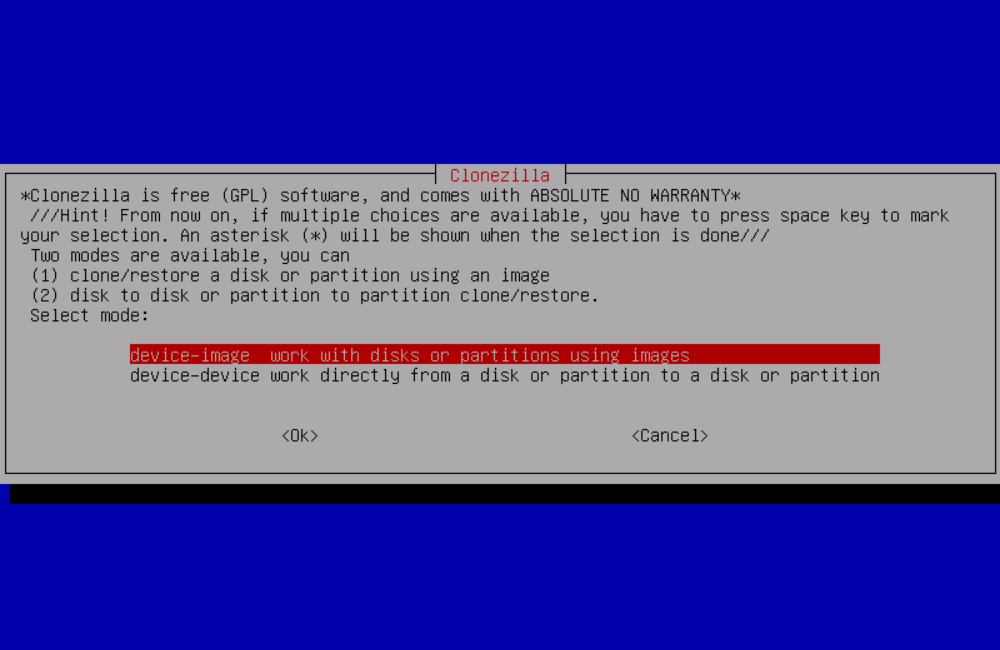
Clonezilla is an open-source partition and disk cloning and imaging tool designed for system backup, recovery, and bulk deployment. Based on Debian Linux and leveraging Partclone/Partimage technologies, it supports both single-machine and multicast cloning scenarios. Unlike commercial alternatives, Clonezilla prioritizes efficiency by cloning only used disk blocks, reducing transfer time and storage space requirements.
Step 1. Prepare Clonezilla Live
Step 2. Start Clonezilla
Step 3. Select Drives
Step 4. Configure Options (Optional)
Step 5. Start Cloning
While Clonezilla remains a powerful and free disk cloning tool, users often seek alternatives with different strengths. Whether you need a more user-friendly interface, advanced features, or better hardware compatibility, this alternative covers all bases. Tatasoft Disk Clone is one of the powerful alternatives to Clonezilla uses recommended:
| Feature | Tatasoft | Clonezilla |
|---|---|---|
| User Interface | Graphical, user-friendly | command line, complex |
| Real-Time Cloning | ✅ | ❎ |
| Partition Resizing | ✅ | ❎ |
| Optimized for SSDs | ✅ | ❎ |
| Cloning Speed | Faster | Slower |
| OS Support | Windows/Mac | Linux/Windows |
| File System Support | FAT/NTFS/ext4/HFS+ etc. | Mainstream file systems |
| Customer Support | Excellent | Community based |
| Price | Start from $19.95 | Free |
| Best For | Personal users | Tech-Savvy |
Expert Insight: Tatasoft's disk cloning software is revolutionizing the way users approach disk cloning. By combining an intuitive interface with powerful features like real-time cloning and partition adjustment, Tatasoft not only simplifies the process but also enhances data security and efficiency. As organizations increasingly rely on reliable migration tools, Tatasoft stands out as an essential solution for both individual and business needs.

For those seeking a Clonezilla alternative for disk or partition copy, Tatasoft disk cloning software presents a compelling option. With its intuitive interface, advanced features like real-time cloning and sector-level cloning, and robust customer support, Tatasoft caters to a wide range of users. Whether you need to clone a disk for personal use or migrate OS for a business, Tatasoft delivers an efficient and secure solution.
A dedicated technical writer at Tatasoft with over four years of specialized expertise in computing technology. She crafts actionable, user-centric content for tech niches, specializing in disk cloning, data management, and video solutions for Windows and Mac.
Read full bio
This article has been approved by Ben Lee. Ben's dedication to excellence and his comprehensive knowledge of Windows and Mac technologies make him an essential part of any technical writing team. With a career marked by continuous learning and adaptation to new technologies, Ben remains at the forefront of the ever-evolving tech landscape.