Written byJanet BashorunUpdated on Feb 08, 2026

Brief introduction: Disk cloning software is essential for anyone needing to create an exact copy of their drive for system migration, HDD/SSD upgrades, or backup. In 2026, we evaluated and compared the best disk cloning software options available. Our list emphasizes the capabilities of Tatasoft Disk Clone, which ranked as our top recommendation due to its impressive features and user-friendly interface.
In this article
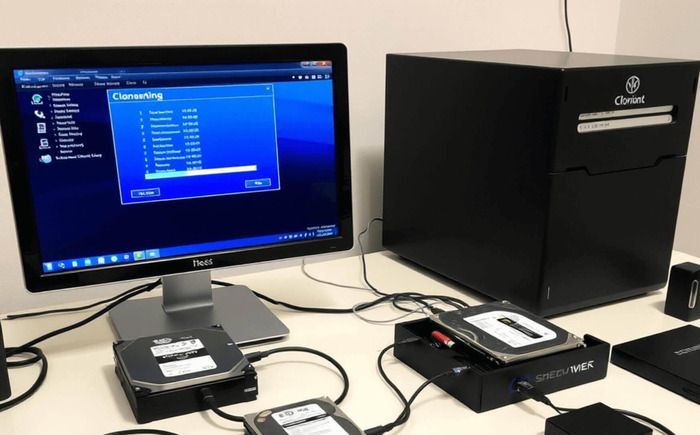
In our testing obtained between November 2025 and January 2026, we evaluated 20 different disk cloning applications. Our process included
| 🚀 Performance Testing | Cloning both SSDs and HDDs, measuring the speed and accuracy of the process. |
| 🧰 Feature Analysis | Comparing functionalities such as incremental backup, disk imaging, and file system support |
| ✅ Usability Evaluation | Assessing the intuitiveness of interfaces and ease of use for both novice and advanced users. |
| 👩 User Feedback | Gathering insights from online user reviews and expert opinions to cover a broad range of experiences. |
For our evaluations, we adopted a testing setup inspired by methodologies outlined in a detailed article from TechRadar on disk cloning software. Our specifications provided a reliable baseline for comparison across different applications:
| Processor | Intel Core i7-10700K |
| RAM | 16 GB DDR4 |
| Primary Drive to Clone (Source): | 2 TB Seagate Barracuda HDD |
| Secondary Drive (Destination): | 1 TB Samsung 970 EVO NVMe SSD |
| Operating System | Windows 11 Pro |
This configuration allowed us to ensure that each application was tested under comparable conditions, reflecting a typical environment suitable for both casual users and professionals.
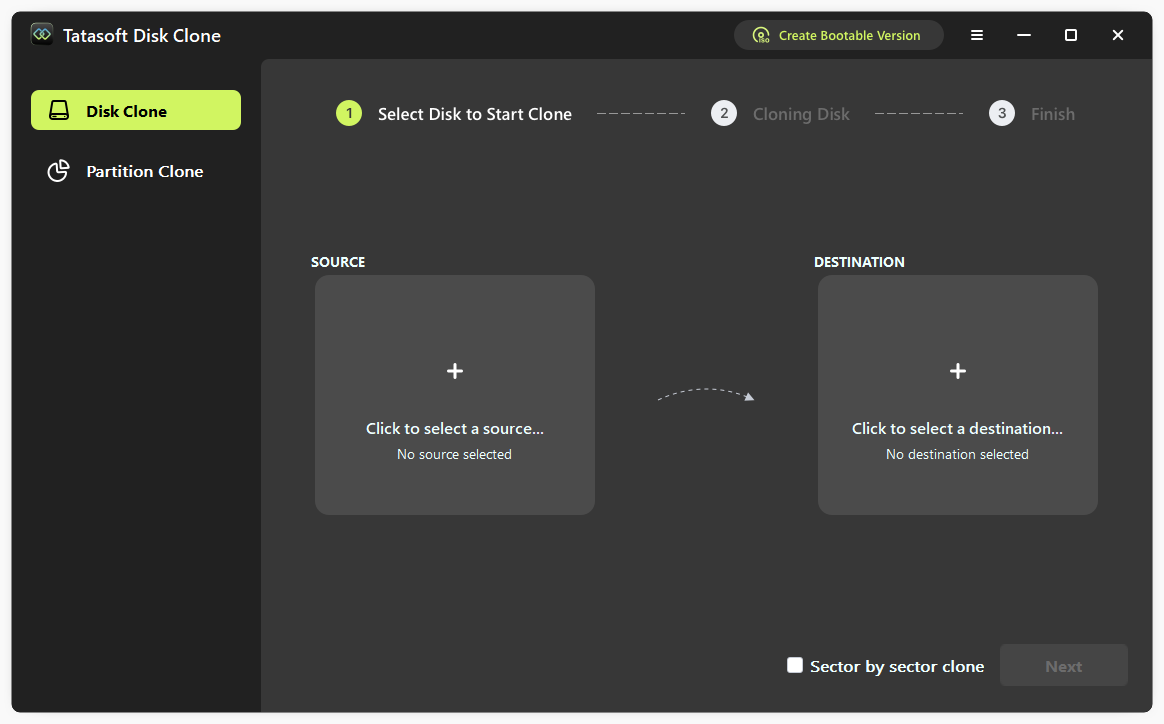
Overview
Tatasoft Disk Clone is designed for both enthusiasts and professionals to perform seamless disk migration and backup operations. It excels in clone accuracy and supports various operating systems.
Pros
Cons
How to Operate Disk Copy with Tatasoft Disk Clone
🔔Testing Experience During our tests, Tatasoft completed the cloning of our 2TB HDD in approximately 25 minutes, which was one of the quickest times observed. The intuitive layout made it easy to navigate, and the success rate for each clone was flawless.
Authoritative Reviews
Tatasoft Disk Clone Software
"Absolute lifesaver! I was worried about moving my Window 10 to a smaller SSD, but this software made it foolproof. My PC boots faster than ever now. It’s incredibly user-friendly and easy to get running.
Highly recommended for its reliability and straightforward setup."
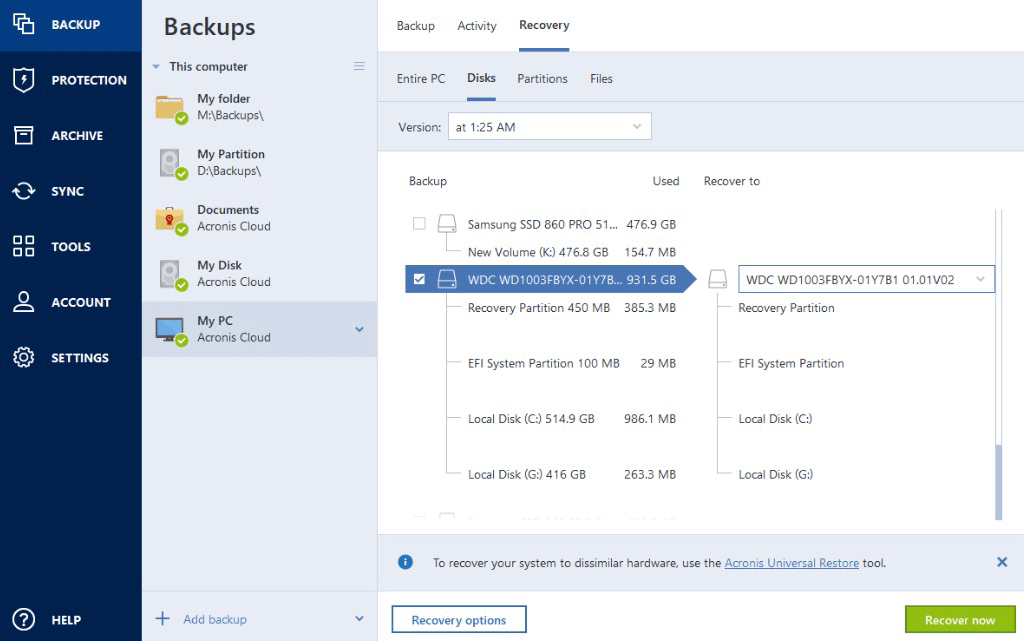
Overview
Acronis True Image has established itself as a leading player in backup and disk cloning. It integrates advanced backup features with an efficient disk cloning operation.
Pros
Cons
How to Operate
🔔Testing Experience Acronis handled complex backups effectively, but initial setup required a bit of effort. Nevertheless, its cloning capabilities performed reliably, producing flawless copies.
Authoritative Reviews
Outstanding product with great support
"Firstly I appreciate Acronis as an important tool in my cyber security toolbox.
When I had an issue with an update I was happy by the response received when I opened a ticket. Not only did I receive a timely email response but support arranged a phone call and remote support help to review and ultimately solve the issue.
As an IT professional myself I have rarely seen a major software company respond to my satisfaction.
I would definitely recommend Acronis and I'mextremely happy with their support."
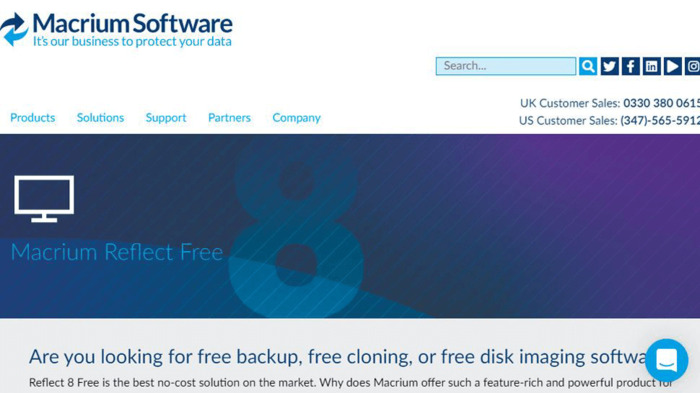
Overview
Macrium Reflect is known for its reliability in disk imaging and cloning. It provides both free and paid versions, catering to a wide range of users.
Pros
Cons
How to Operate
🔔Testing Experience We found Macrium Reflect remarkably efficient, completing a disk clone with minimal user interaction. However, the learning curve was slightly steeper compared to Tatasoft.
Authoritative Reviews
Macrium Reflect - Powerful and reliable
"Since you need a backup of your data in cases something goes wrong, I tried a couple of different programs. I finally stick to Macrium Reflect because it is easy to handle."
Overview
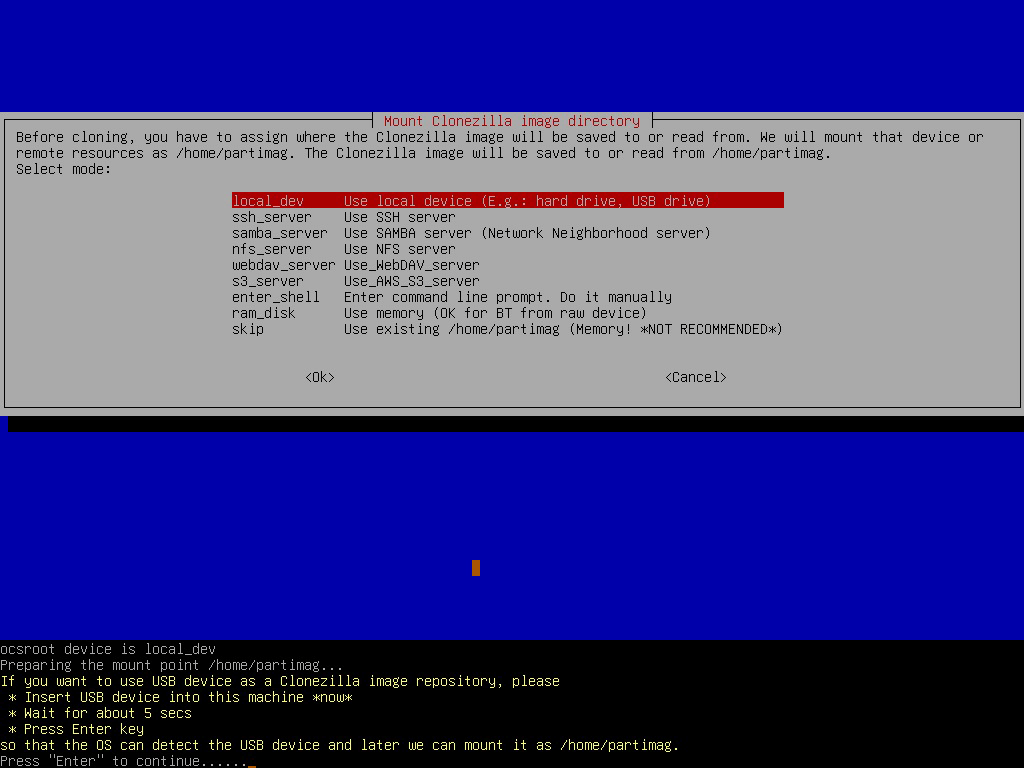
Clonezilla is a free, open-source disk cloning solution that caters primarily to more technically savvy users.
Pros
Cons
How to Operate
🔔Testing Experience Clonezilla performed admirably in various cloning scenarios, effectively managing both full disk clones and partition imaging. However, the command-line interface made it less accessible for average users, often requiring additional research or guidance.
Authoritative Reviews
A Great Open-Source Drive Tool
"While lacking in some functions compared to paid competition and being less pretty, if Clonezilla does what you need it to it'shard to argue with its usability and wonderful price of absolutely free."
Overview
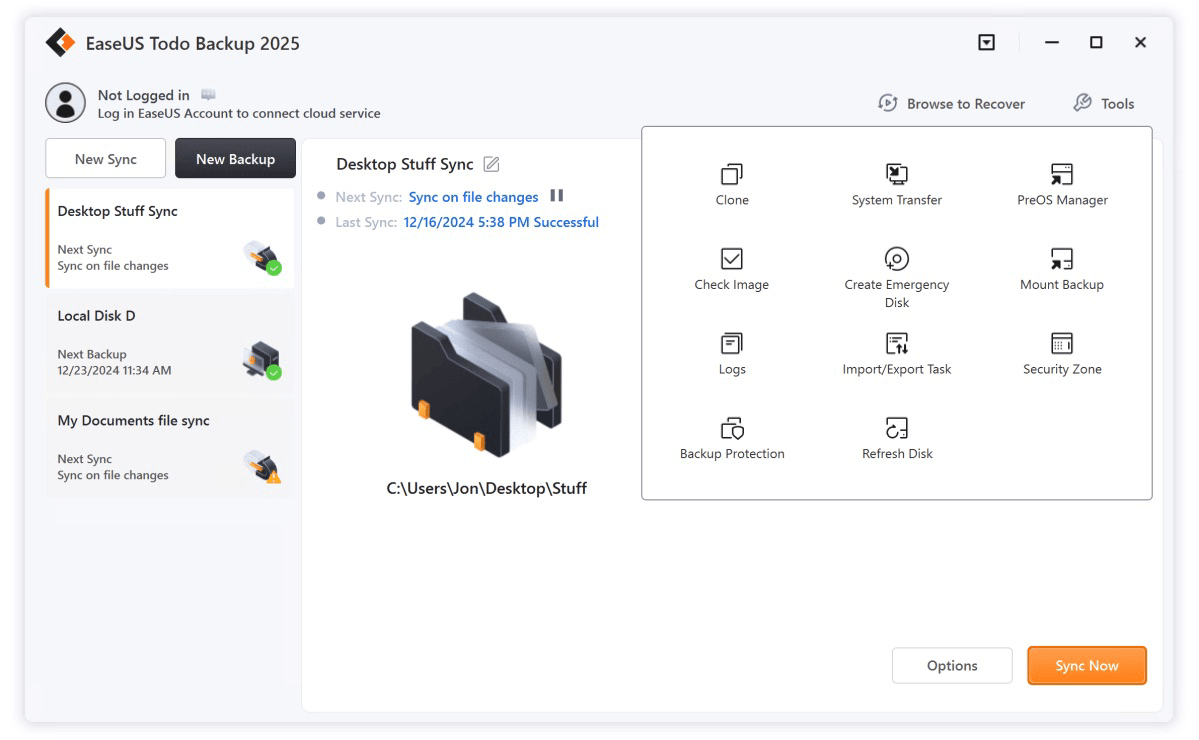
EaseUS Todo Backup is a popular choice for backup and disk cloning, offering a wide range of features in a straightforward package.
Pros
Cons
How to Operate
🔔Testing Experience EaseUS Todo Backup proved to be simple to use, but the cloning process took longer than anticipated compared to other options on our list. Despite this, it achieved good cloning accuracy and was easy to navigate.
Authoritative Review
EaseUS Todo Backup saves the IT department in loss file and ransomware attack
"I highly recommend this software as a backup solution in small medium business. It saves our company when we're attack by ransomware and the downtime is only one day to recover all the files."
Overview
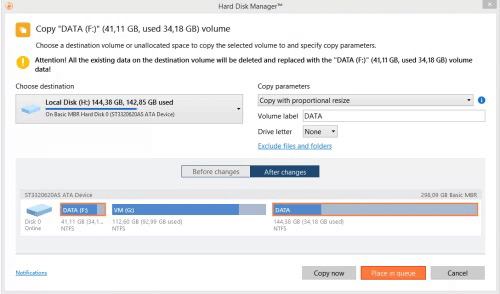
Paragon Hard Disk Manager provides a robust set of tools for both disk cloning and comprehensive disk management, making it a versatile option for users.
Pros
Cons
How to Operate
🔔Testing Experience Paragon Hard Disk Manager excelled during our tests, offering a quick cloning process with an intuitive interface. Users appreciated its extensive disk management tools, although some advanced functionalities are locked behind a paywall.
Authoritative Review
Overall Satisfaction with Paragon Hard Disk Manager
"Although Paragon Hard Disk Manager offers several different functionalities, we use the software primarily for creating backups of our data.
Paragon Hard Disk Manager enables easy and reliable automated regular incremental backups to drives in our Network Attached Storage (NAS) device. The ease-of-use and reliability of this software facilitates execution of our backup strategy."
Overview
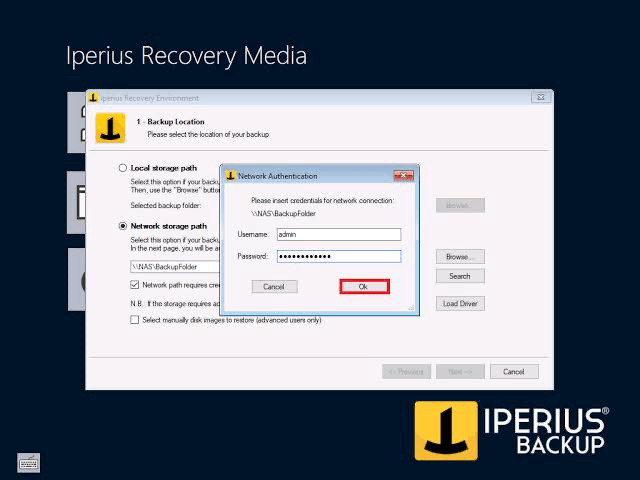
Iperius Backup stands out for its flexibility and rich feature set, including intuitive disk cloning capabilities ideal for various users.
Pros
Cons
How to Operate
🔔Testing Experience Iperius Backup demonstrated versatility in our tests, managing to clone disks efficiently while offering various backup options. However, its user interface could be more polished to enhance user experience.
Authoritative Review
Great product, been using for years!
"Overall its a great product and has worked flawlessly for me and my customers for years. I think I started using your backup 5 or 6 years ago. I've installed on 75 computer systems for myself and my customers. Love the product."
Overview
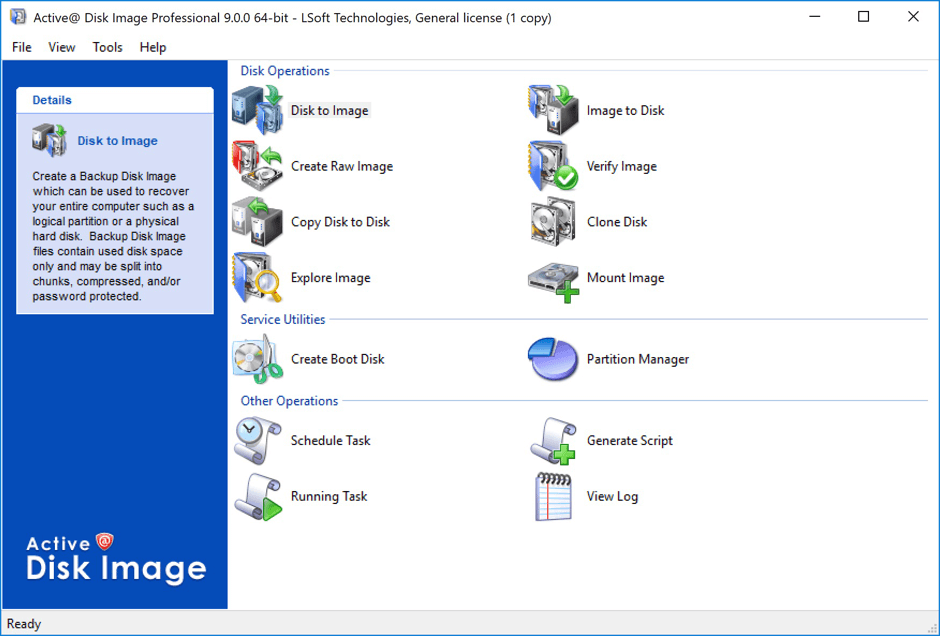
Active Disk Image is tailored for users needing a solid backup and cloning solution that includes drive imaging and file backup features.
Pros
Cons
How to Operate
🔔Testing Experience Active Disk Image provided reliable cloning performance with good speed and data compression. While the cloning process was efficient, the interface felt somewhat outdated compared to modern alternatives, affecting overall usability.
Authoritative Review
Limited Features
"Active@Disk Image has all the standard features for cloning M2, SSD, and standard mechanical drives."
| Software | Price | Cloning Speed | User Interface | OS Support | File System Support | Unique Features |
|---|---|---|---|---|---|---|
| Tatasoft Disk Clone | Premium from $19.5 | Fast (2TB in ~25 mins) | User friendly | Windows,Mac | NTFS, FAT32, exFAT | Bootable media creation |
| Acronis True Image | Starting at $49.99/year | Moderate | Slightly complex | Windows,Mac | NTFS, FAT32, exFAT, HFS+ | Ransomware protection, cloud storage |
| Macrium Reflect | Free/$69 | Fast | Moderate | Windows | NTFS, FAT32, ext2/3/4 | Incremental and differential backups |
| Clonezilla | Free | Fast | Command line | Windows | NTFS, FAT32, ext, HFS+ | Bulk cloning for enterprise use |
| EaseUS Todo Backup | Free/$29.95 | Moderate | User-friendly | Windows | NTFS, FAT32, exFAT | File and system backup options |
| Paragon Hard Disk Manager | Premium from $49.95 | Fast | User-friendly | Windows,Mac | NTFS, FAT32, exFAT | Comprehensive disk management |
| Iperius Backup | Free/$69 | Moderate | Needs improvements | Windows,Mac,iOS,Android | NTFS, FAT32, exFAT | Support for multiple destinations |
| Active Disk Image | Free/$29.95 | Fast | Less polished | Windows,Mac,Linux,Unix | NTFS, FAT32, ext | Data compression options |
Choosing the right disk cloning software can be a daunting task given the variety of available options. To simplify this process, consider the following criteria:
While disk cloning offers many benefits, there are potential risks and challenges that users should be aware of:
Disk cloning software plays an essential role in data management, offering valuable solutions for system migrations, hard drive replacement, backups, and disaster recovery. Our top recommendation, Tatasoft Disk Clone, excels in delivering a user-friendly experience coupled with efficient performance.
By understanding how we selected the best disk cloning software and the criteria to consider when choosing the right tool for your needs, users can make informed decisions that enhance their data protection strategies. As technology continues to advance, staying informed about the latest tools and practices is key to effective data management and recovery.
For more expert insights and updates on the best software tools, stay tuned for our future reviews!
A dedicated technical writer at Tatasoft with over four years of specialized expertise in computing technology. She crafts actionable, user-centric content for tech niches, specializing in disk cloning, data management, and video solutions for Windows and Mac.
Read full bio
This article has been approved by Ben Lee. Ben's dedication to excellence and his comprehensive knowledge of Windows and Mac technologies make him an essential part of any technical writing team. With a career marked by continuous learning and adaptation to new technologies, Ben remains at the forefront of the ever-evolving tech landscape.