
Written byJanet BashorunUpdated on Feb 27, 2026

Brief introduction: To clone SSD to SSD is an essential process for those looking to upgrade their storage without the hassle of data loss or reinstallation. Cloning your SSD ensures that all your files, applications, and system settings are duplicated onto a new SSD, providing a seamless transition to better performance. In this guide, we’ll discuss the benefits of SSDs, detail the step-by-step process of cloning SSD using Tatasoft Disk Clone, and provide helpful tips to ensure success.
In this article
A Solid-State Drive (SSD) is a type of data storage device that uses flash memory to store data. Unlike traditional Hard Disk Drives (HDDs), SSDs have no moving parts, making them faster, more durable, and significantly more efficient at reading and writing data.
1. Upgrade to a Larger SSD
When you require more space for applications, games, or multimedia content, cloning to a larger SSD allows you to maintain your existing data without cumbersome transfers.
2. Enhanced Performance
If you're transitioning from an older SSD to a newer model with faster read/write speeds, cloning ensures that your operating system and applications benefit from improved performance instantly.
3. Data Preservation
Cloning your SSD provides peace of mind by safeguarding your data. It ensures that all files and system settings are backed up in one seamless operation.
Using reliable SSD cloning software is critical for a successful cloning process. Tatasoft Disk Clone stands out for its exceptional SSD cloning performance with integrated SSD optimization features, coupled with its user-friendly interface and robust features designed for both novices and experienced users.
Expert Insight:
When it comes to cloning SSDs, not all software solutions are created equal. For a seamless and efficient SSD cloning process, Tatasoft Disk Clone stands out due to its advanced algorithms that optimize data transfer speeds while minimizing the risk of errors.
An expert recommendation is to take advantage of Tatasoft’s “SSD Optimization” feature, which not only ensures that your data is copied accurately but also configures the new SSD for peak performance right after the cloning process. This feature helps to align partitions and optimize drive settings automatically, effectively eliminating the need for post-cloning maintenance tasks. By choosing Tatasoft for your SSD cloning needs, you are investing in a solution designed to enhance your overall storage experience and ensure a smooth transition to your new SSD.
Step 1: Backing Up Your Data on the Destination SSD if It Has
Before you begin your cloning operation, always back up your important files on the target SSD to an external drive or a cloud-based storage solution. This step will prevent potential data loss because the target disk will be erased during cloning.
Step 2: Connecting Your New SSD
Step 3: Download and Install Tatasoft Disk Clone
Download the latest version of the software from Tatasoft website and follow the installation prompts.
Step 4: Clean up the source SSD
Remove unnecessary files and programs on the source SSD to prevent junks from transferring, ensuring a flawless clone and optimal performance on the target drive.
Here’s how to clone your SSD to a smaller or larger SSD with Tatasoft Disk Clone:
Step 1: Launch Tatasoft Disk Clone and choose Disk Clone
Step 2: Select Source and Destination SSDs

Step 3: Configure SSD Cloning Options
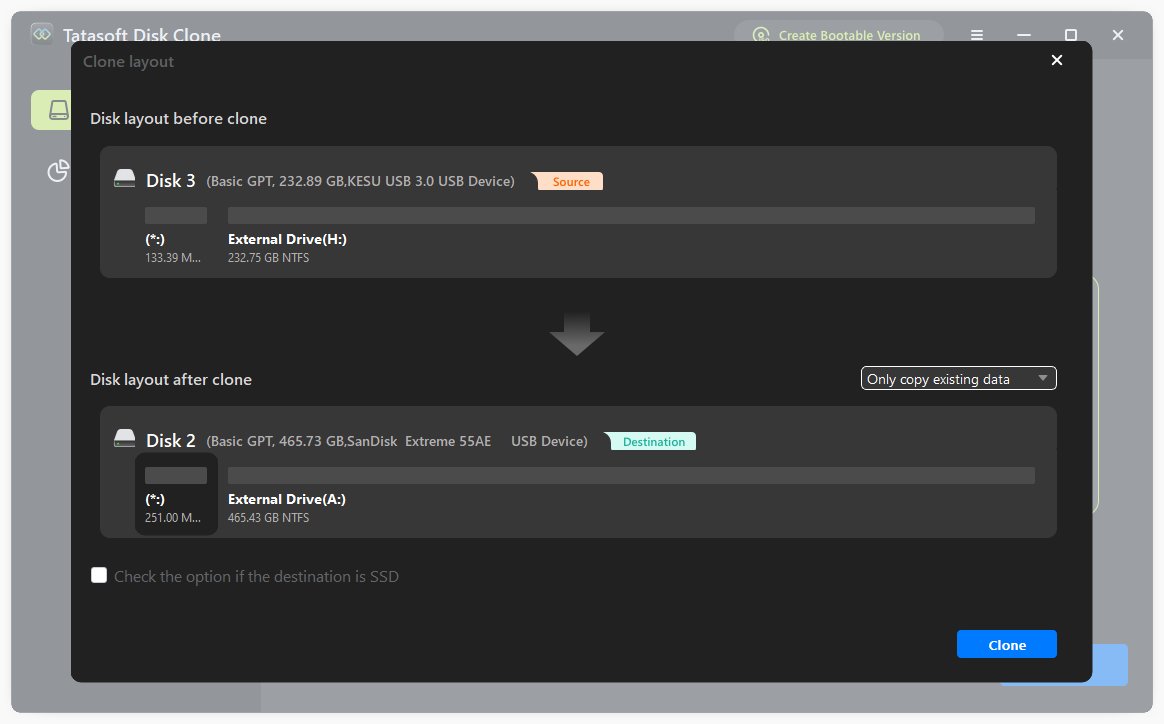
Step 4: Verify the Cloning Process
If cloning SSD with operating system, one the cloning is complete:
SSD cloning processes can sometimes fail due to various reasons. Here’s how to address common issues:
Cloning your SSD to a new SSD is a practical and efficient method for upgrading your storage system without the risks associated with data loss or extensive reinstallation processes. By using Tatasoft Disk clone, you can ensure a smooth SSD transition that preserves all your files, applications, and system settings intact. Following the steps outlined in this guide, you can easily upgrade to a larger, faster or even clone to a smaller SSD, enhancing your computer's performance and reliability.
A dedicated technical writer at Tatasoft with over four years of specialized expertise in computing technology. She crafts actionable, user-centric content for tech niches, specializing in disk cloning, data management, and video solutions for Windows and Mac.
Read full bio
This article has been approved by Ben Lee. Ben's dedication to excellence and his comprehensive knowledge of Windows and Mac technologies make him an essential part of any technical writing team. With a career marked by continuous learning and adaptation to new technologies, Ben remains at the forefront of the ever-evolving tech landscape.