
Written byJanet BashorunUpdated on Mar 04, 2026

Brief introduction: To clone your old computer to a new one is a practical solution for anyone wanting to make the transition from an outdated machine to a more efficient model. This process allows for the seamless computer transfer of all your OS, programs, settings and essential files, without the hassle of reinstalling everything manually. Utilizing Tatasoft Disk Clone, this guide walks you through the steps, benefits, and troubleshooting tips, ensuring you make the most of your PC cloning experience.
In this article
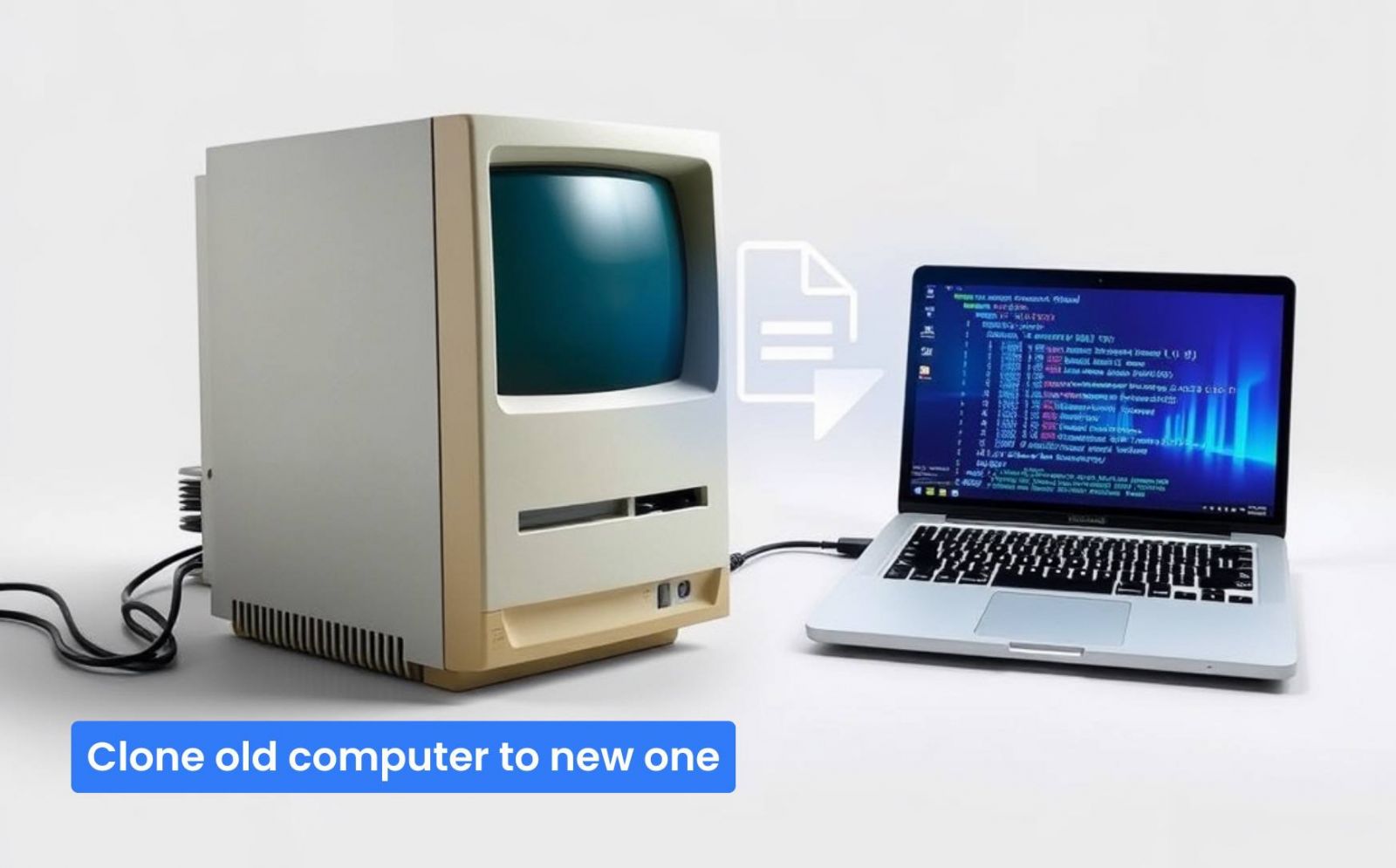
With technology advancing rapidly, upgrading to a new computer is a common necessity. However, the thought of moving all your vital data and applications can be daunting. Cloning your old computer to a new one is not only convenient; it also preserves your work environment, making your transition smoother.
Cloning a computer hard disk refers to creating a complete digital copy of your computer’s data. This process captures the operating system, applications, settings, and files, ensuring that the new device functions just like the old one.
1. An external hard drive
An external hard drive that holds all data from your old computer for transferring to a new one. And connect it to your old computer.
2. Checking Disk Health
Before cloning, it's essential to ensure your old computer's hard drive is in good health. Use disk checking software to scan for and repair any errors.
3. Backing Up Essential Data on Target Disk
While cloning will erase all the data on the target disk or partition, it's wise to back up your most crucial data to prevent any unintentional loss.
4. Clean up your Old Computer
Remove unnecessary files and applications to streamline the cloning process.
5. A reliable disk copy software
Tatasoft Disk Clone is a reliable disk cloning software celebrated for its ease of use and effectiveness. It provides users with powerful features, including:
Step 1: Launch Tatasoft Disk Clone for Windows and choose Disk Clone
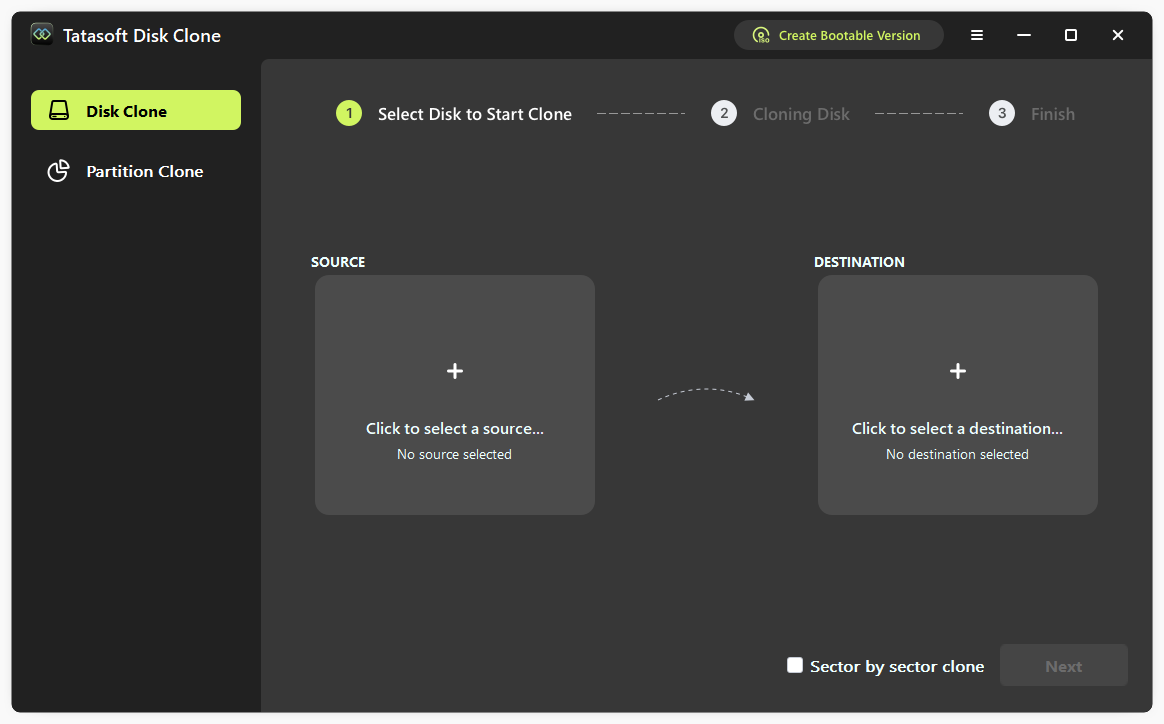
Step 2: Click + to select the source drive to clone

Step 3: Choose the Destination Drive
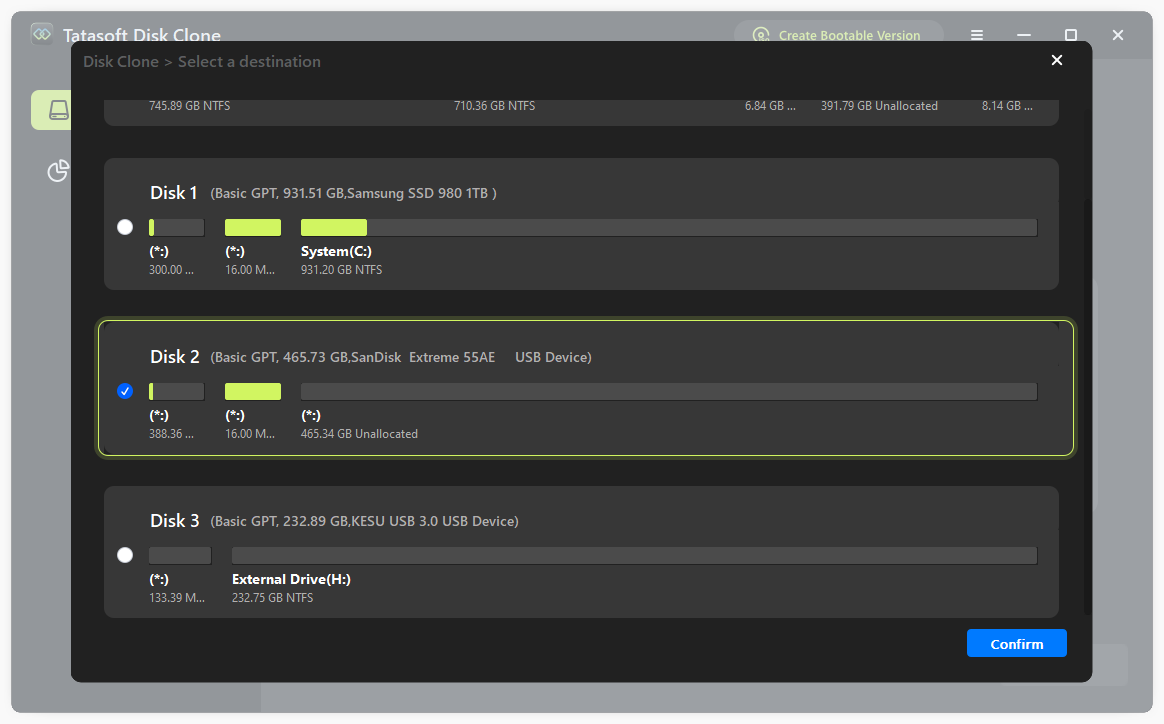
Step 4: Start the Cloning Process
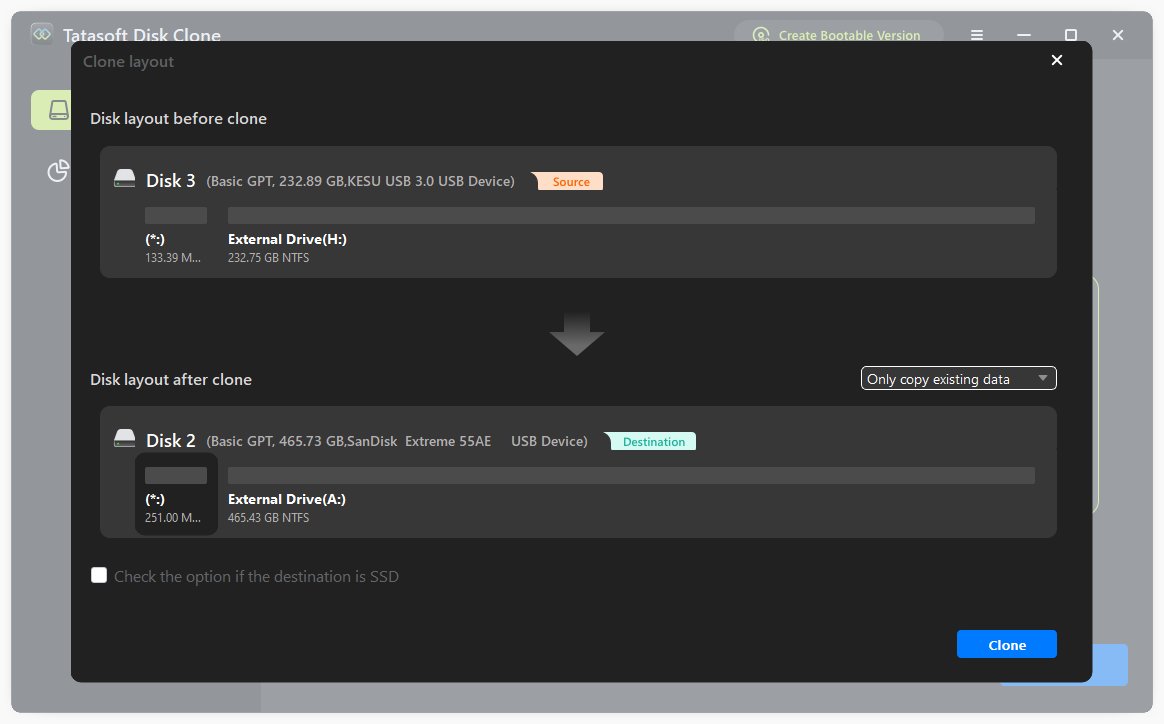
Step 5: Transferring Cloned Data to Your New Computer
Step 6: Finalizing the Setup on Your New Computer
1. Optimize Your New Disk
Consider optimizing your new disk for enhanced performance. If using an SSD, ensure TRIM is enabled for efficient data management during the cloning by check the option if the destination is SSD.
2. Keep Software Updated
Ensure that your Tatasoft disk cloning software is regularly updated. This ensures you benefit from enhancements, improved algorithms, and security updates that enhance the cloning process and protect your data.
1. Cloning Process Fails
Solution: Ensure that both source and destination drives are correctly connected and recognized by your computer. Restart the Tatasoft software and try again.
2. Files or Applications Are Missing
Solution: Double-check your selections in the Tatasoft interface. Ensure that the complete drive was selected, not just individual partition.
3. New Computer Doesn’t Boot After Cloning
Solution: Confirm that the cloned drive is correctly set as the boot drive in the BIOS settings of your new computer.
Cloning your old computer to a new one is a smart and efficient way to maintain continuity in your digital life. By utilizing Tatasoft disk cloning software, you can effortlessly migrate all your data, applications, and settings from old PC to another with ease. With the right preparation and understanding of the disk cloning process, you can ensure a smooth transition to your new machine or replace a computer hard drive, avoiding the pitfalls of manual data transfers.
Yes, it's recommended to clone the failing drive to a new disk using Tatasoft Disk Clone and replace it. This minimizes data loss and downtime. However, cloning isn't possible if the drive is physically damaged beyond recognition. Replace old computer drives immediately when symptoms appear.
No, cloning and backing up are not the same. Cloning creates an exact, bootable mirror of your entire drive—OS, apps, and settings included—making it ideal for immediate hardware replacement. Backing up, however, creates compressed, restorable archives of your data for long-term protection. You can refer to disk cloning vs disk imaging.
Yes. You can clone a larger hard drive to a smaller one, but only if the used space on the larger drive is less than the capacity of the smaller drive. This may require you to clean up your old drive first.
Yes, if your old computer is infected with viruses or malware, they will also be cloned to the new system. It's important to run antivirus software on your old computer before initiating the cloning process.
The time taken to clone a hard drive varies based on the size of the data being cloned and the speed of the drives involved. It can take anywhere from a few minutes to several hours.
A dedicated technical writer at Tatasoft with over four years of specialized expertise in computing technology. She crafts actionable, user-centric content for tech niches, specializing in disk cloning, data management, and video solutions for Windows and Mac.
Read full bio
This article has been approved by Ben Lee. Ben's dedication to excellence and his comprehensive knowledge of Windows and Mac technologies make him an essential part of any technical writing team. With a career marked by continuous learning and adaptation to new technologies, Ben remains at the forefront of the ever-evolving tech landscape.