
Written byJanet BashorunUpdated on Mar 09, 2026

Brief introduction: Cloning a failing hard drive is a crucial step in data preservation and recovery. As hard drives age, they can develop bad sectors and other issues that jeopardize the integrity of stored data. By cloning the drive, you create an exact copy of the data, which can be transferred to a new drive, safeguarding against total data loss caused by hardware collapse. In this guide, we’ll explore the process of cloning a failing hard drive in Windows Vista/7/8/10/11 using Tatasoft Disk Clone, highlighting best practices and tips to ensure success.
In this article
A failing hard drive can exhibit various warning signs, including:
Before diving into the cloning process, it’s essential to understand why hard drives fail. Common causes include:
Recognizing these symptoms early can help you take proactive steps to clone your drive before total failure occurs.
Cloning a failing hard drive creates an exact duplicate of its contents onto a healthy drive before the original fails completely. It is crucial for several reasons:
Before you begin the hard drive cloning process, follow these essential steps:
1. Assess the Condition of Your Hard Drive: Use diagnostic tools like CrystalDiskInfo to evaluate the health of your failing hard drive. Look for indicators such as:
This assessment will help determine if it's feasible to clone the drive. If SMART shows "FAILED", avoid cloning and consult Tatasoft support service.
2. Choose Disk Cloning Software: Selecting the right hard disk cloning software is critical for a successful cloning process. Tatasoft disk cloning software is an excellent choice due to its user-friendly interface and robust features, designed to handle complex cloning tasks, including those involving failing drives. Most importantly, it automatically skips bad sectors during cloning to ensure the success rate and preserve data integrity.
3. Backup Important Data: While cloning is a reliable method for data preservation, it's wise to back up critical files separately to a different location, such as an external drive or cloud storage.
4. Connect the New Hard Drive: Ensure that your new hard drive is properly connected to your computer. Use a USB-to-SATA adapter if you're using a laptop or if the new drive is external.
Now that you're prepared, follow these steps to clone your failing hard drive using Tatasoft Disk Clone for Windows:
Step 1: Launch Tatasoft Disk Clone for Windows and choose Disk Clone
Step 2: Select the Source drive (the falling disk) and the Destination drive to clone

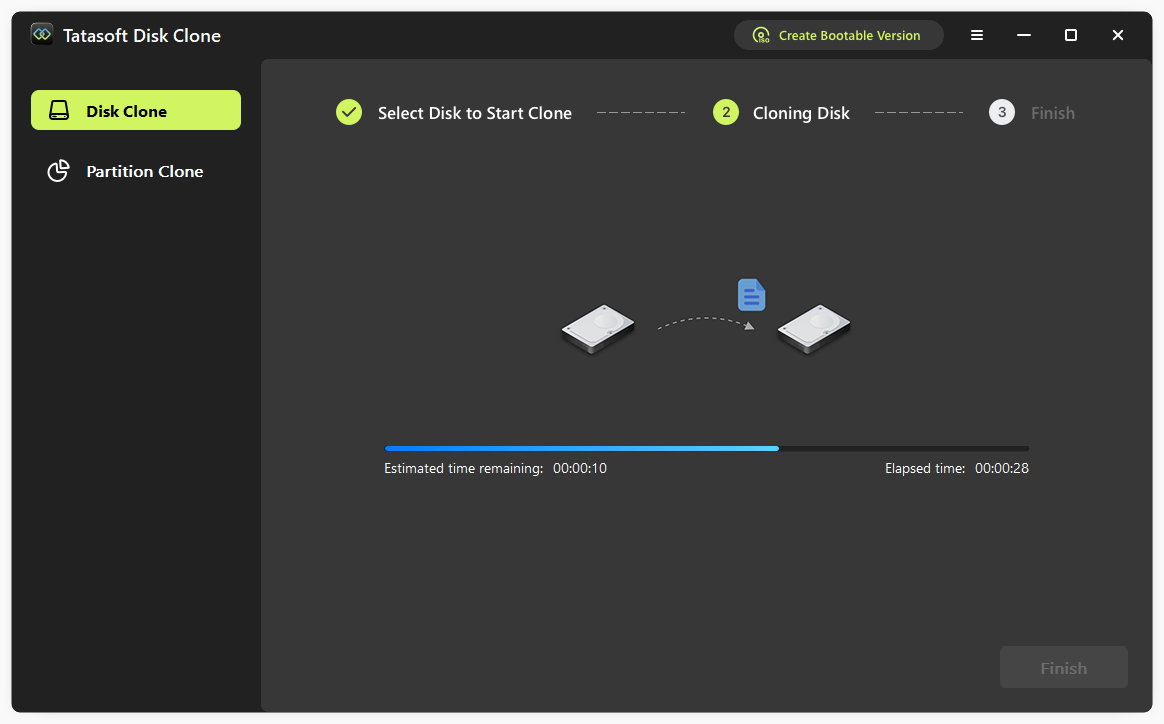
Step 3: Begin hard drive cloning and verify cloning success
Swap Drives after Cloning (if necessary)
If you're replacing your falling drive after cloning, power down your computer, swap the drives, and boot from the new drive.
After cloning your failing hard drive, it's crucial to take a few additional steps:
Cloning a failing hard drive is a critical task that can save your data, provide a seamless transition to a new drive, reducing the trouble of unnecessary reinstallation. By using Tatasoft Disk Clone, you can navigate this HDD cloning process with confidence, ensuring your valuable data is preserved. It performs valid cloning by targeting the entire content of the hard drive while actively skipping physical bad sectors, rather than performing full sector-by-sector mapping. Consequently, the new cloned drive remains free from the physical defects present on the original disk.
No. When using intelligent disk clone software like Tatasoft Disk Clone, it will automatically skip physical bad sectors during the cloning process, so the cloned drive should be free of the physical defects found on the source.
The data that is damaged on the source will still be damaged, if it can even be successfully read while cloning. The cloning process merely replicates existing data states; it does not fix pre-existing corruption.
A dedicated technical writer at Tatasoft with over four years of specialized expertise in computing technology. She crafts actionable, user-centric content for tech niches, specializing in disk cloning, data management, and video solutions for Windows and Mac.
Read full bio
This article has been approved by Ben Lee. Ben's dedication to excellence and his comprehensive knowledge of Windows and Mac technologies make him an essential part of any technical writing team. With a career marked by continuous learning and adaptation to new technologies, Ben remains at the forefront of the ever-evolving tech landscape.