
Written byJanet BashorunUpdated on Mar 04, 2026

Brief introduction: Sector-by-sector disk copy has emerged as the most reliable method for 1:1 disk duplication on Windows 11/10/8/7/Vista. Whether you're upgrading your hard drive, migrating system, or simply creating backups, understanding how to perform a sector-by-sector disk copy can ensure your data remains intact. In this article, we will explore the process of executing a sector-by-sector disk copy using Tatasoft Disk Clone.
In this article
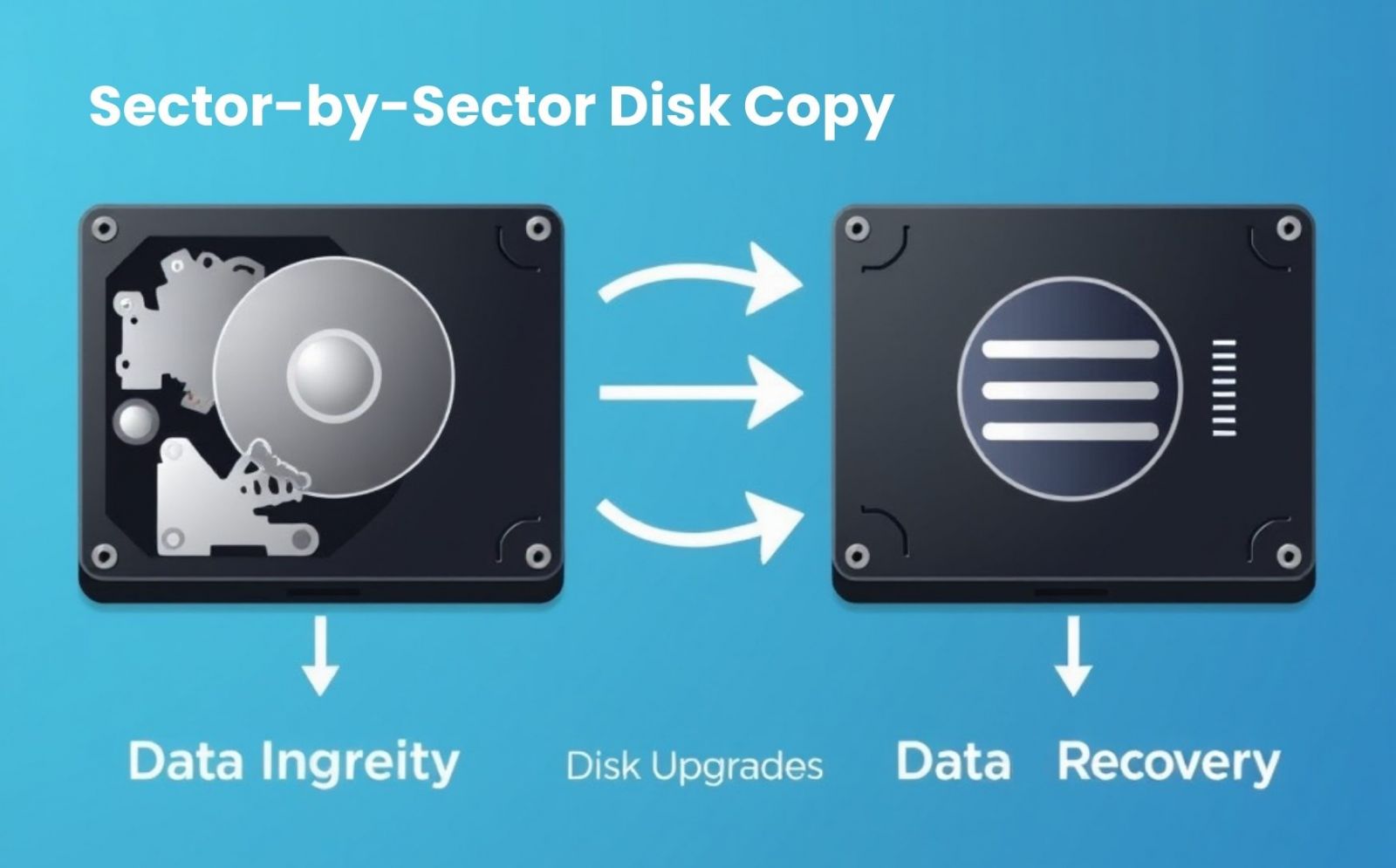
A sector-by-sector disk copy involves duplicating every sector of a hard drive, including all files, system data, and unused space. Unlike file-level copying that only transfers active data, this technique ensures every sector – including boot records and hidden partitions – is precisely replicated. This method is particularly beneficial when you want an exact replica of your entire hard drive, ensuring that no data is lost during the cloning process.
When it comes to performing a sector-by-sector disk copy, Tatasoft Disk Clone for Windows stands out due to its intuitive operation and robust features. Here’s why it’s a top choice:
Step 1: Connect Your Drives to your Windows PC
Step 2: Launch Tatasoft Disk Clone for Windows, and select Disk Clone if you want to copy entire disk. Otherwise use Partition Clone to copy partitions.
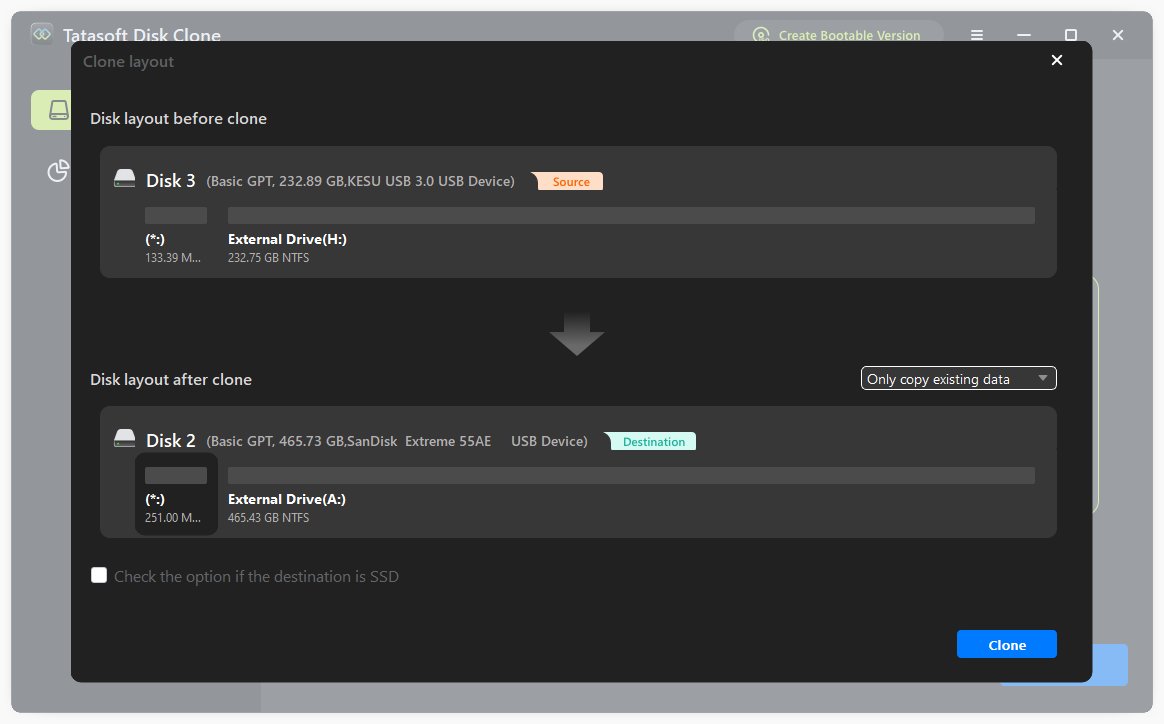
Step 3: Select the hard disks to clone, and check the sector-level cloning option

Step 4: Start the Cloning Process
Step 5: Data Verification after Cloning
Step 6: Finish and Eject
1. Upgrading Hardware:
When transitioning boot drive to a larger or faster hard drive, sector-by-sector cloning ensures that all data, including system files and settings, is perfectly replicated.
If performing a sector-by-sector clone, it is recommended that the target disk be at least 5% larger than the source disk.
2. Is Sector by Sector Clone Ideal for SSD:
Sector-by-sector cloning is generally not ideal for SSDs due to their unique technical characteristics. For standard SSD upgrades/migration, intelligent cloning (which copies only active data and optimizes partition alignment) rather than sector-level copy is strongly preferred to preserve SSD health and performance.
3. Data Recovery:
In cases of hardware failure, sector-by-sector cloning can be used to create an exact copy of a failing drive for recovery purposes, minimizing data loss. For instance, when a hard disk has severe physical bad sectors that cause system crashes, this method bypasses the damaged areas by cloning the entire disk sector-by-sector onto a healthy target disk, allowing data recovery tools to scan the clone without risking further corruption.
4. System Migration:
Moving to a new computer or storage can be streamlined with sector-by-sector cloning, allowing users to carry over their entire setup without the need for reinstallations.
5. Creating Backups:
Cloning your drives can serve as a robust backup solution, enabling quick recovery of your system and data in case of corruption or accidental deletion.
6. Testing New Software:
IT professionals can clone a system before testing new applications or updates, allowing them to revert to the original state if issues arise.
Mastering the process of sector-by-sector disk copy is crucial for creating an exact, bit-for-bit replica of storage devices like SSDs and HDDs. By utilizing Tatasoft disk cloning software, you can simplify the sector level cloning process and ensure that your data remains secure and accessible. The ability to create exact replicas of your drives is essential for full backups for disaster recovery, system migration, or handling disks with damaged sectors by preserving the exact structure and content.
Embracing this powerful disk copy tool enhances your data management strategy, allowing you to focus on what truly matters—making the most of your technology without the fear of data loss.
A dedicated technical writer at Tatasoft with over four years of specialized expertise in computing technology. She crafts actionable, user-centric content for tech niches, specializing in disk cloning, data management, and video solutions for Windows and Mac.
Read full bio
This article has been approved by Ben Lee. Ben's dedication to excellence and his comprehensive knowledge of Windows and Mac technologies make him an essential part of any technical writing team. With a career marked by continuous learning and adaptation to new technologies, Ben remains at the forefront of the ever-evolving tech landscape.