
Written byJanet BashorunUpdated on Dec 24, 2025

Brief introduction: Cloning your Dell laptop’s hard drive is a key task for anyone needing to upgrade storage, back up data, or migrate to a new device. This simple yet powerful procedure allows you to make an exact copy of your entire system without reinstalling, including OS, applications, and personal files. In this guide, we’ll walk you through the Dell laptop cloning process in just a few straightforward steps using Tatasoft, helping you manage data efficiently and securely.
In this article
Cloning a Dell laptop hard drive comes with significant advantages:
1. Data Safety: Cloning ensures that a complete backup of your system is available, which is crucial for data recovery in case of system failure or drive corruption.
2. Seamless Device Upgrades: When upgrading to a new, faster, or larger hard drive, cloning allows you to migrate your entire system without the need for reinstalls or extensive setup.
3. Time Efficiency: A cloned drive can cut down on the time spent setting up a new system, allowing you to get back to work or play quickly.
4. Data Migration: If transitioning to a new computer, cloning enables a smooth transfer of all files and settings, reducing the potential for data loss.
Before diving into the hard drive cloning process, it’s essential to prepare correctly:
✔ Internal Drive: Before replacing the existing laptop's hard drive, you need to connect the new hard drive as an external drive via USB. After cloning, disassemble the laptop to install the new drive.
✔ External Drive: For an external hard drive, simply connect it to your Dell laptop. Confirm that it appears in Windows Explorer.
Step 1: Launch Tatasoft Disk Clone and select Disk Clone
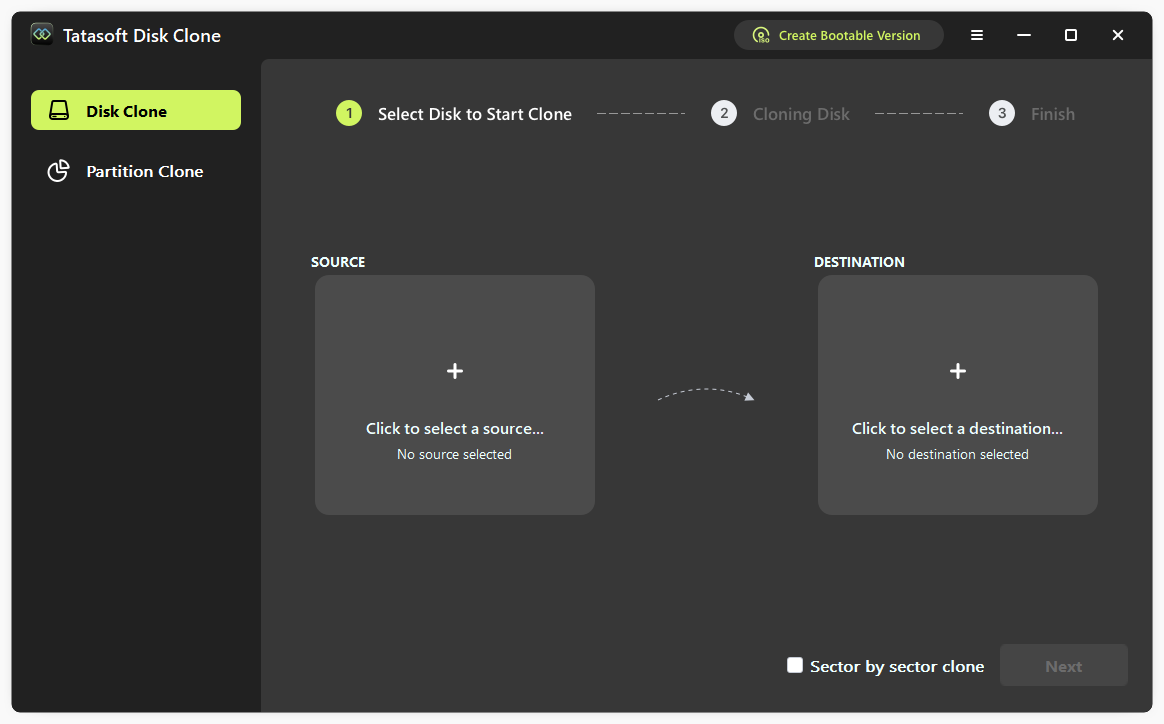
Step 2: Select source and target drives for cloning

Step 3: Configure cloning options and start cloning
Before starting the cloning process, configure cloning settings:
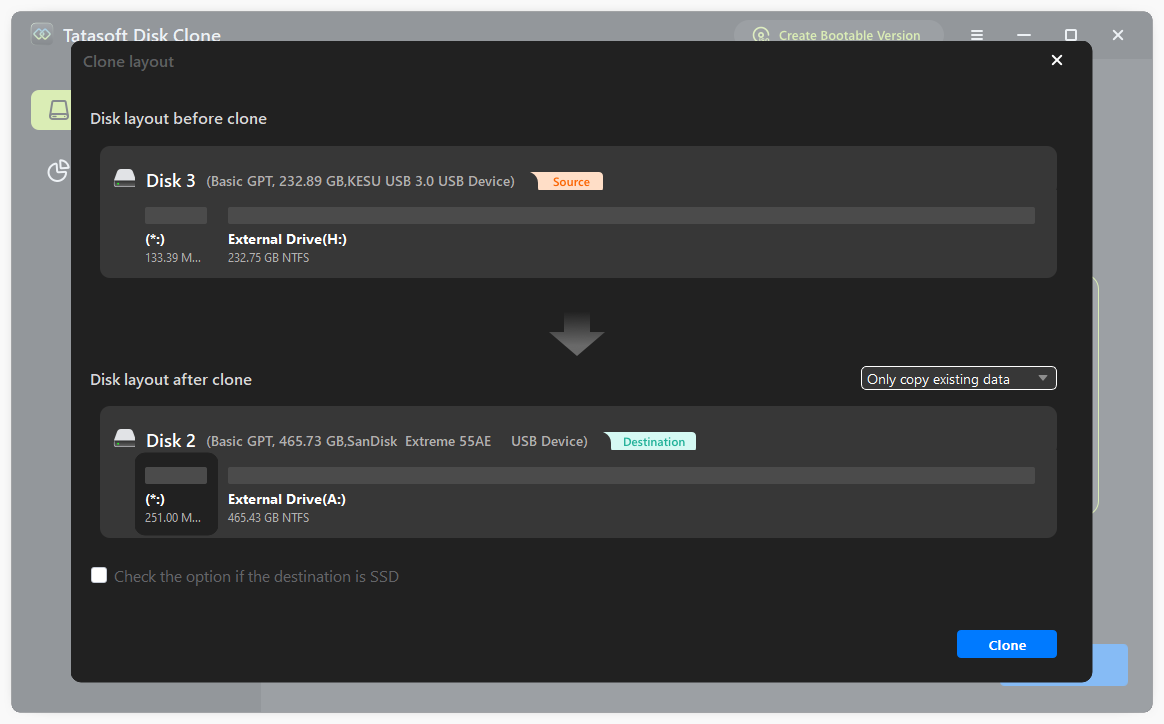
Upon completion, Check the target drive to verify that all necessary files, programs, and settings have been mirrored correctly.
After the cloning process is complete, there are a few important steps you should follow to ensure a successful transition:
1. Boot from the Cloned Drive:
2. Verify Data Integrity:
Open several files, applications, and settings to ensure everything is functioning correctly. Check that all personal data has been carried over properly and that applications are running smoothly.
3. Check Disk Management:
Go to Windows Disk Management (right-click on Start and select "Disk Management") to verify that the new drive is partitioned correctly and reflects the expected storage capacity. If you see any unallocated space, you may need to partition it.
4. Update Drive Letters:
If necessary, adjust the drive letters since the cloned drive may have different drive assignments. You can do this through the Disk Management interface.
5. Optimize Settings:
Depending on storage types (HDD vs. SSD), you may need to enable or disable certain features to optimize performance, such as enabling TRIM for SSDs or adjusting power settings.
6. Create a Backup Schedule:
Consider implementing a backup strategy to safeguard your data. Regular backups can help you avoid data loss in the future, ensuring that you’re always prepared for unforeseen issues.
If you encounter problems during the cloning or installation process, here are some troubleshooting tips:
1. Drive Not Recognized: If the new drive isn’t recognized, ensure all connections are secure. Rebooting the laptop may also help in some cases.
2. Cloning Software Issues: If Tatasoft fails to clone, ensure you have the latest version of the software and that both drives are properly connected.
3. Unbootable System: If your system doesn't boot after cloning, double-check that the cloning was completed successfully and that the new drive was installed properly.
Cloning your Dell laptop hard drive is crucial for data safety and smooth upgrades. This process allows you to create a complete backup of your system, ensuring that all applications, files, and settings are preserved. By utilizing reliable cloning software like Tatasoft, you can simplify disk cloning for Windows 11, 10, 8, 7, and Vista, making it accessible even for those with minimal technical experience.
Integrating hard drive cloning into your routine not only safeguards your data, but also streamlines a smoother transition to new hardware or higher-capacity storage. By following the steps outlined in this guide, you can confidently manage your data and boost your device’s performance.
A dedicated technical writer at Tatasoft with over four years of specialized expertise in computing technology. She crafts actionable, user-centric content for tech niches, specializing in disk cloning, data management, and video solutions for Windows and Mac.
Read full bio
This article has been approved by Ben Lee. Ben's dedication to excellence and his comprehensive knowledge of Windows and Mac technologies make him an essential part of any technical writing team. With a career marked by continuous learning and adaptation to new technologies, Ben remains at the forefront of the ever-evolving tech landscape.