
Written byJanet BashorunUpdated on Dec 17, 2025

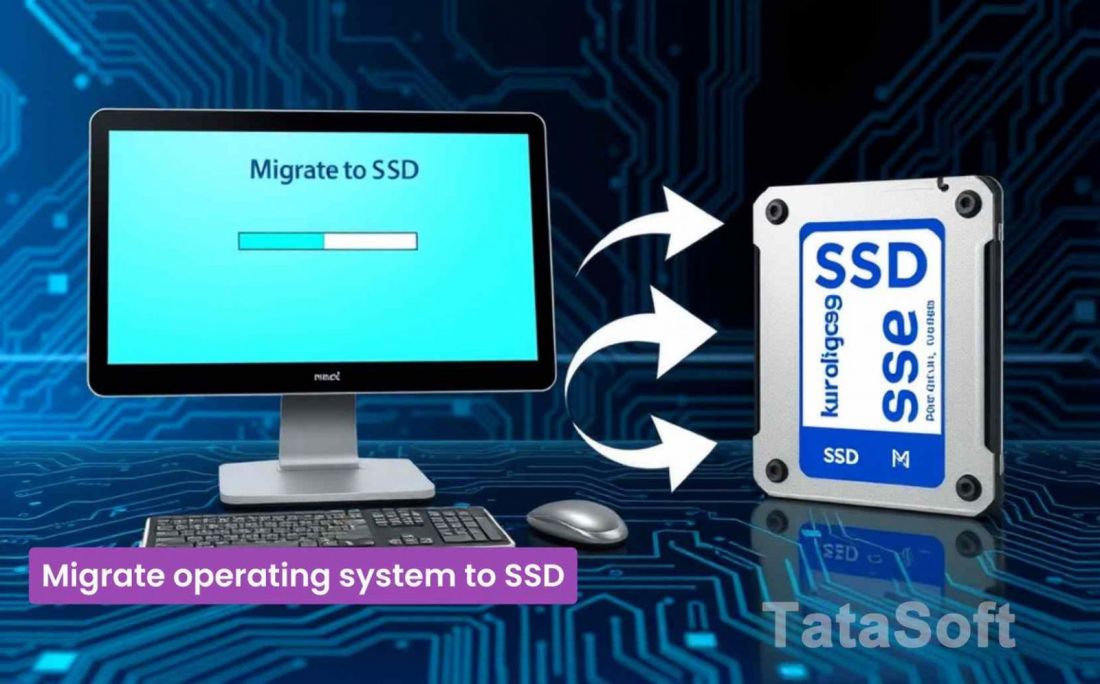
Brief introduction: Migrating your operating system to SSD (Solid State Drive) boosts computer speed significantly. When you migrate an operating system to SSD, you can enjoy faster boot times, quicker application launches, and an overall smoother experience. The article explains SSD advantages, the transfer process, and how Tatasoft Disk Clone can simplify this migration.
In this article
1. Speed and Performance Boost
One of the paramount reasons for migrating to an SSD is the substantial increase in speed. SSDs provide much faster read and write speeds compared to traditional HDDs, resulting in quicker boot times and faster application launches.
2. Increased Durability and Reliability
Unlike HDDs, SSDs have no moving parts, making them more resistant to physical shock and wear. This durability translates to fewer failures and a longer lifespan for your data.
3. Energy Efficiency and Noise Reduction
SSDs consume less power and operate silently, which is particularly beneficial for laptop users seeking to extend battery life and maintain a quieter working environment.
1. Assessing Your Current Setup
⭐ Evaluate your current system to determine the best SSD option. Look for compatibility in terms of interface (SATA or NVMe) and form factor.
⭐ Determine the minimum required SSD capacity for system copying based on your system disk data size.
2. Backup Your Data
Before initiating any migration, it’s crucial to back up your important files on the target SSD. This ensures that you don’t lose any data during the migration process as cloning will erase the SSD.
3. Cleanup your OS
Remove unnecessary files and programs that would otherwise be transferred to the target drive. This reduces the total data volume requiring migration by approximately 15-30% in typical Windows systems.
4. Download and install reliable disk copy software
Tatasoft Disk Clone for Windows is a verified disk cloning solution for OS migration to SSDs, featuring intelligent cloning, sector-level copy, and adjustable partition structures on the target SSD. Additionally, it offers SSD-specific optimization options to maximize SSD performance and supports cloning to a smaller SSD (if the target disk fits the original data).
Expert Insight: Migrating to an SSD significantly improves system performance for Windows PC. To maximize the benefits, it's essential to ensure that your system's RAM and other components are also optimized. Utilizing Tatasoft Disk Clone for Windows simplifies the migration process, allowing you to clone your OS seamlessly while minimizing downtime. Regular updates and SSD health checks ensure lasting benefits.
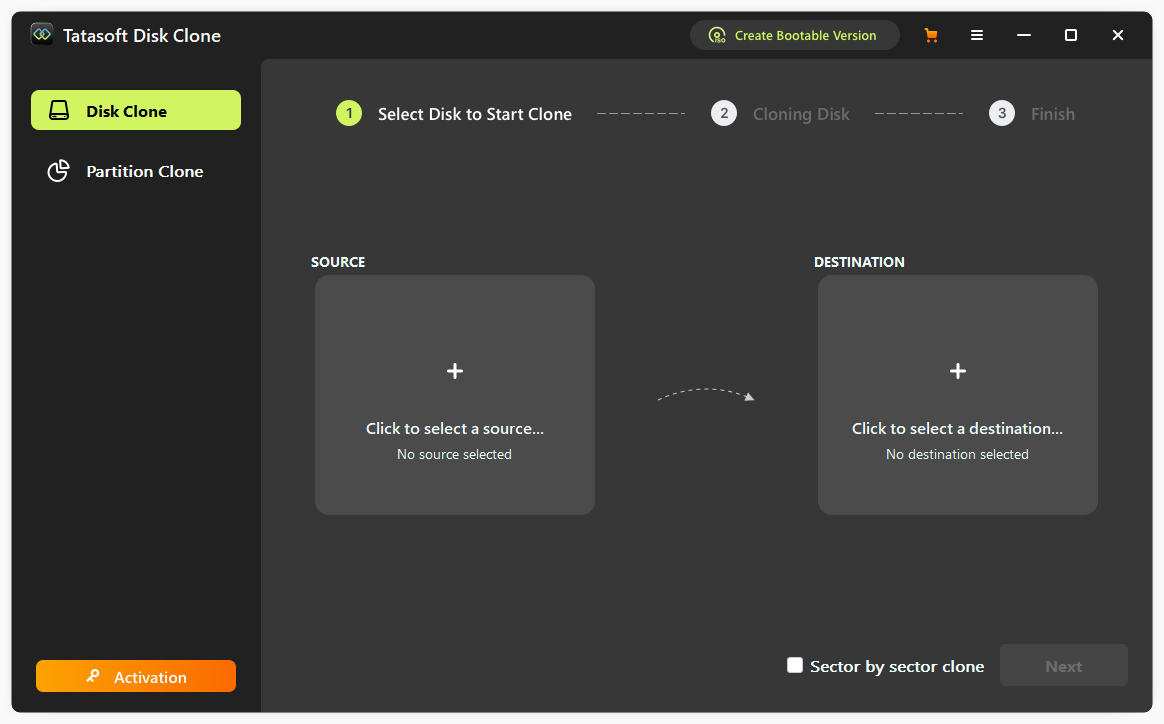
Step 1: Launch Tatasoft Disk Clone and Select Disk Clone
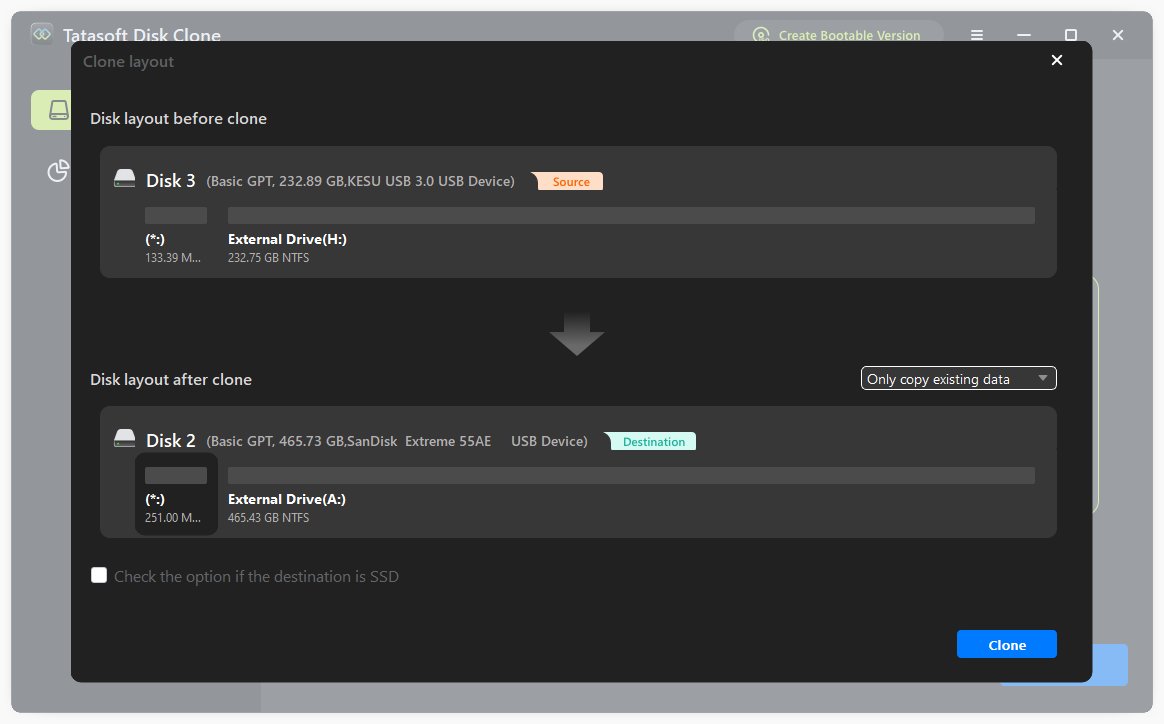
Step 2: Choose Source OS disk and Destination SSD to Clone
Step 3: Configure OS Migration Settings and Begin the Migration
After the OS migration is complete, check the SSD to ensure everything is functioning as expected. This includes verifying that the operating system boots correctly from the SSD. To change to boot from the new OS SSD:
1. Compatibility Issues
Users may encounter compatibility problems between their existing hardware and the new SSD. It’s essential to double-check specifications before purchasing an SSD to ensure a smooth migration.
2. Data Integrity Concerns
To avoid data corruption, you can check Tatasoft’s log files to confirm if any errors occurred during the cloning process. This will help confirm that all data is accurately transferred.
3. Firmware Updates
SSDs often require firmware updates for optimal performance. Users should check the manufacturer’s website for any necessary updates before migration.
4. TRIM Support
Ensuring that TRIM support is enabled after migration can help maintain SSD performance over time or check the option if the destination is SSD during OS copy. Users should verify this setting in their operating system.
5. Migration of System Reserved Partitions
Some operating systems have hidden or system-reserved partitions that need to be migrated as well. Neglecting these can lead to boot issues. Cloning the entire boot disk is preferable to cloning individual partitions.
1. Drive Not Recognized
If the SSD is not recognized during the migration process, check the physical connections and ensure the SSD is properly installed. You may also need to initialize the SSD using Disk Management.
2. Insufficient Space on SSD
f you encounter warnings about insufficient space, consider removing unnecessary files from the source drive before migration. Ensure that the SSD has enough capacity to accommodate the entire operating system and applications.
3. Boot Issues After Migration
If your computer fails to boot from the SSD after migration, check the BIOS settings to ensure the SSD is set as the primary boot device. You may also need to repair the bootloader using recovery tools.
1. Choose the Right SSD
Select an SSD that fits your performance needs and budget. Look for reputable brands that offer good warranties.
2. Regularly Update Software
Keep your Tatasoft cloning software updated to benefit from the latest features and security improvements.
3. Monitor SSD Health
After migration, use monitoring tools to check the health of your SSD. This can help you catch potential issues early.
Migrating your operating system to SSD is an excellent way to enhance your computer's performance and reliability. By following the steps outlined in this guide and utilizing Tatasoft Disk Clone, you can ensure a smooth and efficient OS migration process for Windows 11, 10, 8, 7. With your operating system on an SSD, you’ll experience faster boot times, improved responsiveness, and an overall better computing experience.
A dedicated technical writer at Tatasoft with over four years of specialized expertise in computing technology. She crafts actionable, user-centric content for tech niches, specializing in disk cloning, data management, and video solutions for Windows and Mac.
Read full bio
This article has been approved by Ben Lee. Ben's dedication to excellence and his comprehensive knowledge of Windows and Mac technologies make him an essential part of any technical writing team. With a career marked by continuous learning and adaptation to new technologies, Ben remains at the forefront of the ever-evolving tech landscape.