
Written byJanet BashorunUpdated on Dec 17, 2025

Brief introduction: Thunderbolt 4 technology is transforming HDD-to-SSD cloning with its unmatched speed and reliability. As data demands grow, faster and more efficient transfer methods become critical. Thunderbolt 4 offers unparalleled speed and flexibility, making it the ideal choice for cloning hard drives to solid-state drives (SSDs). In this article, we will provide a step-by-step Thunderbolt 4 HDD-to-SSD cloning guide using Tatasoft Disk Clone, and offer best practices for a seamless HDD upgrade experience.
In this article
1. Ultra-Fast Data Transfer Speeds
Thunderbolt 4 supports speeds of up to 40 Gbps, significantly reducing the time required for HDD to SSD cloning operations. This speed is particularly beneficial when dealing with large files or entire drive images, making the process not only quicker but also more efficient.
2. Versatile Connectivity
Thunderbolt 4 ports are compatible with various devices, including USB-C and DisplayPort, allowing users to connect multiple peripherals seamlessly. This versatility is essential for those who need to clone drives frequently, as it simplifies the setup process.
3. Improved Power Delivery
With Thunderbolt 4, you can deliver up to 100 watts of power to connected devices. This feature is especially useful for external SSDs that require additional power, ensuring optimal performance during cloning tasks.
4. Enhanced Security Features
Thunderbolt 4 includes advanced security protocols that protect data during transfer. This added layer of security is crucial when handling sensitive information, ensuring that all data remains confidential throughout the cloning process.
To effectively perform Thunderbolt 4 HDD to SSD cloning, you’ll need reliable disk cloning software. Tatasoft Disk Clone for Windows is a powerful and user-verified tool for HDD upgrade. It offers an intuitive interface, making it accessible for both beginners and seasoned professionals. This article demonstrates how to clone an HDD to an SSD via a Thunderbolt 4 port using Tatasoft. Here’s how to get started:
Step 1: Connect Your Drives with Thunderbolt 4 cable
Step 2: Install and launch Tatasoft Disk Clone
Step 3: Select Source HDD and Destination SSD for Cloning

Step 4: Configure Thunderbolt 4 HDD to SSD Cloning Options
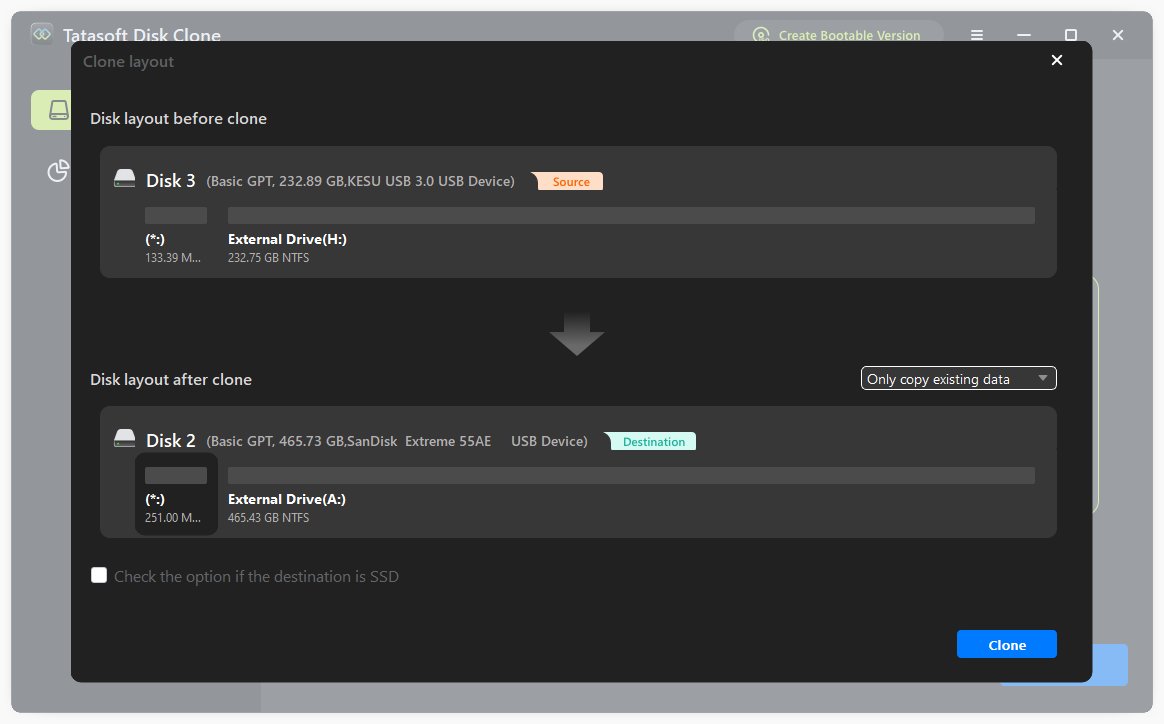
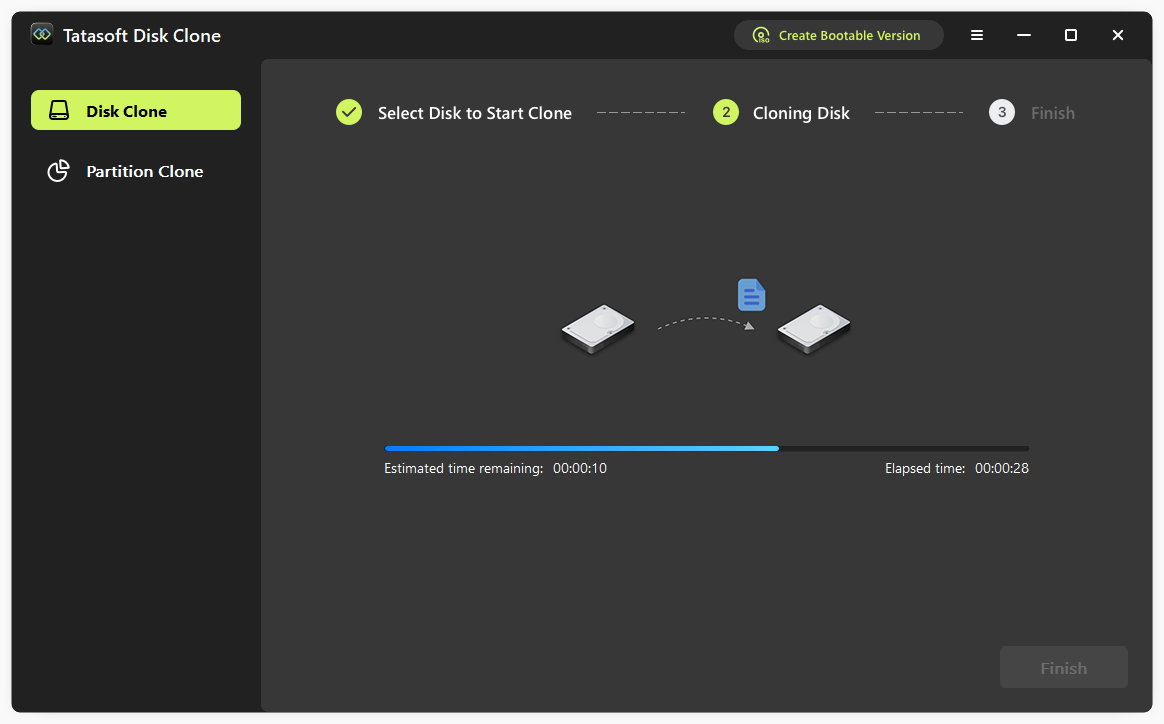
Step 5: Initiate the HDD to SSD Cloning Process
After the cloning process is finished, check your SSD to ensure all data has been transferred successfully.
Adoption in Consumer Devices
1. As Thunderbolt technology continues to evolve, we can expect wider adoption in consumer devices, including laptops, desktops, and external storage solutions. This trend will make Thunderbolt 4 an even more accessible option for data transfer and cloning.
2. Integration with Other Technologies
Future iterations of Thunderbolt may integrate with emerging technologies, such as 5G and advanced AI. This integration could further enhance data transfer capabilities and security.
Thunderbolt 4 HDD to SSD cloning is an efficient and effective way to upgrade your storage solutions and migrate system HDD to SSD without reinstalling. With Tatasoft cloning software, the process becomes straightforward, allowing users to take advantage of Thunderbolt 4’s impressive speed and versatility. By following the steps and best practices outlined in this guide, you can ensure a smooth and successful hard drive cloning experience.
Take your storage to the next level with Tatasoft cloning software. Download it now and unlock the full potential of Thunderbolt 4 HDD to SSD cloning for a faster, more efficient data management experience!
A dedicated technical writer at Tatasoft with over four years of specialized expertise in computing technology. She crafts actionable, user-centric content for tech niches, specializing in disk cloning, data management, and video solutions for Windows and Mac.
Read full bio
This article has been approved by Ben Lee. Ben's dedication to excellence and his comprehensive knowledge of Windows and Mac technologies make him an essential part of any technical writing team. With a career marked by continuous learning and adaptation to new technologies, Ben remains at the forefront of the ever-evolving tech landscape.