
Written byJanet BashorunUpdated on Feb 26, 2026

Brief introduction: Cloning a ReFS drive is a critical task for users who need to maintain data integrity during storage upgrades or migrations. While standard Windows users often use ReFS for high-capacity data storage, it serves as a robust bootable system drive in Windows Server environments. This guide provides a detailed solution to clone your ReFS drive using Tatasoft Disk Clone, ensuring 100% data integrity for a seamless transition.
In this article
ReFS, or Resilient File System, is Microsoft’s premier solution for data integrity and high availability. While standard Windows users typically utilize ReFS for high-capacity data drives, Windows Server administrators often deploy ReFS as a bootable system drive to leverage its self-healing capabilities. Core Features of ReFS:
Understanding Your ReFS Setup
The cloning approach differs based on your environment:
Benefits of Cloning ReFS Drives:
While ReFS is ideal for high-availability environments like Hyper-V or large-scale enterprise storage, performing a clone ReFS drive operation requires precision to maintain its unique metadata structures and ensure the system remains bootable after migration. Whether you are upgrading to a larger SSD or migrating a server boot drive, using a specialized disk clone software like Tatasoft Disk Clone for Windows is essential to prevent data corruption and boot failures.
Before starting, follow these prerequisite steps to avoid common pitfalls:
1. Select the Right Software: Download and install Tatasoft Disk Clone for Windows, which supports sector level copying required for complex ReFS structures.
2. Verify Target Drive Capacity: E Ensure the new drive is large enough to accommodate all ReFS data. If upgrading to a larger volume, refer to our guide on how to clone disk to larger disk.
3. Verify Partition Table: ReFS requires the GUID Partition Table (GPT). Before cloning, ensure your target disk is initialized as GPT. You can find detailed steps on how to clone GPT disk here. Using Tatasoft Disk Clone, if cloning ReFS to a MBR disk, the target disk will be automatically converted to the **GPT partition style**.
Step 1: Connect the target storage drive
Physical Installation: Install the new drive inside your computer or connect it externally via USB, depending on your setup.
Step 2: Launch Tatasoft Disk Clone and Select "Disk Clone" to begin the full-drive migration.
Disk Clone is recommended for Server Boot Drives. This ensures every bit of the ReFS structure and boot code is replicated exactly.
Partition Clone: Recommended for standard Windows users (10/11) who only need to migrate a single ReFS data partition to another drive.
Step 3: Selecting Source and Destination Drives

Step 4: Configure ReFS cloning options
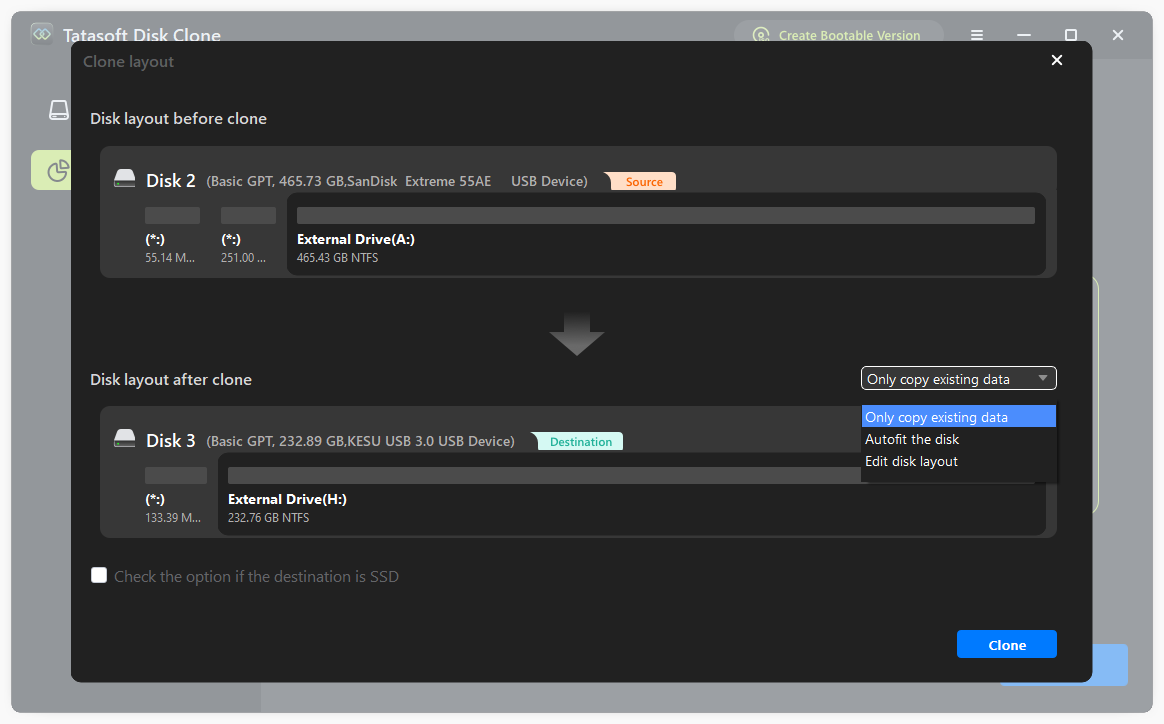
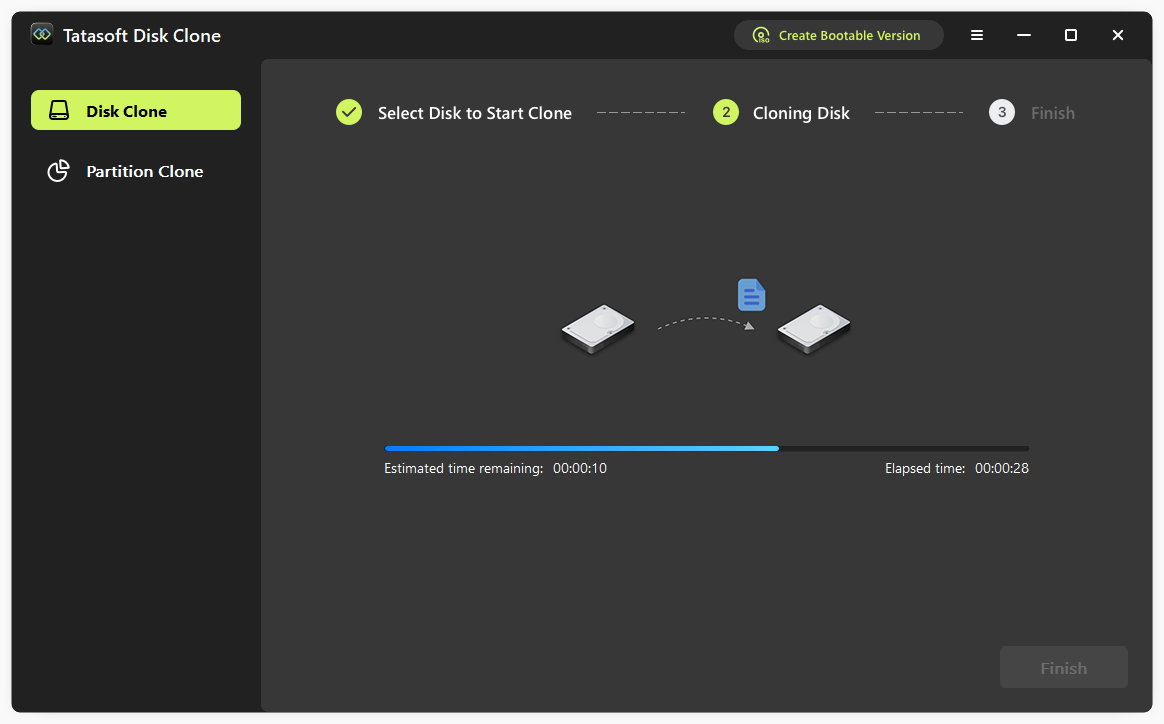
Step 5: Click "Clone" and wait for the process to complete.
1. Enterprise Data Management
Cloning ReFS drives is essential for businesses that require quick recovery and high availability of critical data.
2. Virtualized Environments
In virtual machine setups, cloning ensures that data remains consistent and available, minimizing disruptions during updates or migrations.
3. Disaster Recovery Solutions
Having a cloned ReFS drive can significantly reduce recovery time in case of hardware failures or data loss scenarios.
Cloning a ReFS drive is the most efficient way to migrate your data while preserving the high-availability benefits of the Resilient File System. Whether you are migrating enterprise-level server boot disks or high-capacity data volumes, to clone ReFS drive successfully requires a tool that understands its unique architecture. With Tatasoft Disk Clone, you can perform this task with confidence and ease. By following the steps outlined in this guide, you can ensure a successful migration while preserving the benefits of the Resilient File System.
A dedicated technical writer at Tatasoft with over four years of specialized expertise in computing technology. She crafts actionable, user-centric content for tech niches, specializing in disk cloning, data management, and video solutions for Windows and Mac.
Read full bio
This article has been approved by Ben Lee. Ben's dedication to excellence and his comprehensive knowledge of Windows and Mac technologies make him an essential part of any technical writing team. With a career marked by continuous learning and adaptation to new technologies, Ben remains at the forefront of the ever-evolving tech landscape.