
Written byJanet BashorunUpdated on Feb 02, 2026

Brief introduction: Cloning an HDD to a USB drive is essential for effective data migration and protection. This process creates an exact replica of your hard drive, enabling secure backups, seamless migrations, and quick recovery from system failures. In this guide, we will show you how to ensure a successful, bootable clone using professional disk copy software – Tatasoft Disk Clone.
In this article
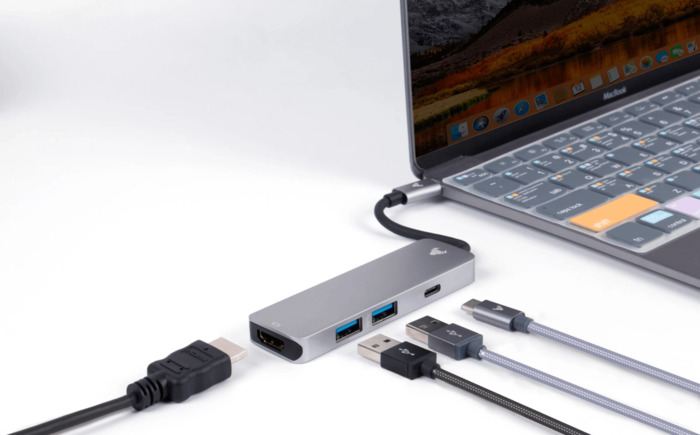
Cloning your hard drive to an external USB device is one of the smartest ways to safeguard your digital life. Whether you need a portable backup or a way to clone Windows to SSD for a performance boost, following the right steps is crucial.
To ensure a successful and bootable clone, especially when cloning a hard disk in Windows 11, your USB drive must meet these criteria:
While there are many disk copy tools available, Tatasoft Disk Clone stands out for its Sector-by-Sector Cloning technology, user-friendly interface and reliable performance. This is crucial because standard copy-paste methods fail to capture the boot records needed to start Windows from a USB.
Step 1: Download and install Tatasoft Disk Clone to your Windows PC
Step 2: Prepare Your USB Drive
Connect the USB drive to your computer and verify it has enough space. If you are working with smaller portable storage like memory card, you might also be interested in how to clone an SD card on Windows.
Step 3: Launch Tatasoft and select Disk Clone
Step 4: Choose your source drive (the HDD) and destination drive (the USB).

Step 5: Start the Cloning Process
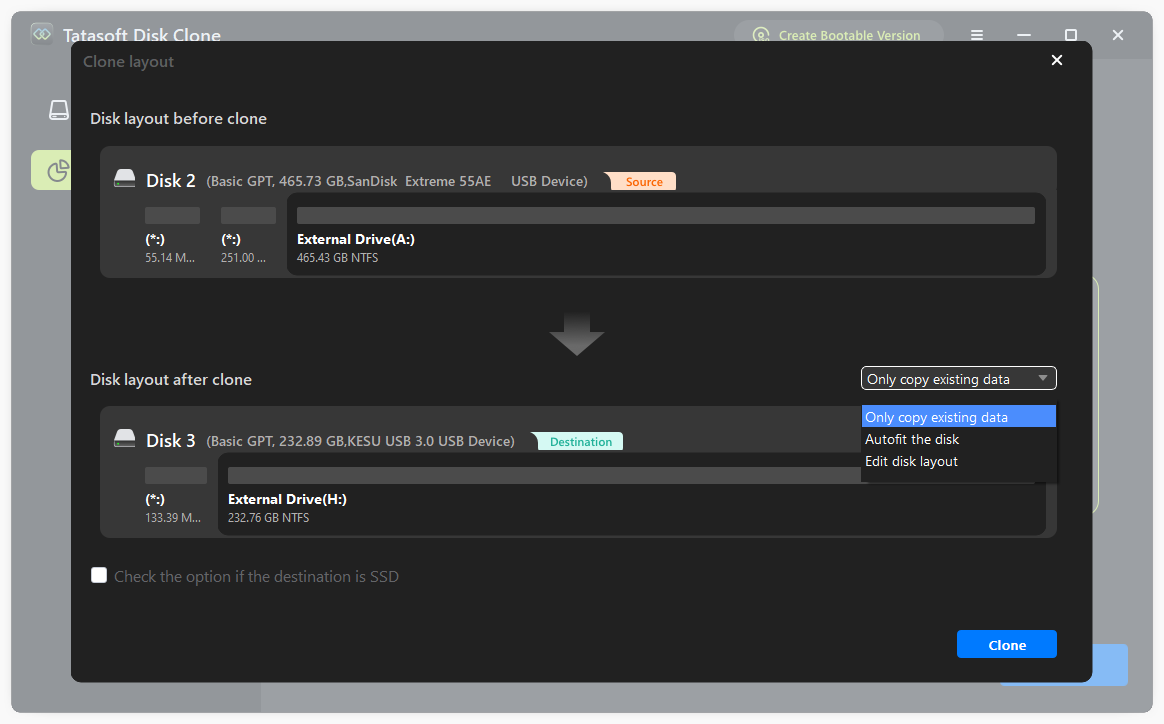
Once the cloning process is complete, it’s essential to access the USB drive to verify that your data has been cloned successfully. If you ever need to transfer this bootable environment again, you can learn how to clone a bootable USB to another drive.
Cloning your HDD to USB is an essential skill for anyone looking to protect their data and streamline system migration. By following this guide and using Tatasoft Disk Clone, the process is straightforward and efficient, you can confidently create a secure backup of your hard drive, ensuring that your valuable information is safe from potential loss. The process is not only straightforward but also efficient, making it an ideal choice for both beginners and experienced users.
Don't wait for a data disaster—take proactive steps. Start your HDD cloning journey today and keep your data safe!
Yes, you absolutely can. Unlike basic tools, Tatasoft Disk Clone supports cloning from a larger drive to a smaller one, provided the used data on your source HDD does not exceed the total capacity of the target USB. Example: 120GB of data on a 500GB HDD will successfully clone to a 250GB USB drive.
To guarantee a successful boot, you must perform a "Disk Clone" rather than a simple file copy. Tatasoft Disk Clone ensures all hidden boot sectors and system partitions are replicated perfectly. Once the process is complete, restart your PC, enter the BIOS/UEFI settings, and move the USB drive to the top of the boot priority list.
Yes, the cloning process creates an exact replica of your source HDD, which involves overwriting the destination drive. Before you begin, ensure you have backed up any important files currently stored on the USB. Tatasoft Disk Clone will alert you before any data is erased.
The duration depends on two main factors: the total amount of data and the speed of your USB interface. Using a USB 3.0 or 3.1 drive can significantly cut down the time compared to older USB 2.0 ports. For the best results, avoid using your computer for other tasks during the process to ensure Tatasoft Disk Clone has full access to the system's resources.
A dedicated technical writer at Tatasoft with over four years of specialized expertise in computing technology. She crafts actionable, user-centric content for tech niches, specializing in disk cloning, data management, and video solutions for Windows and Mac.
Read full bio
This article has been approved by Ben Lee. Ben's dedication to excellence and his comprehensive knowledge of Windows and Mac technologies make him an essential part of any technical writing team. With a career marked by continuous learning and adaptation to new technologies, Ben remains at the forefront of the ever-evolving tech landscape.