
Written byJanet BashorunUpdated on Jan 01, 2026

Brief introduction: To clone an SD card on Windows 10/11 is an essential skill for anyone who relies on these storage devices for data, whether for photography, media storage, or backup purposes. With Tatasoft Disk Clone for Windows, the process is straightforward and user-friendly. In this article, we will guide you through the preparations and step-by-step process to ensure a successful replication of your SD card.
In this article
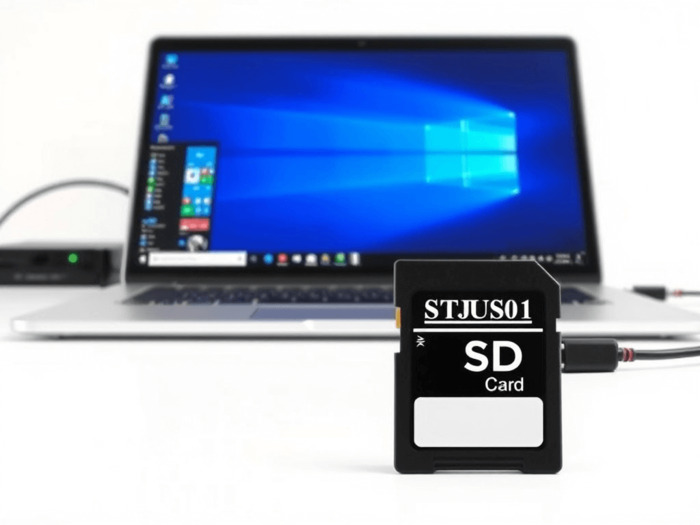
Cloning your SD card allows you to create an exact copy of the data, making it easy to transfer files to a new card or safeguard important information. It’s not just about backing up your data; it offers several advantages that can significantly enhance your workflow:
1. Data Security: Protect your data against unexpected errors or card corruption by creating a duplicate backup. A corrupted or full SD card can brick your device.
2. Upgrading Storage: Easily transition to a larger SD card (64GB, 128GB, or 256GB) without the hassle of manually transferring files.
3. Ease of Recovery: If your device fails or is reset, having a cloned SD card allows for a quick restoration of your settings and files to resume work.
4. Portability: Cloning allows you to create a portable version of your data, making it easy to share or access files on different devices.
5. Data Integrity: All data, including deleted files recoverable via sector-level copy and hidden files that manual copying might miss.
Before you dive into cloning your SD card, ensure you have everything you need:
1. Compatible SD Cards: Have both the source SD card (the one you want to clone) and the destination SD card (the one that will receive the clone) ready. The target SD card should be equal to or larger in capacity; if it is smaller, ensure it can accommodate all data from the source SD card first.
2. SD Card Reader: If your computer lacks an integrated SD card slot, make sure to use a reliable card reader.
3. Reliable SD Card Cloning Software: Install Tatasoft Disk Clone for Windows on your Windows 10/11 computer. This tool supports a range of cloning options for SSDs, HDDs, and SD cards, making it a comprehensive solution for all your data migration and backup needs.
4. Back up important data on the destination SD card if it has. Cloning will overwrite all data on the target card.
Step 1: Insert your SD cards
Insert both the source and destination SD cards into your Windows computer. The source card should contain the data you want to clone, while the destination card should have enough space to accommodate the data.
Step 2: Launch Tatasoft Disk Clone for Widows and select “Disk Clone”
Disk Clone lets you to copy an SD card with multiple partitions in one go. Or you can choose Partition Copy to clone single partition on the SD card.
Within Tatasoft, navigate to the cloning options menu. Here, you’ll see options for selecting the source and destination drives. Click on the source SD card to select it as the "from" drive.
Step 3 : Select the source and destination SD cards for cloning
① Select the source SD card which you want to clone by clicking + on the left side
② Select the destination SD card by clicking + on the right side. Ensure that you have selected the correct card to avoid unintentional data loss.
③ Check the "Sector-by-Sector Clone" option if you need to copy every sector of the source SD card (recommended for preserving bootable partitions or hidden data).

Step 4: Customize SD card cloning settings
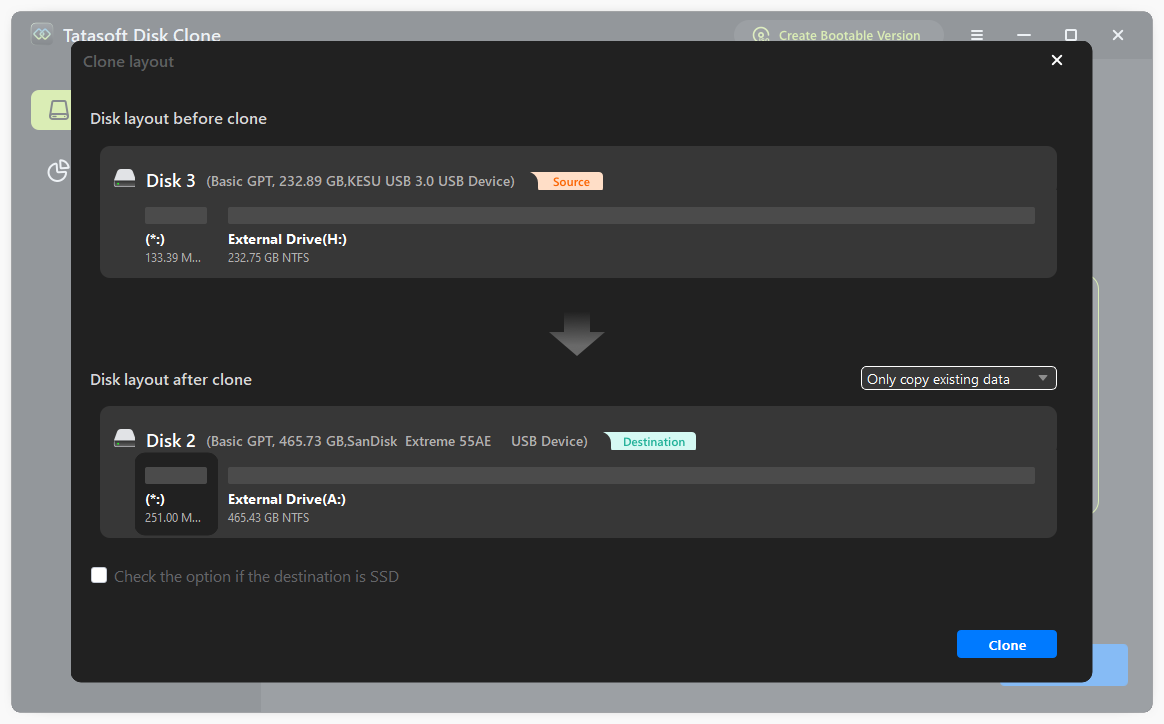
Step 5: Initiate SD card cloning process
Once all settings are configured, click the “Clone” button to copy the source SD card to another. Depending on the amount of data, cloning may take several minutes.
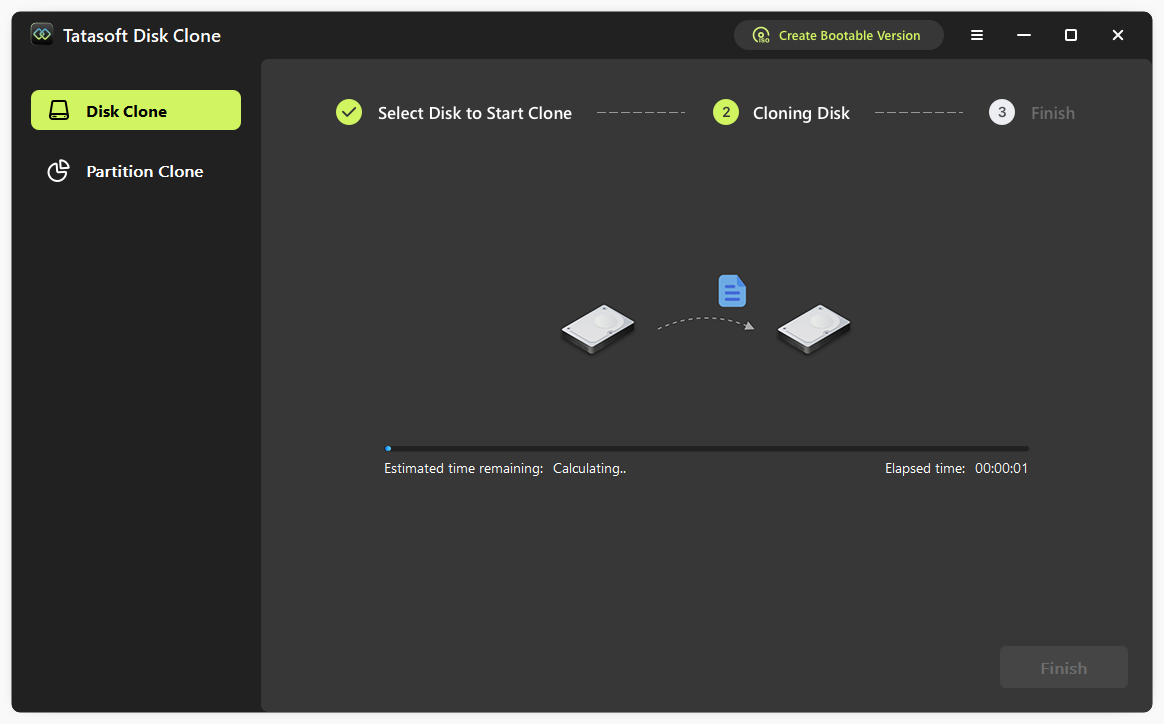
Keep an eye on the progress bar within Tatasoft. It will provide real-time updates on how much of the cloning process is complete. After cloning, check if all files have been successfully cloned and are accessible on the destination SD card. Then you can eject both cards.
Here are some common issues you might encounter while cloning an SD card and how to fix them:
After successfully cloning your SD card, it's wise to follow a few best practices:
Cloning an SD card on Windows 10/11 is a simple and effective way to back up or transfer data. With Tatasoft Disk Clone, the process is efficient, straightforward, and reliable. By following the steps outlined in this guide, you can create a flawless copy of your SD card—giving you peace of mind knowing your data is secure and easily accessible. Additionally, it serve as powerful solutions for migrating your Windows OS to an SSD without reinstallation or transferring it to a new computer.
The benefits of cloning your SD card extend beyond simple data duplication; they provide a safety net for your digital life. Whether you're upgrading to a larger card or just ensuring that your files are secure, Tatasoft equips you with the tools needed for successful cloning.
A dedicated technical writer at Tatasoft with over four years of specialized expertise in computing technology. She crafts actionable, user-centric content for tech niches, specializing in disk cloning, data management, and video solutions for Windows and Mac.
Read full bio
This article has been approved by Ben Lee. Ben's dedication to excellence and his comprehensive knowledge of Windows and Mac technologies make him an essential part of any technical writing team. With a career marked by continuous learning and adaptation to new technologies, Ben remains at the forefront of the ever-evolving tech landscape.