
Written byJanet BashorunUpdated on Jan 28, 2026

Brief introduction: Samsung Magician is the premier utility for optimizing Samsung SSDs and streamlining data migrations. Its Data Migration feature provides a streamlined "one-click" cloning process for moving an OS to a Samsung drive, but it is exclusive to Samsung hardware. Tatasoft Disk Clone serves as the ideal alternative for multi-brand setups.
In this article
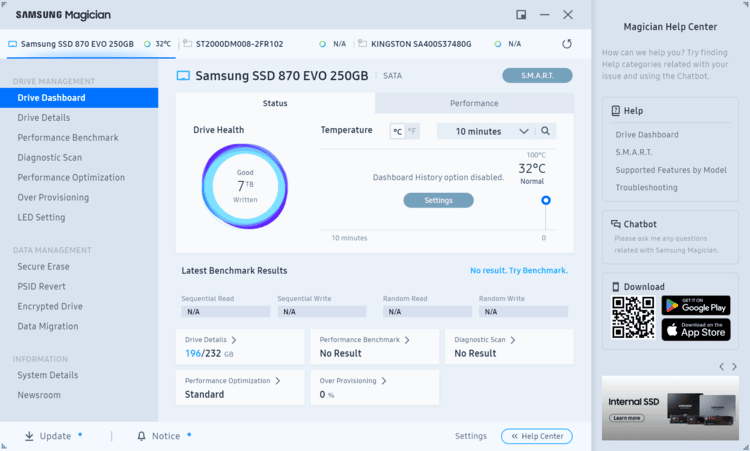
Samsung Magician is the definitive management suite developed by Samsung for Samsung SSD users, offering a sophisticated toolkit for firmware updates, health monitoring, and performance optimization. Its primary role is to provide an intuitive interface for monitoring drive health and optimizing performance.
One of its most critical features is the Data Migration tool, which allows users to clone their existing operating system and data from a source drive directly to a new Samsung SSD. This is particularly useful for those who want to migrate operating system to SSD to enjoy faster boot times and improved system responsiveness. It simplifies what used to be a complex technical task into a few clicks, ensuring your files, settings, and programs remain intact during an upgrade.
If you are a Samsung SSD owner, follow these steps to integrate the software into your workflow and migrate your data:
Prerequisites Before Starting:
Step-by-Step Guide: Cloning with Samsung Magician
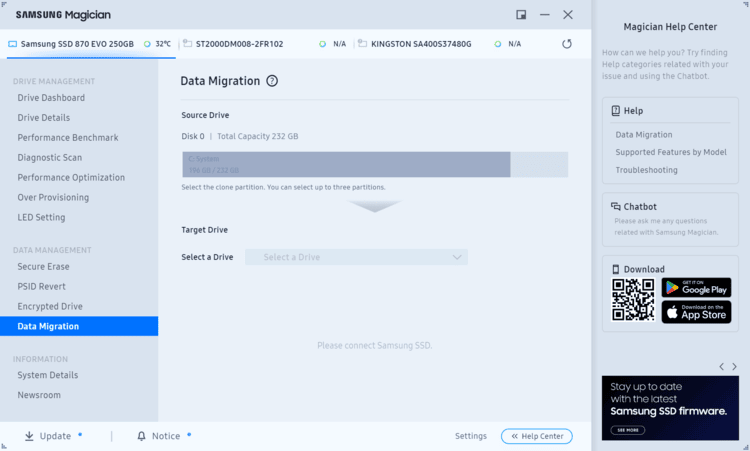
Step 1: Open Samsung Magician. On the left-hand navigation menu, click on the "Data Migration" tab.
Step 2: Select the Source Drive. Ensure the "Source Drive" dropdown shows the correct disk you want to clone (such as your C: drive).
Step 3: Choose your new Samsung SSD from the Target Drive section.
Step 4: Select volumes (optional). If your source drive has multiple partitions (e.g., C: and D:), you can select which additional volumes you want to clone. Samsung Magician allows you to clone up to three volumes.
Step 5: Click the "Start" button in the bottom right corner. A warning message will appear stating that all data on the target drive will be erased. Click "Yes" to proceed.
Step 6: The software will begin copying data. The time required depends on the amount of data and your connection speed.
Step 7: Finish and swap drives. Once the message "The source drive has been successfully cloned to your Samsung SSD" appears:
Pros
Cons
While Samsung Magician is excellent for brand-specific needs, many users encounter frustrations when working with mixed-brand environments. For a more versatile and robust solution, Tatasoft Disk Clone is the premier choice.
Why Choose Tatasoft?
For users looking for a more versatile solution, integrating Tatasoft is straightforward and beneficial across various brands. Here’s how you can get started:
Step 1: Download and install Tatasoft Disk Clone to your PC.
Step 2: Connect your source and destination drives, regardless of their brand.
Step 3: Open Tatasoft and select the option for disk cloning. The intuitive interface will display the connected drives.
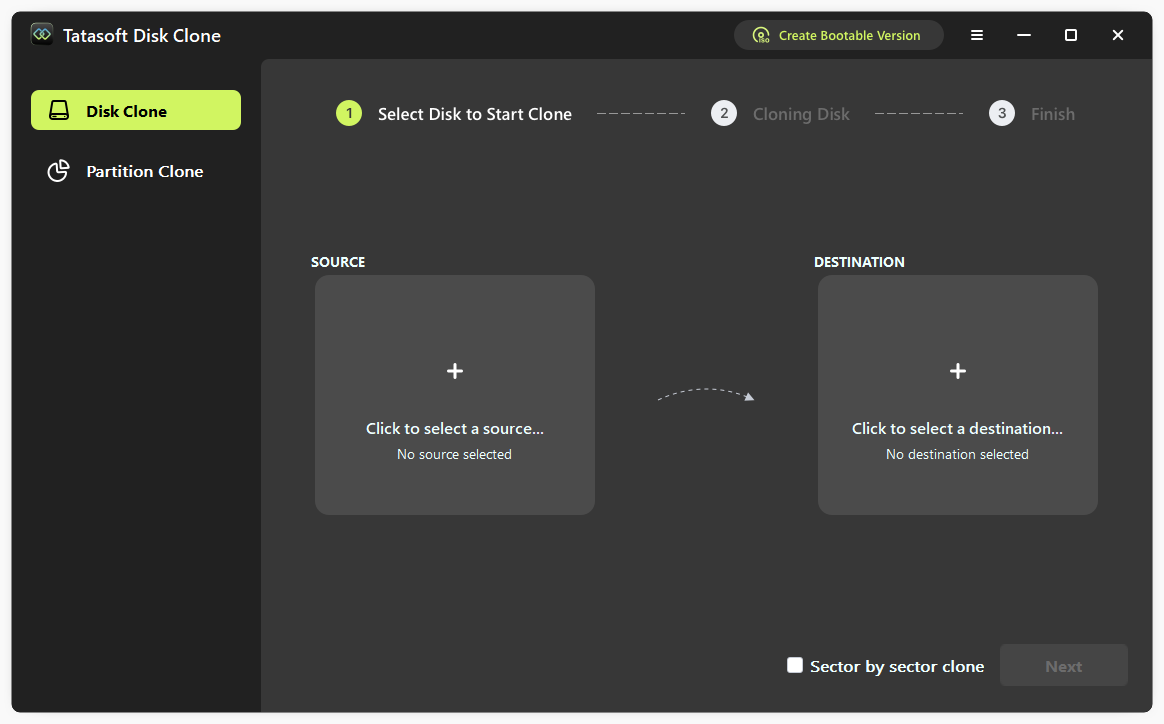
Step 4: Select Drives for Cloning. Select the drive you want to copy as source and the new drive where the data will go.

Step 5: Edit disk layout (optional)
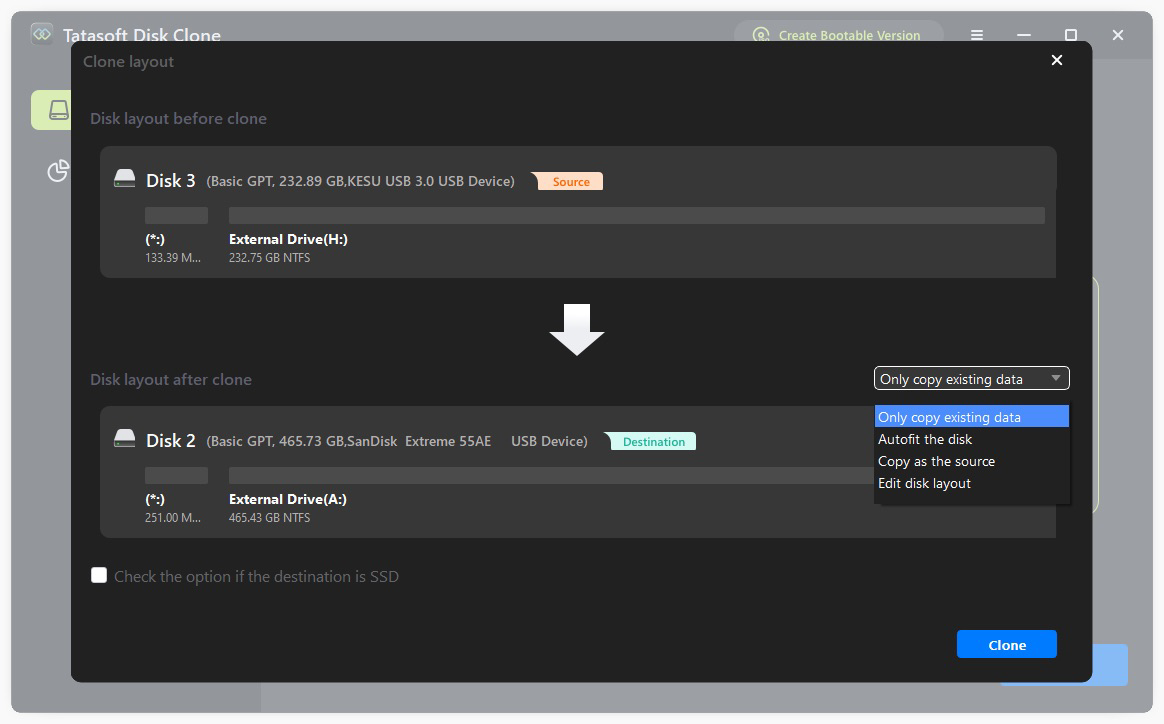
Step 6: Click Clone to initiate the process and verify your data integrity once complete.
While Samsung Magician is a powerful tool for managing Samsung SSDs, it's important to consider how it stacks up against Tatasoft cloning software. Here's a detailed comparison of the two:
1. Compatibility
2. Cloning Features
3. User Interface
4. Performance Optimization
5. Support and Updates
In online forums, users frequently share their experiences and insights regarding Samsung Magician and Tatasoft. The discussions often highlight the strengths and challenges associated with each tool:
Samsung Magician is an excellent tool for those who own Samsung SSDs and want to optimize their drive's performance and longevity. Its straightforward interface and essential functions, such as firmware updates and health monitoring, make it a worthwhile addition to your system management toolkit. However, due to its limitations in compatibility and cloning features, users with mixed-brand storage setups may find Tatasoft Disk Clone to be a more versatile and practical choice.
By weighing the strengths and limitations of both tools, you can choose the best solution that suits your data management and migration needs. Whether you opt for Samsung Magician for its specific advantages or Tatasoft for its broader compatibility, having the right software at your disposal will help you ensure a smooth and efficient experience with your SSDs.
A dedicated technical writer at Tatasoft with over four years of specialized expertise in computing technology. She crafts actionable, user-centric content for tech niches, specializing in disk cloning, data management, and video solutions for Windows and Mac.
Read full bio
This article has been approved by Ben Lee. Ben's dedication to excellence and his comprehensive knowledge of Windows and Mac technologies make him an essential part of any technical writing team. With a career marked by continuous learning and adaptation to new technologies, Ben remains at the forefront of the ever-evolving tech landscape.