
Written byJanet BashorunUpdated on Mar 09, 2026

Brief introduction: Your old 1TB HDD is crawling, but a 1TB SSD is pricey. I recently upgraded my boot drive to a compact 500GB NVMe SSD, and the speed difference is night and day. If you’re worried that your "source" data won’t fit onto a smaller "destination" drive, don't panic. This guide shares my personal workflow for a seamless Windows OS migration using Tatasoft Disk Clone.
In this article
Upgrading to an SSD is the single best way to breathe life into an aging PC. While traditional HDDs are fine for mass storage, they can’t match the near-instant boot times and responsiveness of flash storage.
To ensure a "large-to-small" clone works, your used data must be less than the capacity of the new SSD.
Step 1: Connect the New SSD
Plug in your new SSD (via SATA-to-USB adapter for laptops or an internal M.2 slot) or install the new SSD into your compute. If the drive is new, use Disk Management to initialize it so Windows recognizes the hardware.
Step 2: Install Tatasoft Disk Clone and Launch the app
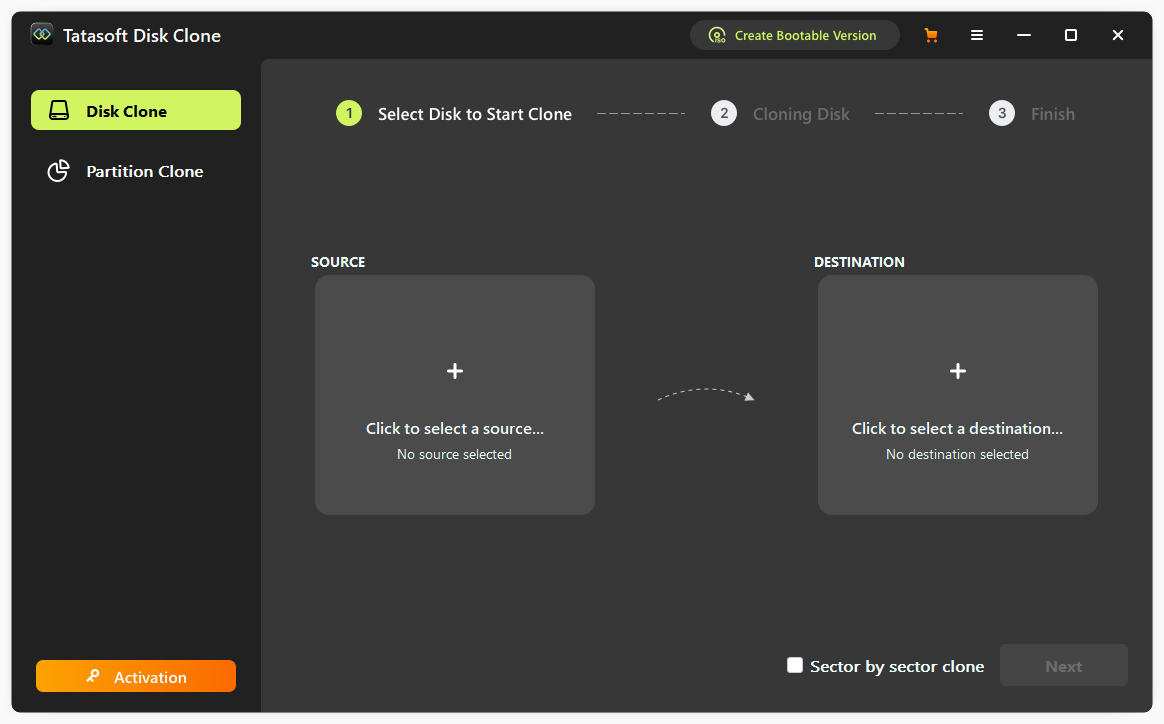
Step 3: Choose the Source and Destination Drives

Step 4: Adjust Cloning Settings
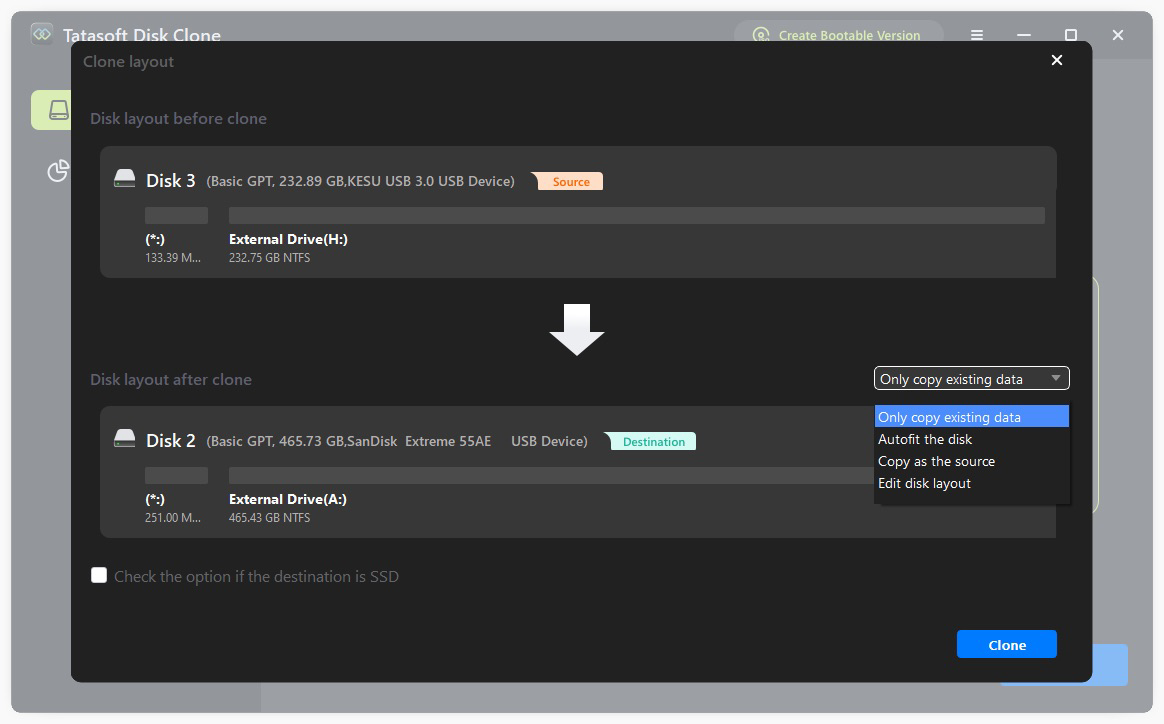
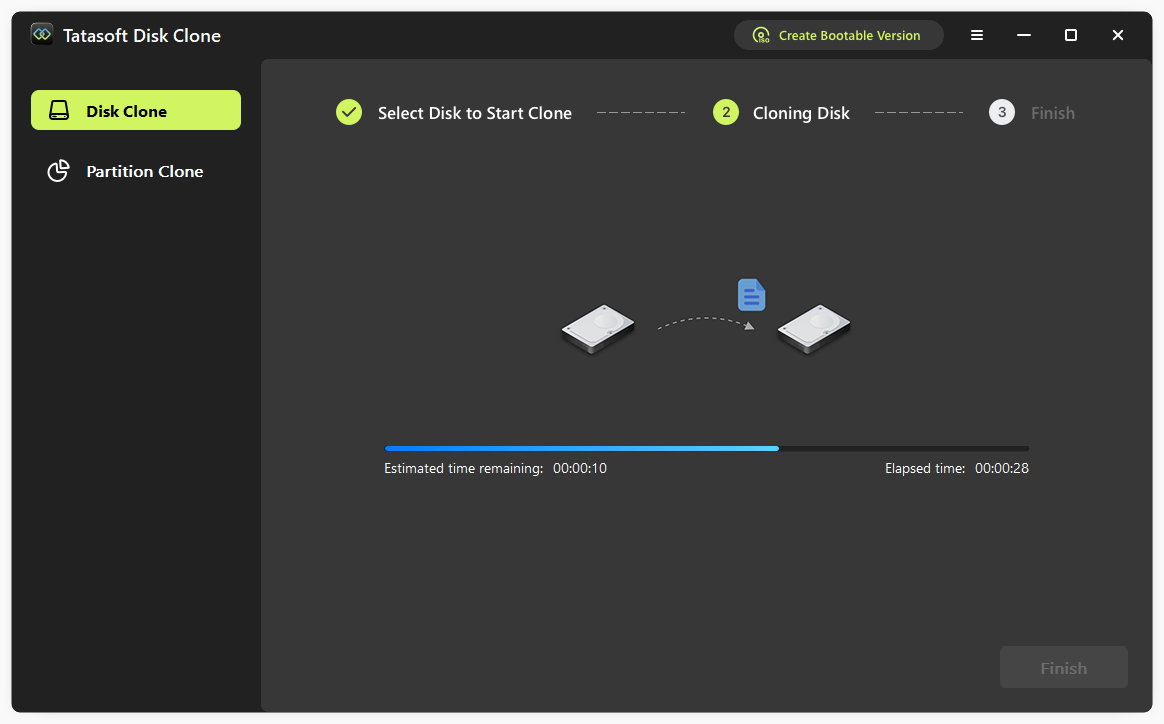
Step 5: Execute and Boot
Click Clone. Once finished, restart your PC and enter the BIOS (usually by tapping F2 or Del). Change the boot priority so your new SSD is #1.
| Feature | Pros | Cons |
|---|---|---|
| Performance | Incredible boot and load speeds. | No change in raw CPU/GPU power. |
| Cost | Significantly cheaper than large SSDs. | Requires active storage management. |
| Reliability | No moving parts; shock resistant. | Limited write cycles (though high for modern drives). |
| Process | Smart cloning software makes it "one-click". | Risk of "insufficient space" errors if not cleaned. |
Upgrading my system to a smaller SSD was the best $50 I ever spent on my computer. By using Tatasoft Disk Clone, I avoided the headache of a fresh Windows installation and kept all my settings exactly where I like them.
By following the steps outlined in this guide, you can confidently migrate your operating system and essential applications to your new SSD, enhancing your computing experience. Don’t settle for a sluggish system—download Tatasoft disk cloning software today and unlock the full potential of your hardware with a swift and efficient upgrade!
Yes, as long as your actual used data fits on the new drive. Tatasoft's "Smart Clone" technology handles the resizing of partitions automatically and it’s a reliable disk clone software to migrate your system HDD to an SSD
Cloning preserves all your applications, settings, and files, saving you hours of reconfiguration. It is a faster, more user-friendly way to upgrade.
Generally, no. Swapping a hard drive is considered a standard user upgrade, but always check your manufacturer’s policy first.
The process is identical! You can always use the same software like Tatasoft Disk Clone to move your data to an even bigger drive in the future and resize partitions during cloning to maximize disk space utilization.
A dedicated technical writer at Tatasoft with over four years of specialized expertise in computing technology. She crafts actionable, user-centric content for tech niches, specializing in disk cloning, data management, and video solutions for Windows and Mac.
Read full bio
This article has been approved by Ben Lee. Ben's dedication to excellence and his comprehensive knowledge of Windows and Mac technologies make him an essential part of any technical writing team. With a career marked by continuous learning and adaptation to new technologies, Ben remains at the forefront of the ever-evolving tech landscape.