
Written byJanet BashorunUpdated on Feb 27, 2026

Brief introduction: Cloning an SSD to an HDD in Windows 10/11 is a practical solution for users looking to back up their data, upgrade storage, or repurpose a higher-capacity drive for bulk filing. This process allows you to transfer your entire operating system, applications, and files to a new drive without the need for reinstallation. In this guide, we will explore a detailed step-by-step process, and discuss how Tatasoft Disk Clone can simplify this task.
In this article
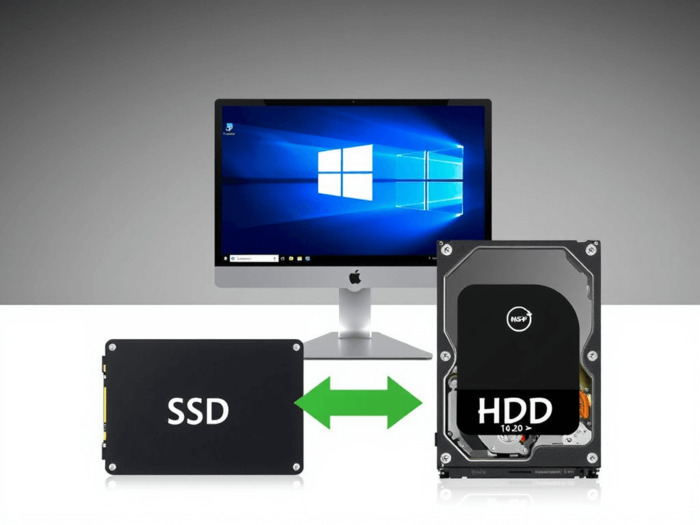
Before you clone SSD to HDD in Windows, it's important to know how these drives differ. SSDs use flash memory for superior speed and durability, while HDDs rely on spinning disks, offering larger storage at a lower cost. Knowing these basics helps you decide if cloning your data to a high-capacity HDD is the right move for your storage needs.
1. Robust Data Backup
Cloning your SSD to an HDD serves as an effective complete backup strategy. If your SSD fails, having a complete clone ensures that you can recover all your important data without hassle. This process allows you to replace your hard drive without reinstalling Windows by transferring your entire OS, apps, and personal files to a new drive.
2. Massive Storage Upgrades
As file sizes grow, you may find your SSD running out of space. By using professional disk clone software, you can migrate to a larger HDD to gain more storage capacity without the tedious process of reconfiguring your system.
3. Cost-Effective Archiving
While SSDs are faster, HDDs offer more gigabytes per dollar. Cloning your current system to an HDD is a great way to create a bootable archive or a secondary workspace.
Note on Performance: While SSDs are fundamentally faster than HDDs due to flash memory, cloning to an HDD is primarily for storage volume and redundancy, rather than a speed upgrade.
To ensure a seamless transition, we recommend using Tatasoft Disk Clone for Windows. It is highly regarded for its advanced, high-speed transfer algorithms that significantly reduce cloning time without compromising data integrity. Beyond mere data migration, it excels at preserving system structures, ensuring that your target drive remains fully bootable—making it the ideal choice for anyone needing to clone a boot drive or upgrade their system storage effortlessly.
Step 1: Preparing Your Devices
Before you start, ensure that:
Step 2: Download and Install Tatasoft Disk Clone
Step 3: Select the Source and Destination Drives for Cloning
Launch Tatasoft and select "Disk Clone".

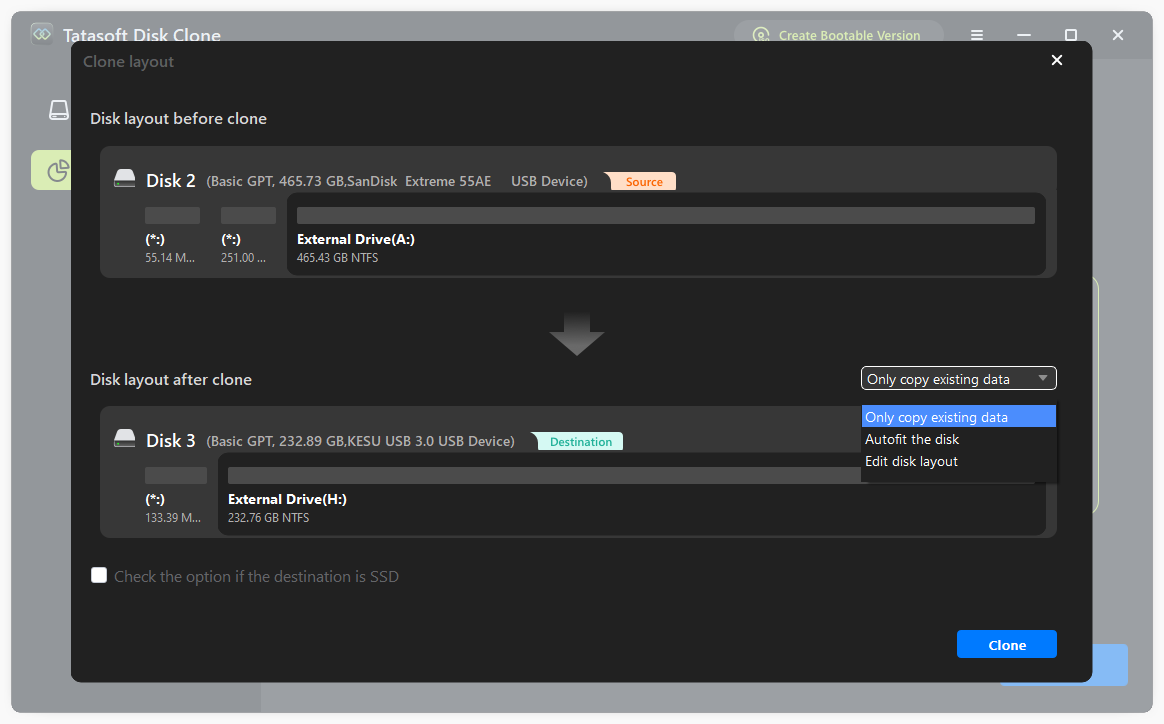
Step 4: Configure Disk Layout
If you are moving to a much larger drive, you can use the "Autofit the disk" option to utilize the full capacity of your HDD automatically or “Edit Disk Layout" to adjust partition sizes manually.
Step 5: Start the Cloning Process
Review your selections and click "Clone". Monitor the progress bar; the duration depends on the volume of data being moved.
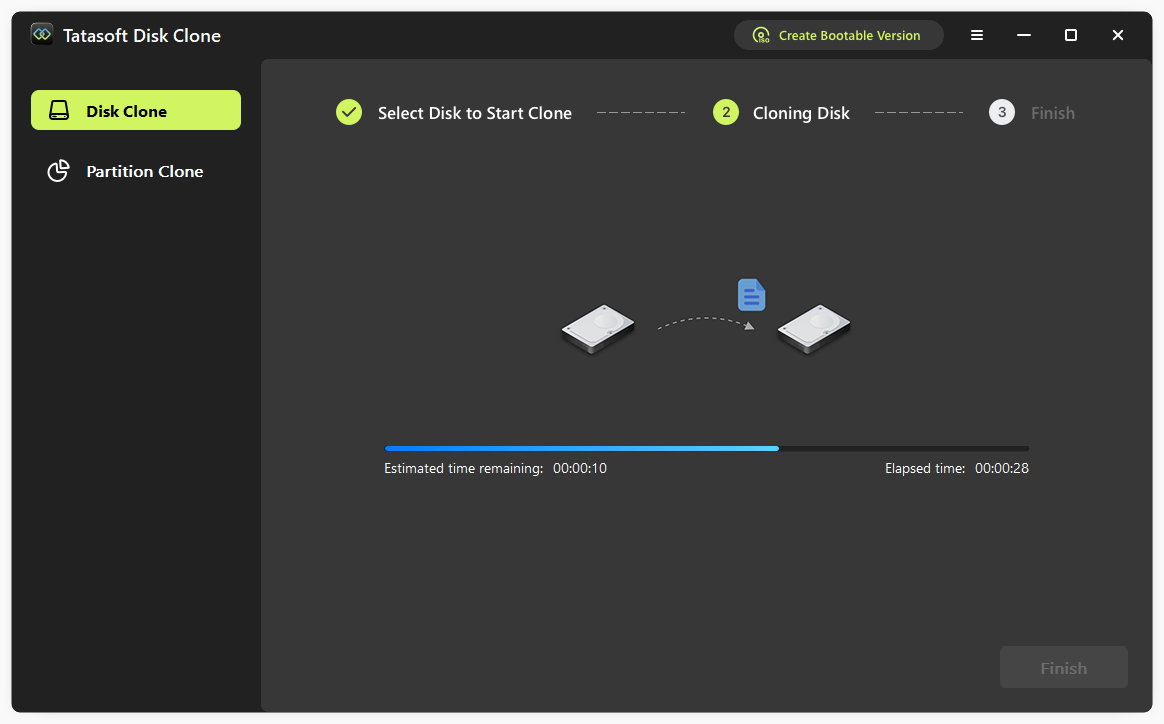
Once the cloning process is complete, access your HDD to verify that all files have been successfully cloned and check that applications and settings function as expected.
Following the cloning process, here is why Tatasoft Disk Clone stands out as a market-leading utility for Windows 11/10/8/7/Vista:
Cloning can be a straightforward process, but several common mistakes can lead to complications. Here are a few pitfalls to avoid:
1. Inadequate Backup: Always back up the destination HDD if it contains data, as the cloning process will overwrite it.
2. Unstable Connection: Ensure SATA/USB cables are secure to prevent partition table damage.
3. Ignoring Power Supply: Cloning should be done with a reliable power source to prevent interruptions, which could corrupt the clone.
4. Ignoring Background Apps: Close all apps to maximize speed. If critical system files are in use, the software may require a restart into WinPE mode to bypass file locks.
Cloning your SSD to an HDD in Windows 10/11 is a strategic way to enhance your storage management and ensure backup integrity. By utilizing Tatasoft Disk Clone, the process is no longer a technical headache but a simple, guided experience. Tatasoft’s user-friendly interface and robust features make it an excellent choice for both novice and experienced users, ensuring that your system and data is transferred accurately and efficiently.
A dedicated technical writer at Tatasoft with over four years of specialized expertise in computing technology. She crafts actionable, user-centric content for tech niches, specializing in disk cloning, data management, and video solutions for Windows and Mac.
Read full bio
This article has been approved by Ben Lee. Ben's dedication to excellence and his comprehensive knowledge of Windows and Mac technologies make him an essential part of any technical writing team. With a career marked by continuous learning and adaptation to new technologies, Ben remains at the forefront of the ever-evolving tech landscape.