
Written byJanet BashorunUpdated on Feb 26, 2026

Brief introduction: Cloning an NTFS drive while preserving NTFS-specific features like encryption (EFS) and compression is essential for NTFS data protection and migration. Whether you're upgrading your hard drive, migrating data to a new machine, or simply creating a backup, having the right NTFS drive copy tools is crucial. In this article, we'll delve into the process of how to clone an NTFS drive using Tatasoft Disk Clone for Windows or without software, highlighting its features, pros, and cons along the way.
In this article
NTFS, or New Technology File System, is the default file system for Windows operating systems. Known for its reliability and support for large file sizes, NTFS is preferred for hard drive partitions formatted in Windows. Cloning an NTFS drive involves creating an exact replica of the drive, NTFS-formatted partition or disk, including all files, folders, permissions, and metadata. This process ensures the duplicate retains the original's file system structure and attributes.
Cloning an NTFS drive involves creating a bit-for-bit copy of the original drive, including the files, operating system, applications, and hidden partitions. When duplicating NTFS partitions, users typically choose between specialized partition cloning software like Tatasoft Disk Clone for Windows and Windows' built-in diskpart. Tatasoft Disk Clone offer intuitive interfaces and advanced features (resize partition, sector to sector clone), while diskpart provides a lightweight command-line alternative for basic NTFS replication without software.
Tatasoft Disk Clone for Windows specializes in NTFS disk cloning and imaging, providing an efficient way to clone NTFS drives. It's designed for both novice and experienced users, ensuring a straightforward cloning process.
Features of Tatasoft Disk Cloning Software
Step 1: Prepare for NTFS Cloning
Step 2: Launch Tatasoft Disk Clone for Windows and switch to Partition Clone
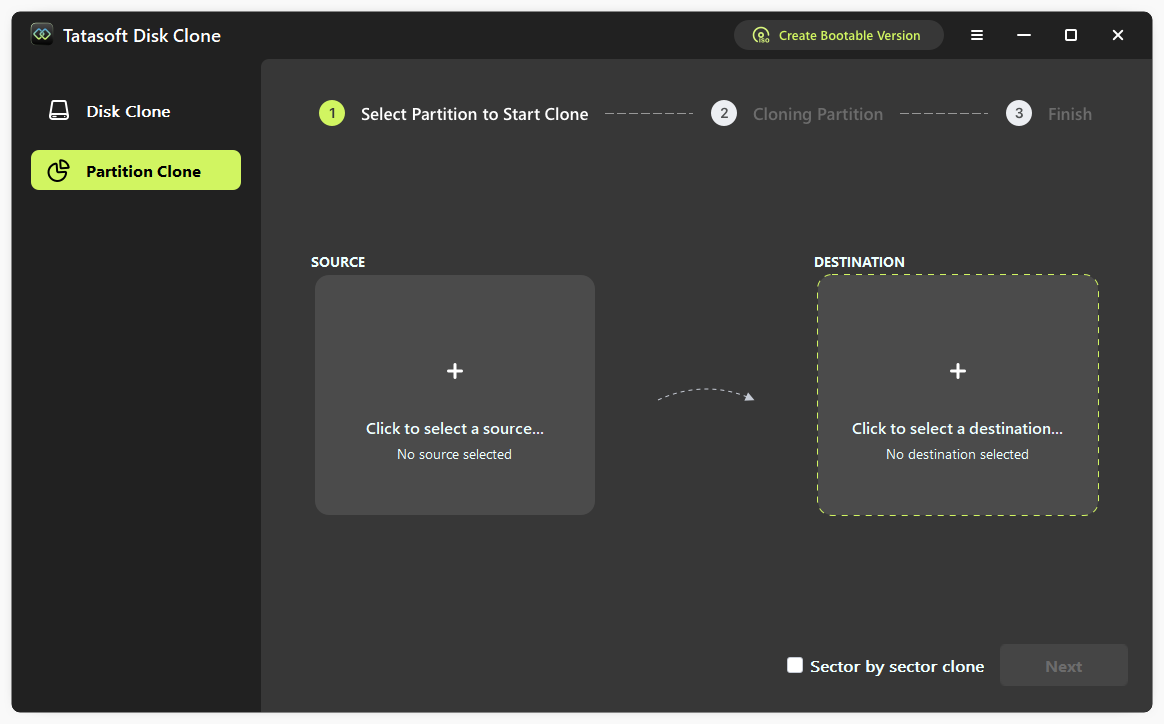
Step 3: Select the drives to clone
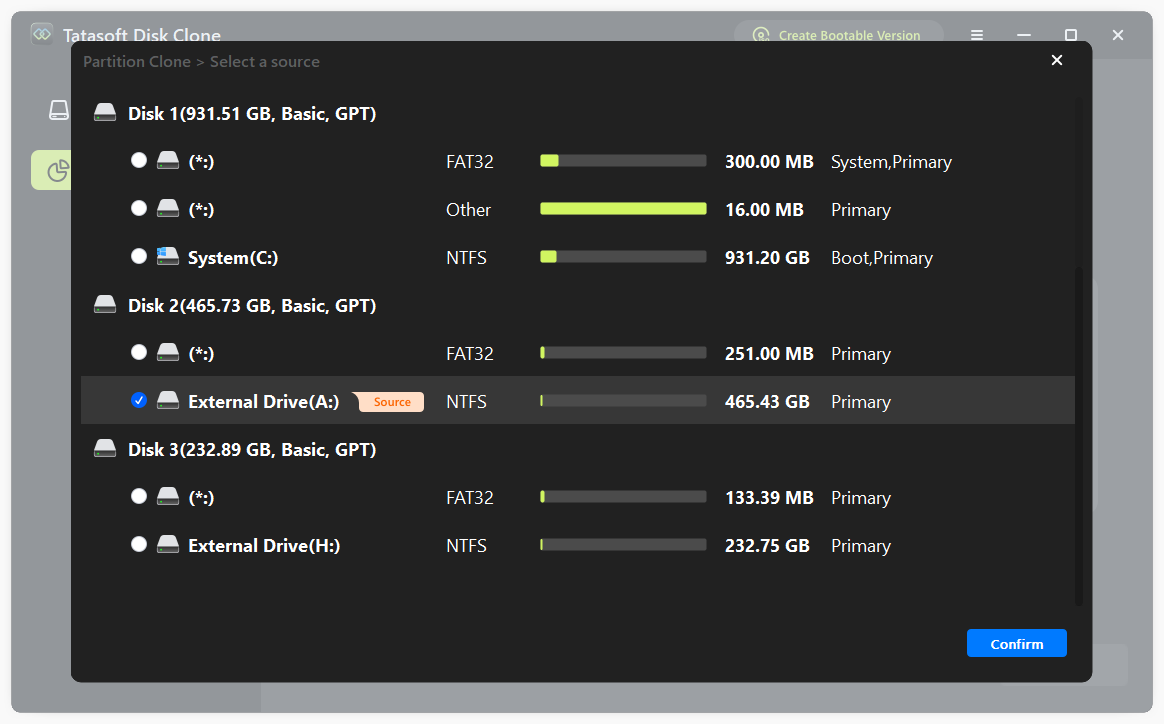
Step 4: Start the NTFS Cloning Process
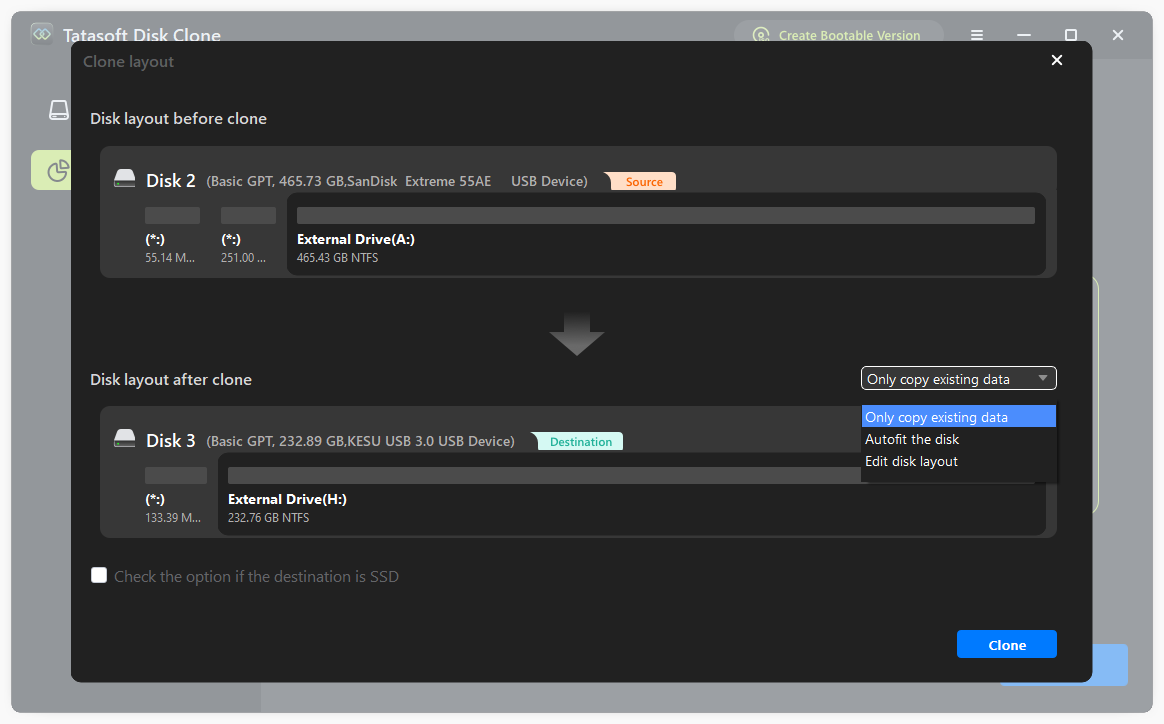
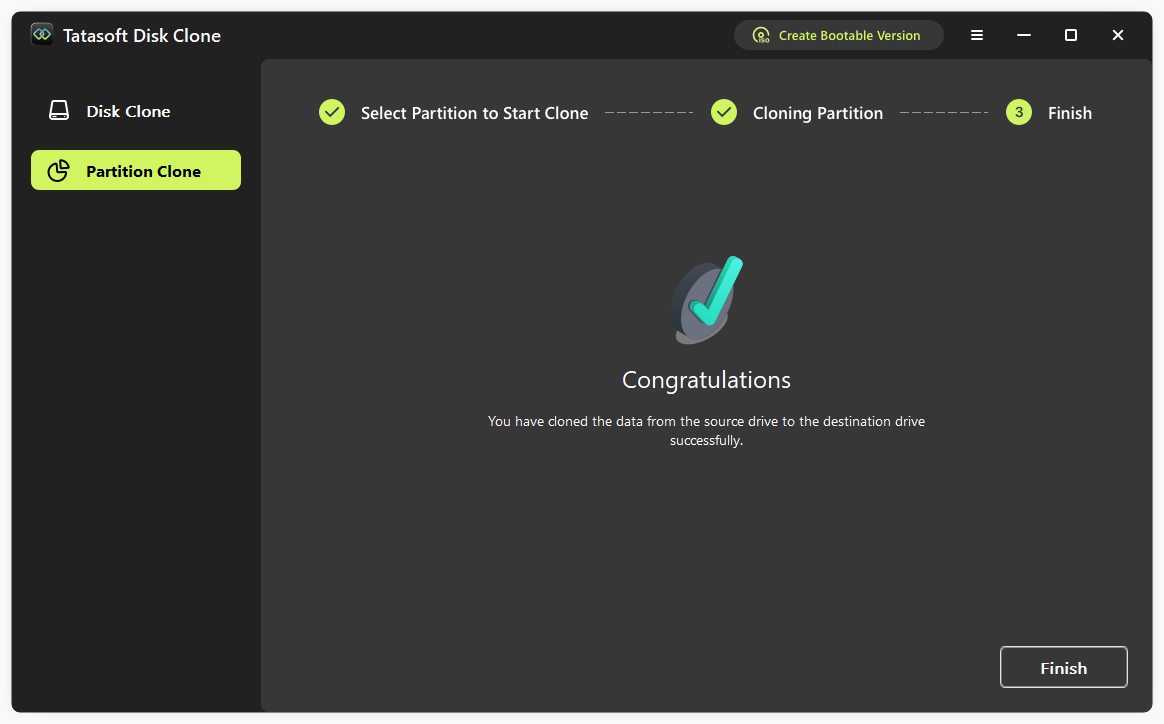
Step 5: Complete the Cloning Process
Windows' built-in diskpart utility is totally free and performs basic file cloning on NTFS hard drive via:
Step 1: Open Command Prompt as Administrator
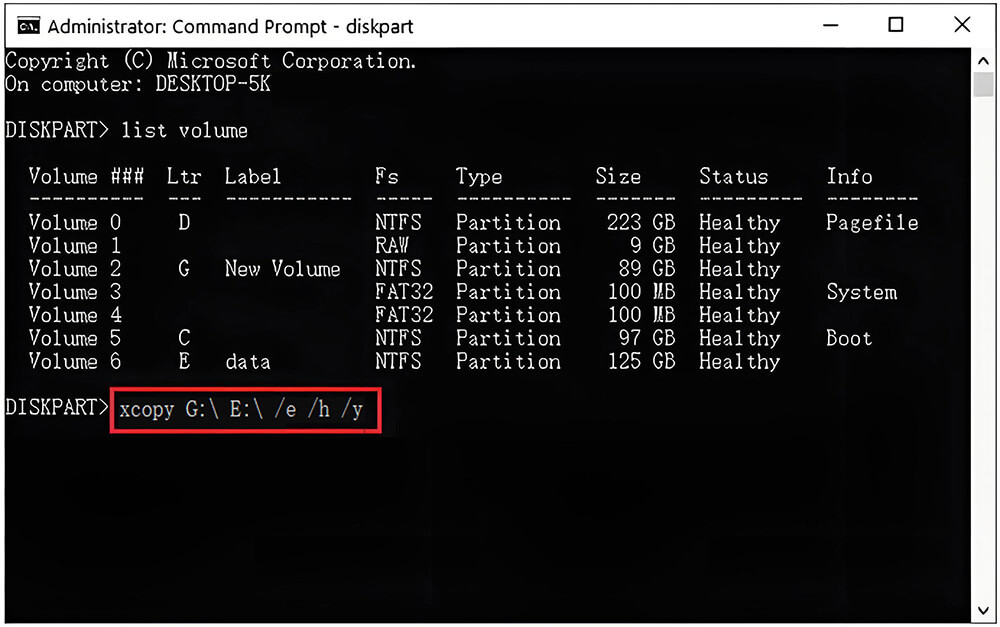
Step 2: Use command to identify Your Drives
Once in DiskPart, type:
list volume
This command will display all the drives. Note the drive letter of your source and target drives.
Step 3: Command to copy your NTFS drive
Type:
xcopy G:\ E:\ /e /h /y
This command uses xcopy to Copies all files and folders from drive D:\ to drive E:\, including:
Note: If the target drive has an incompatible file system (e.g., copying from NTFS to FAT32), you must format the target drive as NTFS first with the following CMD:
In diskpart:
select volume 6
create partition primary
format fs=ntfs quick
assign letter=E
To navigate these complexities safely, you can follow this detailed guide on how to copy a partition to another drive using CMD to ensure your data and structure are handled correctly.
Expert Insight: Diskpart exhibits significant cloning limitations such as lacking of native block-level copy function which compels manual partition reconstruction with inherent misalignment risks (especially problematic for SSDs), and inability to duplicate boot sectors (EFI/MSR, ultimately resulting in non-bootable cloned system drives.
You may encounter some challenges during NTFS cloning. Here are a few common issues and their solutions:
Cloning an NTFS drive is a fundamental process for ensuring data safety and managing system migrations, and Tatasoft Disk Cloning Software offers an excellent solution for achieving this efficiently. By following the steps outlined in this guide, you can seamlessly clone your NTFS drive while safeguarding your data integrity. If you're looking for a reliable, user-friendly tool to clone your NTFS drive, Tatasoft is an outstanding choice, equipped with the features needed for successful cloning.
Tatasoft Disk Clone provides a free trial version; however, certain advanced features might be locked behind a paid license.
Yes, cloning is possible with Tatasoft Disk Clone for it will automatically skip the bad sectors. However, it’s best to repair any bad sectors before attempting to clone to avoid data loss.
The time required for cloning varies based on the size of data stored on the source NTFS drive, drive speed and system performance. For example, a 1TB drive might take about 30 minutes to clone under normal conditions.
A dedicated technical writer at Tatasoft with over four years of specialized expertise in computing technology. She crafts actionable, user-centric content for tech niches, specializing in disk cloning, data management, and video solutions for Windows and Mac.
Read full bio
This article has been approved by Ben Lee. Ben's dedication to excellence and his comprehensive knowledge of Windows and Mac technologies make him an essential part of any technical writing team. With a career marked by continuous learning and adaptation to new technologies, Ben remains at the forefront of the ever-evolving tech landscape.