
Written byJanet BashorunUpdated on Jan 28, 2026

Brief introduction: Moving your Windows 11 installation to a new SSD/HDD boosts performance and storage, whether upgrading for speed or replacing a faulty drive. This guide will provide you with detailed, step-by-step instructions on how to move your Windows 11 installation without losing data, settings, or apps, focusing on the use of Tatasoft Disk Clone and covering each aspect of the process.
In this article

Before we begin migrating your Windows 11 installation, let’s first understand the reasons why you might need to do so:
Whatever your reason, the key goals are: preserving your Windows 11 OS, apps, files, and settings; ensuring the new drive boots correctly; and avoiding activation issues.
1: Backup Your Data
Before you proceed, it's essential to back up all important data on the destination drive (which will be formatted during the cloning process). Use an external hard drive or a cloud service to ensure your files are safe.
2: Choose the Right Drive
Select a new drive that meets your needs. SSDs are generally recommended for their speed and reliability. Ensure that the new drive has enough storage space for your current operating system and applications. Consider factors like:
Additionally, Confirm that your power supply can handle the additional drive if applicable.
3. Necessary Tools:
Step 1: Connect the new drive to your system. Make sure the new drive is properly recognized by your computer.
Step 2: Download and install Tatasoft Disk Clone to your Windows 11 computer
Step 3: Launch it and choose Disk Clone
Step 4: Select the source and destination drive for cloning
Ensure you choose the correct drive to avoid data loss. Double-check the drive letters and sizes.

Step 5: Initiate the cloning process
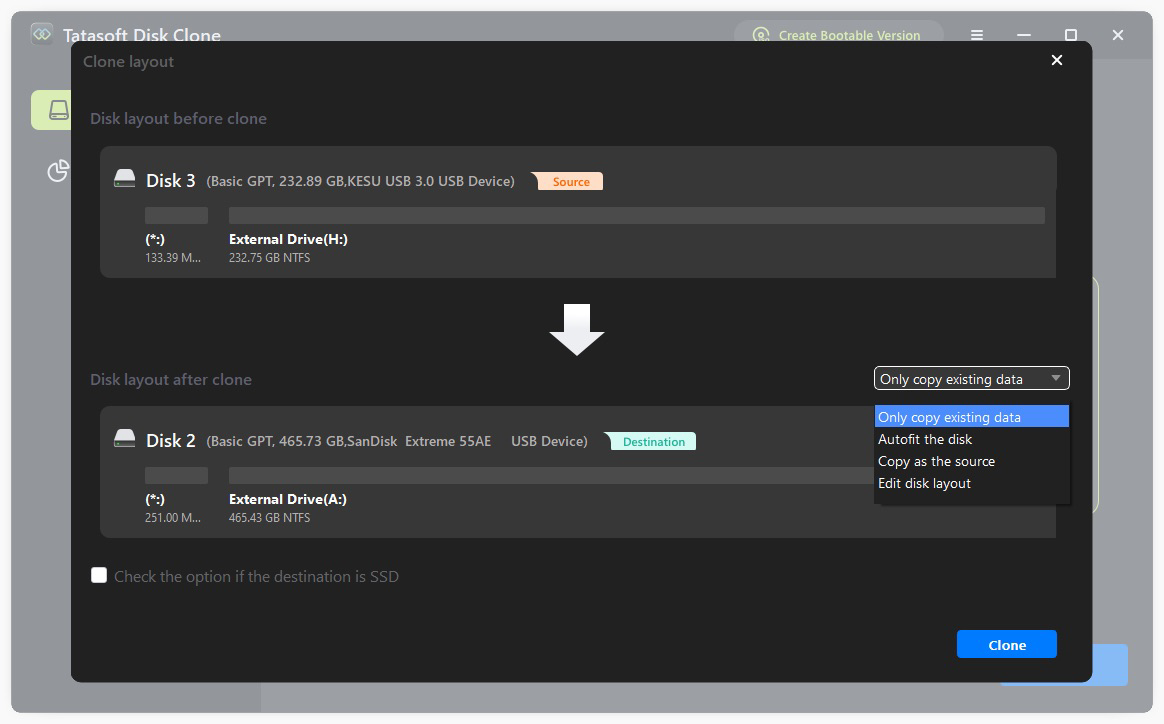
Tatasoft will create a complete copy of your Windows 11 installation, including system files, applications, and settings. This may take some time depending on the amount of data. Be patient and do not interrupt the process. You can monitor the progress within the Tatasoft application. Once the cloning process is complete, Tatasoft will notify you. It’s crucial to verify that the clone was successful:
Step 1: Change Boot Order in BIOS
Step 2: Boot into Windows 11
Your computer should now boot from the new drive. Ensure that Windows 11 loads correctly and that all your applications are functioning as expected. Take note of any initial setup prompts that may appear.
Step 1: Check for Issues
Step 2: Update Drivers
After migrating to a new drive, it's a good idea to update your system drivers, especially for storage and graphics. Use Windows Update or visit the manufacturer’s website for the latest drivers.
Step 3: Format the Old Drive (Optional)
If you’re satisfied with the new setup, you may want to format the old drive to use it for additional storage.
Adjusting Windows Settings
After moving to a new drive, consider adjusting the following settings for optimal performance:
Performance Tuning
To maximize the performance of your new drive, consider these steps:
1. Boot Issues
If your system doesn’t boot from the new drive, double-check the boot order in BIOS. Ensure that the new drive is properly connected and recognized by the system.
2. Missing Files
If you notice missing files, ensure that you cloned the entire drive, not just specific partitions. Tatasoft should handle this automatically. If files are still missing, check the source drive for any issues.
3. Performance Problems
If the new drive is slower than expected, check that it is connected via the correct interface (e.g., SATA III or NVMe). Ensure that the drive is functioning properly by checking its health status with a diagnostic tool.
Moving Windows 11 installation to a new drive doesn’t have to be complicated. Cloning a Windows 11 disk is best for preserving everything quickly, while a clean install ensures a fresh, fast system. By adhering to the steps in this guide, you can achieve a seamless system transfer without loss, expand storage capacity, enhance performance, and enjoy a fully functional Windows 11 setup on your new drive.
To make the process even easier, consider utilizing Tatasoft Disk Clone, which simplifies every step of the OS migration, ensuring that your files and settings are transferred seamlessly. Don’t let a slow or failing drive hold you back—upgrade today!
A dedicated technical writer at Tatasoft with over four years of specialized expertise in computing technology. She crafts actionable, user-centric content for tech niches, specializing in disk cloning, data management, and video solutions for Windows and Mac.
Read full bio
This article has been approved by Ben Lee. Ben's dedication to excellence and his comprehensive knowledge of Windows and Mac technologies make him an essential part of any technical writing team. With a career marked by continuous learning and adaptation to new technologies, Ben remains at the forefront of the ever-evolving tech landscape.