
Written byJanet BashorunUpdated on Jan 05, 2026

Brief introduction: Cloning your dynamic disk to a solid-state drive (SSD) can significantly enhance your system's performance, providing faster boot times and improved application responsiveness. To clone a dynamic disk to SSD successfully, you need the right disk copy tools like Tatasoft Disk Clone for Windows. In this guide, we will walk you through the process step-by-step, ensuring a seamless disk transition without data loss.
In this article
What is a Dynamic Disk?
Dynamic disks are a type of disk configuration in Windows that allow for advanced features such as spanning, striping, and mirroring. Unlike basic disks, dynamic disks can manage multiple partitions and provide greater flexibility in disk management.
What is an SSD?
A Solid-State Drive (SSD) is a storage device that uses NAND-based flash memory to store data. Unlike traditional hard drives (HDDs), SSDs have no moving parts, which allows for faster data access and improved durability.
Benefits of Cloning a Dynamic Disk to SSD
Before you begin the cloning process, it's essential to take some preparatory steps.
1. Backup Your Data
Always begin by backing up any important files that already exist on the target SSD. Although cloning is generally a safe process, the destination disk will be formatted during the migration of a dynamic disk to an SSD.
2. Check SSD Compatibility
Ensure that your SSD is compatible with your system and has enough storage capacity to accommodate the data from your dynamic disk. Ensure that the SSD is properly connected and recognized by the computer.
3. Assess Your Dynamic Disk
Before cloning, it’s crucial to assess the contents of your dynamic disk, delete unnecessary files and apps, and identify the specific volumes and data you intend to transfer to the SSD. This preliminary check helps prevent the loss of important information during the cloning process.
4. Install Tatasoft Disk Clone for Windows
Download and install Tatasoft Disk Clone for Windows, which is specifically designed for seamless disk cloning operations, including when you clone a dynamic disk to SSD. This software provides an intuitive interface and robust features to ensure a smooth disk and partition cloning process.
Step 1: Launch Tatasoft Disk Clone and switch to Disk Clone
Step 2: Select the source and destination drives for cloning

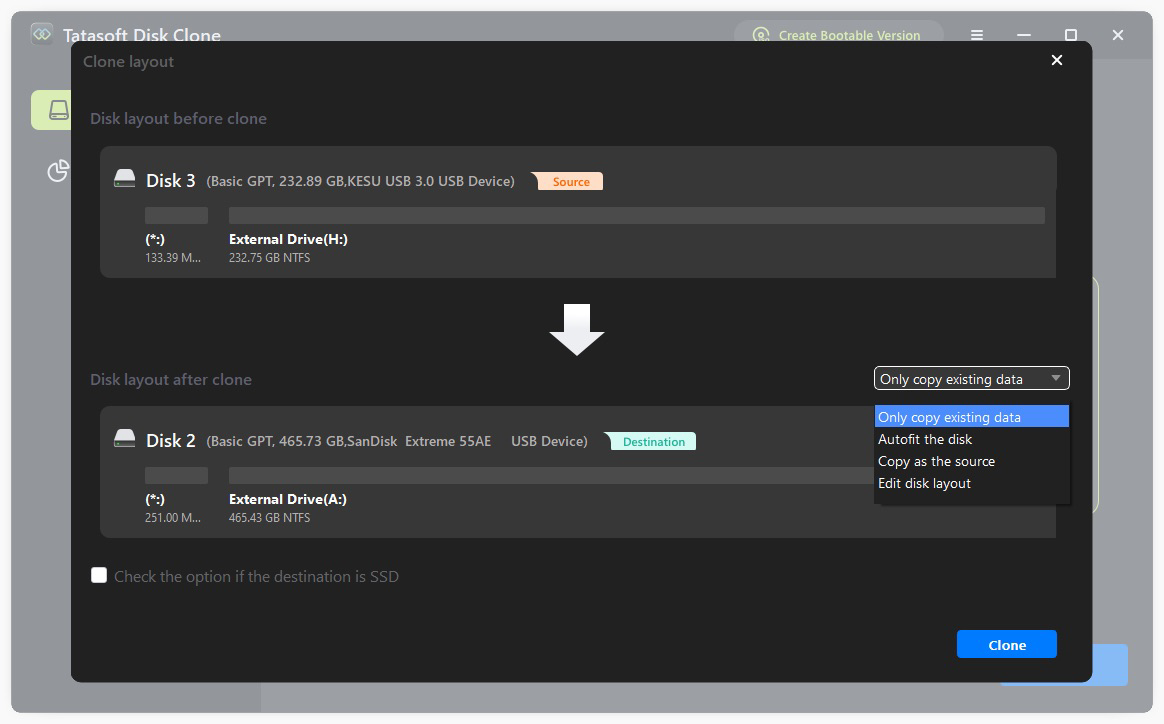
Step 3: Edit partition size on the target SSD
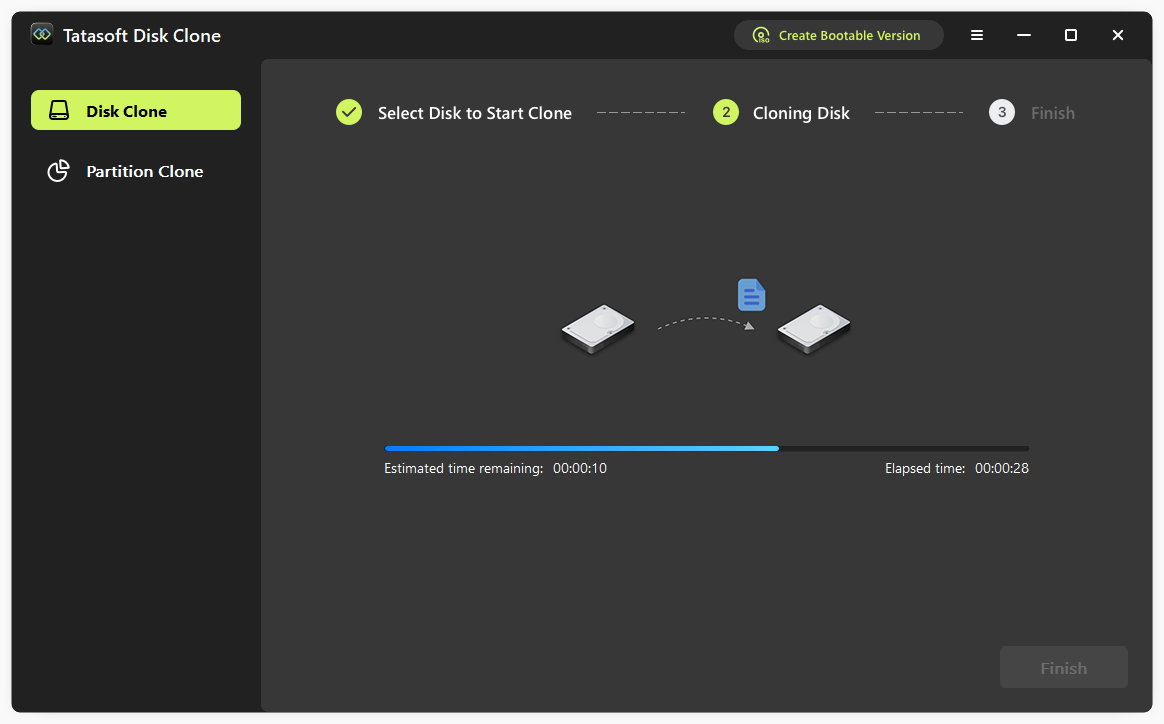
Monitor the progress bar to track the cloning operation.
1. Verify Data Integrity
Once cloning is complete, it’s crucial to verify that all data has been accurately transferred. You can do this by accessing files on the SSD and checking for any discrepancies after you clone dynamic disk to SSD.
2. Set the SSD as the Boot Drive if copying a system disk
In scenarios where a boot drive is migrated to an SSD for use as the primary boot device, the SSD must be configured as the default boot option in the system’s BIOS settings:
3. Optimize SSD for Performance
To ensure your SSD performs optimally after you clone your dynamic disk to SSD, consider the following:
4. Regular Backups
Even after cloning, continue to perform regular backups of your data. This practice ensures that your information remains safe and recoverable.
1. Cloning Error
If you encounter errors during the cloning process, ensure that:
2. SSD Not Recognized
If your SSD is not recognized, check the following:
3. Data Integrity Issues
If you notice missing files after cloning, try the following:
Cloning a dynamic disk to SSD is a pivotal step in enhancing your system's performance and reliability. With Tatasoft Disk Clone, this process becomes not only straightforward but also efficient. By following the detailed steps outlined in this guide, you can seamlessly transfer your Windows OS and data, and enjoy the significant speed and responsiveness that SSDs offer.
Upgrading to an SSD will not only improve boot times and application performance but also provide a more reliable storage solution for your important files. Don’t wait any longer—download Tatasoft disk cloning software today and take the first step towards a faster, more efficient computing experience!
A dedicated technical writer at Tatasoft with over four years of specialized expertise in computing technology. She crafts actionable, user-centric content for tech niches, specializing in disk cloning, data management, and video solutions for Windows and Mac.
Read full bio
This article has been approved by Ben Lee. Ben's dedication to excellence and his comprehensive knowledge of Windows and Mac technologies make him an essential part of any technical writing team. With a career marked by continuous learning and adaptation to new technologies, Ben remains at the forefront of the ever-evolving tech landscape.