
Written byJanet BashorunUpdated on Dec 30, 2025

Brief introduction: Download videos to your PC or laptop for uninterrupted access to favorite content—free from internet speed, data limits, ads, buffering, subscription costs, or streaming platform restrictions, with the freedom to watch anytime, anywhere; this article covers why downloading is preferred over streaming, safe downloading practices, step-by-step guides using Tatasoft Video Tool, and the eco-friendly perks of offline viewing.
In this article
Streaming remains popular, but downloading videos from any website to your computer has clear advantages:
For many users, the ability to download videos to PC or laptop translates into convenience, independence, and peace of mind.
One of the overlooked advantages of downloading videos is content preservation. Not everything stays online forever:
By downloading videos to PC or laptop, you preserve valuable content that might otherwise disappear, ensuring permanent access to tutorials, entertainment, or educational material.
Choosing the right file format matters when downloading videos to PC or laptop. Some formats work better than others depending on quality and compatibility:
Recommendation: If you’re unsure, always choose MP4, since it provides the best balance of quality, file size, and compatibility.
When you download videos to PC or laptop, the website you choose can make the difference between a safe experience and a compromised device. While many free video download sites look attractive, they often carry hidden risks that most users don’t realize until it’s too late.
Some of the most common risks include:
For users, the biggest issue is trust. A single unsafe download can infect your PC with malware, damage files, or compromise sensitive information.
The safer option is using professional-grade video downloading tools like Tatasoft Video Tool. Unlike random websites, Tatasoft is built with user security in mind, offering clean downloads from mainstream platforms (like saving YouTube videos, downloading Facebook reels for offline use), verified file quality, and strong privacy protection.
Here’s a simple guide to safely downloading videos with Tatasoft Video Tool:
Step 1: Copy the Video Link
From YouTube or another platform, copy the video URL.
Step 2: Choose Format & Quality
Select MP4, MKV, or other formats, and pick your resolution (e.g., 1080p or 4K).
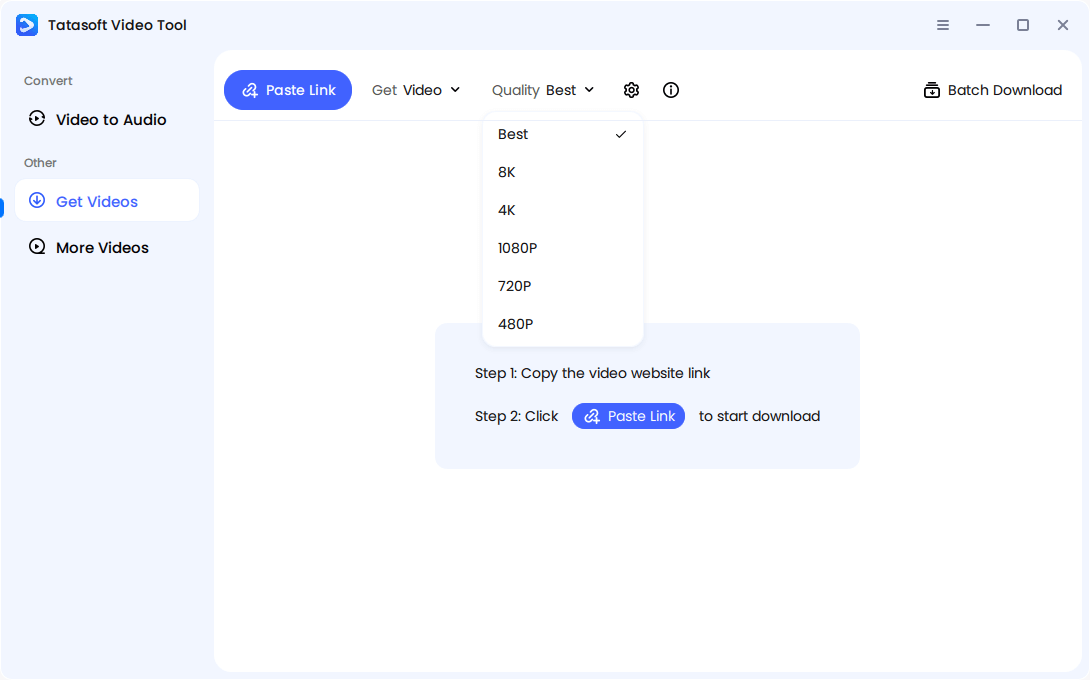
Step 3: Open Tatasoft Video Tool and Paste Link
Open Tatasoft Video Tool and click Paste Link to paste the URL into the software. The software will analyze the link and start the downloading process automatically.
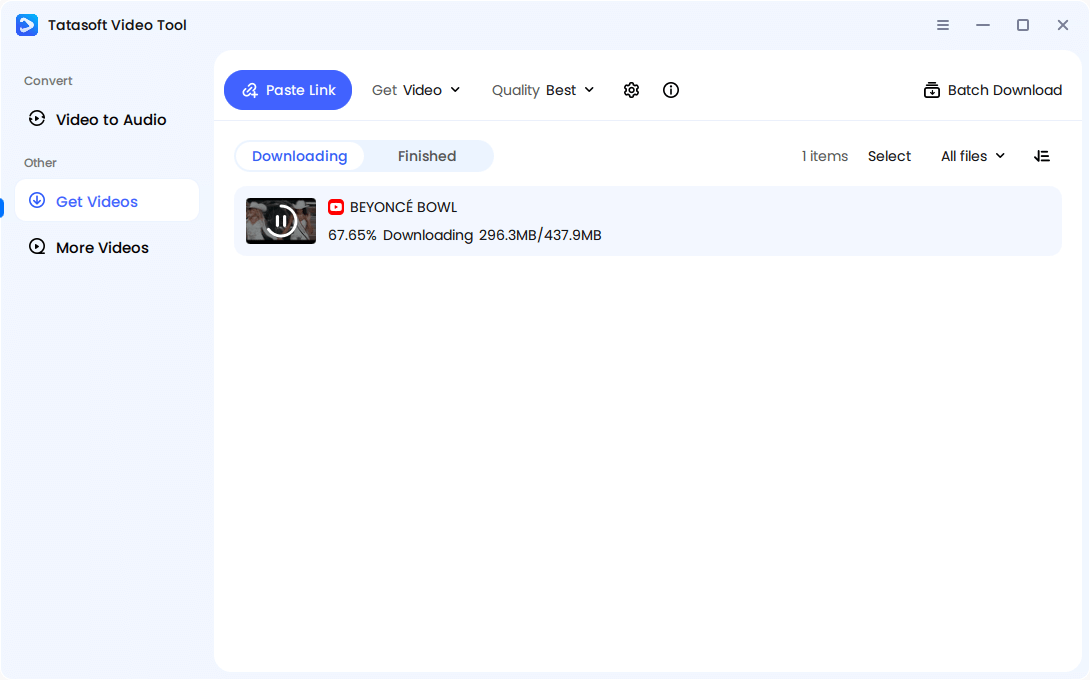
After the downloading process is done, the downloaded video is saved to the dedicated folder. You can then play the video on your PC or laptop offline, or you can edit, transfer, and do other management operations.
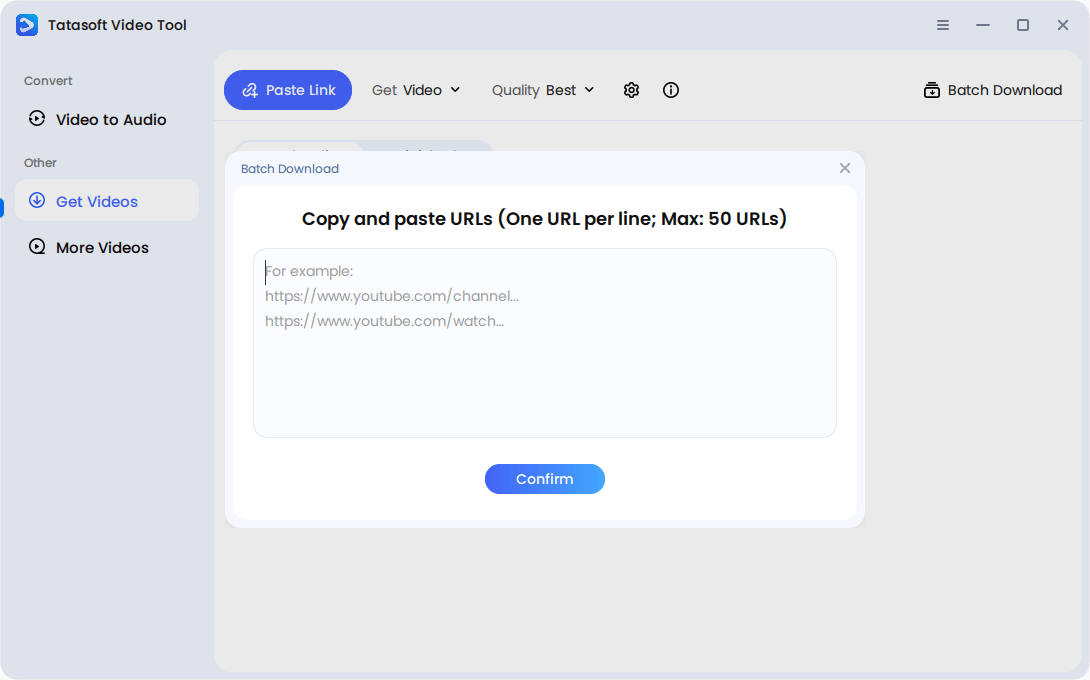
Tatasoft makes the process safe, fast, and reliable, with support for multiple platforms and batch downloads. Just click Batch Download and enter the URL links for the videos you want to download. Click Confirm to start.
When people want to download videos to PC or laptop, they often turn to quick fixes such as:
While these options exist, they come with trade-offs in terms of safety, speed, and quality.
This is where Tatasoft Video Tool rises above the rest. Unlike unreliable third-party tools, Tatasoft ensures:
Instead of risking low-quality results or exposing your device to harmful software, Tatasoft provides a reliable, professional-grade solution for building your offline video library.
Even with proper software, users must stay alert. Here’s how to avoid common pitfalls when you download videos to PC or laptop:
These steps ensure your downloads are both safe and high quality.
Downloading is just the first step. You can enhance your collection with customization:
Customization ensures your offline video library is not only functional but also personalized.
As collections grow, proper management becomes essential:
This approach prevents clutter and makes your offline library easy to navigate.
After downloading videos to PC or laptop, many users want to transfer them to mobile devices for convenience. Here are common methods:
This flexibility ensures your offline collection isn’t just tied to one device.
When transferring, ensure playback quality stays intact:
This ensures your offline collection looks sharp across every device.
A less obvious but important benefit of downloading videos to PC or laptop is its environmental impact.
By choosing offline downloads, you not only gain convenience but also contribute to a greener digital future.
Download videos to your PC or laptop to gain full control over your viewing experience. From avoiding buffering to building offline libraries, downloading offers unmatched convenience. But safety and quality matter—random sites put you at risk. That’s why Tatasoft Video Tool is the best choice. With secure downloads, format flexibility, and cross-device support, it ensures you enjoy high-quality content anytime, anywhere.
Start building your offline video library today. Download your favorite videos directly to your PC or laptop with Tatasoft Video Tool.
A dedicated technical writer at Tatasoft with over four years of specialized expertise in computing technology. She crafts actionable, user-centric content for tech niches, specializing in disk cloning, data management, and video solutions for Windows and Mac.
Read full bio
This article has been approved by Ben Lee. Ben's dedication to excellence and his comprehensive knowledge of Windows and Mac technologies make him an essential part of any technical writing team. With a career marked by continuous learning and adaptation to new technologies, Ben remains at the forefront of the ever-evolving tech landscape.