
Written byJanet BashorunUpdated on Jan 26, 2026

Brief introduction: Saving YouTube videos offline is becoming essential for students, professionals, and everyday viewers who rely on consistent access to video content. There are plenty of direct YouTube download methods — but not all are safe, high-quality, or permanent. Many online tools compress files, add watermarks, or pose privacy risks. This article explains secure offline downloading, its tech, and how Tatasoft Video Tool simplifies high-quality video downloads for regular users.

While streaming is convenient, constant internet connectivity isn’t always guaranteed and buffering can disrupt productivity and entertainment alike. Whether you’re traveling, studying, or conserving mobile data, having videos available offline is both practical and time-saving. Saving videos offline provides several practical benefits that go beyond simple convenience:
Ultimately, learning how to save YouTube videos offline ensures freedom from connectivity issues while giving users control over what they watch, when they watch, and in what quality.
Understanding how offline saving works is key to choosing the right method. Essentially, when you save a YouTube video offline, software or a downloader tool captures the video’s source stream, decodes it, and stores it locally in a chosen format such as MP4 or MKV.
Here’s a simplified breakdown of the process:
Unlike temporary streaming downloads that expire, reliable offline saving tools ensure permanent access, better playback quality, and total independence from the internet.
When deciding how to save YouTube videos offline, keep the following factors in mind:
Expert Tip: Always check your device’s available space and adjust your resolution before downloading lengthy playlists or lectures to prevent incomplete downloads.
YouTube provides a few built-in, policy-compliant methods for offline viewing:
Steps to save YouTube videos offline via YouTube Premium:
Step 1. Subscribe to YouTube Premium: Sign up for the service through the YouTube website or app.
Step 2. Find the Video: Open the YouTube app (mobile only) and navigate to the video you want to download.
Step 3. Download: Tap the "Download" button below the video.
Step 4. Select Quality: Choose your preferred resolution (e.g., 720p or 1080p).
Step 5. Access Offline: Downloaded videos are available in the "Library" > "Downloads" section for offline viewing (valid for 30 days unless reconnected to Wi-Fi/data).
While these methods follow YouTube’s terms, they have key limits: restricted access, non-transferable files, and expiration rules. Tatasoft’s video downloader is a better alternative for offline YouTube videos — standing out for its simple interface, fast downloads, and solid privacy. It handles YouTube downloads smoothly, with flexible options for personal and professional use.
For users asking how to save YouTube videos offline, Tatasoft offers the perfect mix of speed, security, and simplicity. Key Highlights of Tatasoft Video Tool:
How to Save YouTube Videos Offline Using Tatasoft Video Tool:
Step 1: Launch Tatasoft Video Tool and change to Get Videos
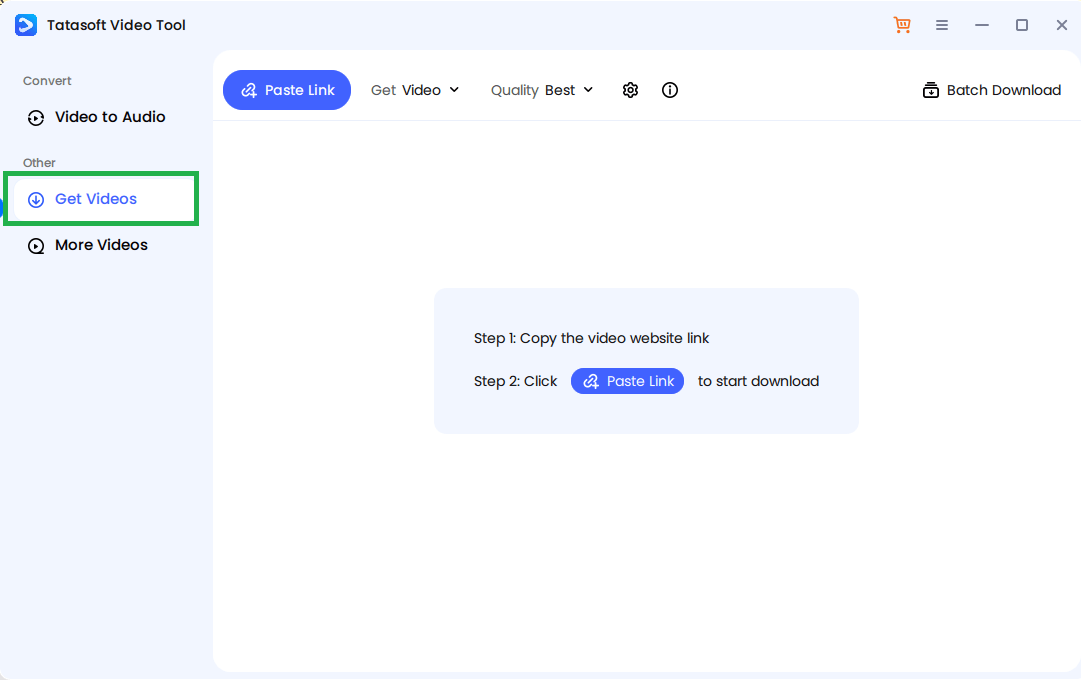
Step 2: Copy the YouTube video link
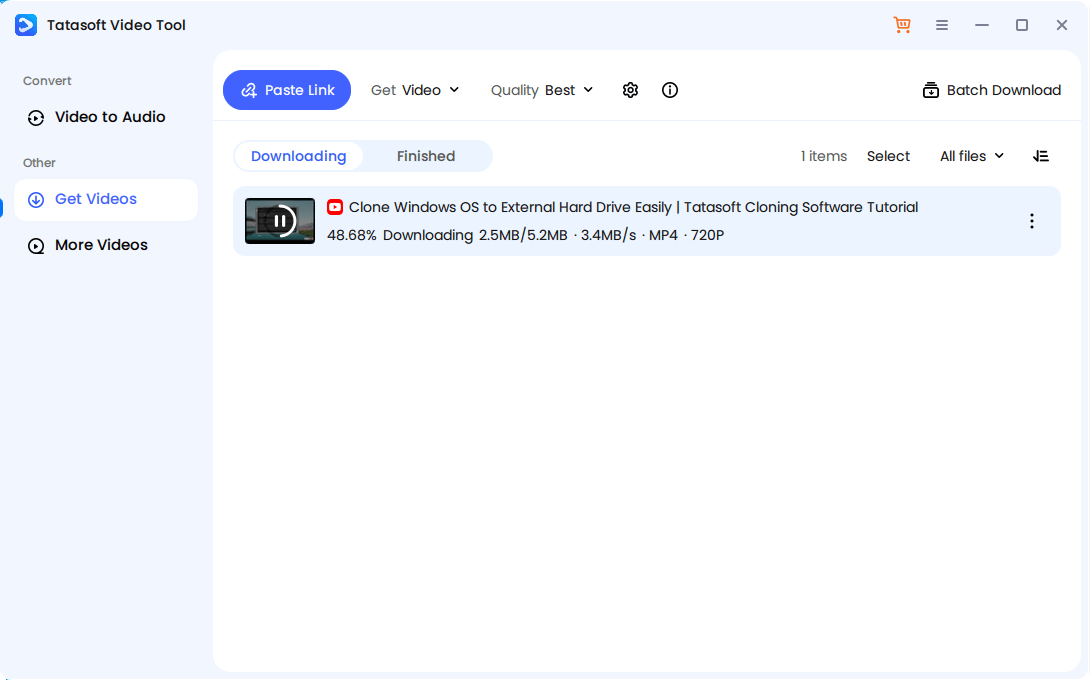
Step 3: Paste the video URL and start downloading
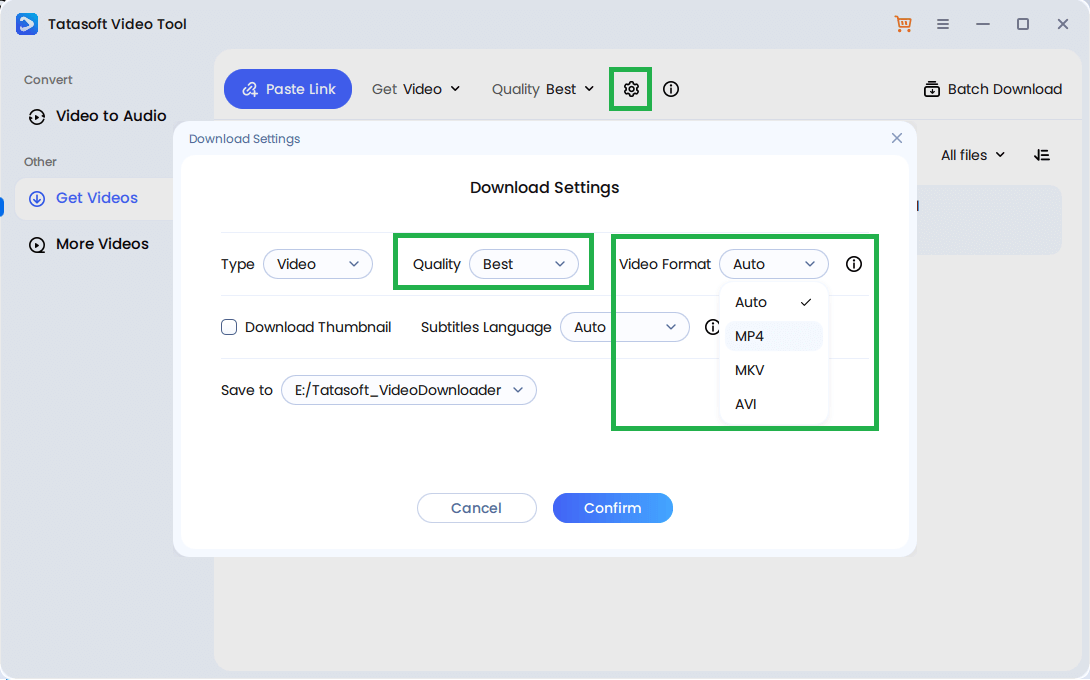
You can also select our preferred format and resolution in Download Settings: Choose your preferred output — MP4, MOV, MKV, etc. — and the desired video quality (720p, 1080p, 4K).
After downloading, your video will be stored locally and available for offline viewing anytime. You can select the video, choose "Open File Location" to access the downloaded files or directly open the folder where you’ve set to save videos offline.
Every step runs through encrypted channels, ensuring no external servers or trackers interfere with your files or privacy.
Streaming may be fast, but it depends on internet availability and network quality. Offline saving ensures independence and continuity.
Advantages include:
Ultimately, offline saving makes your media consumption smoother, more efficient, and less dependent on external conditions.
Sometimes, problems arise when you save YouTube videos offline. Here are common issues and how to handle them:
By anticipating issues, you’ll know how to save YouTube videos offline with fewer interruptions. With reliable software like Tatasoft, most of these issues are rare and easily resolved through regular updates and stable connections.
Once you’ve saved videos offline, good habits keep your library organized and maintain quality. Consider:
These practices enhance your experience of how to save YouTube videos offline and make your archive more effective.
By following these best practices, users not only master how to save YouTube videos offline but also build safer, better-organized media libraries.
There are situations when the best answer to "how to save YouTube videos offline" is: don’t download. Instead:
Remember: circumventing YouTube’s rules or copyright protections may expose you to account suspension or legal risk.
For those who need a secure, dependable, and simple way to save YouTube videos offline, Tatasoft Video Tool remains a leading option — balancing performance, privacy, and usability.
Learning how to save YouTube videos offline transforms how you consume, organize, and enjoy content. Whether for study, entertainment, or professional projects, offline access ensures you’re never limited by internet connection or video availability. However, the key to doing this effectively lies in choosing a secure and high-performing YouTube video downloader.
Tatasoft Video Tool provides the reliability, speed, and flexibility you need to download and manage videos safely in any format or resolution, making it the ideal choice for users who value both performance and protection. Take full control of your viewing experience today and start saving your favorite YouTube videos offline with total confidence and convenience.
A dedicated technical writer at Tatasoft with over four years of specialized expertise in computing technology. She crafts actionable, user-centric content for tech niches, specializing in disk cloning, data management, and video solutions for Windows and Mac.
Read full bio
This article has been approved by Ben Lee. Ben's dedication to excellence and his comprehensive knowledge of Windows and Mac technologies make him an essential part of any technical writing team. With a career marked by continuous learning and adaptation to new technologies, Ben remains at the forefront of the ever-evolving tech landscape.