
Written byJanet BashorunUpdated on Jan 14, 2026

Brief introduction: YouTube to WAV conversion is more than a simple file transformation, it’s a process designed to preserve the integrity of sound. WAV keeps sound exactly as it is—no compression like MP3/AAC. It’s great for creators, music work, podcasts, or saving audio forever. To turn YouTube into WAV, you need a safe, accurate video downloading tool like Tatasoft Video Tool that doesn’t ruin the sound quality.
In this article
There are multiple approaches to converting YouTube videos into WAV files. Some YouTube video downloaders are convenient, others more advanced.
1. Online Conversion Websites
These platforms allow quick conversion but often compress files and limit download size. They’re ideal for casual use but not for professional needs.
2. Browser Extensions
Some add-ons claim to convert directly, but most are unstable, slow, or violate YouTube’s service terms.
3. Desktop Applications
Dedicated software like Tatasoft Video Tool is the safest option to download YouTube Videos and convert to WAV for consistent performance. It provides direct access to YouTube’s stream data and converts efficiently while preserving original sound detail.
If you care about precision, privacy, and offline capability, desktop-based solutions are the clear winner.
Here’s how to convert YouTube videos into WAV quickly and safely using Tatasoft Video Tool:
Step 1: Download and Install the Software
Download the Tatasoft Video Tool for Windows or Mac from the official website.
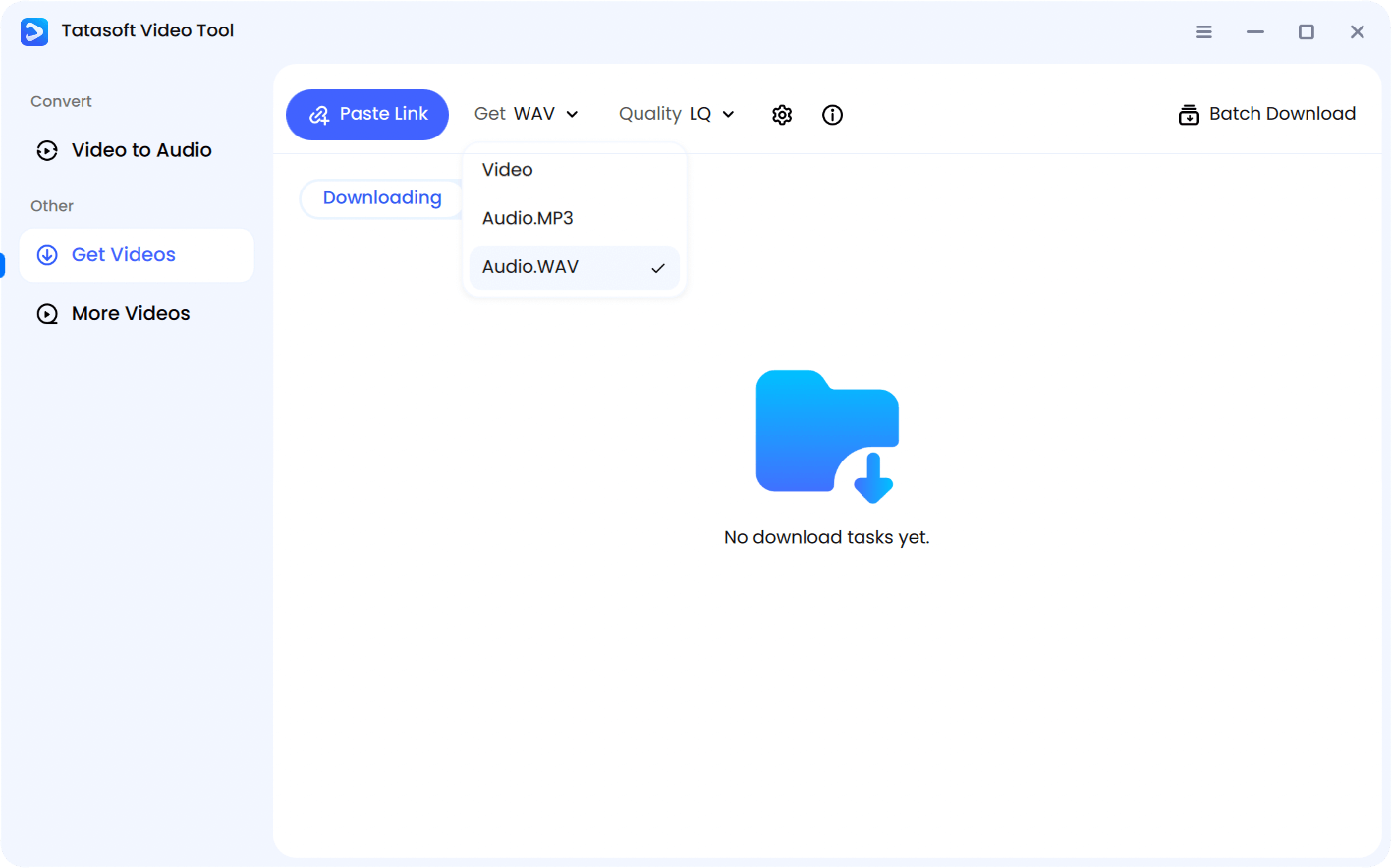
Step 2: Select Format and Quality
Choose "Audio.WAV" as your preferred output option. Also, the software offer the LQ (Lossless Quality) option for the WAV audio file.
Step 3: Copy and Paste the YouTube Video Link
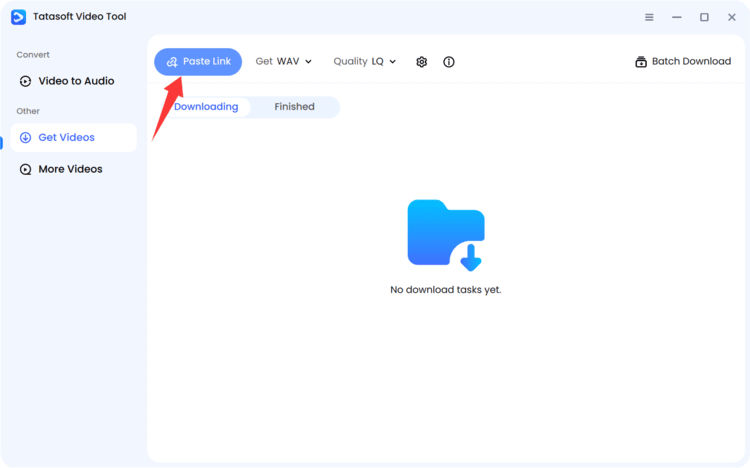
Navigate to the video you want and copy its URL. Turn to the app and paste the URL in the software by clicking the Paste Link button.
Step 4: Analyze Video
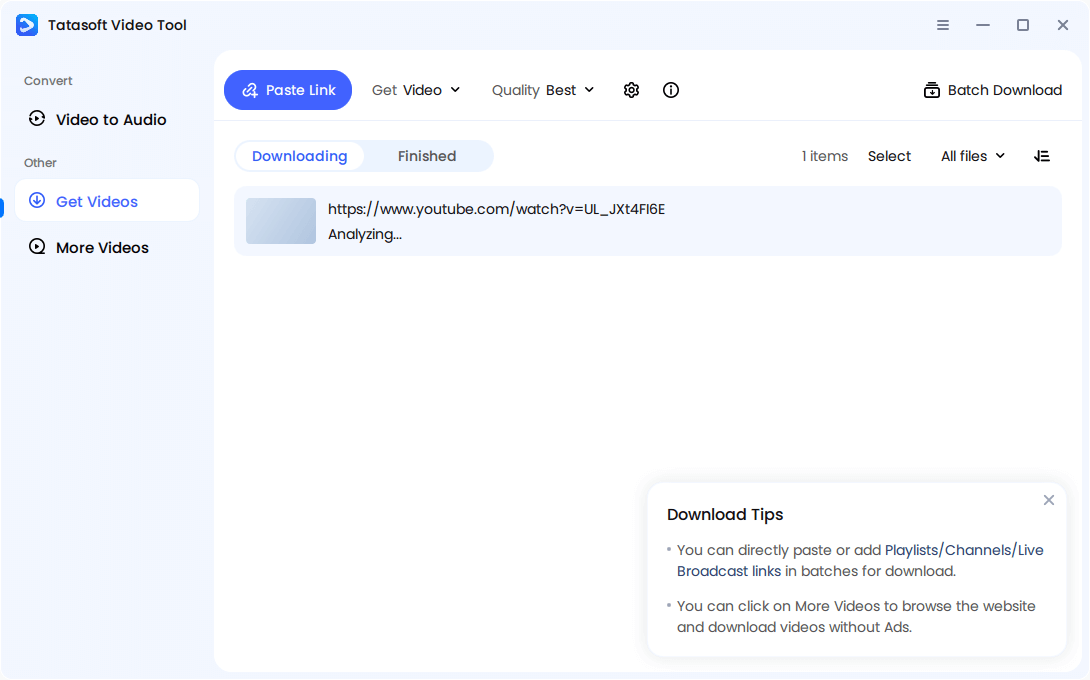
The software will start to analyze the video first and scan the video to extract available qualities.
Step 5. Confirm the Conversion
The software will ask if you want to download it as audio file. If so, just click continue to convert.
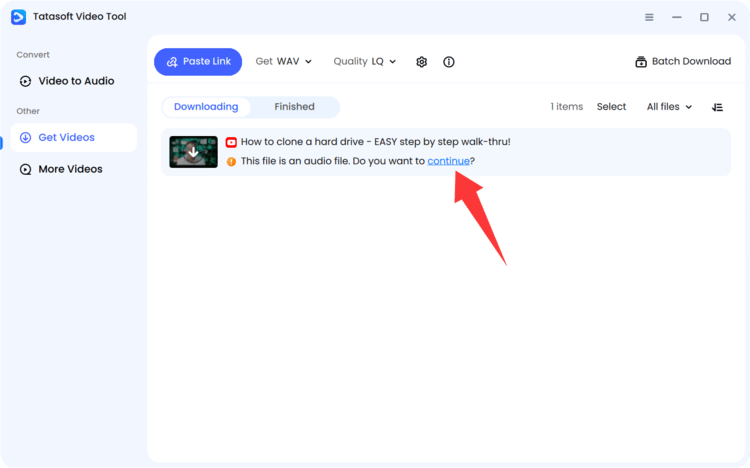
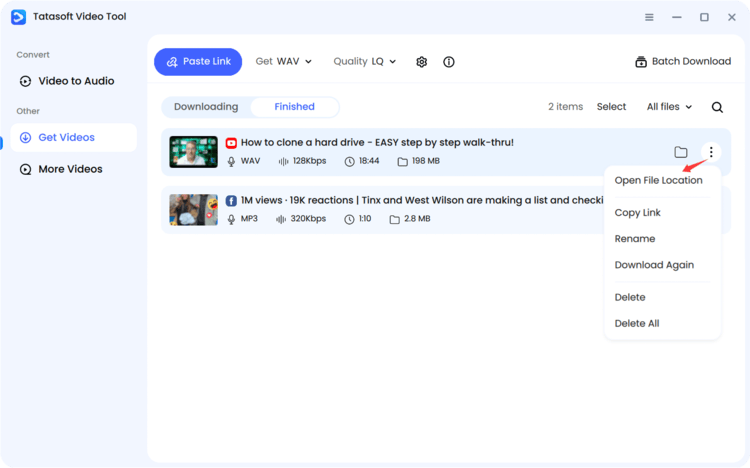
The software will automatically convert and save the WAV file directly to your computer. This seamless process takes minutes and provides an uncompressed, studio-quality output - ready for editing, mastering, or playback. After the downloading process is done, the online YouTube video is converted to WAV file. Click Open File Location to check and play the audio file.
The conversion process is simple once you have the right tool. For effective YouTube to WAV conversions:
These steps guarantee each YouTube to WAV conversion delivers studio-quality precision without glitches.
Bitrate directly influences the quality of your WAV file. It measures how much data is processed per second, expressed in kilobits per second (kbps).
Here’s what to keep in mind when converting YouTube to WAV:
Understanding bitrate helps you make informed decisions when selecting output settings in Tatasoft Video Tool or any other conversion tool.
Not all converters are made equal. Selecting the right one ensures smooth conversion, accurate audio reproduction, and long-term reliability.
Look for these key factors:
With these standards in mind, you can confidently select a trustworthy converter that preserves both your data integrity and audio quality.
The WAV format (Waveform Audio File) is known for its lossless, uncompressed sound—offering studio-level clarity. When you convert YouTube videos to WAV, you capture every tone, echo, and frequency from the original file.
Here’s why WAV stands out:
If your goal is clarity, precision, and reliability, WAV is the benchmark for serious audio extraction from YouTube videos.
Before converting, it’s important to understand how WAV compares with other common formats. Each serves a purpose, but WAV excels in raw audio fidelity.
| Format | Compression Type | Quality | File Size | Ideal Use |
|---|---|---|---|---|
| WAV | Uncompressed | Studio-grade | Large | Editing, Archiving |
| MP3 | Lossy | Moderate | Small | Streaming, Everyday Listening |
| AAC | Lossy | High (but compressed) | Small | Mobile Devices |
| FLAC | Lossless (compressed) | Excellent | Medium | Audiophile Listening |
| OGG | Lossy | Good | Small | Online Platforms |
While MP3 and AAC dominate for streaming, they remove frequencies the human ear barely detects reducing quality. In contrast, WAV maintains the full sound spectrum, offering true-to-source output ideal for podcasts, film scoring, or audio production.
If your purpose is high-resolution preservation or remixing, WAV outperforms other formats every time.
While modern converters simplify the process, users may still face challenges:
Awareness of these issues helps you troubleshoot effectively and choose more dependable tools for consistent output.
Since WAV files are uncompressed, managing their size without degrading sound is essential.
Here’s how to optimize efficiently:
Following these steps ensures your WAV collection remains high-quality yet space-efficient.
Converting YouTube to WAV allows creators, educators, and sound enthusiasts to preserve the best possible audio quality from online videos. By understanding formats, bitrates, and safe conversion practices, you can enjoy professional-grade sound clarity that compressed formats can’t match.
If you’re seeking a dependable tool for this purpose, Tatasoft Video Tool stands out for its reliability, accuracy, and efficiency. It effortlessly handles YouTube to WAV, YouTube to MP3, and YouTube to MP4 conversions, saving YouTube videos for offline use and ensuring crystal-clear results while maintaining respect for content integrity.
Take control of your audio today, download and convert confidently, knowing your WAV files are captured in their purest form.
A dedicated technical writer at Tatasoft with over four years of specialized expertise in computing technology. She crafts actionable, user-centric content for tech niches, specializing in disk cloning, data management, and video solutions for Windows and Mac.
Read full bio
This article has been approved by Ben Lee. Ben's dedication to excellence and his comprehensive knowledge of Windows and Mac technologies make him an essential part of any technical writing team. With a career marked by continuous learning and adaptation to new technologies, Ben remains at the forefront of the ever-evolving tech landscape.