
Written byJanet BashorunUpdated on Feb 27, 2026

Brief introduction: Cloning NTFS drives on Mac is a critical task for users managing data across different operating systems. Whether you are creating a backup, upgrading to a new drive, or migrating data, understanding the nuances of macOS and NTFS compatibility is essential. This guide provides a walkthrough of an effective solution using Tatasoft Disk Clone for Mac to ensure a seamless transition without data loss.
In this article
Before diving into the NTFS cloning process, it’s important to understand the inherent challenges of working with NTFS (New Technology File System) drives on macOS.
Tatasoft Disk Clone for Mac provides a seamless solution to clone an external hard drive on mac, specifically designed to ensure data integrity during NTFS cloning operations. It can be used to overcome the NTFS compatibility limitations of macOS.
Step-by-Step Cloning Process:
Step 1: Download and Installation: Download the software and follow the on-screen instructions to install it on your macOS.
Step 2: Connecting the Drives: Connect your NTFS drive and the target one to your Mac using a suitable USB adapter or enclosure.
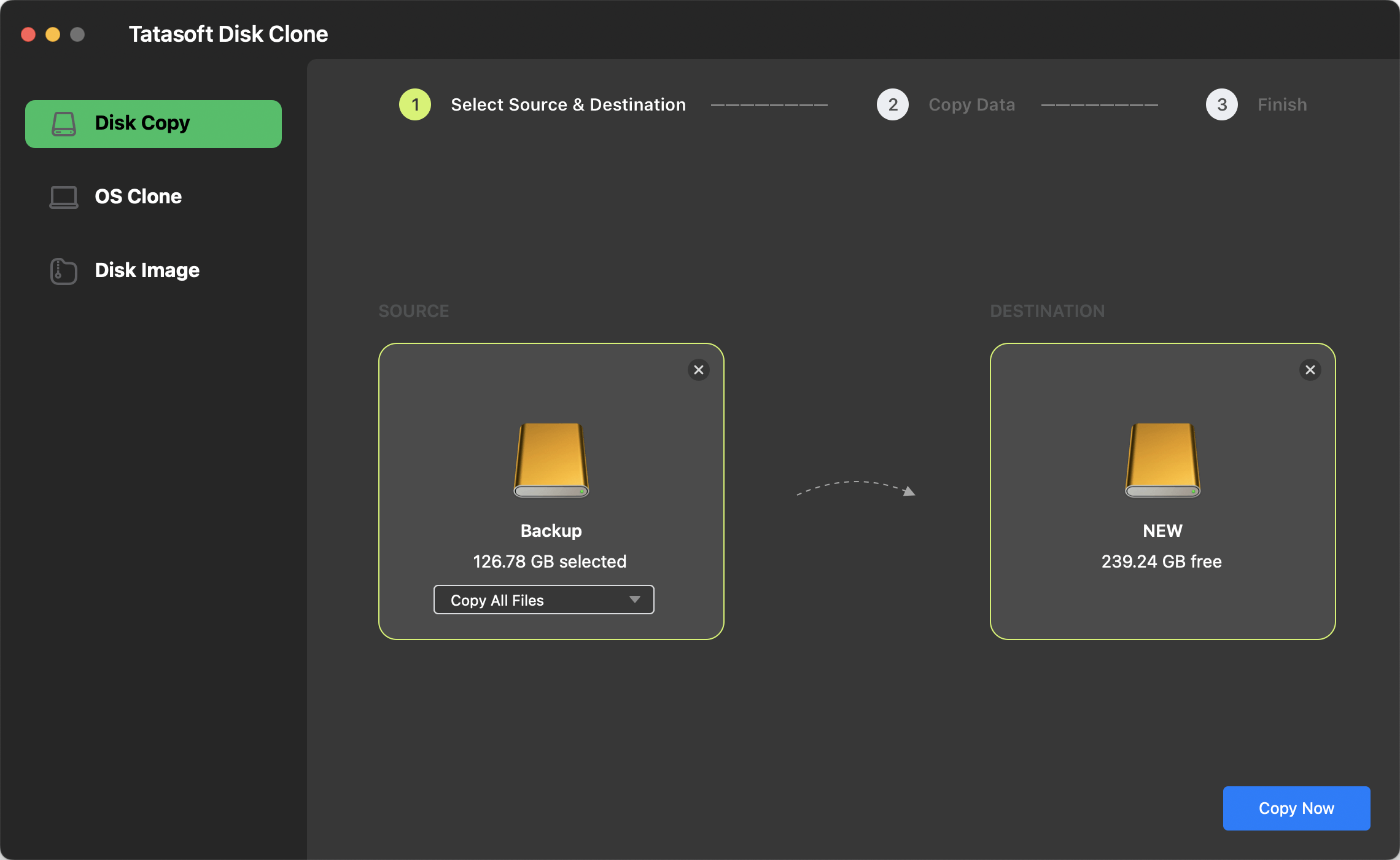
Step 3: Selecting Drives: Launch the application, choose Disk Copy and select your NTFS drive as the source. Then, choose a destination drive with sufficient storage space.
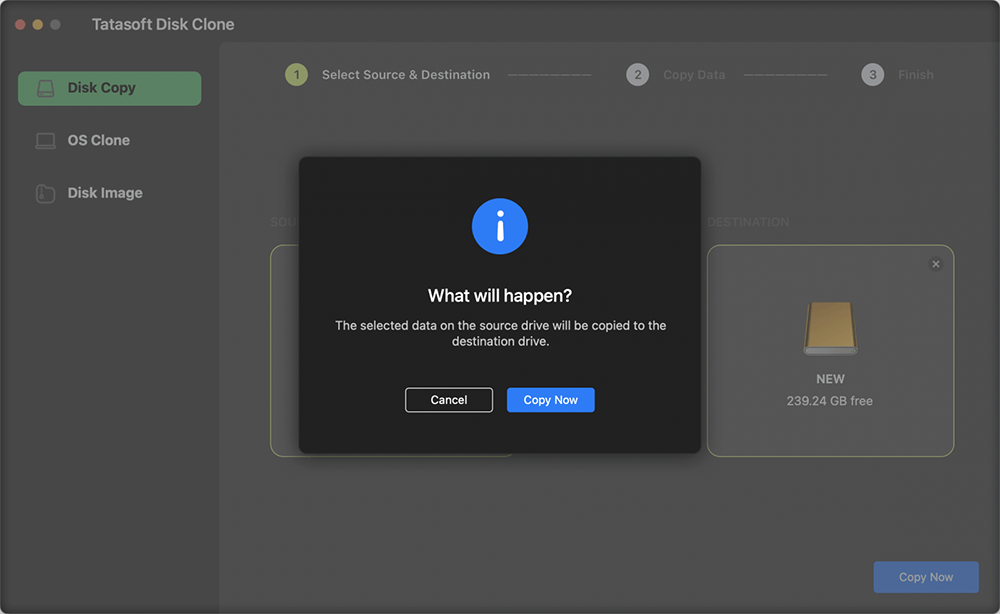
Step 4: Confirm cloning: It will prompt a confirmation dialog to copy data to the target disk. Click Copy Now to clone.
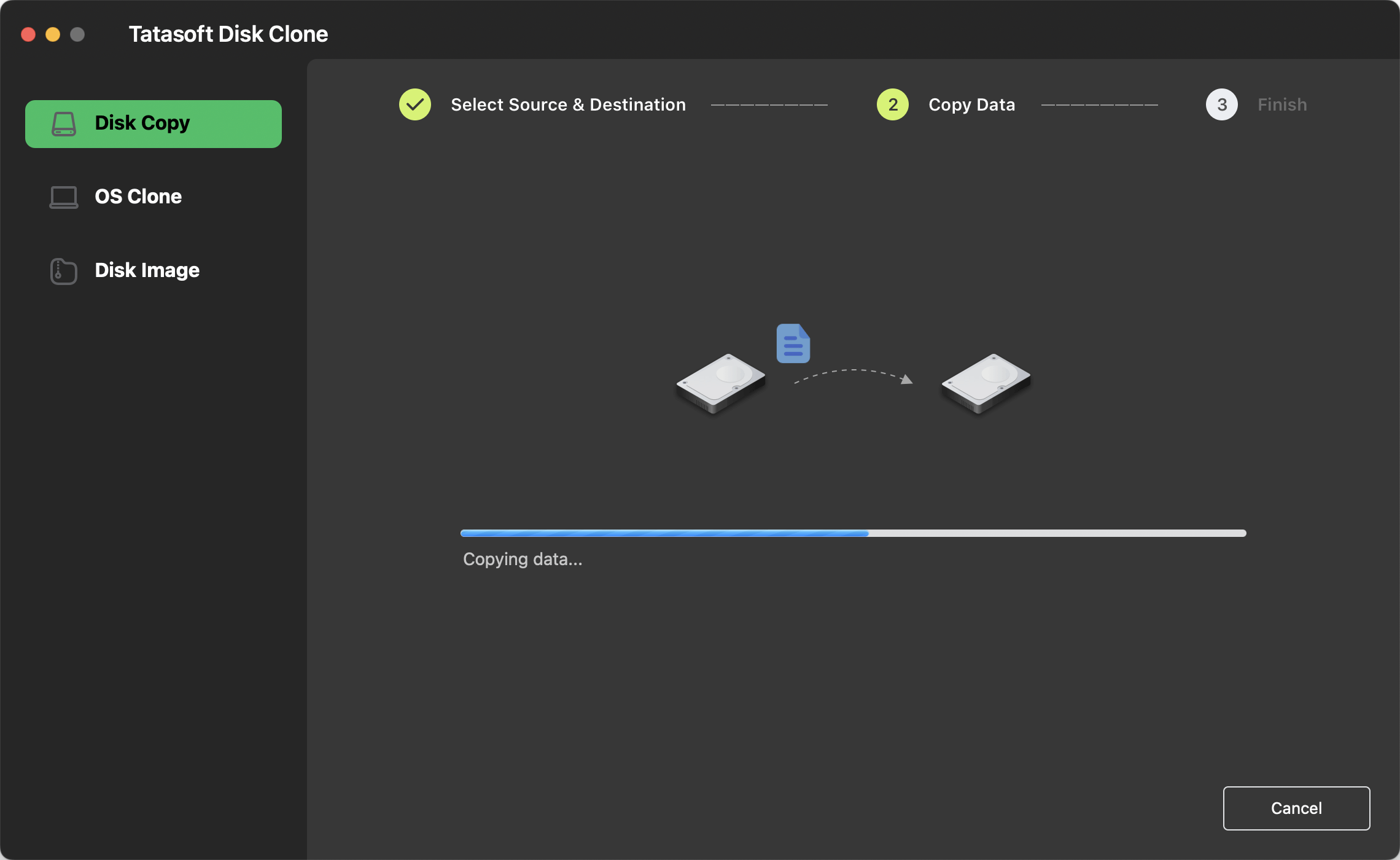
Step 5: Wait for completion: The software will display a progress bar, and you will be notified once the process is complete.
To ensure a successful clone, follow these industry standards:
Clone NTFS drive on Mac requires careful planning and the right tools due to native "Restore" limitations in Disk Utility. Tatasoft Disk Clone for Mac offers a user-friendly and reliable solution specifically designed to handle these compatibility challenges. By following the guidelines outlined in this article, you can implement an effective NTFS cloning process, safeguarding your data and simplifying your workflow.
Ready to secure your NTFS data? Get Tatasoft Disk Clone for Mac today and simplify your data migration workflow! For users who also need to perform similar operations on a Windows PC, you can check our guide on how to clone NTFS drive on Windows.
A dedicated technical writer at Tatasoft with over four years of specialized expertise in computing technology. She crafts actionable, user-centric content for tech niches, specializing in disk cloning, data management, and video solutions for Windows and Mac.
Read full bio
This article has been approved by Ben Lee. Ben's dedication to excellence and his comprehensive knowledge of Windows and Mac technologies make him an essential part of any technical writing team. With a career marked by continuous learning and adaptation to new technologies, Ben remains at the forefront of the ever-evolving tech landscape.