Written byJanet BashorunUpdated on Feb 23, 2026

Brief introduction: To clone a Mac OS drive effectively is essential for users seeking to enhance performance, create backups, or migrate to a new machine. Cloning allows you to replicate your entire macOS, apps, and files, ensuring a smooth transition without data loss. In this guide, we will delve into 3 free and paid methods for cloning your Mac OS drive, including the use of Tatasoft Disk Clone and built-in macOS tools like Disk Utility and Migration Assistant.
In this article
Cloning a Mac OS drive involves creating an exact copy of your Mac hard drive, encompassing the operating system, applications, and all personal files. Unlike simple file transfers, cloning preserves the entire disk structure, including hidden system files and permissions, enabling the cloned drive to be fully bootable on your device. This process is crucial for ensuring that all configurations and settings remain intact. Primary reasons to clone your Mac drive include:
1. Assessing Drive Compatibility
Before you begin, ensure that your new drive is compatible with your Mac. Check the specifications of both your Mac and the new drive to confirm that they will work together seamlessly. Cross-check specifications including file system support - macOS natively reads NTFS drives but requires third-party tools for full write access.
2. Backing Up Important Data
It's always advisable to back up essential files on the destination drive separately as it will be completely erased. Use an external hard drive or cloud storage to keep your data secure before starting the cloning process.
3. Clean up your macOS
Remove unnecessary files and apps to optimize disk space and ensure a clean migration.
4. Tools Required for Cloning
Tatasoft Disk Clone for Mac is reliable Mac disk cloning software that boasts a user-friendly interface and efficient cloning process, making it an excellent choice for users of all skill levels. Its dedicated macOS cloning algorithm delivers a superior boot success rate for cloned hard drives compared to alternative solutions on the market.
Step 1: Connect the new drive to Mac
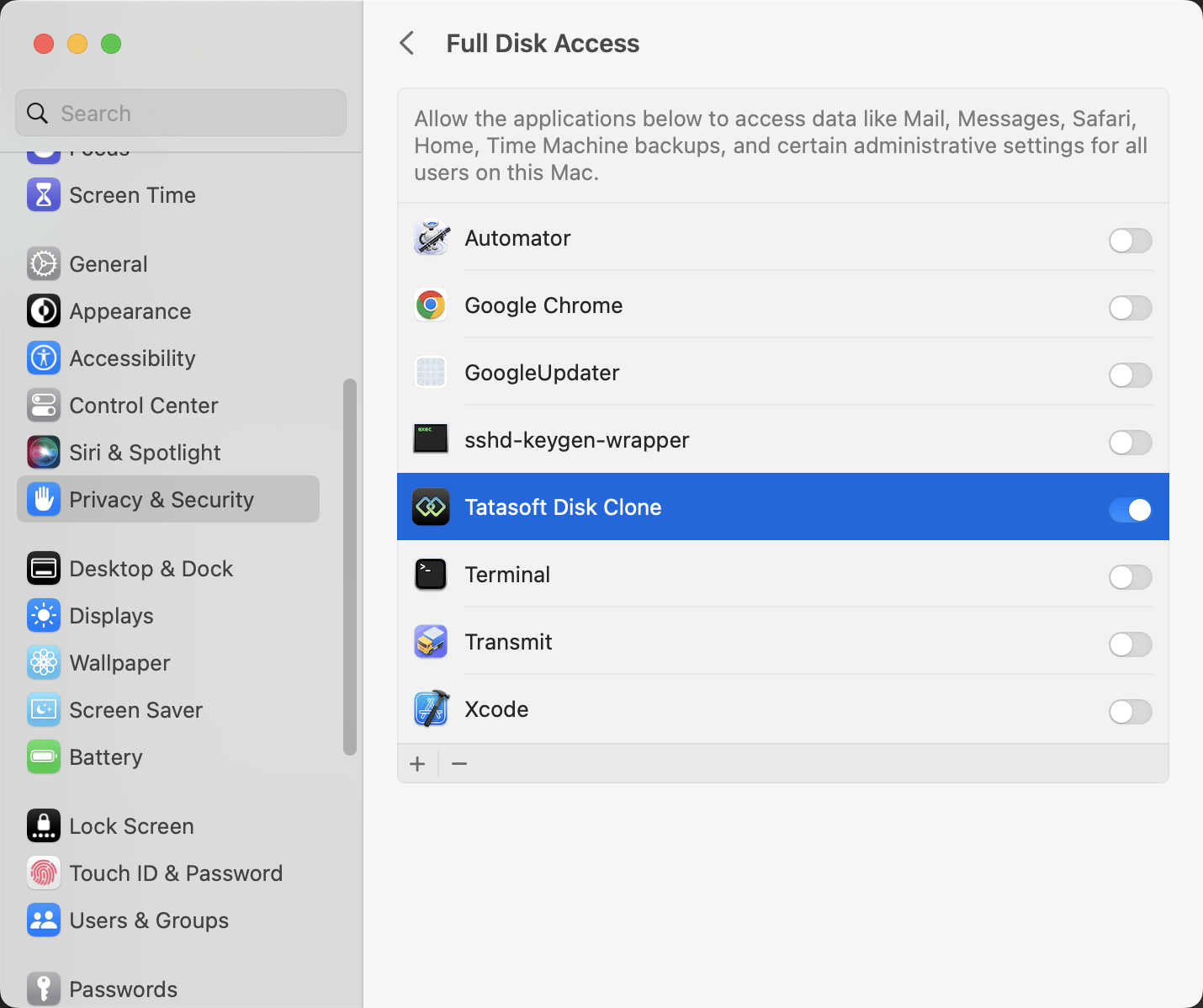
Step 2: Launch Tatasoft Disk Clone and enable Full Disk Access when you open it for the first time
Step 3: Switch to OS Clone and choose drive
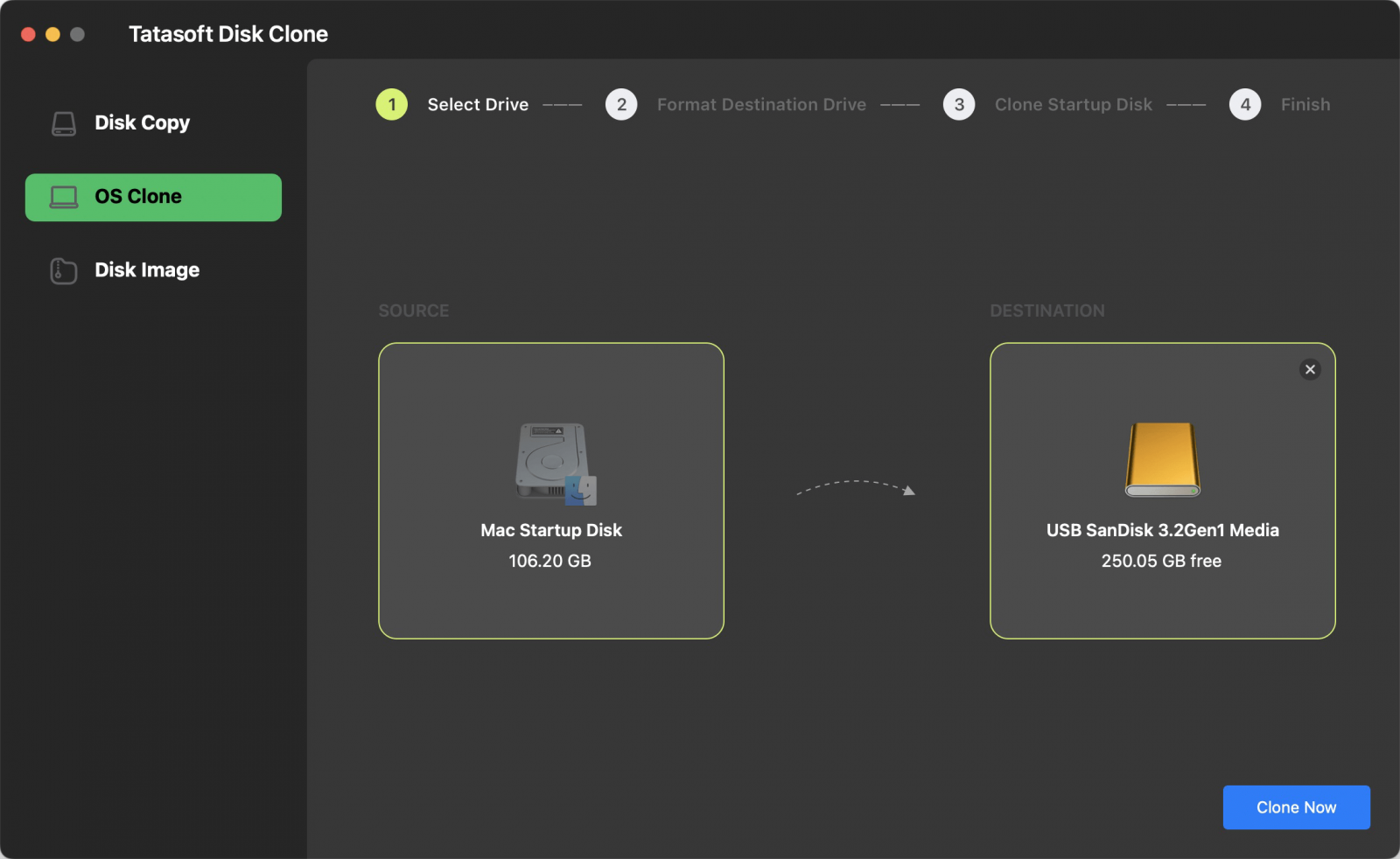
Step 4: Confirm and start cloning the Mac OS drive
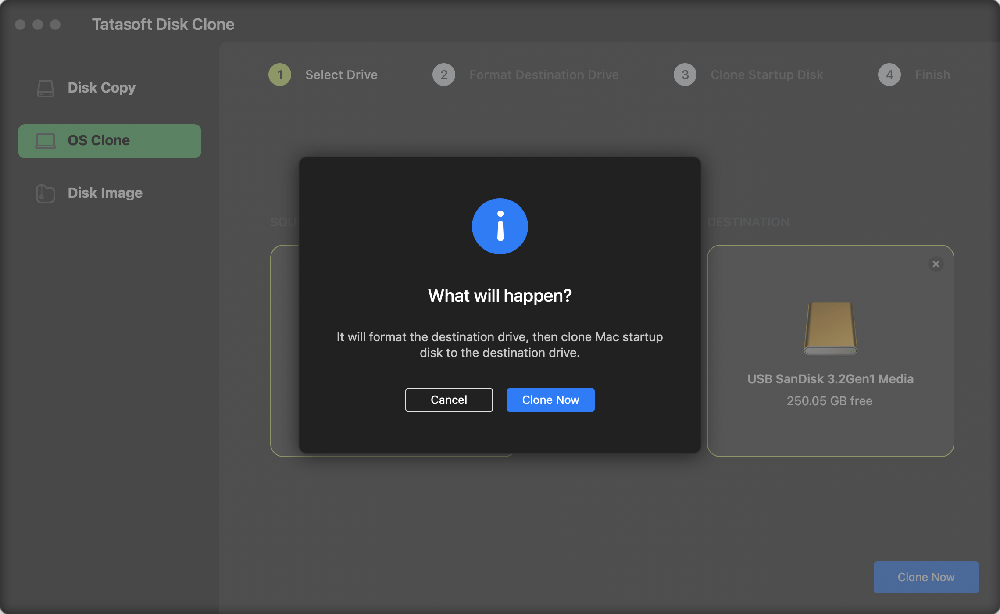
Once the cloning process is complete, Tatasoft will prompt you to verify the success of the operation.
Tips:
1. When you boot the cloned macOS from external hard drive for the first time, log in to the system and wait about 20 to 30 minutes before using it.
2. Try to keep Ventura or Sonoma booted on the original computer after cloning.
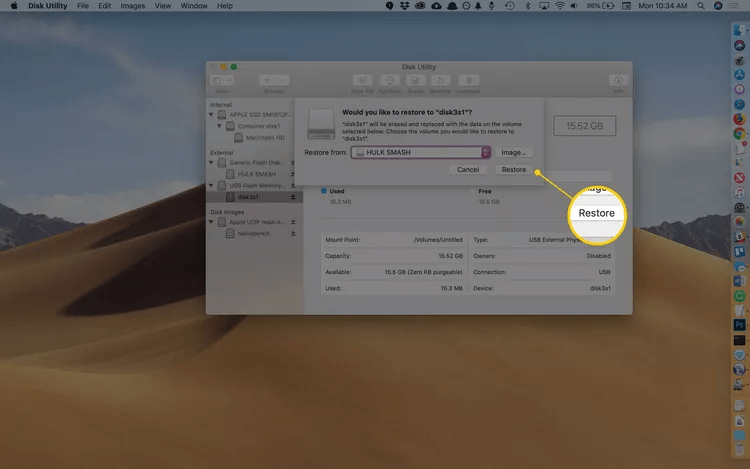
Disk Utility is a free built-in macOS tool that allows you to clone your Mac hard drive its 'Restore' function.
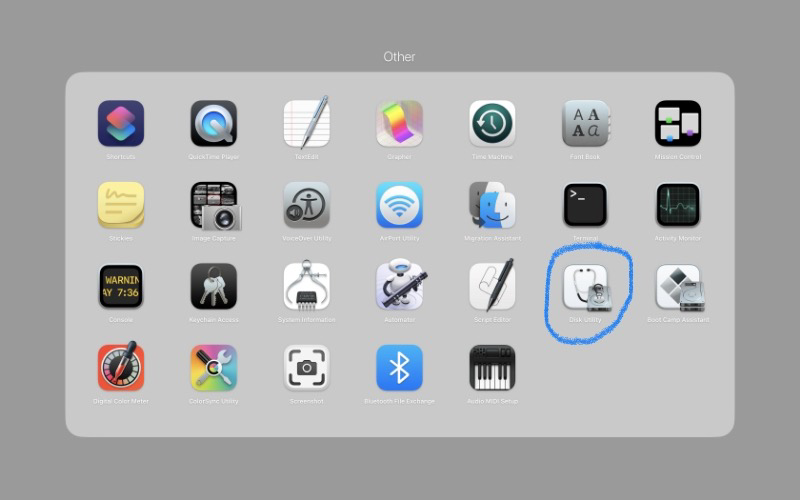
Step 1: Open Disk Utility
You can find it in Applications > Utilities > Disk Utility.
Step 2: Show all devices
on the top-left corner of the window, click the View > Show All Devices. This allows you to see the actual hardware drives rather than just the volumes.
Step 3: Select the target drive and click Restore
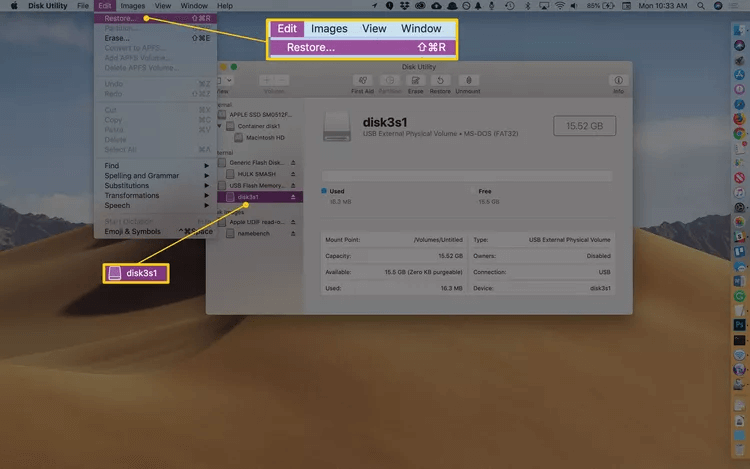
Choose the external drive you want to clone the Mac OS drive to in the sidebar.
Click the Restore button in the top toolbar or Edit > Restore.
Step 4: Restore
In the drop-down menu, select your Source Drive (the Mac OS drive you want to copy).
Click Restore.
Monitor the progress bar. Once the process is complete, you will see a confirmation message. Cloning hard drive with Disk Utility can take anywhere from a few minutes to several hours depending on the amount of data and the speed of your drives.
Tips: Due to Apple's Signed System Volume (SSV) security, simply "restoring" a system drive via Disk Utility on macOS 11 Big Sur and later sometimes creates a data-only clone that isn't bootable. If your goal is to create a Mac bootable external backup, I recommend using specialized tools like Tatasoft Disk Clone for Mac.
Migration Assistant is another built-in tool designed for transferring data between Macs but can also be used to clone a drive. It is important to note that unlike "cloning" (which makes a bit-for-bit copy of the entire drive), Migration Assistant installs your apps, files, and settings onto a freshly installed macOS.
Step 1: Connect Devices
Ensure both Macs are on the same Wi-Fi network, or connect them directly with a cable (faster transfer).
Step 2: Open Migration Assistant
On your New Mac: Go to Applications > Utilities > Migration Assistant. Click Continue.
On your Old Mac/Source: Do the same: Open Migration Assistant and click Continue.
Step 3: Select Transfer Method
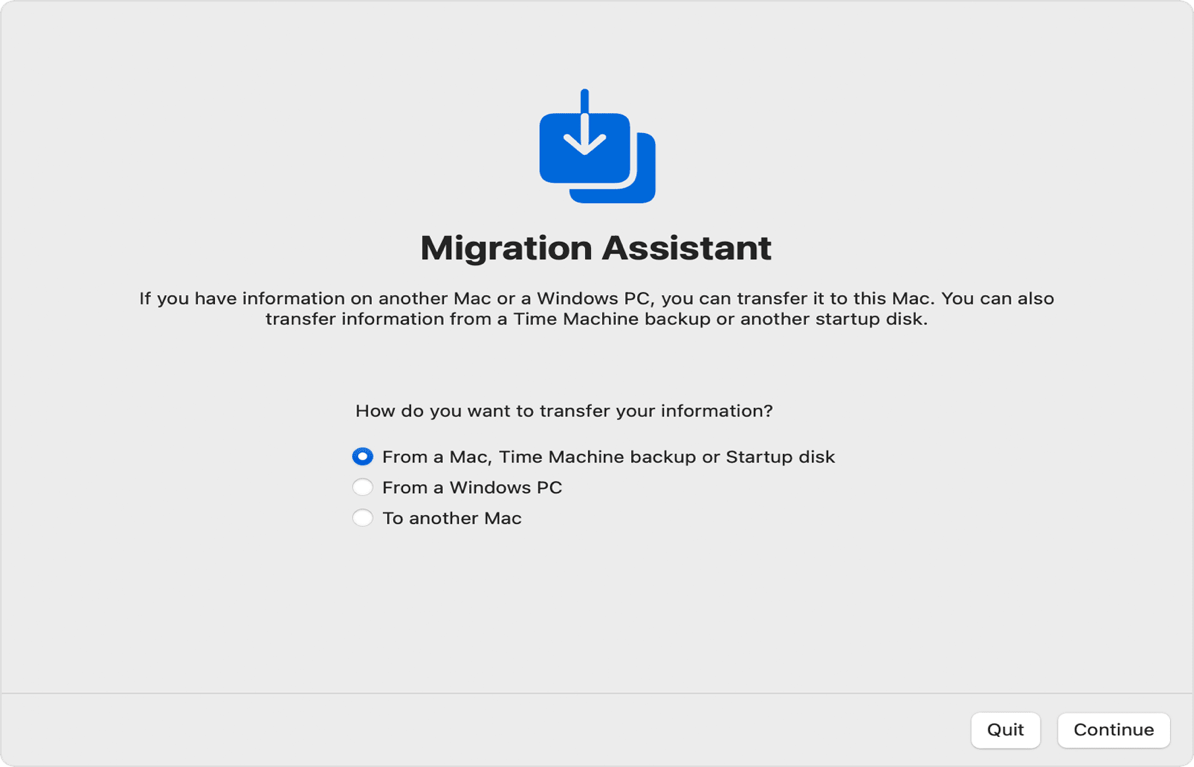
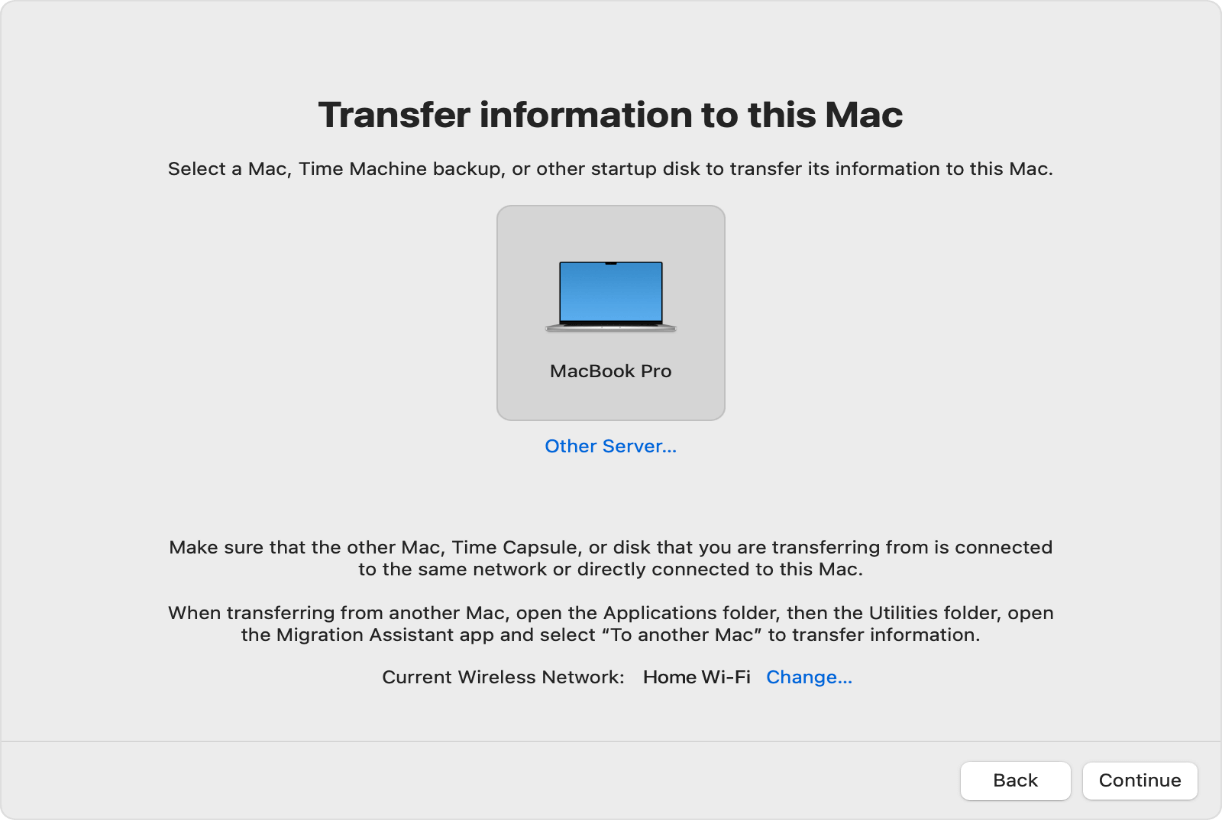
On the New Mac: When asked how you want to transfer information, select "From a Mac, Time Machine backup, or startup disk" and click Continue.
On the Old Mac: Select "To another Mac" and click Continue.
Step 4: Pair the devices
On the New Mac: You should see an icon for your old Mac (or the external drive/backup). Select it and click Continue.
Verify the Code: A security code will appear on both screens. Confirm they match and click Continue on the old Mac.
Step 5: Choose Data to Transfer
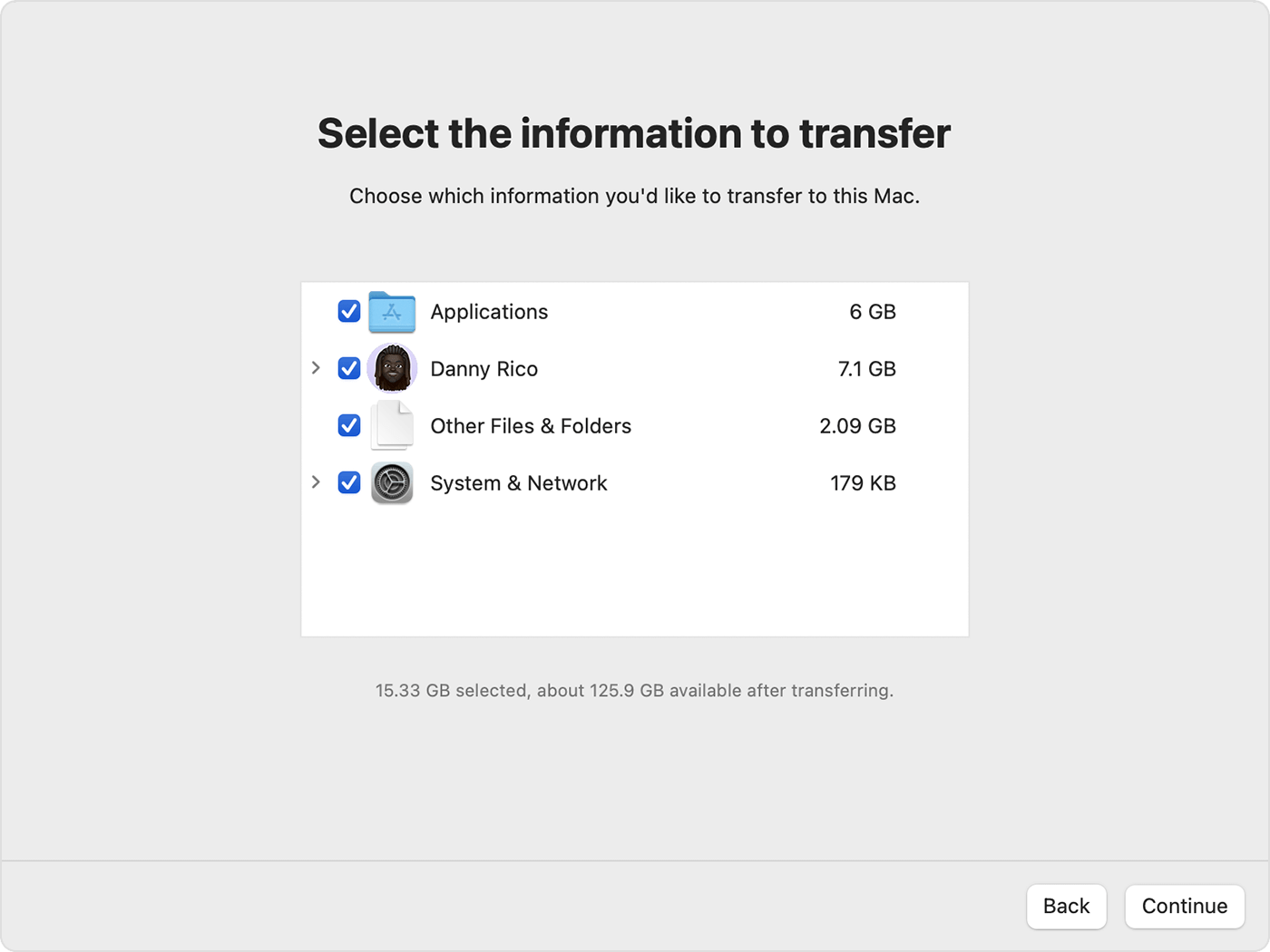
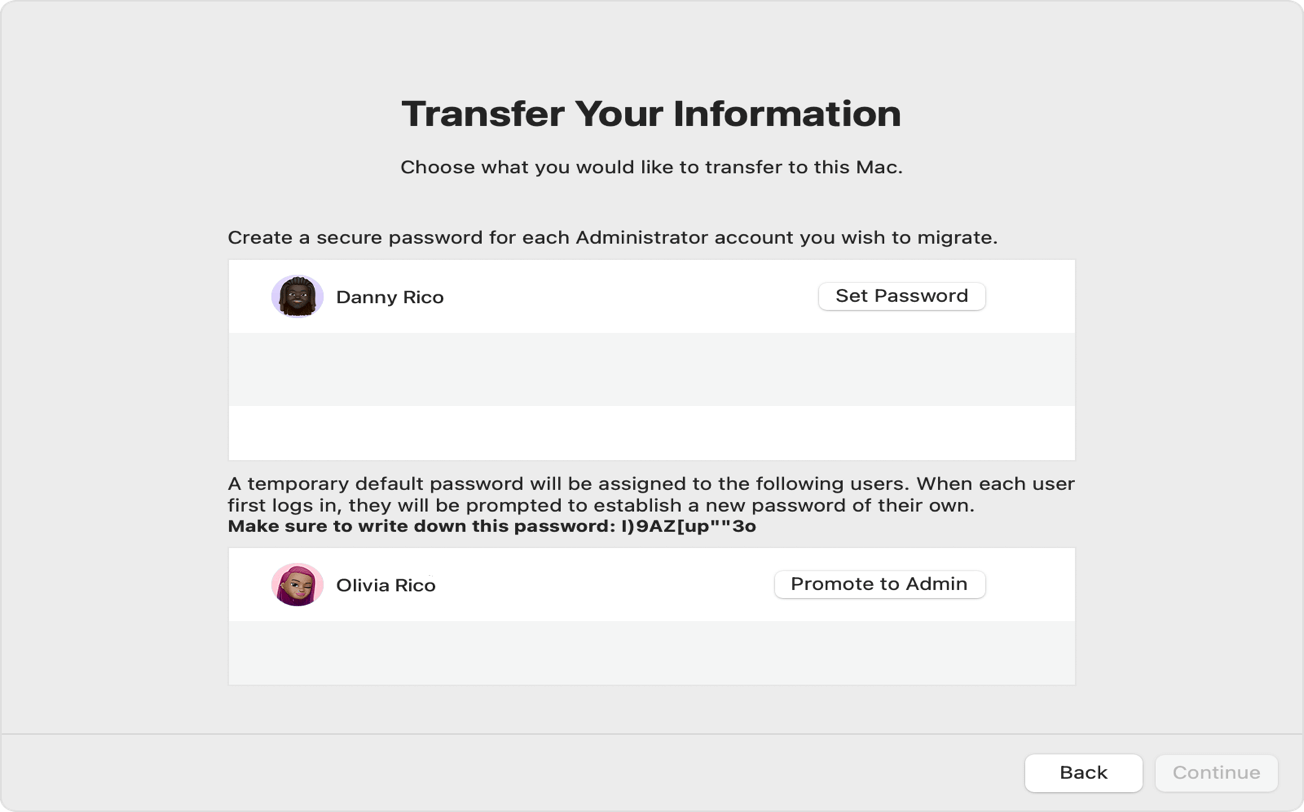
You will see various options for data transfer, such as applications, user accounts (documents, desktop, and settings), Other Files & Folders and System & Network (Wi-Fi passwords, printer settings,etc). Select what you want to clone.
Step 6: Follow Prompts
While Migration Assistant is Apple's recommended way to move macOS data, it is not a "perfect clone" and comes with several limitations:
1. Unlike Disk Utility or third-party cloning software, Migration Assistant only moves apps, data and settings. It does not copy the macOS operating system itself.
2. You usually cannot migrate data from a Mac running a newer version of macOS (e.g., macOS 15) to a Mac running an older version (e.g., macOS 14). The target Mac must be on the same or a newer version of the OS.
3. If you use Wi-Fi, the process can be extremely slow and prone to disconnection. If the connection drops halfway through, you often have to wipe the target Mac and restart the entire process from the beginning to avoid corrupted data.
1. Cloning Errors
If you encounter errors during the cloning process:
2. Boot Issues After Cloning
If your Mac doesn’t boot from the new drive:
On Apple Silicon Macs (M1, M2, M3, M4, M5)
You do not need to manually reset NVRAM. These Macs test the NVRAM during every startup. If the system detects an issue, it automatically resets it. You can simply shut down your Mac and turn it back on.
On Intel-based Macs
Cloning your Mac drive doesn't have to be stressful. With Tatasoft Disk Clone for Mac, the process becomes straightforward and efficient, allowing for a seamless transition to new storage. While built-in tools like Disk Utility and Migration Assistant offer free ways to copy a Mac hard drive, Tatasoft delivers a far more user-friendly experience for users of all skill levels, along with a notably higher success rate when creating bootable clones of Mac devices.
By following the steps outlined in this guide, you can confidently migrate your macOS or create a reliable backup. For MacBook Pro users, you can refer to How to Clone Your MacBook Pro Hard Drive. Don’t compromise on your data's safety—take control of your Mac's performance today. Start cloning your Mac OS drive to an external SSD and ensure a smooth, hassle-free experience!
A dedicated technical writer at Tatasoft with over four years of specialized expertise in computing technology. She crafts actionable, user-centric content for tech niches, specializing in disk cloning, data management, and video solutions for Windows and Mac.
Read full bio
This article has been approved by Ben Lee. Ben's dedication to excellence and his comprehensive knowledge of Windows and Mac technologies make him an essential part of any technical writing team. With a career marked by continuous learning and adaptation to new technologies, Ben remains at the forefront of the ever-evolving tech landscape.