
Written byJanet BashorunUpdated on Feb 25, 2026

Brief introduction: Creating a bootable clone of your Mac is a critical step for ensuring data security and system recovery. This process generates an exact replica of your Mac's startup disk, preserving all macOS configurations, applications, files, and settings. In this guide, we will explore how to create a bootable clone of Mac using Tatasoft Disk Clone for Mac and ensure your cloned system starts perfectly.
In this article
A bootable macOS backup serves several crucial purposes:
Before making a bootable clone of your Mac, it’s important to ensure you have everything set up correctly.
1. Check Your Internal Drive
2. Selecting an External Drive
3. Backup Important Data
Cloning will erase the target drive. Double-check backups before proceeding. Always use Time Machine or a backup tool to safeguard critical files before cloning. This way, you’ll have a safety net in case anything goes wrong.
4. Download and Install a Reliable Mac Disk Clone Software
Tatasoft Disk Clone for Mac is a proven macOS disk cloning software that successfully creates bootable clones. It works with both Apple Silicon (M1-M5) and Intel Macs, compatible with macOS 10.13 or later.
Step1: Connect Your External SSD or HDD to Mac
Note: Cloning will erase all data on the external hard drive, so ensure any important data is backed up first.
Step 2: Launch Tatasoft Disk Clone for Mac
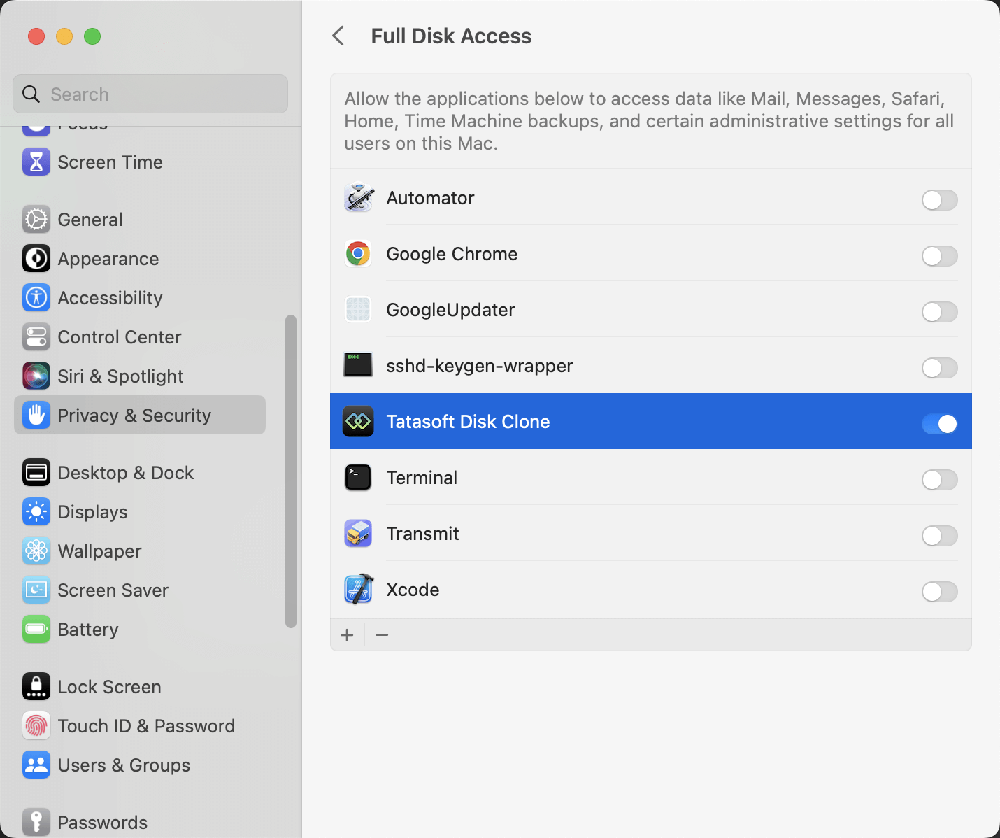
When first opening the software, grant it Full Disk Access in Privacy &Security.
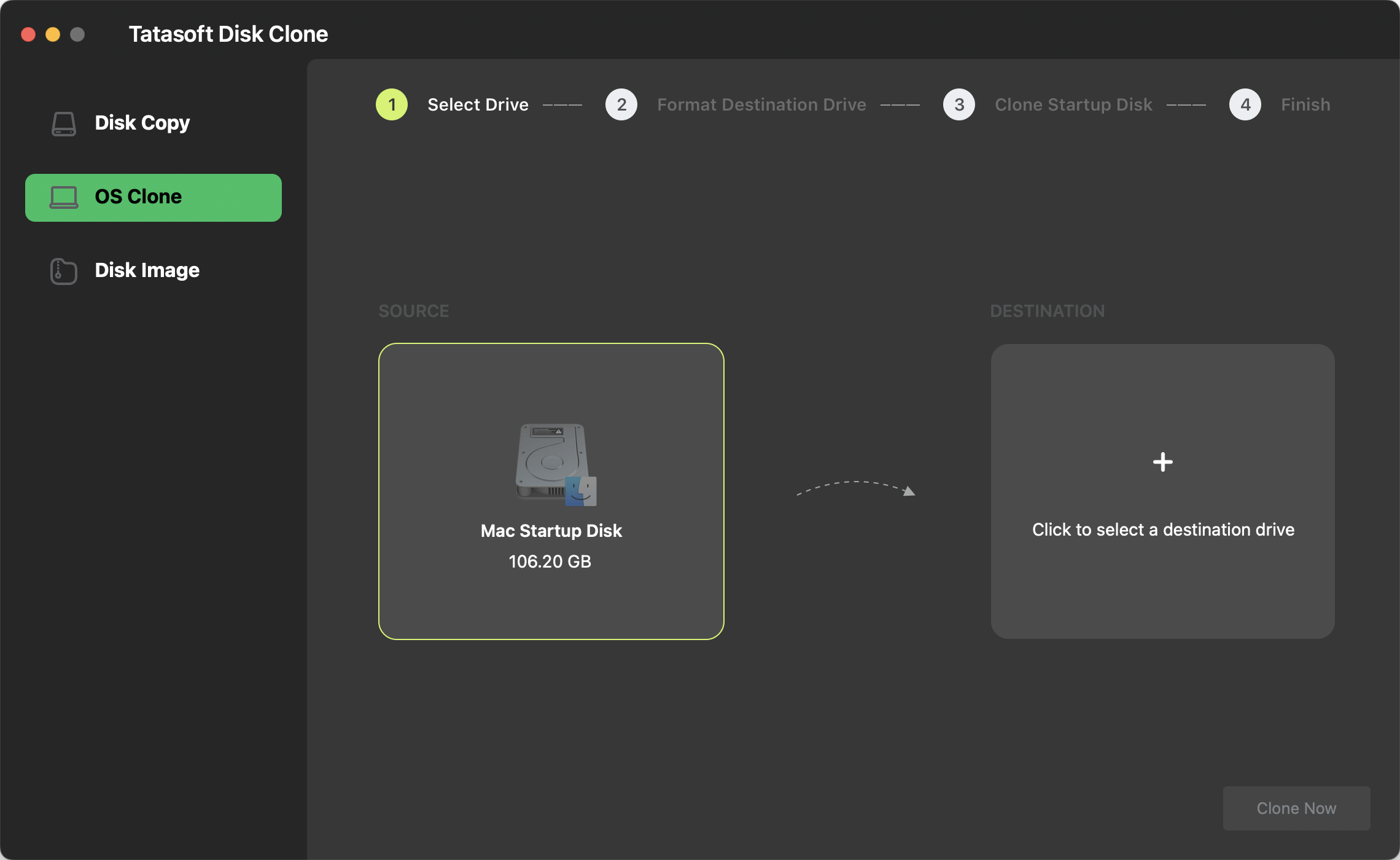
Step3: Select the Source and Destination Drives
Step 4: Initiate the macOS Cloning Process
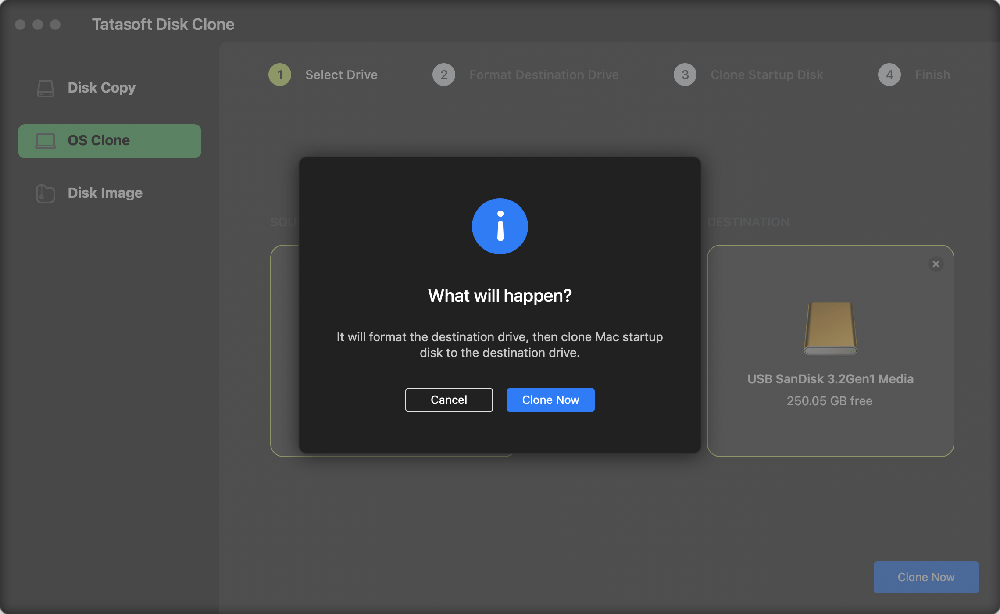
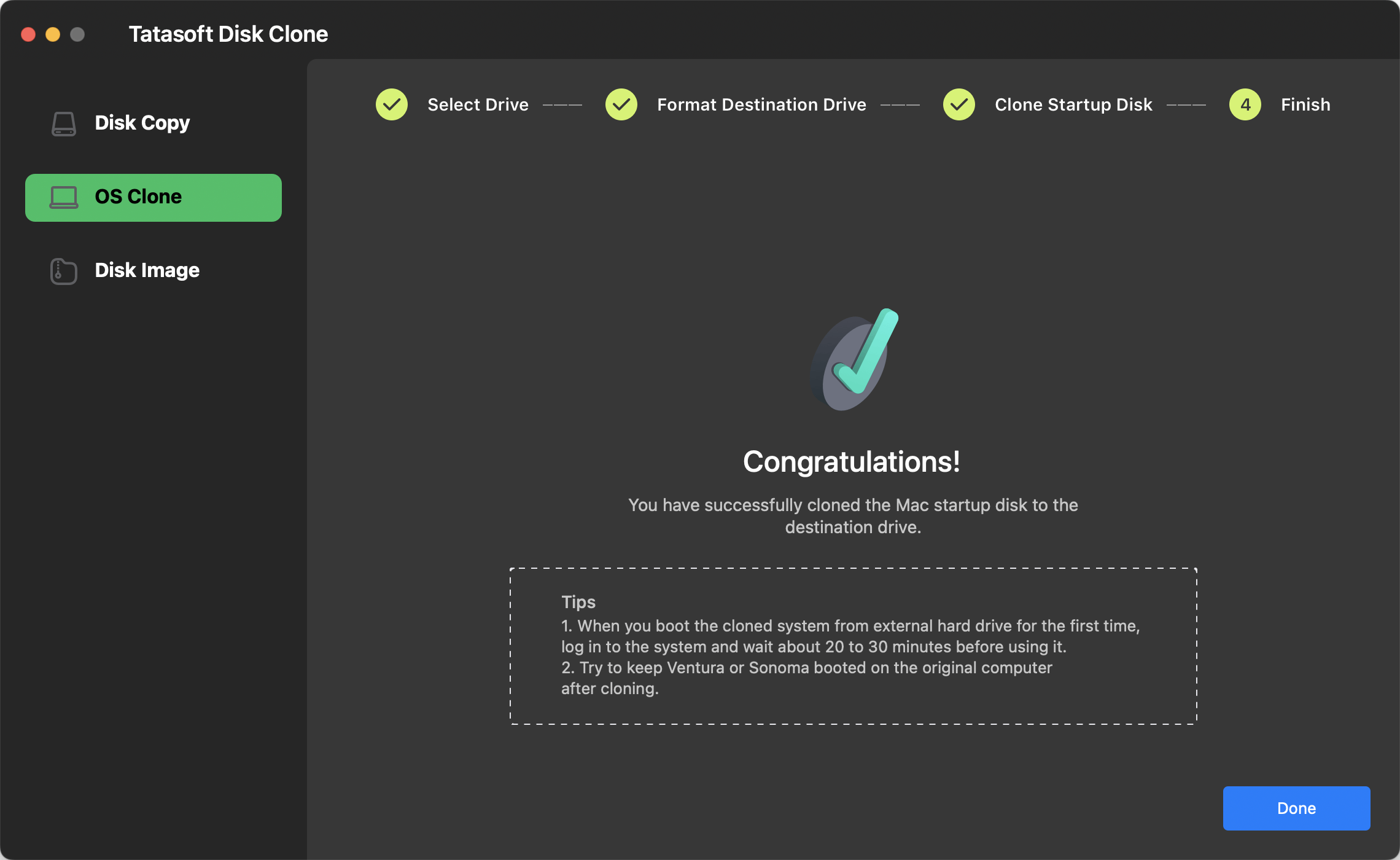
After the cloning process is complete, verify the data on the external hard drive to ensure all data was copied accurately.
1. Restart your Mac.
2. Press and hold the power button until "Loading Startup Options" appear.
3. Select Options (gear icon) > External Drive.
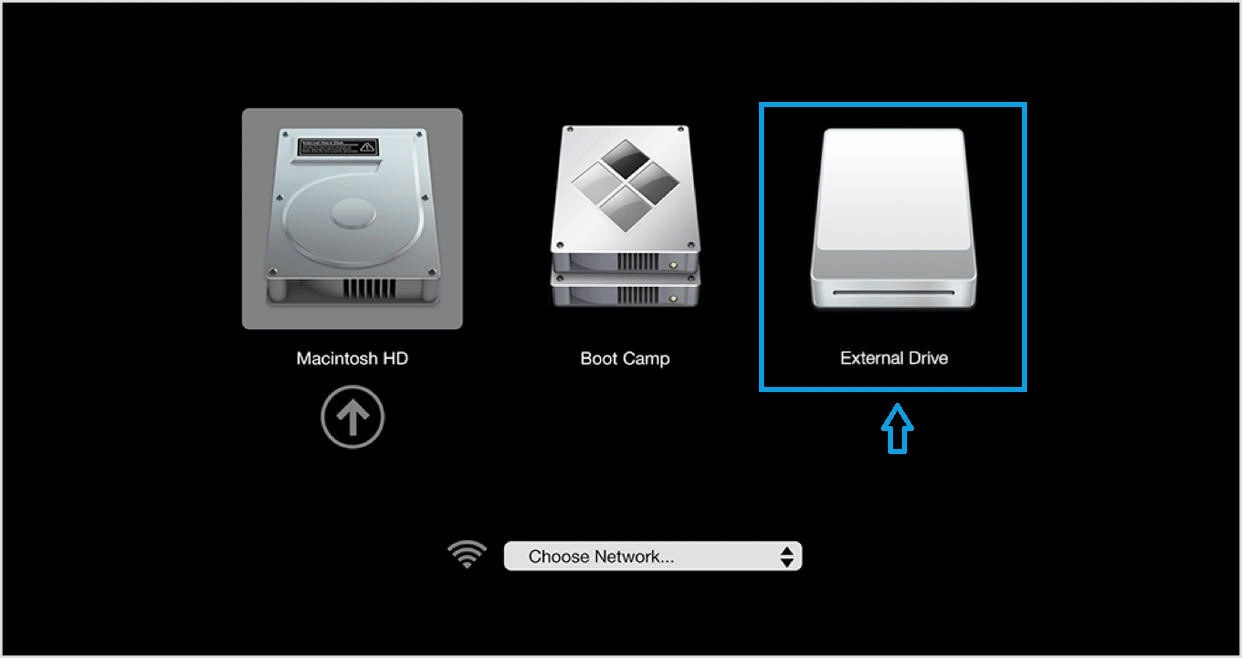
1. Restart while holding Option(⌥) to open Startup Manager.
2. Select the cloned external drive to boot.
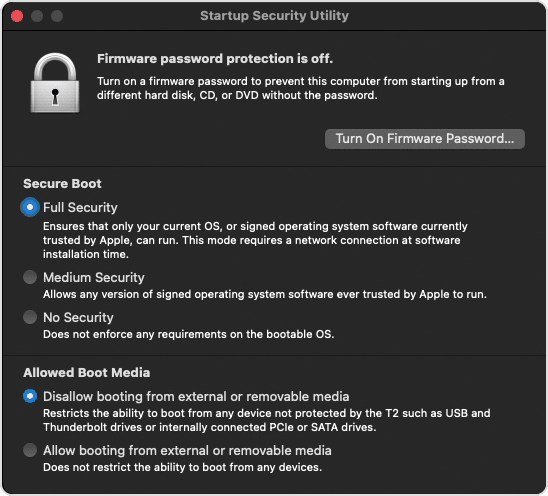
3. If you're using a Mac with the Apple T2 Security Chip, the external drive doesn’t appear:
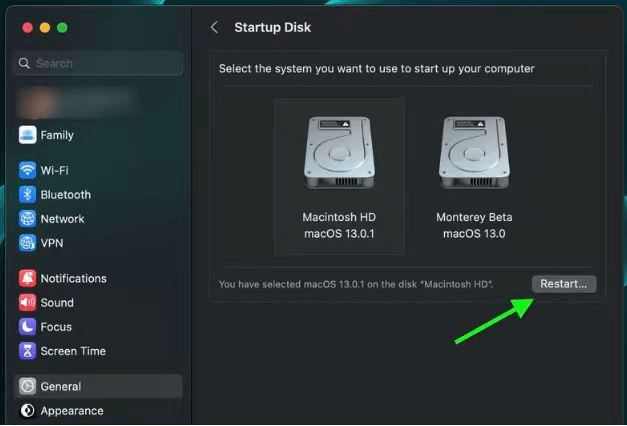
Alternatively, to set the external hard drive as default, go to choose Apple menu>System Settings> General > Startup Disk, choose the external drive, and click Restart
Tips:
1. When you boot the cloned macOS from external hard drive for the first time, log in to the system and wait about 20 to 30 minutes before using it.
2. Try to keep Ventura or Sonoma booted on the original computer after cloning.
1. Cloning Process Fails
If the cloning process fails, troubleshoot by checking:
2. Clone Not Bootable
If your cloned SSD is not bootable:
3. Data Discrepancies
If you notice any discrepancies in the data:
Creating a bootable backup of your Mac is a vital step for enhancing your system's performance and ensuring data safety. If your Mac’s internal drive fails, a bootable backup on an external drive allows you to quickly access your ready-to-use system from the external disk. By utilizing Tatasoft Disk Clone for Mac, you can simplify the process of cloning mac hard drive to an external drive and ensure a seamless experience. Download it now and start creating your bootable clone to protect your valuable data and streamline your system recovery process.
Yes, creating a bootable clone is a safe way to back up your data, provided you follow proper procedures. It is a complete copy of your Mac's operating system and data stored on an external drive.
To create a bootable backup, you'll need an external drive with sufficient storage. Use macOS's Mac disk cloning tools like Tatasoft Disk Clone for Mac to clone your system disk to an external hard drive.
The time required varies based on the amount of data and the speed of your external drive, typically taking from a few minutes to several hours.
Yes, you can boot your cloned system from an external hard drive on different Mac computers, however The Mac you're booting into must be compatible with the macOS version installed on the external drive. Apple restricts macOS to specific hardware models.
Absolutely! After cloning, you can set the external SSD as your primary drive and boot your Mac from it: go to choose Apple menu > System Settings > General > Startup Disk, choose the external drive, and click Restart
A dedicated technical writer at Tatasoft with over four years of specialized expertise in computing technology. She crafts actionable, user-centric content for tech niches, specializing in disk cloning, data management, and video solutions for Windows and Mac.
Read full bio
This article has been approved by Ben Lee. Ben's dedication to excellence and his comprehensive knowledge of Windows and Mac technologies make him an essential part of any technical writing team. With a career marked by continuous learning and adaptation to new technologies, Ben remains at the forefront of the ever-evolving tech landscape.