
Written byJanet BashorunUpdated on Feb 26, 2026

Brief introduction: Learn how to clone macOS 26 Tahoe to an external drive for reliable system backups and effortless hardware upgrades. By preserving your entire macOS 26 environments, cloning ensures you can restore your system in an instant. This article explores essential cloning techniques, and demonstrates how Tatasoft Disk Clone for Mac elevates the migrating process into a faster, hassle-free experience.
In this article
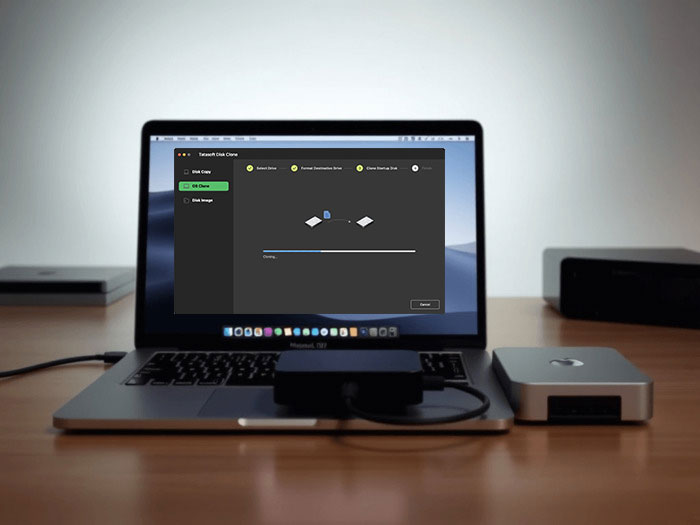
The release of macOS 26 Tahoe introduces the sophisticated "Liquid Glass" interface and enhanced system security measures. While these features offer a premium experience, they also make traditional backup methods more complex. Whether you are upgrading to a lightning-fast USB-C Gen 4 SSD or creating a "disaster recovery" drive, knowing how to clone your Mac OS drive is the ultimate safety net for any modern Mac user.
Cloning is far more than just a standard data backup. It creates a functional, bit-for-bit replica of your operating system that allows for:
While macOS includes native tools, using specialized macOS disk clone software like Tatasoft Disk Clone for Mac is recommended for a more user-friendly experience and a higher post-clone startup success rate.
Before you begin the process of cloning macOS 26 Tahoe, ensure you have addressed these essential steps:
1. Choose the Right External Hard Drive
2. Backup Important Data
3. Install Required Mac Disk Cloning Software
l In this guide, we'll walk you through cloning macOS 26 with Tatasoft Disk Clone. Make sure to download and install the app before you begin.
4. Ensure Stable Power
Always keep your Mac plugged into a power source to avoid interruptions during the cloning process.
5. Legacy Knowledge
If you are coming from older systems, the logic remains similar to how one might create a bootable backup of macOS Sequoia, though Tahoe requires updated software to handle its specific architecture.
Step 1: Connect the External Hard Drive
Plug your external SSD or HDD into your Mac using a high-speed USB-C, Thunderbolt, or FireWire connection.
Step 2: Grant Full Disk Access
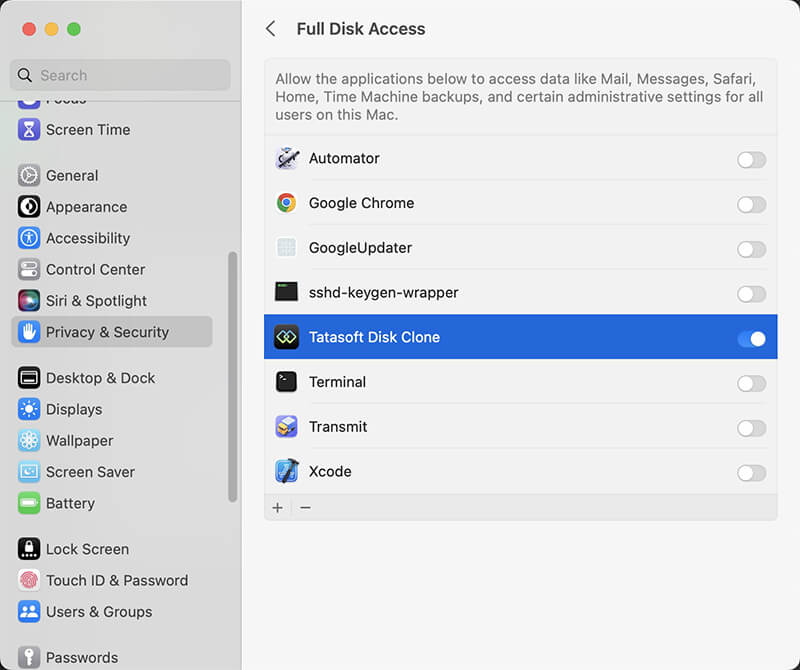
Launch Tatasoft Disk Clone. On your first launch, you must enable Full Disk Access in your Mac's Privacy & Security settings to allow the software to access system files.
Step 3: Select "OS Clone"
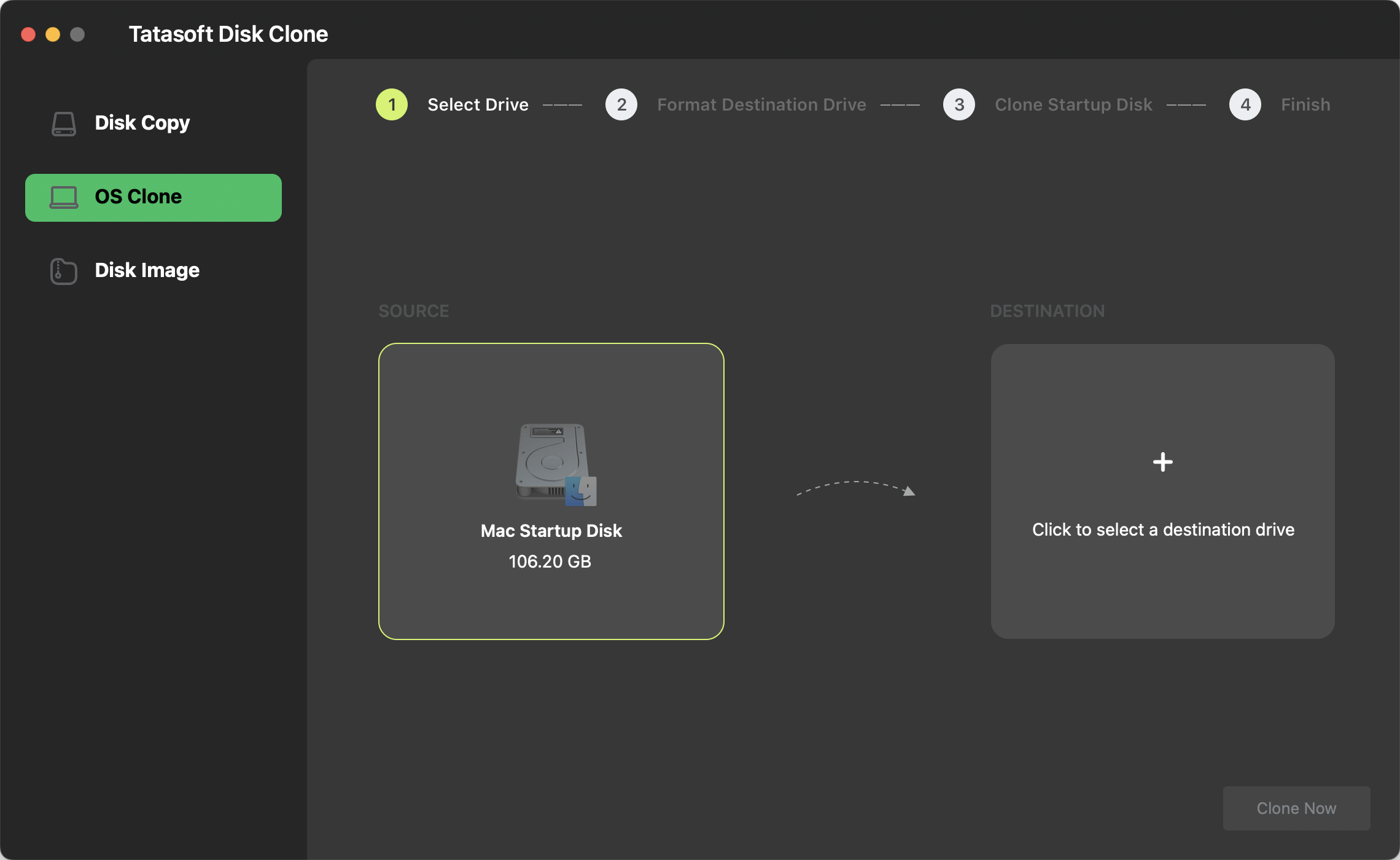
Choose the OS Clone mode from the sidebar. The software will automatically select your macOS 26 startup drive as the source.
Step 4: Pick Your Target Drive
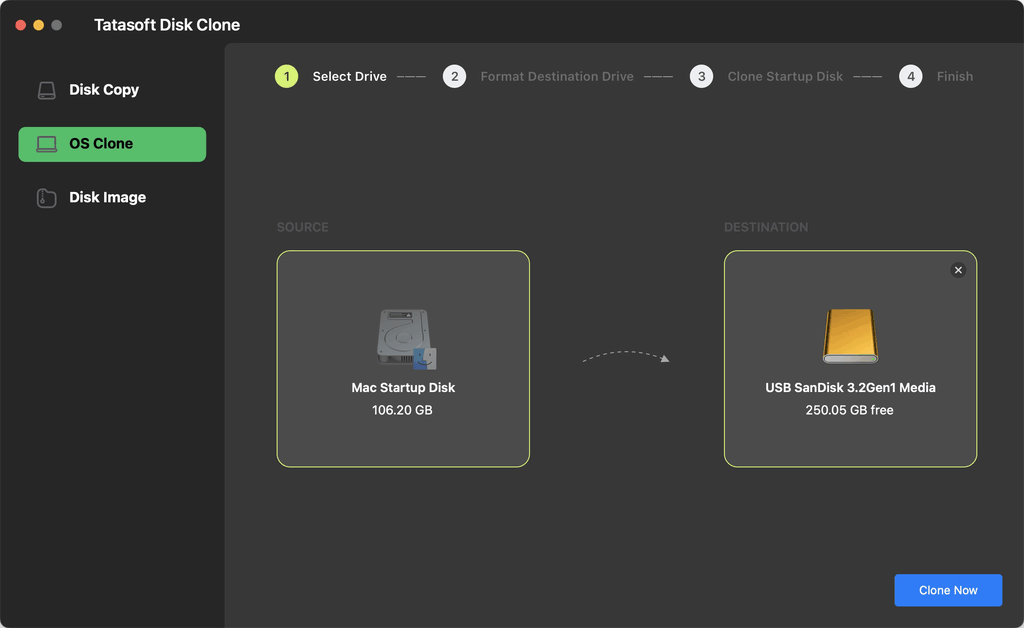
Select your connected external hard drive as the destination. Review your options to decide if you want to clone the entire drive or specific partitions.
Step 5: Start the Cloning Process
Click the Clone Now button and confirm to format the destination drive. Monitor the progress bar as the software replicates your system.
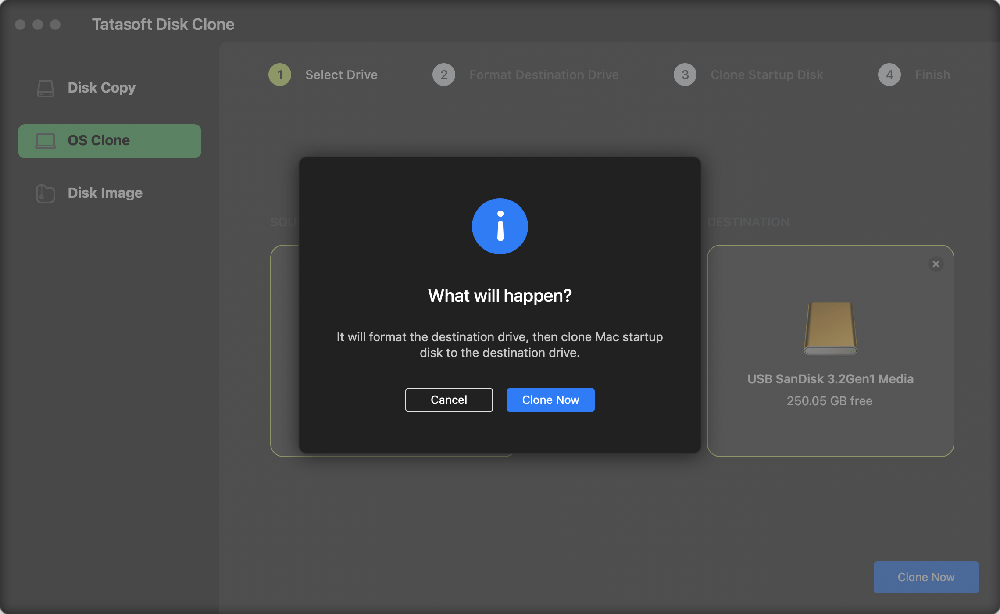
Once cloning is complete, check the external hard drive to ensure all data has been successfully transferred. You can now use the cloned drive as a backup or bootable drive.
Once complete, verify that the drive is bootable by following these steps based on your Mac's processor:
For Apple Silicon Macs (M1 - M5):
1) Shut down your Mac.
2) Press and hold the Power Button until "Loading startup options" appears.
3) Select your External Drive and click Continue.
For Intel-based Macs:
1) Restart your Mac.
2) Immediately press and hold the Option (Alt) ⌥ key.
3) Select the External Drive from the icons on the screen.
While cloning macOS 26 Tahoe, users may encounter several common issues:
1. Incomplete Cloning
2. Drive Not Recognized
3. Cloning Errors
To ensure a smooth cloning process, consider the following best practices:
Cloning macOS 26 Tahoe is an essential practice for anyone looking to safeguard their digital life and streamline future system upgrades. By utilizing Tatasoft Disk Clone for Mac, you simplify a technical process into a few clicks while ensuring your backup is truly bootable and reliable.
Don’t wait for a hardware failure to take action. Invest in Tatasoft Disk Clone today to clone your macOS, ensuring the environment is secure, portable, and always ready for recovery.
A dedicated technical writer at Tatasoft with over four years of specialized expertise in computing technology. She crafts actionable, user-centric content for tech niches, specializing in disk cloning, data management, and video solutions for Windows and Mac.
Read full bio
This article has been approved by Ben Lee. Ben's dedication to excellence and his comprehensive knowledge of Windows and Mac technologies make him an essential part of any technical writing team. With a career marked by continuous learning and adaptation to new technologies, Ben remains at the forefront of the ever-evolving tech landscape.