
Written byJanet BashorunUpdated on Feb 18, 2026

Brief introduction: Creating a bootable backup of macOS Sequoia is a proactive step to protect your data. A bootable backup not only protects your files but also allows for quick macOS restoration if needed. Follow this guide to learn how to use both Tatasoft Disk Clone for Mac and the free built-in Disk Utility tool, ensuring your macOS Sequoia remains secure and accessible.
In this article
A bootable backup of macOS Sequoia is a complete copy of your macOS startup disk that can be used to start your Mac without relying on the internal hard drive. This feature is especially helpful for users who want a fast recovery option if the original fails. Unlike regular backups, a bootable backup of Mac includes:
This type of backup is crucial for system recovery after catastrophic failures, malware infections, or when upgrading hardware. For macOS 26 Tahoe users, you can refer to our detailed guide at Clone macOS 26 Tahoe to an External Hard Drive.
Benefits of making a Bootable Backup of macOS 15:
1. Required Tools
Before you start the backup process, gather the following:
2. Initial Setup
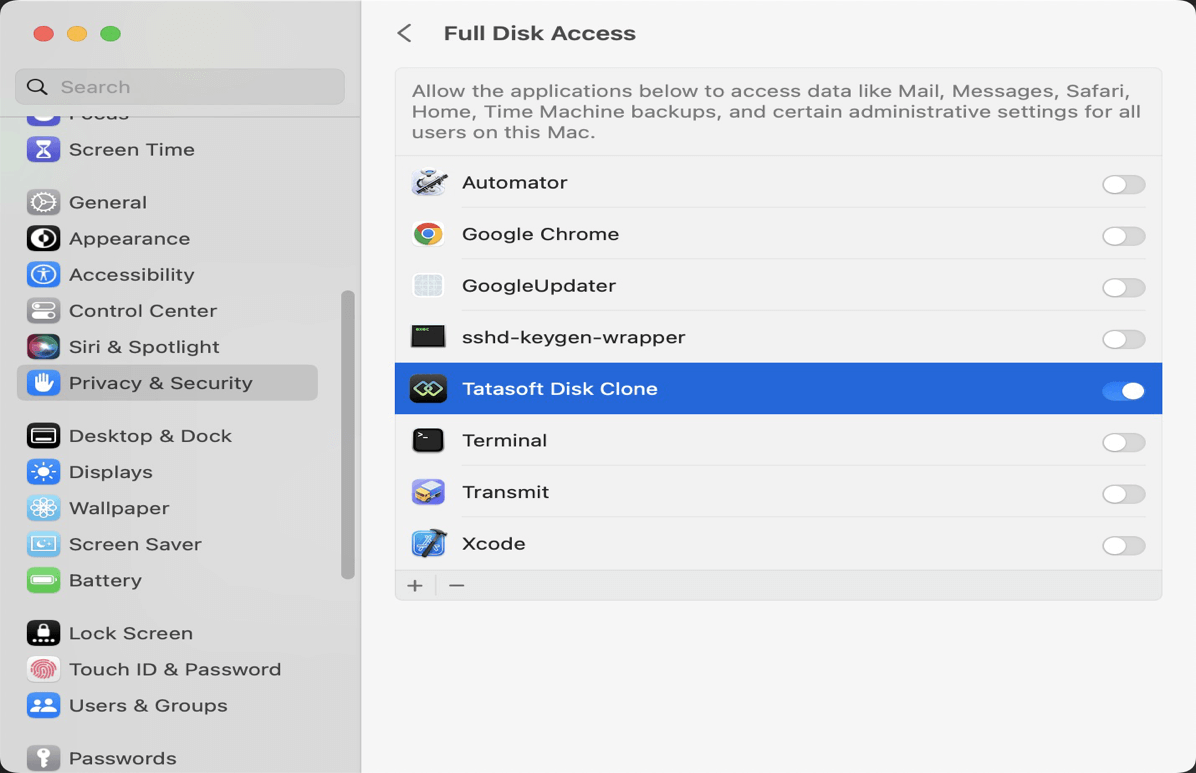
Step 1: Launch Tatasoft Disk Clone for Mac and grant necessary permissions
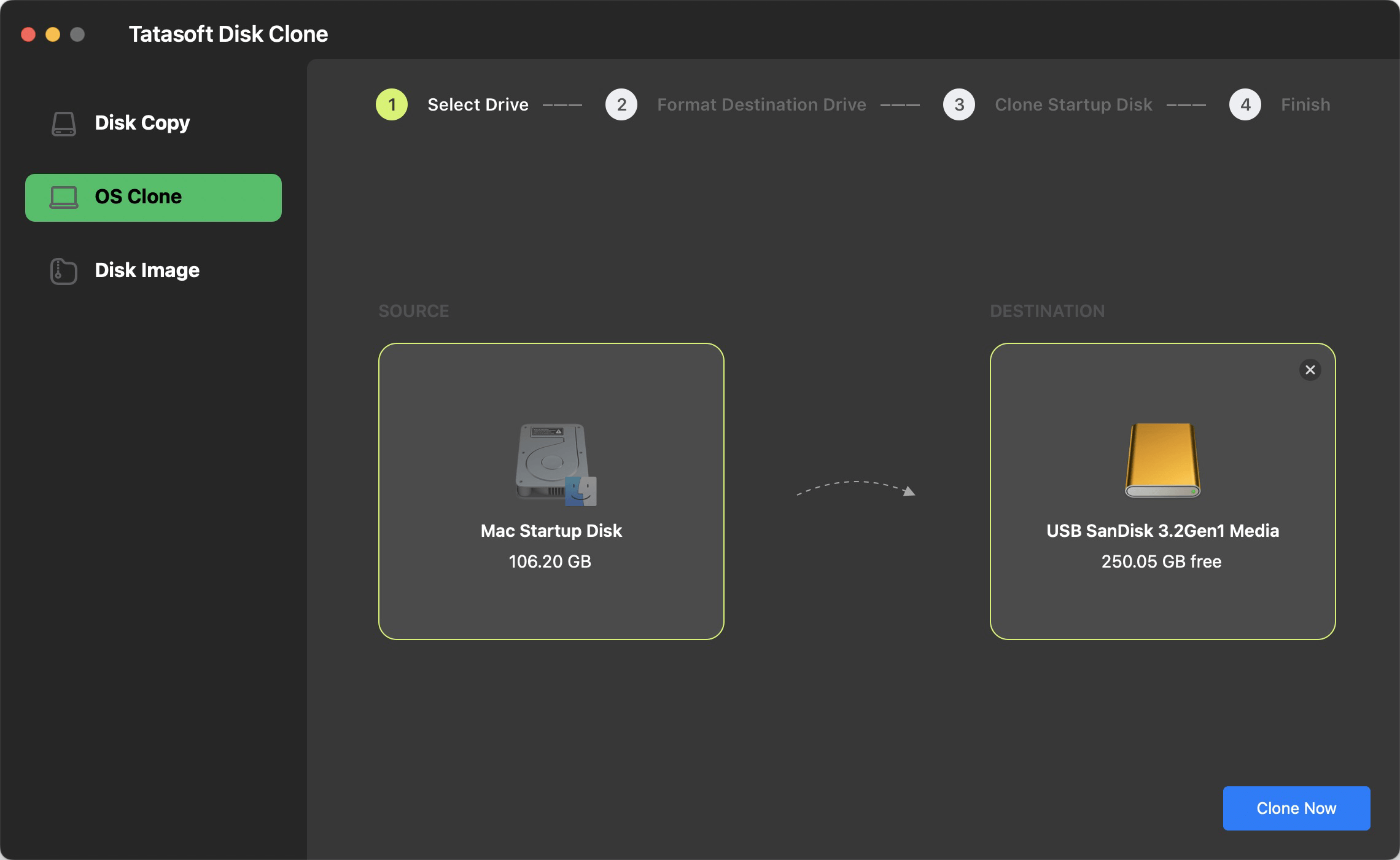
Step 2: Choose Your Destination
Step 3: Start the maOS 15 Cloning Process
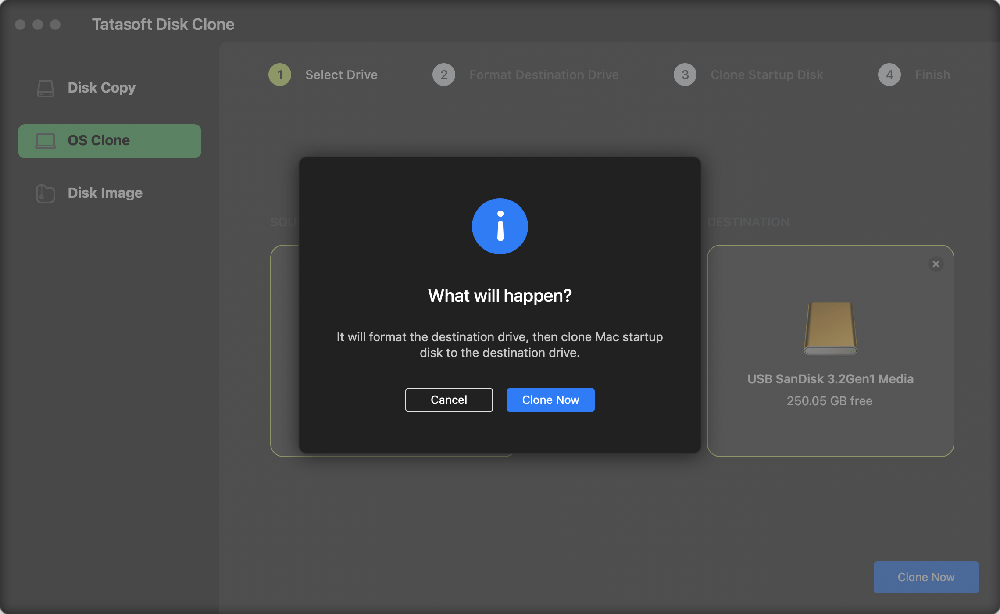
Once Tatasoft indicates that the process is complete, you can disconnect your external drive. You can also test booting from the cloned drive: Restart your Mac while holding the `Option` key. Select the external drive to confirm that it boots successfully.
Tips: When you boot the cloned macOS 15 from external hard drive for the first time, log in to the system and wait about 20 to 30 minutes before using it.
Method 2: Using Free Built-in macOS Tool - Disk Utility
Here’s a detailed guide on how to clone your hard drive using Disk Utility effectively on macOS Sequoia:
Step 1: Connect Your External Drive
Plug in your external hard drive to your Mac. Ensure it is recognized by Disk Utility.
Step 2: Access Disk Utility
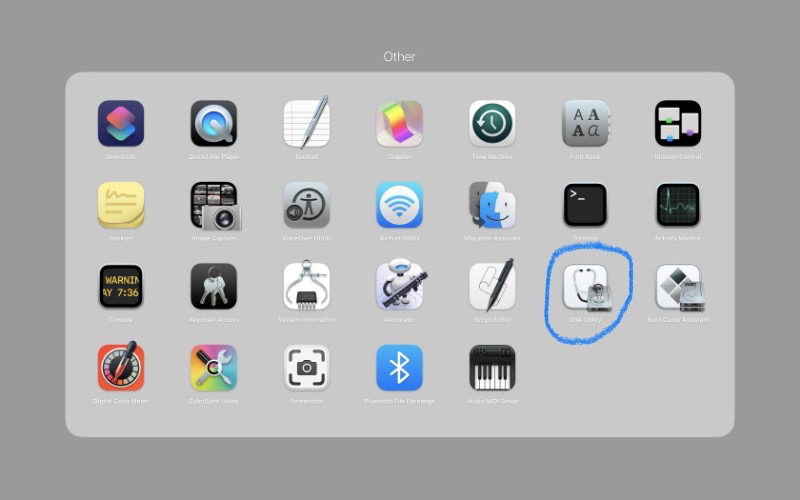
Open Finder and navigate to Applications > Utilities > Disk Utility.
Step 3:Select the Source Drive
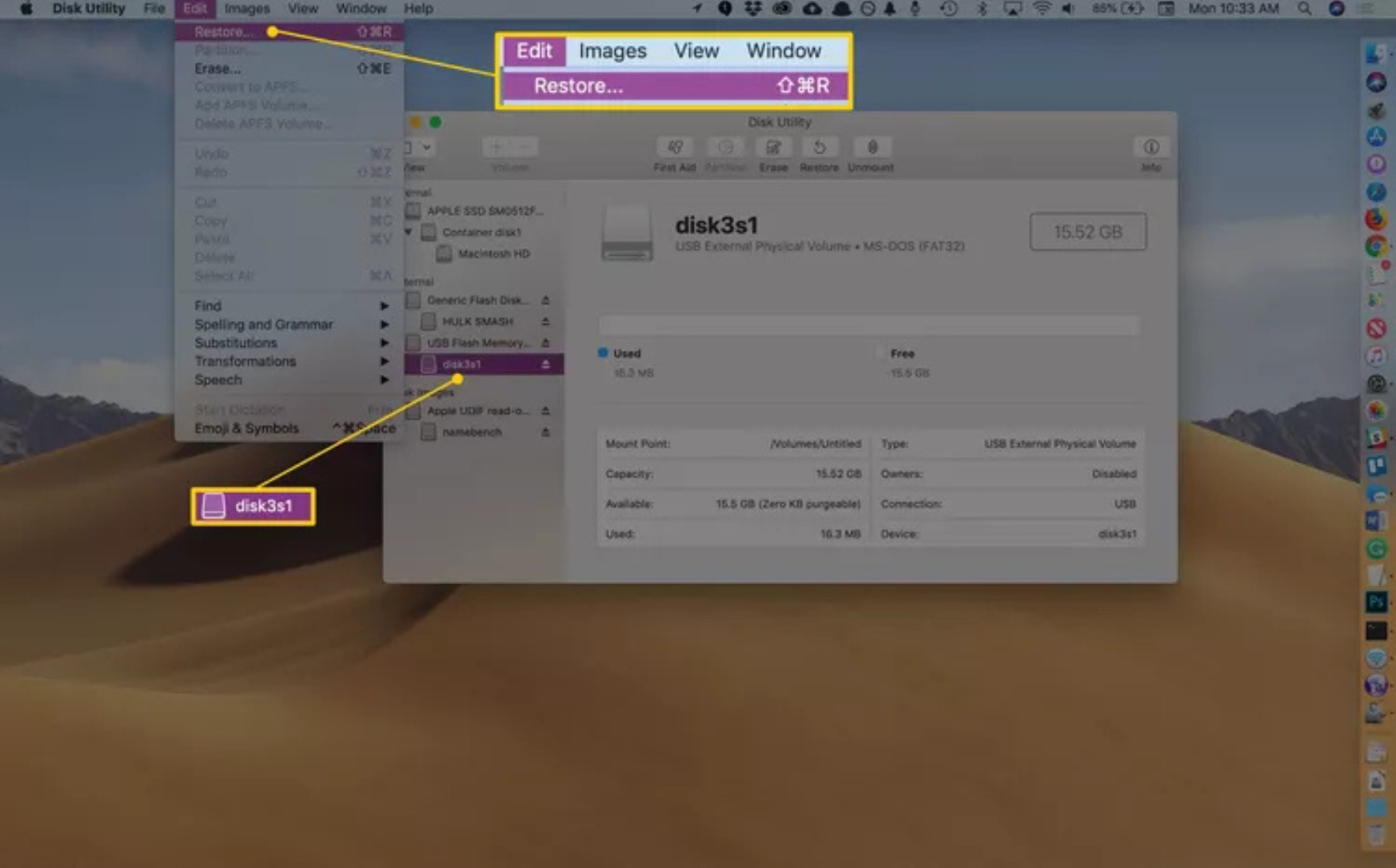
In Disk Utility, locate your Mac hard drive in the left sidebar and select it (This is the drive you want to clone).
Step 4:Choose the Restore Option
Click the Restore button at the top of Disk Utility or click on the Edit > Restore.
Step 5: Choose the Source and Destination Drive
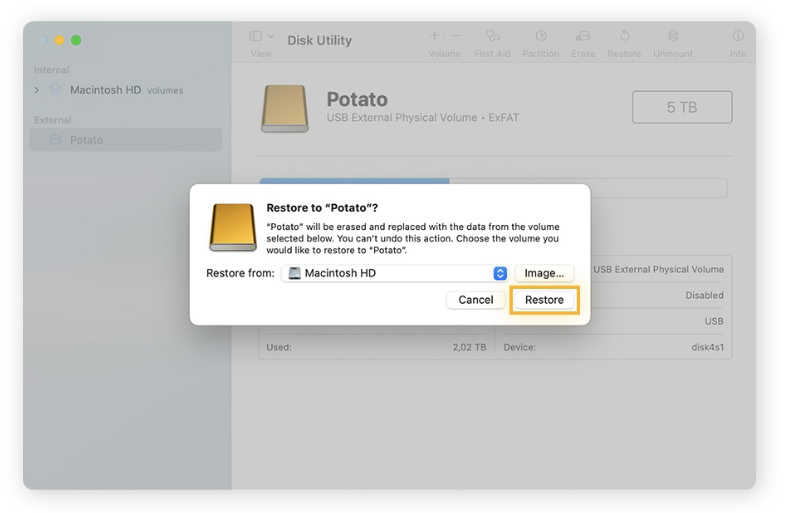
A dialog will appear with two fields:
Step 6: Initiate the Cloning Process
Step 7: Monitor Hard Drive Cloning Progress
Disk Utility will display a progress bar. The duration of this process will depend on the size of your data.
After the cloning process is complete, safely eject your external hard drive by right-clicking on its icon in Finder and selecting Eject.
Method 3: Use Terminal to Clone the macOS 15 Sequoia
- Enter the following command:
sudo asr -source /Volumes/YourSourceDrive -target /Volumes/YourTargetDrive --erase
- Replace `YourSourceDrive` with the name of your internal drive and `YourTargetDrive` with the name of your external drive.
After cloning, verify the bootable backup by changing to boot your Mac from the external hard drive.
Expert Insight:
According to user feedback, cloning a macOS 15 Sequoia using Disk Utility or Terminal often fails to boot from the external drive. It's recommended to use professional cloning software like TataSoft, which includes post-cloning boot repair to ensure proper startup.
1. Drive Not Recognized
If your external drive isn’t showing up, ensure that it’s correctly formatted and connected. You may also need to restart Tatasoft or your Mac.
2. Cloning Errors
If you encounter s during the cloning process, ensure you have enough space on the destination drive and that no other applications are interfering.
Creating a bootable backup of macOS Sequoia is a straightforward process using reliable Mac disk cloning software like Tatasoft Disk Clone, free built-in Disk Utility tool or Terminal. By following this guide, you can ensure that your macOS 15 Sequoia is protected against data loss and system failures, providing peace of mind and quick recovery options when needed in an increasingly digital world.
A dedicated technical writer at Tatasoft with over four years of specialized expertise in computing technology. She crafts actionable, user-centric content for tech niches, specializing in disk cloning, data management, and video solutions for Windows and Mac.
Read full bio
This article has been approved by Ben Lee. Ben's dedication to excellence and his comprehensive knowledge of Windows and Mac technologies make him an essential part of any technical writing team. With a career marked by continuous learning and adaptation to new technologies, Ben remains at the forefront of the ever-evolving tech landscape.