
Written byJanet BashorunUpdated on Feb 25, 2026

Brief introduction: To give your Mac a second life, cloning your macOS to an SSD is the most impactful upgrade you can perform. Whether you're tired of the "spinning beachball" on an old HDD or need a high-speed external boot drive, this guide provides a roadmap to a faster, more responsive system. I’ll share my personal experience using Tatasoft Disk Clone and native tool – Disk Utility to ensure a seamless macOS transition without losing a single file.
In this article
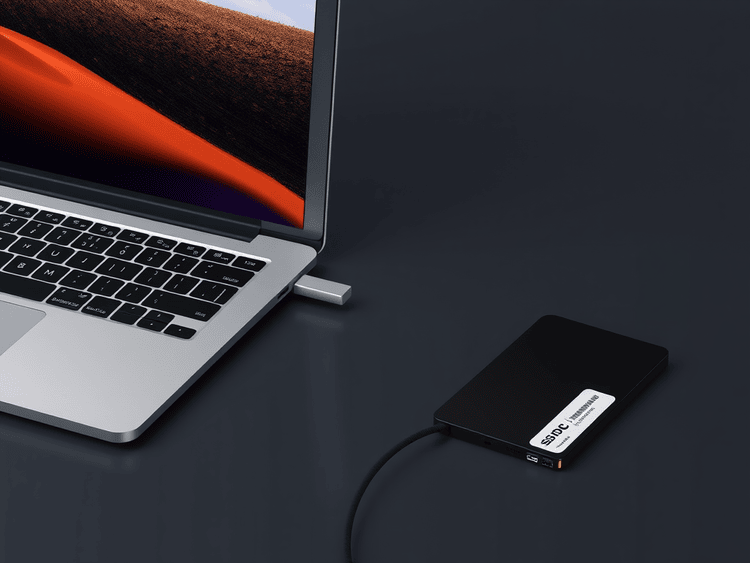
We’ve all been there: the dreaded "spinning beachball" appearing while trying to open a simple PDF. After years of frustration with my sluggish internal drive, I finally decided to create a bootable clone of my Mac on a high-speed external SSD. The difference wasn't just noticeable—it was transformative.
Traditional hard drives (HDDs) rely on moving parts that slow down over time, but SSDs use flash memory to boot your Mac in seconds and load applications almost instantaneously. Beyond the raw speed and improved system responsiveness, I wanted the reliability and durability that only an SSD provides, as they are far less prone to mechanical failures. This switch allowed me to unlock significant performance enhancements and gain a larger storage capacity in a much smaller physical footprint. In this guide, I’ll share the exact steps I used to clone a Mac HDD to SSD, focusing on a "set it and forget it" software approach and a manual recovery method.
If you value your time, using a dedicated Mac disk clone software is the way to go. I used Tatasoft Disk Clone for Mac because its user-friendly interface makes it suitable for all skill levels, and it efficiently copies all necessary files and system data.
Step 1: Connect your SSD
Use a USB or Thunderbolt cable to connect the drive.
Step 2: Launch & Permissions
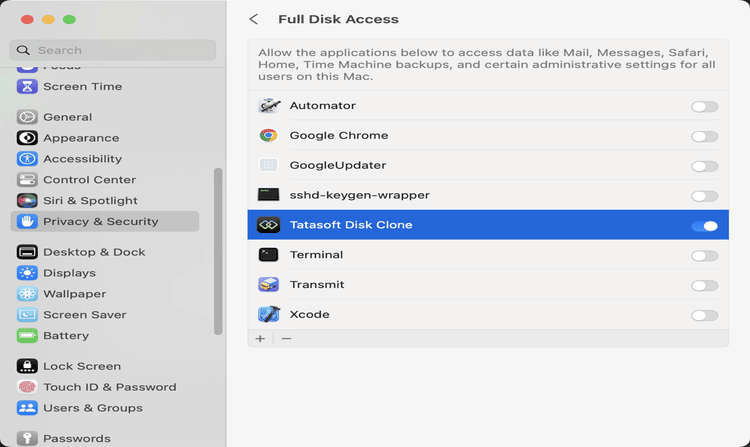
Open Tatasoft Disk Clone for Mac. On your first launch, you must go to System Settings > Privacy & Security > Full Disk Access and toggle the switch for Tatasoft. Without this, macOS security prevents the software from reading the system files needed for cloning.
Step 3: Select Destination Drive
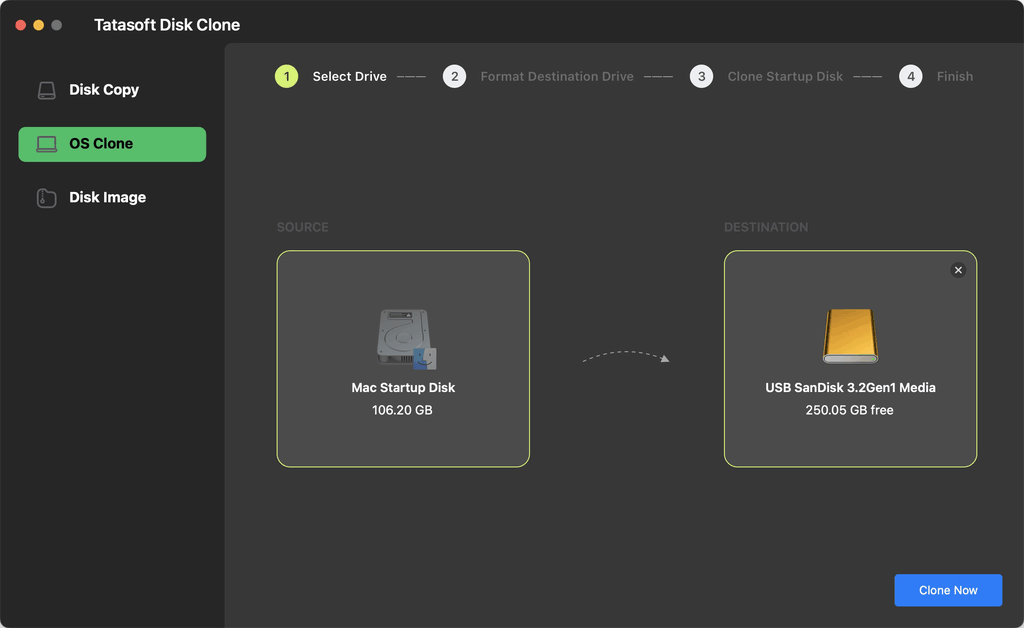
Switch to OS Clone and simply select your external SSD as the destination. Your internal Mac system drive is selected as the source by default, so you don't have to worry about picking the wrong volume.
Step 4: Start cloning
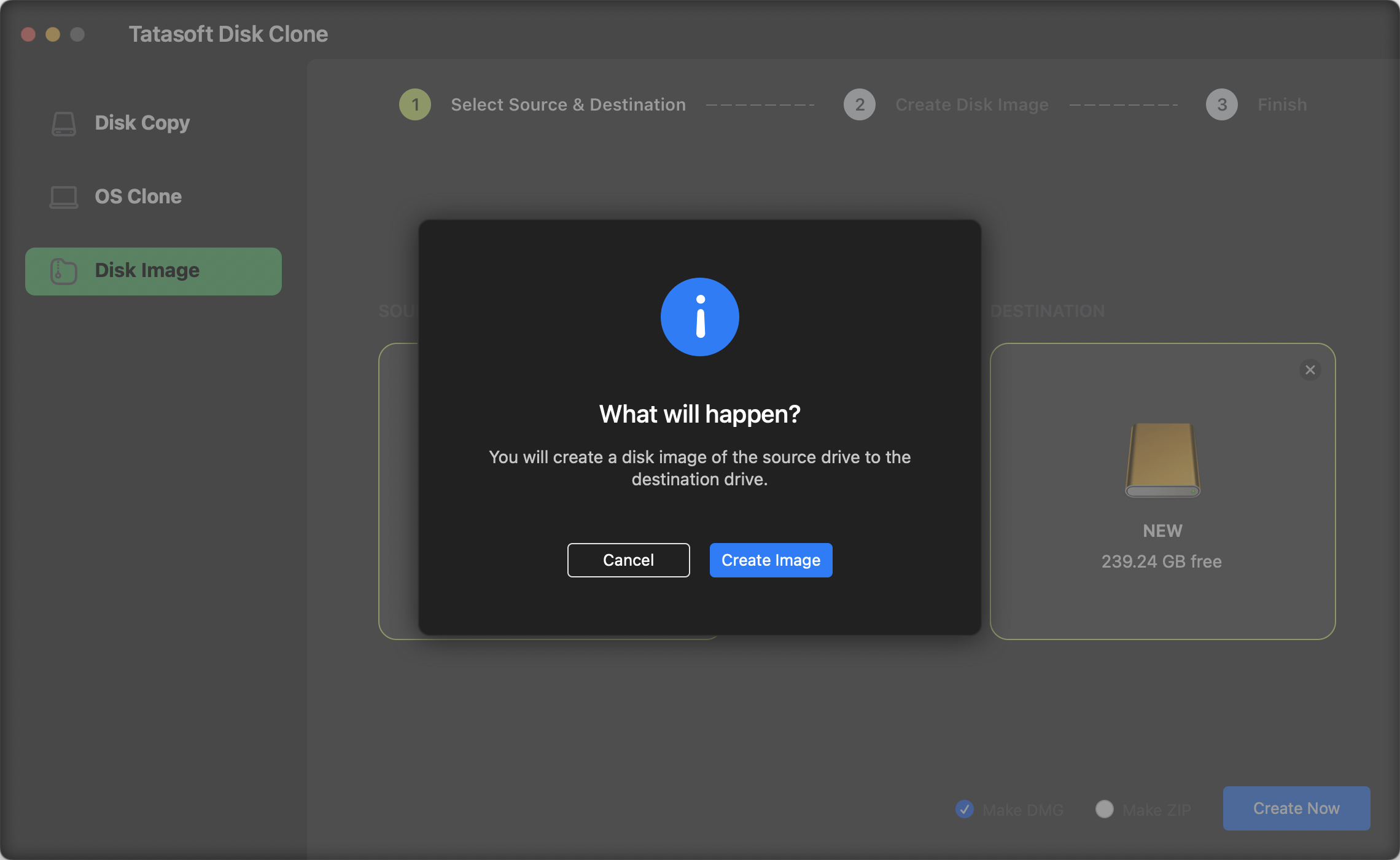
Click "Clone Now". The software will format the target drive and efficiently copy all necessary files, applications, and system data from your macOS drive to the SSD. This process may take some time, depending on the amount of data being transferred.
Pros
Cons
Best Usage Scenarios
Method 2: Using Free Disk Utility
If you prefer built-in tools, you can use Disk Utility. This is a solid way to create a bootable backup of macOS without third-party help, though it is less intuitive.
Step 1: Boot into Recovery Mode
Step 2: Use Disk Utility
Once in Recovery Mode, select "Disk Utility" from the macOS Utilities window.
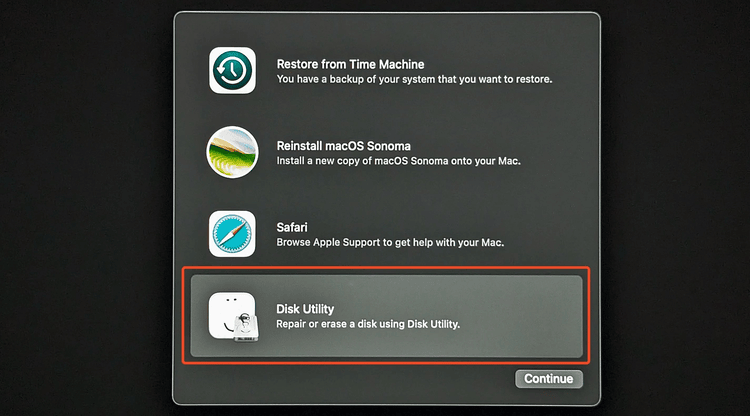
Step 3: Initiate the "Restore" (cloning) process
Step 4: Completion & Verification:
Once the process finishes, click Done. Restart your Mac and hold the Option key to see if the drive appears as a bootable volume.
Booting from Your New SSD
Pros
Cons
Best Usage Scenarios
While Disk Utility is "built-in," I’ve found that modern macOS security (SSV - Signed System Volume) makes manual restoration very finicky. Tatasoft Disk Clone provides a much higher boot success rate because it specifically handles the "sealing" of the system volume, ensuring your Mac recognizes the SSD as a trusted boot device on the first try. Whether you need to clone a MacBook Pro hard drive or clone macOS 26 Tahoe, the dedicated software route is simply more reliable.
Your Mac won't automatically know you want to use the new drive.
Cloning your macOS to an SSD isn't just about speed; it's about peace of mind. Having a 1:1 bootable copy means you are always prepared for hardware failure. While manual methods are available, Tatasoft Disk Clone offers a significantly higher boot success rate, ensuring your Mac starts up perfectly on the first try. I highly recommend downloading Tatasoft Disk Clone today to experience the speed of SSD performance for yourself!
A dedicated technical writer at Tatasoft with over four years of specialized expertise in computing technology. She crafts actionable, user-centric content for tech niches, specializing in disk cloning, data management, and video solutions for Windows and Mac.
Read full bio
This article has been approved by Ben Lee. Ben's dedication to excellence and his comprehensive knowledge of Windows and Mac technologies make him an essential part of any technical writing team. With a career marked by continuous learning and adaptation to new technologies, Ben remains at the forefront of the ever-evolving tech landscape.