
Written byJanet BashorunUpdated on Feb 20, 2026

Brief introduction: Cloning an external hard drive to another on Mac is crucial for backing up sensitive data, upgrading to a larger drive, or transferring files. Whether you’re a novice or experienced Mac user, this guide will provide you with 4 reliable free & paid methods to clone external hard drive efficiently. Learn step-by-step instructions for tools like Tatasoft Disk Clone for Mac and Apple’s built-in Disk Utility to find the best data migration solution for your needs.
In this article
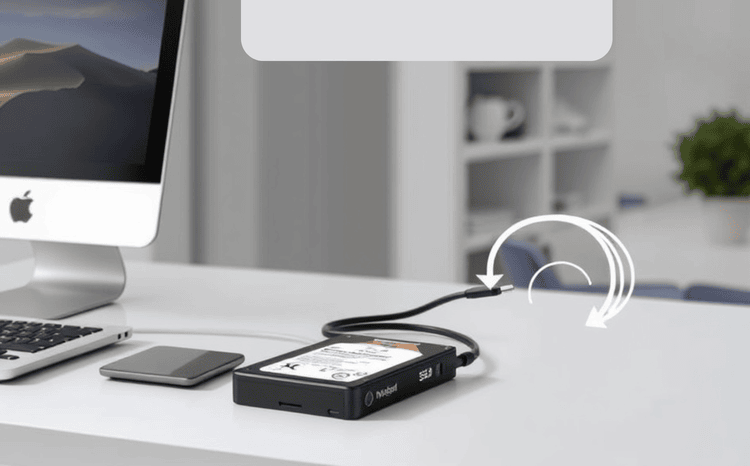
Cloning an external hard drive on your Mac is a smart way to ensure your data is backed up and easily accessible. It offers several benefits:
We’ve tested various methods to clone one external hard drive to another on macOS 26 Tahoe and macOS 15 Sequoia, with four standing out as the most reliable for successful migration. Additionally, these steps are also applicable to cloning Mac internal hard disks to USB external drives - including the creation of a bootable Mac backup.
Tatasoft Disk Clone for Mac is a robust Mac disk cloning software which simplifies the cloning process with an intuitive interface, making it suitable for users of all skill levels.
Step-by-Step Guide to clone external hard drives on Mac with Tatasoft:
1. Connect Both External Hard Drives
2. Launch Tatasoft Disk Clone for Mac
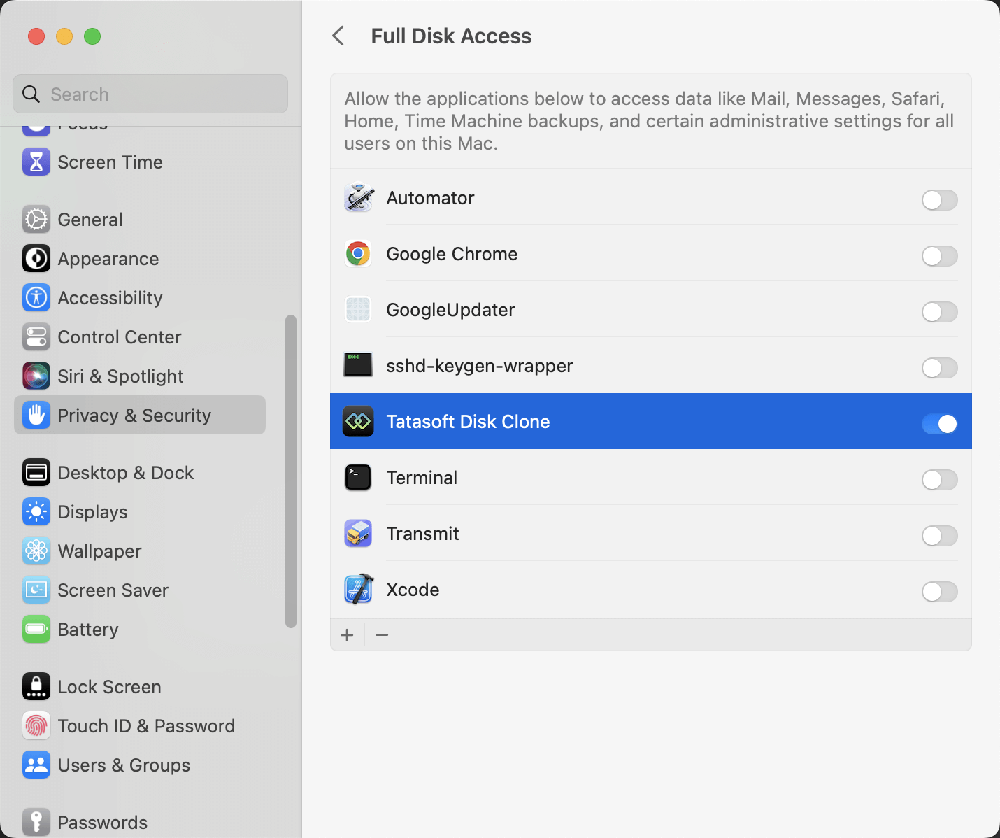
When first opening the software, grant it Full Disk Access in Privacy & Security.
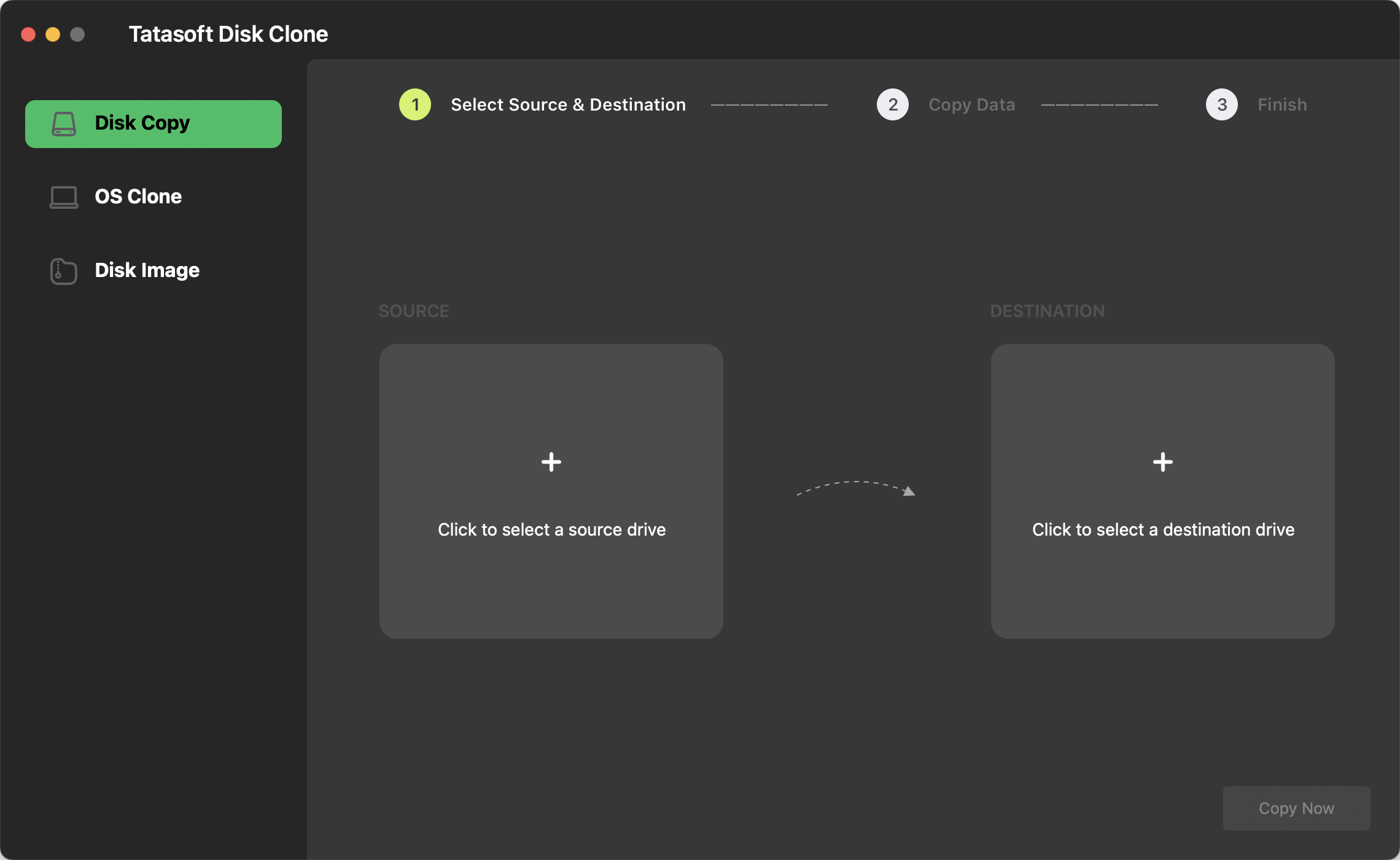
3. Select Disk Copy and choose the Source and Target drives for cloning:
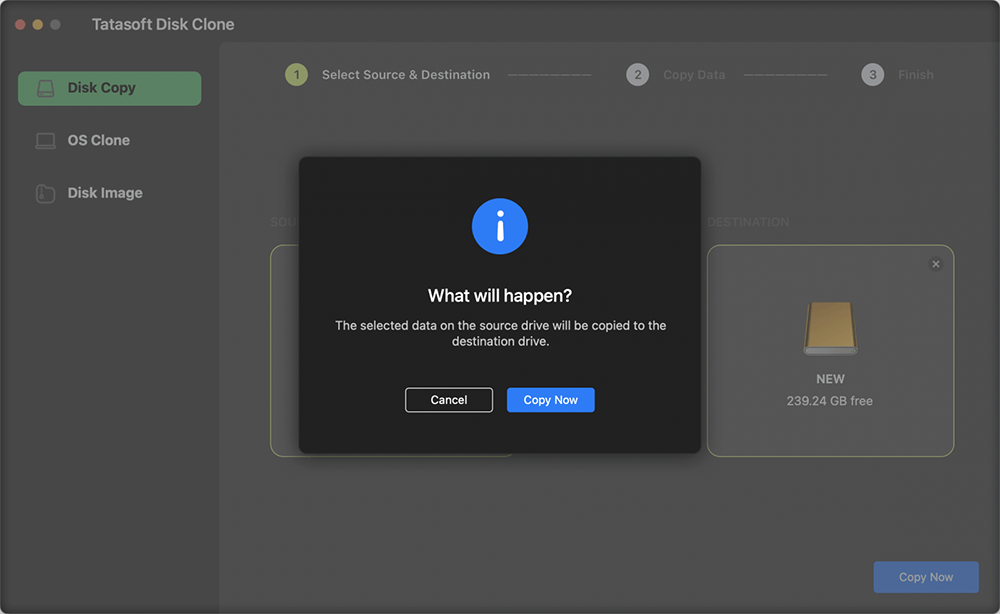
4. Confirm to start the cloning process:
Click the Copy Now button in the pop-up window. The software will start migrating data immediately, and a progress bar will display the status of the cloning process.
Once the process is complete, it’s advisable to verify the data on the target drive to ensure everything was cloned successfully.
Tips: If you are cloning a bootable external hard drive, it is recommended not to clone the drive directly to the new hard drive. Instead, use the Tatasoft Disk Clone’s OS Clone feature to re-clone macOS to the new external hard drive. This method better ensures that your data is the latest and most complete.
Benefits of Using Tatasoft
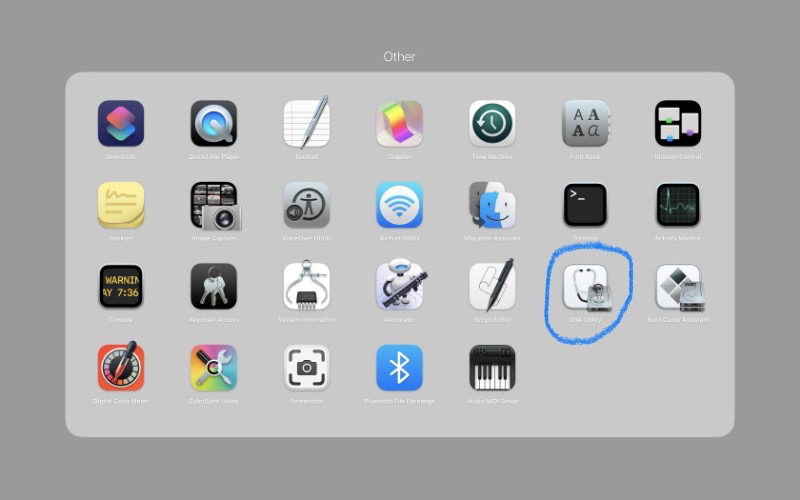
Disk Utility is a built-in and free macOS application that allows users to manage disks and perform various operations, including cloning.
Step-by-Step Guide to clone an external hard drive with Disk Utility
1. Open Disk Utility:
2. Connect Your Drives:
3. Select the Source Drive:
4. Choose the Restore Option:
5. Choose the Source and Destination Drive for cloning:
6. Start the Restoration Process:
Pros
Cons
For advanced users, the 'rsync' command-line tool provides a powerful way to clone drives using Terminal. This method is ideal for users comfortable with command-line operations.
Step-by-Step Guide
1. Open Terminal:
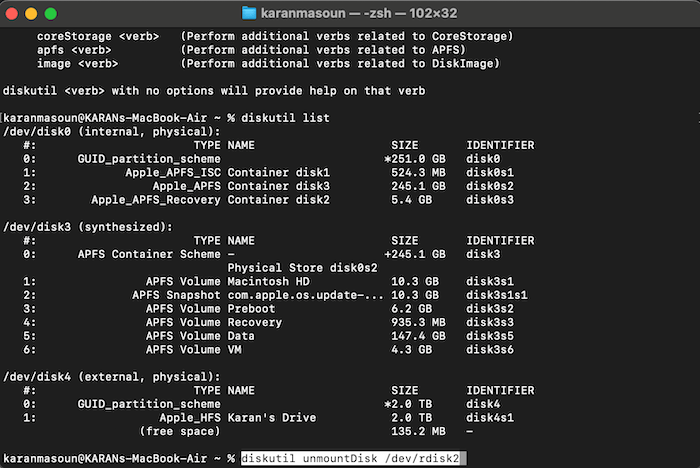
2. Identify Drives:
Unmount the Target Drive:
```bash
diskutil unmountDisk /dev/diskX
```
Replace 'diskX' with the identifier of your target drive.
4. Run the rsync Command:
```bash
rsync -avh --progress /Volumes/SourceDrive/ /Volumes/TargetDrive/
```
Replace 'SourceDrive' and 'TargetDrive' with the names of your drives.
5. Once the process is complete, you will see a summary of files transferred. Safely eject both drives.
Pros:
Cons:
Carbon Copy Cloner (CCC) is a widely popular third-party backup and cloning application, boasting robust advanced cloning capabilities that make it an ideal choice for users who require greater control over the cloning process. It offers a 30-day free trial, and the full version is priced at a one-time fee of $49.99.
Step-by-Step Guide to clone hard drive with CCC
1. Download and Install CCC
2. Connect Your External Drives to Mac:
3. Open CCC:
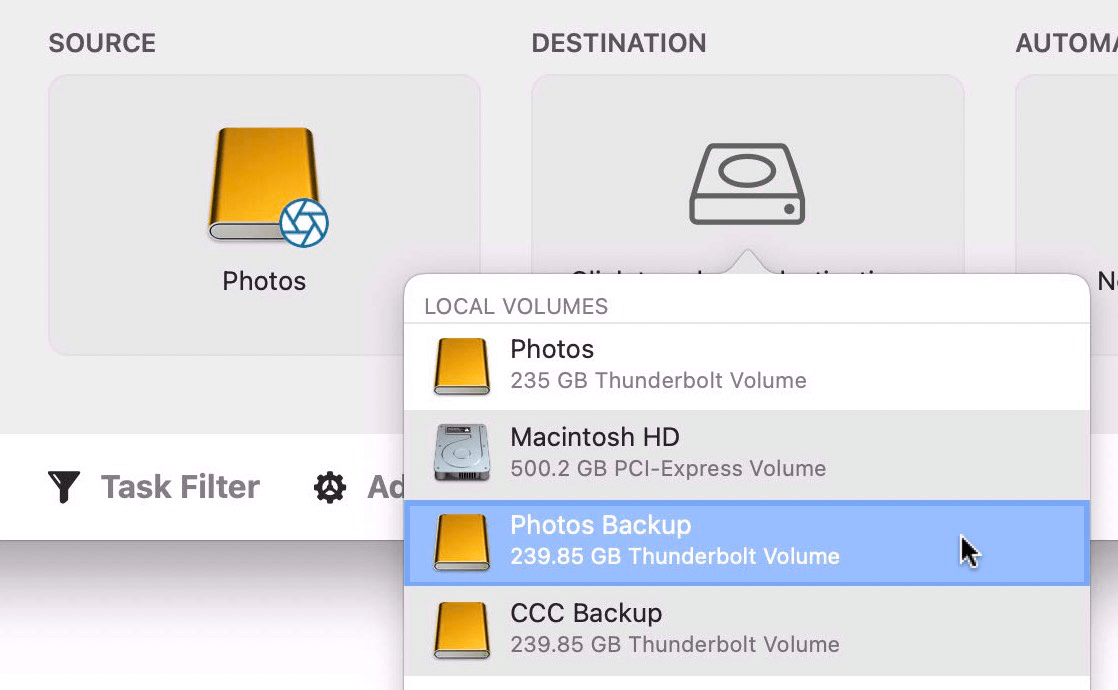
4. Select Source and Destination:
5. Configure Cloning Options:
6. Start the Cloning Process:
Benefits of Carbon Copy Cloner
Cloning an external hard drive to another on Mac is key to efficient data management, backup, and recovery. There are plenty of methods to choose from, ranging from cloning with the free built-in Disk Utility to advanced tools like Tatasoft Disk Clone for Mac. This tool has a unique edge: it excels at cloning macOS to an external hard drive and creating a fully bootable clone. What’s more, it captures every single file, down to the smallest ones, to deliver a complete backup and enable seamless data migration.
When selecting the optimal solution for your Mac cloning requirements, keep in mind that each method offers unique strengths. Among these options, Tatasoft Disk Clone stands out thanks to its intuitive user interface and robust cloning features, making it an ideal choice for both novice users and seasoned professionals alike.
A dedicated technical writer at Tatasoft with over four years of specialized expertise in computing technology. She crafts actionable, user-centric content for tech niches, specializing in disk cloning, data management, and video solutions for Windows and Mac.
Read full bio
This article has been approved by Ben Lee. Ben's dedication to excellence and his comprehensive knowledge of Windows and Mac technologies make him an essential part of any technical writing team. With a career marked by continuous learning and adaptation to new technologies, Ben remains at the forefront of the ever-evolving tech landscape.