
Written byJanet BashorunUpdated on Feb 20, 2026

Brief introduction: Mac disk clone software is essential for creating backups, migrating data, or upgrading your storage. Cloning your Mac disk ensures that you have an exact copy of your data, including the macOS, apps, and files. This guide will explore the best Mac disk clone software options available, focusing on their features, benefits, and how to clone a Mac hard effectively with full support for latest macOS and M5 Mac.
In this article
In 2026, with the complexity of Apple Silicon (M1/M2/M3/M4/M5) and the sealed system volume in macOS, simple file copying isn't enough. If your internal disk fails, a bootable backup of Mac allows you to connect an external drive and get back to work in minutes. Using Mac disk clone software provides several advantages:
Mac users face a crowded market of cloning solutions, but not all tools deliver the same performance, compatibility, or ease of use. Below is a curated list of the top Mac disk clone software options, tested for compatibility with Apple Silicon (M5) and Intel Macs, as well as the latest macOS versions (Tahoe 26, Sequoia 15).
Testing Environment & Parameters
To provide accurate results, our lab used the following standardized setup for all 5 tools:
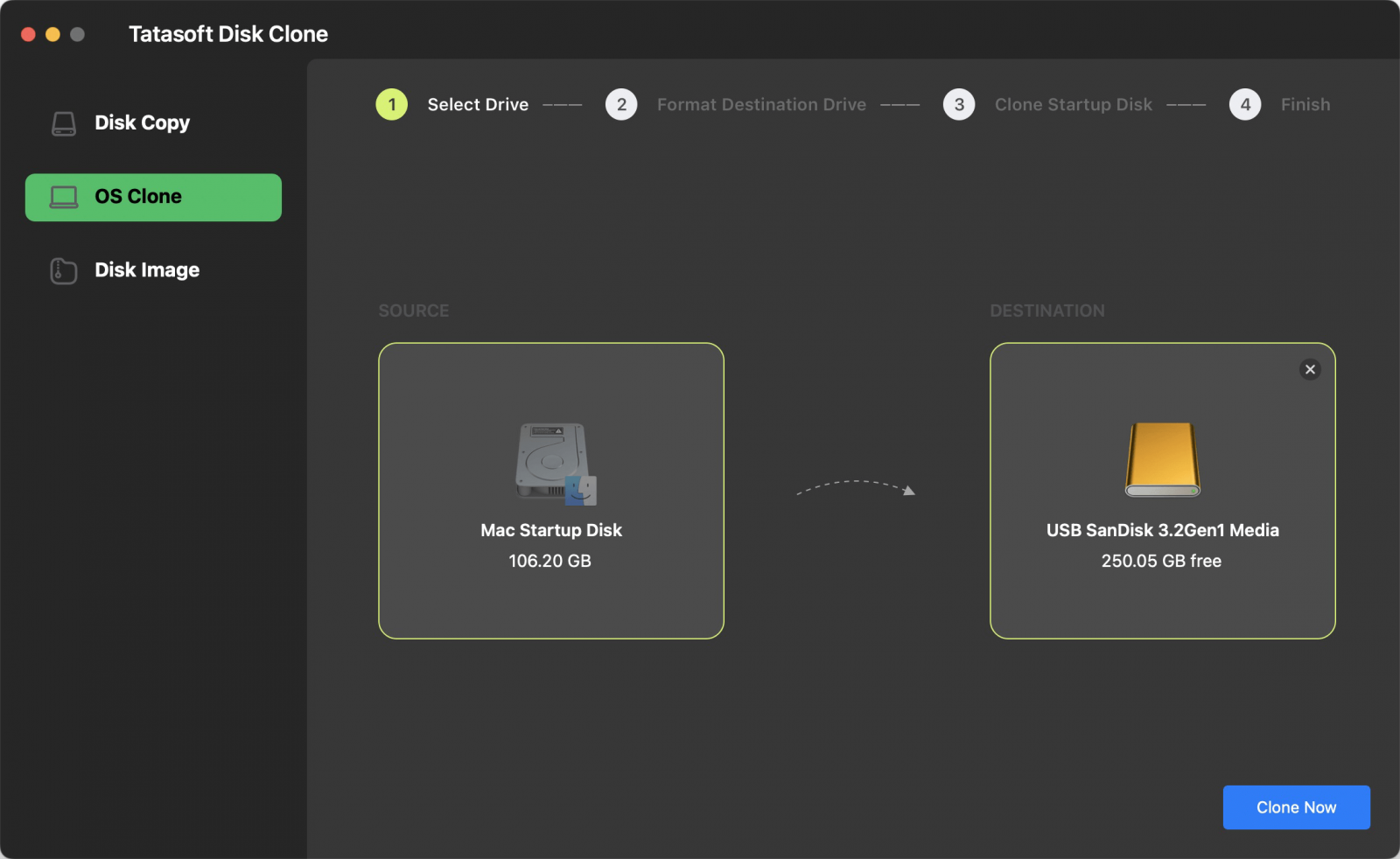
Tatasoft Disk Clone for Mac stands out as a versatile Mac disk clone software with cross-platform capabilities for users who want a "one-click" experience. It excels at cloning macOS disks to external SSDs, creating bootable backups, and disk images - all with a user-friendly interface suitable for beginners. It provides a comprehensive solution for disk cloning on macOS 15 Sequoia and Tahoe, ensuring that your data is safely backed up and easily transferable.
Key Features
Price: $19.95/Month for 2 Macs
Pros
Cons
How to clone a Mac hard drive:
User Review
"Tatasoft Disk Clone made my data migration simple and quick! And the new external hard drive was immediately bootable. Highly recommended for non-techies." - David L., Tech Review Site
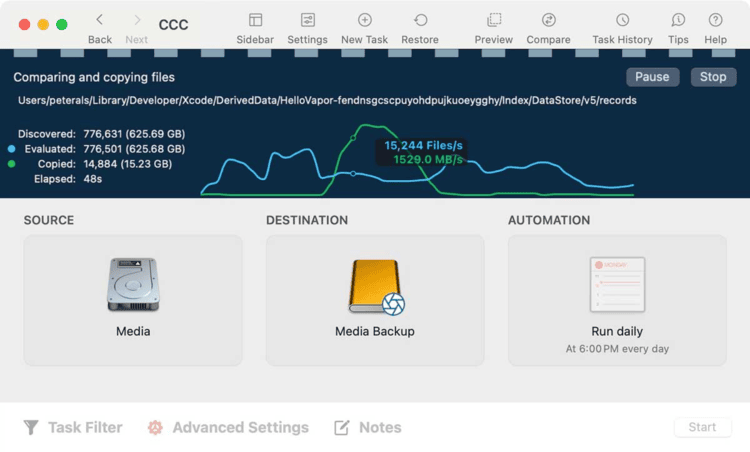
Carbon Copy Cloner is a well-established tool known for its robust backup and cloning capabilities, making it a favorite among advanced users. It offers extensive features for scheduled and incremental backups.
Key Features
Price: $49.99 (One-time purchase).
Pros
Cons
How to Use
User Review
"Carbon Copy Cloner is my go-to for backups. It’s reliable and easy to use." — Sarah T., User Forum
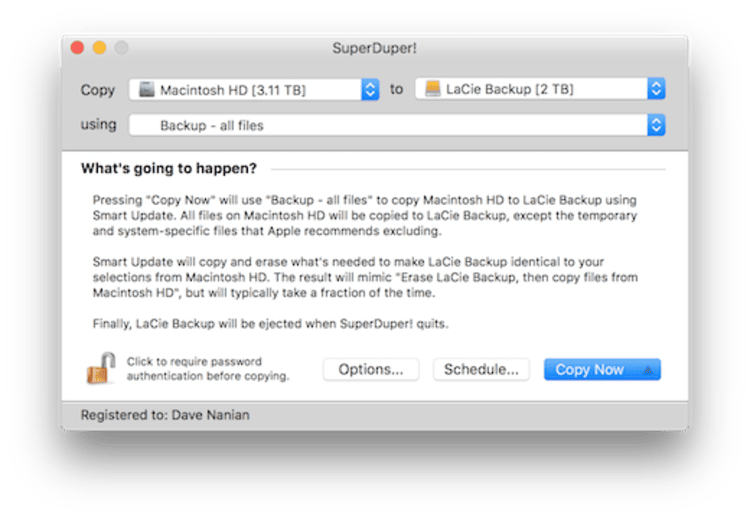
SuperDuper! is a popular macOS backup utility renowned for its simplicity and effectiveness in creating quick backups. It can make a full backup, or clone. It’s perfect for users who seek straightforward cloning without advanced features.
Key Features
Pros
Cons
How to Use
User Review
"SuperDuper! is straightforward and gets the job done quickly." — Mike R., Tech Blog
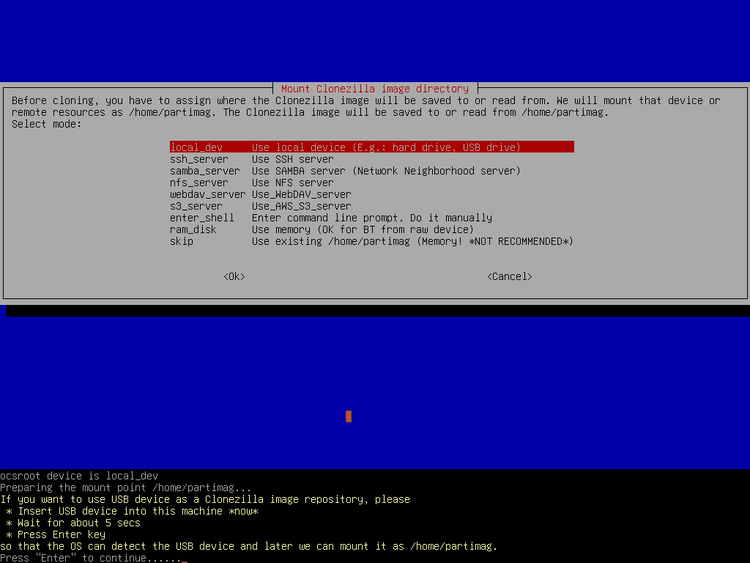
Clonezilla is a free, open-source command-line disk cloning tool designed for advanced users who require flexibility and granular control over their cloning workflows. Unlike macOS-native utilities, it operates independently of the operating system, making it ideal for cloning disks that won't mount.
Key Features
Price: Free (Open Source).
Pros
Cons
How to Use
User Review
"Clonezilla is powerful but requires some technical know-how to use effectively." — Emily K., Open Source Review
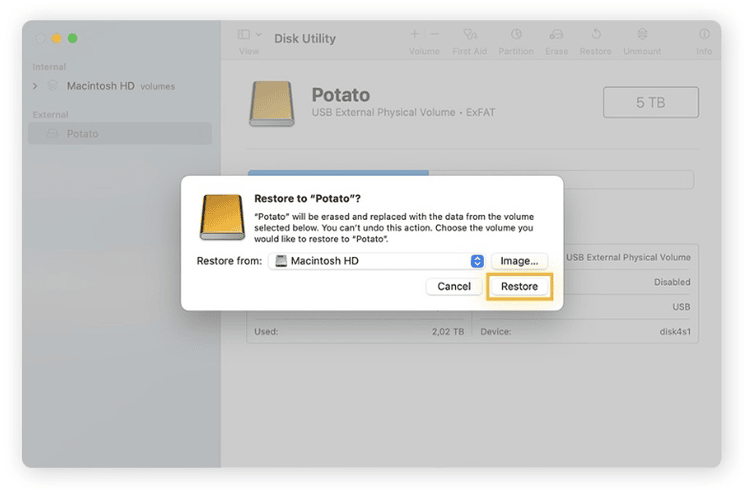
Most users don't realize they already own a free yet powerful mac disk clone software - Disk Utility. It uses the "Restore" function to copy one volume to another.
Features
Pros
Cons
How to Use
User Review
"Great for moving files to a bigger drive, but I couldn't get my Mac to boot from the copy. I ended up having to use a third-party tool for a true bootable backup." — James W., Student
| Features | Tatasoft Disk Clone | CCC | SuperDuper! | Clonezilla | Disk Utility |
|---|---|---|---|---|---|
| Bootable Support | High | High | Moderate | Moderate | Low |
| Difficulty | Very Easy | Moderate | Easy | Very Hard | Moderate |
| Fast Cloning Speeds | Yes | Yes | Yes | Varies | Yes |
| Scheduled Backups | No | Yes | Yes | No | No |
| Incremental Backups | No | Yes | Yes | No | No |
| Price | $19.95 for 2 Macs | $49.99 for 1 Mac | $27.95 for 1 Mac | Free | Free |
| Best For | Ease of Use | Budget Users | Professionals | IT Experts | Simple Data Copy |
This table provides a quick overview of the key features of each Mac disk cloning tool, helping you make an informed decision.
1. Assess Your Needs
Identify what you need from the software. Are you looking for simple cloning capabilities, or do you need advanced features such as scheduling and incremental backups?
2. Read Reviews
Check user reviews and expert opinions on the software you’re considering. This can give you insight into its reliability and performance.
3. Try Before You Buy
Many cloning software options offer free trials. Take advantage of these to see if the software meets your needs before committing to a purchase.
4. Check Compatibility
Ensure that the software is compatible with your Mac version and file systems (APFS, HFS+, etc.). macOS evolves rapidly. Choose a developer that provides frequent updates to maintain compatibility with the latest macOS versions (like macOS Tahoe) and offers responsive customer support if a clone fails to boot.
Choosing the right Mac disk clone software is crucial for ensuring data protection, seamless migration, and efficient system recovery. Disk Utility is perfect for basic, free data transfers. However, if you need a fail-safe bootable backup, Tatasoft Disk Clone for Mac is the standout performer. It offers full compatibility and dedicated support for cloning macOS 26 Tahoe, combining ease of use with robust features that professional users demand. In terms of speed, reliability, and cost-effectiveness, Tatasoft remains the best-value lifetime investment for Mac users in 2026.
Yes, cloning is low-risk if done correctly. Tools like Tatasoft Disk Clone and CCC are 100% safe, but avoid untrusted third-party tools.
Yes. Disk Utility is built into macOS and offers a "Restore" feature that acts as a free cloning tool. However, it lacks automation and often struggles to create bootable backups on newer Macs. To create a bootable clone on Apple Silicon Macs (M1/M2/M3/M4/M5), Tatasoft Disk Clone for Mac is recommended.
The time it takes to clone a disk depends on several factors, including the size of the disk, the speed of the drives, and the cloning software used. It can range from a few minutes to several hours (e.g., 500GB takes ~40 minutes with Tatasoft Disk Clone for Mac).
Absolutely. If you are cloning an older mechanical hard drive (HDD) to a modern NVMe SSD, you will see a massive boost in boot speeds and app loading times. Cloning using Tatasoft Disk Clone is the most efficient way to upgrade your hardware because it moves your entire operating system, settings, and files without requiring you to reinstall everything from scratch.
No. To ensure compatibility with modern macOS versions (High Sierra and later), your destination drive should be formatted as APFS (Apple File System) with a GUID Partition Map. Most professional cloning software like Tatasoft or CCC will offer to format the drive for you during the cloning process.
A dedicated technical writer at Tatasoft with over four years of specialized expertise in computing technology. She crafts actionable, user-centric content for tech niches, specializing in disk cloning, data management, and video solutions for Windows and Mac.
Read full bio
This article has been approved by Ben Lee. Ben's dedication to excellence and his comprehensive knowledge of Windows and Mac technologies make him an essential part of any technical writing team. With a career marked by continuous learning and adaptation to new technologies, Ben remains at the forefront of the ever-evolving tech landscape.