
Written byJanet BashorunUpdated on Feb 13, 2026

Brief introduction: Cloning your Mac hard drive to an external SSD is essential for a bootable backup, securing data, and facilitating system upgrades. Whether you're migrating to a new SSD, creating a backup, or simply seeking faster storage solutions, cloning lets you transfer everything - macOS, applications, and files - to a more efficient drive. This guide walks you through the steps to clone your Mac using Tatasoft Disk Clone for Mac and free Disk Utility for a seamless experience.
In this article
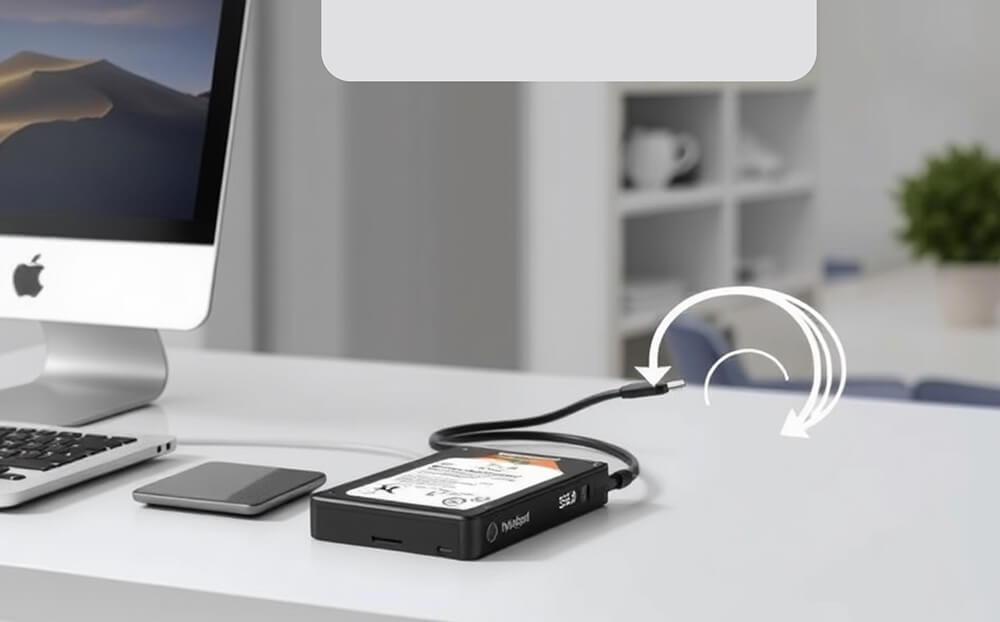
Clone your Mac hard drive to an external SSD is the easiest way to create a bootable backup, keep your data safe, and upgrade your system without hassle.
SSDs are significantly faster than traditional HDDs. By cloning your Mac hard drive to an external SSD, you'll experience quicker boot times, faster application launches, and overall improved system responsiveness.
A cloned SSD can serve as a bootable backup, allowing you to start your Mac from the external drive if your internal drive fails.
Cloning macOS disk creates a complete backup of your system. In the event of hardware failure, accidental deletion, or corruption, having a cloned drive ensures that your Mac data is safe and can be easily restored.
Unlike reinstalling macOS and applications, cloning hard drive preserves all data, settings, and configurations for instant usability on the new drive
Cloning helps manage disk space effectively by transferring only necessary files and applications to your new SSD.
Before you begin the Mac hard drive cloning process, it’s important to prepare adequately. Here are some related subtopics to consider:
Step 1: Connect Your External SSD to Mac computer
Step 2: Download and Install Tatasoft Disk Clone for Mac
Step 3: Launch Tatasoft Disk Clone
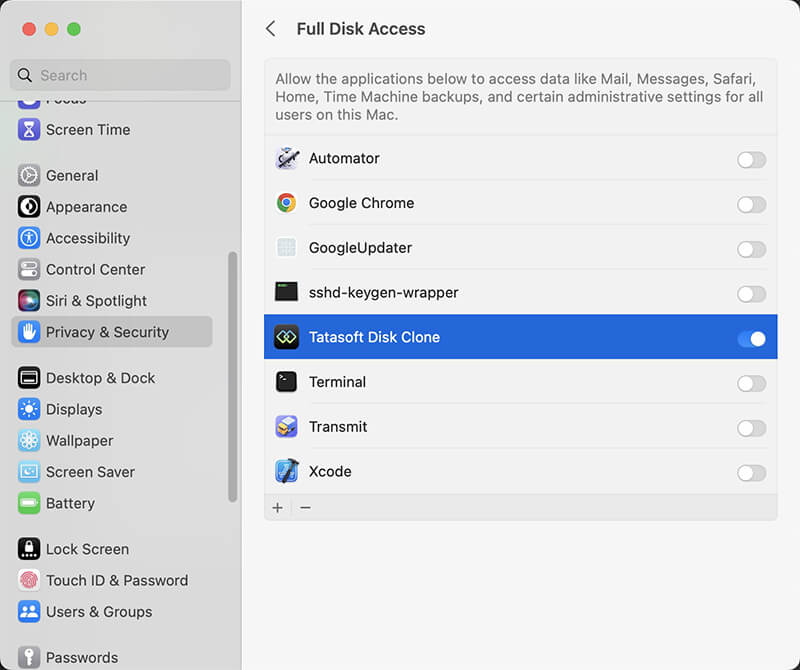
When you first run Tatasoft Disk Clone, please enable full disk access permissions for this software in Privacy & Security.
Step 4: Select Source and Destination Drive
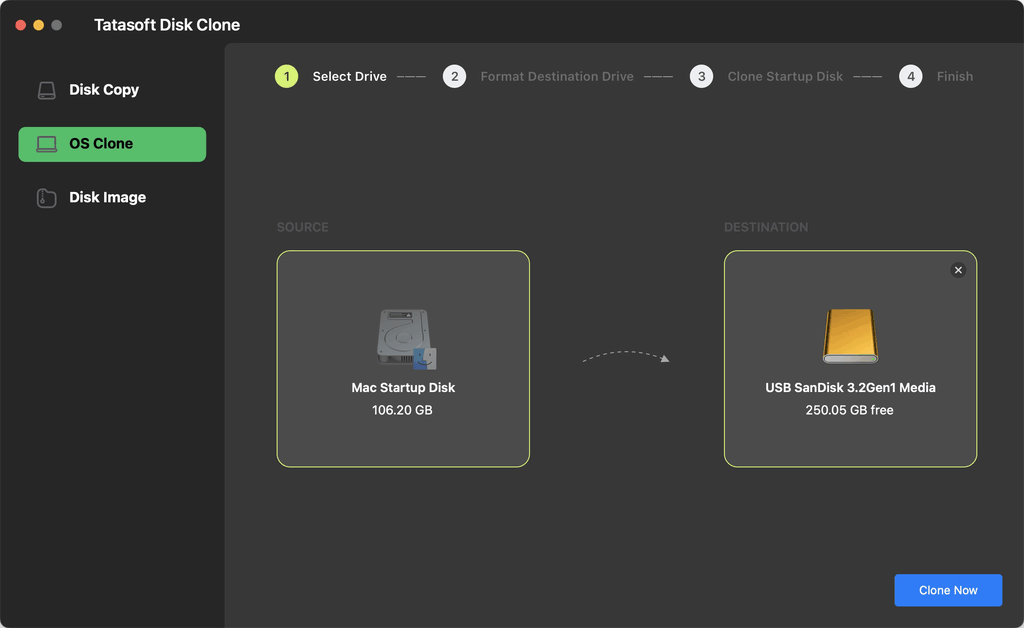
Step 5: Start the Hard Drive Cloning Process
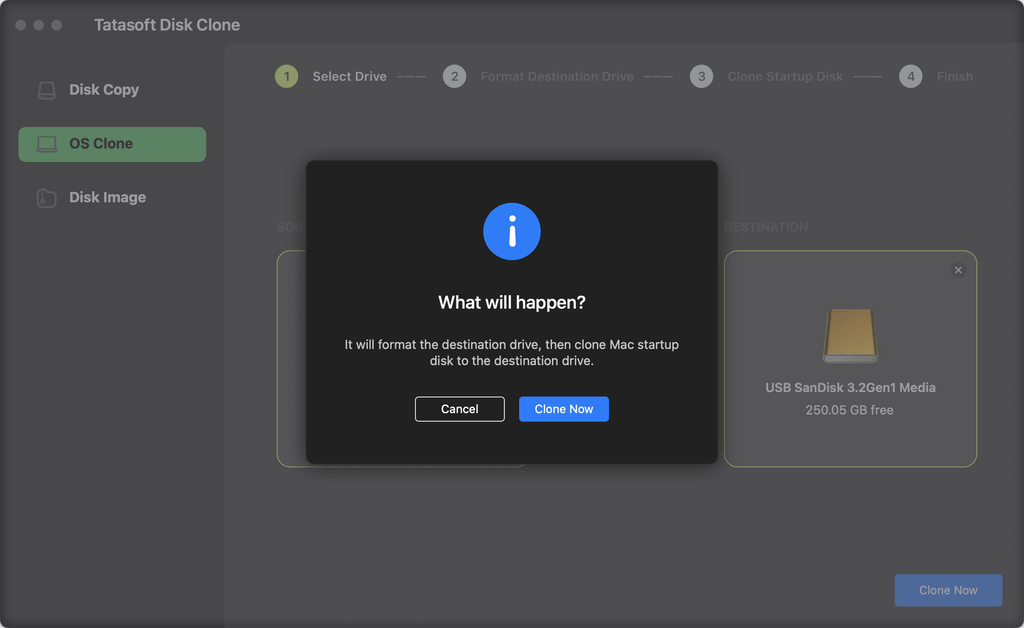
Once the cloning process is complete, check the destination SSD that all data has been copied accurately. This step is crucial to confirm that your clone is an exact replica of the original hard drive.
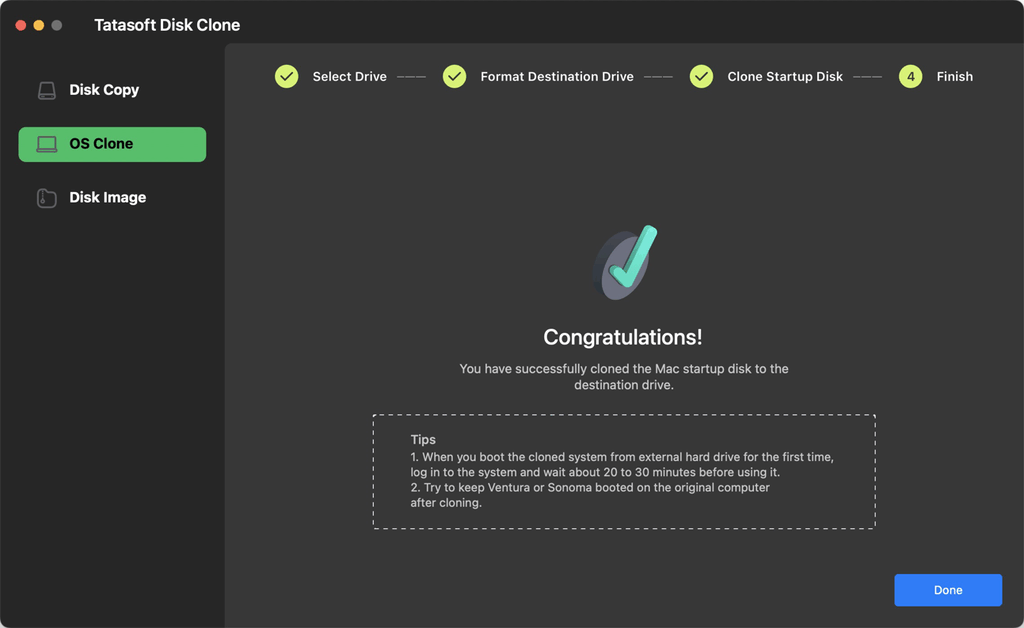
After successfully cloning your hard drive, you can use the external SSD as a bootable drive or for additional storage. To set it as the startup disk:
Intel-based Macs:
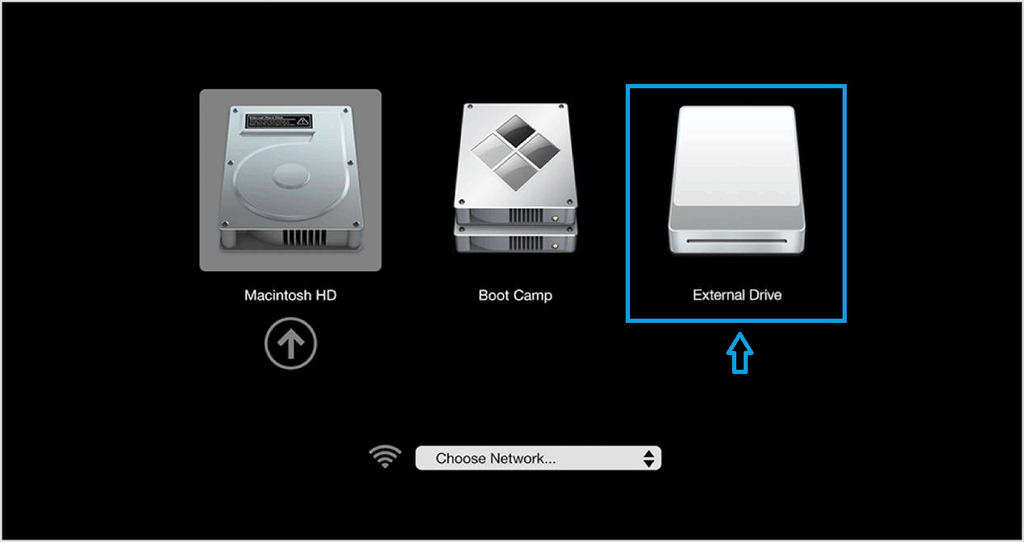
Apple Silicon Macs
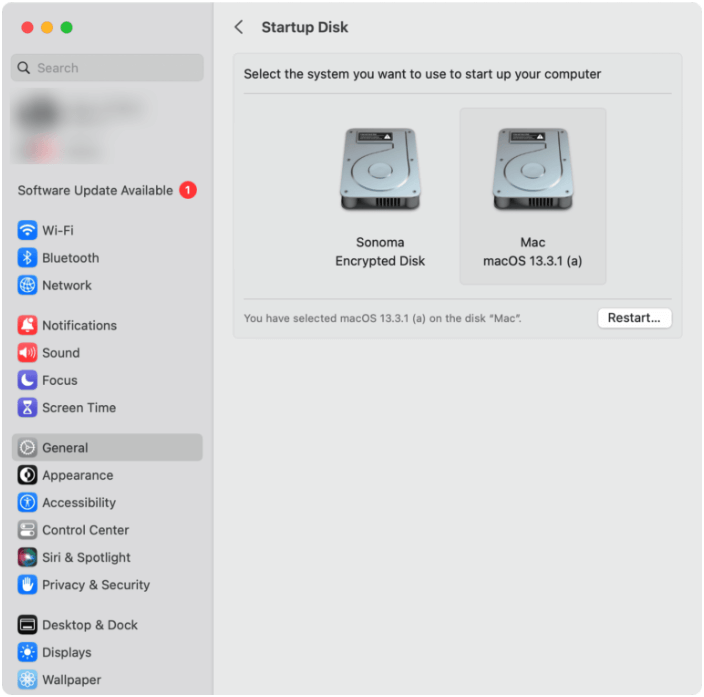
Alternatively, to set the external SSD as default, go to choose Apple menu > System Settings > General > Startup Disk, choose the SSD, and click Restart.
Apple’s Disk Utility is a built-in tool that allows you to clone your Mac hard drive to an external SSD for free. Follow these detailed steps:
Step 1: Connect Your External SSD
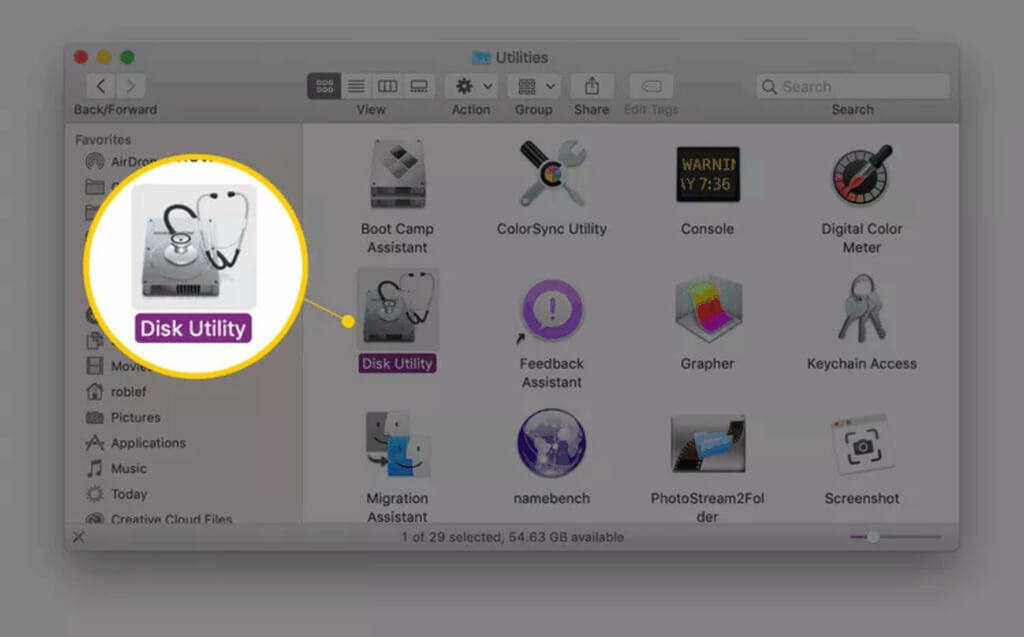
Step 2: Launch Disk Utility
Open Disk Utility again (if closed) from Applications > Utilities > Disk Utility.
Step 3: Select the Hard Drives to Clone
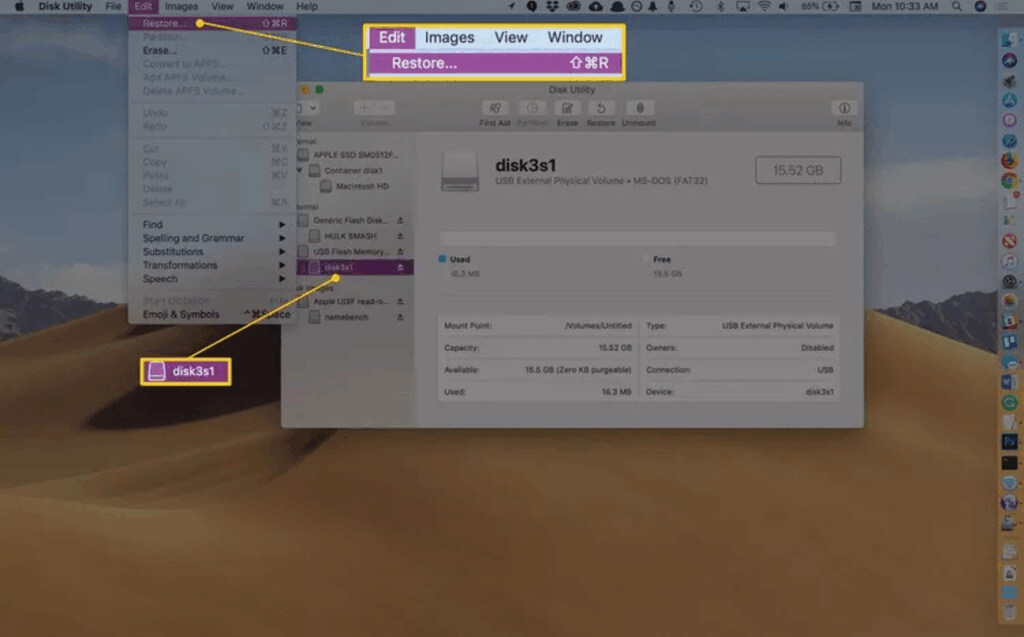
Step 4: Start the Hard Drive Cloning Process
After confirming that both fields are correctly set, click Restore to begin cloning the Mac hard drive.
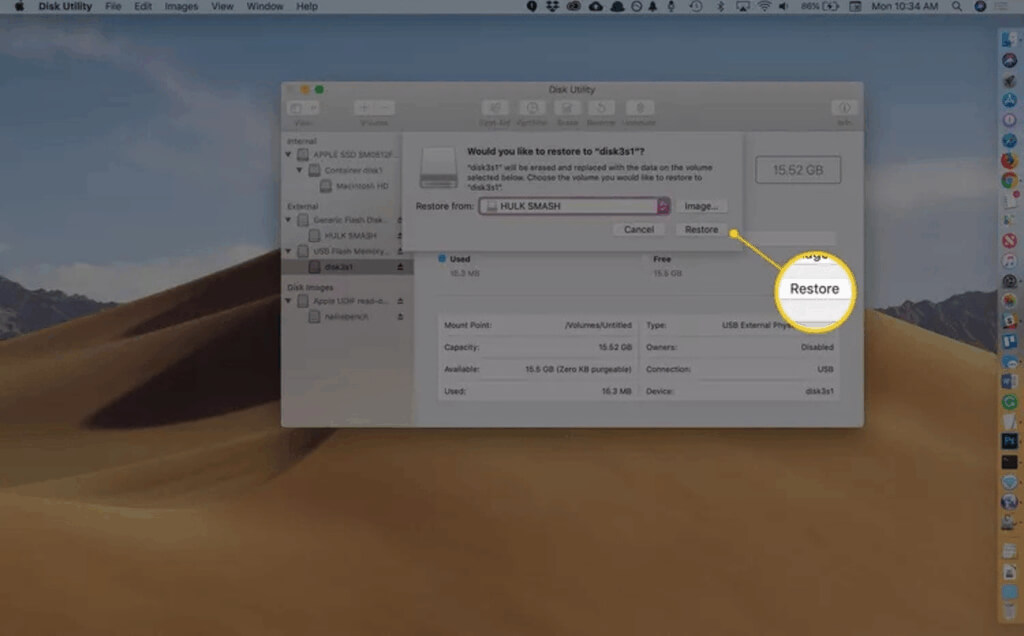
Step 5. Wait for the Cloning Process to Complete
Step 6. Completion Notification
Once the cloning process is complete, Disk Utility will notify you. You can now close the application.
Step 7. Verify the Clone (Optional)
After cloning with Disk Utility, it’s good practice to check that the files were copied correctly. You can do this by opening the external SSD in Finder and checking for your files.
1.Cloning Process Fails
If the cloning process fails, consider:
2.Clone Not Bootable
If the cloned SSD is not bootable:
3.Data Mismatch
If the data on the cloned SSD doesn’t match:
Cloning your Mac hard drive to an external SSD is a smart investment for enhancing your system's performance, ensuring data security, and enjoying portability. By leveraging Tatasoft Disk Clone for Mac, you can simplify Mac HDD cloning process, making it not only efficient but also user-friendly. This powerful tool provides the reliability you need for seamless data transfer, ensuring that your system remains fast and responsive. Start today and experience the difference an SSD can make for your Mac!
Q: Is it safe to clone my Mac hard drive to an external SSD?
Yes, cloning your hard drive to an external SSD is generally safe. However, it’s essential to ensure that your data is backed up your destination SSD before starting the cloning process in case of any data loss.
Q: Will the cloned SSD be bootable?
Most Mac disk cloning software, including Tatasoft Disk Clone for Mac, allows you to create a bootable clone of your Mac hard drive and make it bootable. This means you can start your Mac from the external SSD if needed.
Q: How long does it take to clone a Mac hard drive to an external SSD?
The time required to clone your hard drive depends on the amount of data being transferred and the speed of your external SSD. Typically, it can take anywhere from a few minutes to several hours, so plan accordingly.
Q: What should I do if the Mac hard drive cloning process fails?
If the cloning process fails, check the following:
Q: Can I use the cloned SSD as my primary drive on Mac?
Yes, once the cloning process is complete, you can use the external SSD as your primary drive by booting your Mac from it. You may need to adjust your system preferences to set the external SSD as the startup disk: Apple menu > System Settings > General > Startup Disk, choose the SSD, and click Restart.
A dedicated technical writer at Tatasoft with over four years of specialized expertise in computing technology. She crafts actionable, user-centric content for tech niches, specializing in disk cloning, data management, and video solutions for Windows and Mac.
Read full bio
This article has been approved by Ben Lee. Ben's dedication to excellence and his comprehensive knowledge of Windows and Mac technologies make him an essential part of any technical writing team. With a career marked by continuous learning and adaptation to new technologies, Ben remains at the forefront of the ever-evolving tech landscape.