
Written byJanet BashorunUpdated on Jan 29, 2026

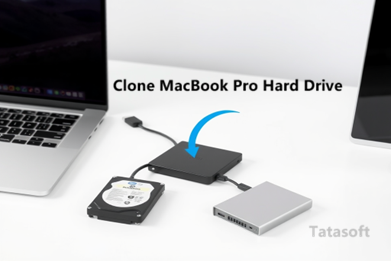
Brief introduction: Cloning your MacBook Pro hard drive effectively is essential for anyone looking to upgrade storage, create backups, or ensure data security. A true clone captures everything—the macOS, apps, and personal files—allowing for a seamless transition to a new drive or quick recovery in case of hardware failure. In this guide, we will explore the most reliable methods to clone a MacBook Pro hard drive, focusing on achieving a 100% bootable result using Tatasoft Disk Clone for Mac.
In this article
1. Data Protection
Cloning creates an exact replica of your hard drive, safeguarding your important files against loss caused by hardware failure or accidental deletion. This is particularly crucial for professionals and students who rely on their MacBooks for critical tasks.
2. Simplified Upgrades
If you are looking to clone a Mac hard drive to an external SSD, cloning avoids the hassle of reinstalling macOS and all your applications. This saves both time and effort.
3. Quick Disaster Recovery
In the event of a system crash or other issues, a cloned drive allows you to restore your system to its previous state instantly, minimizing downtime.
Step 1: Prepare for Cloning
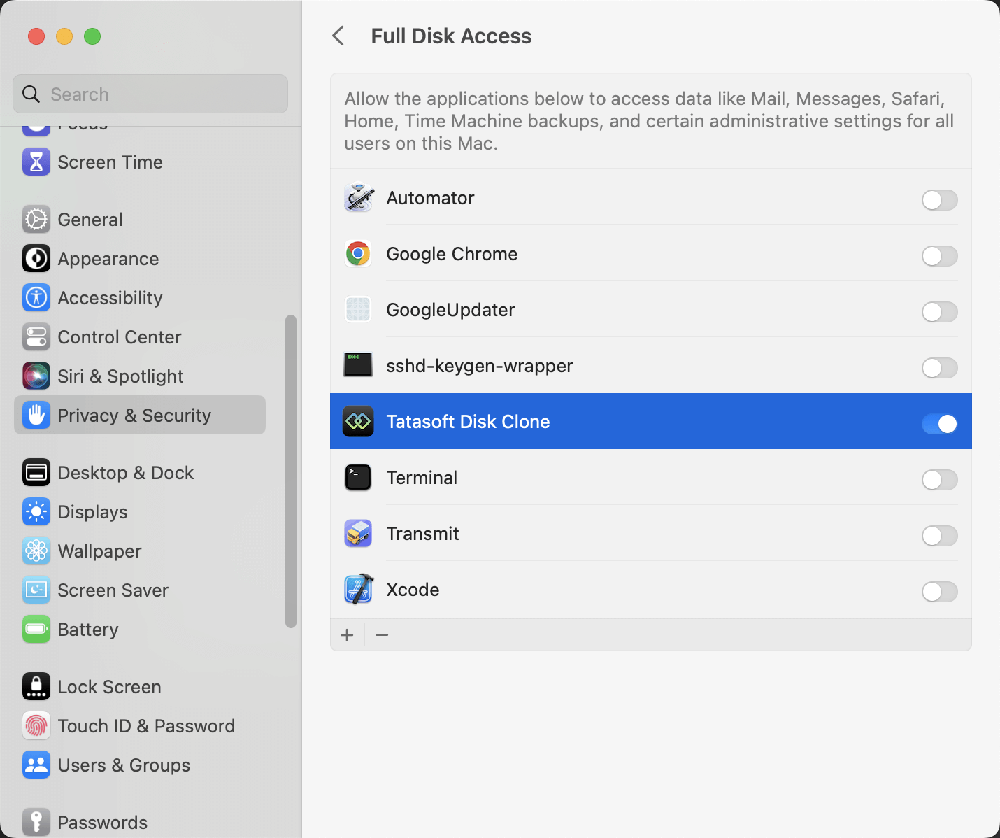
Step 2: Connect your external SSD or HDD to your MacBook Pro.
Step 3: Configure the MacBook Pro Clone
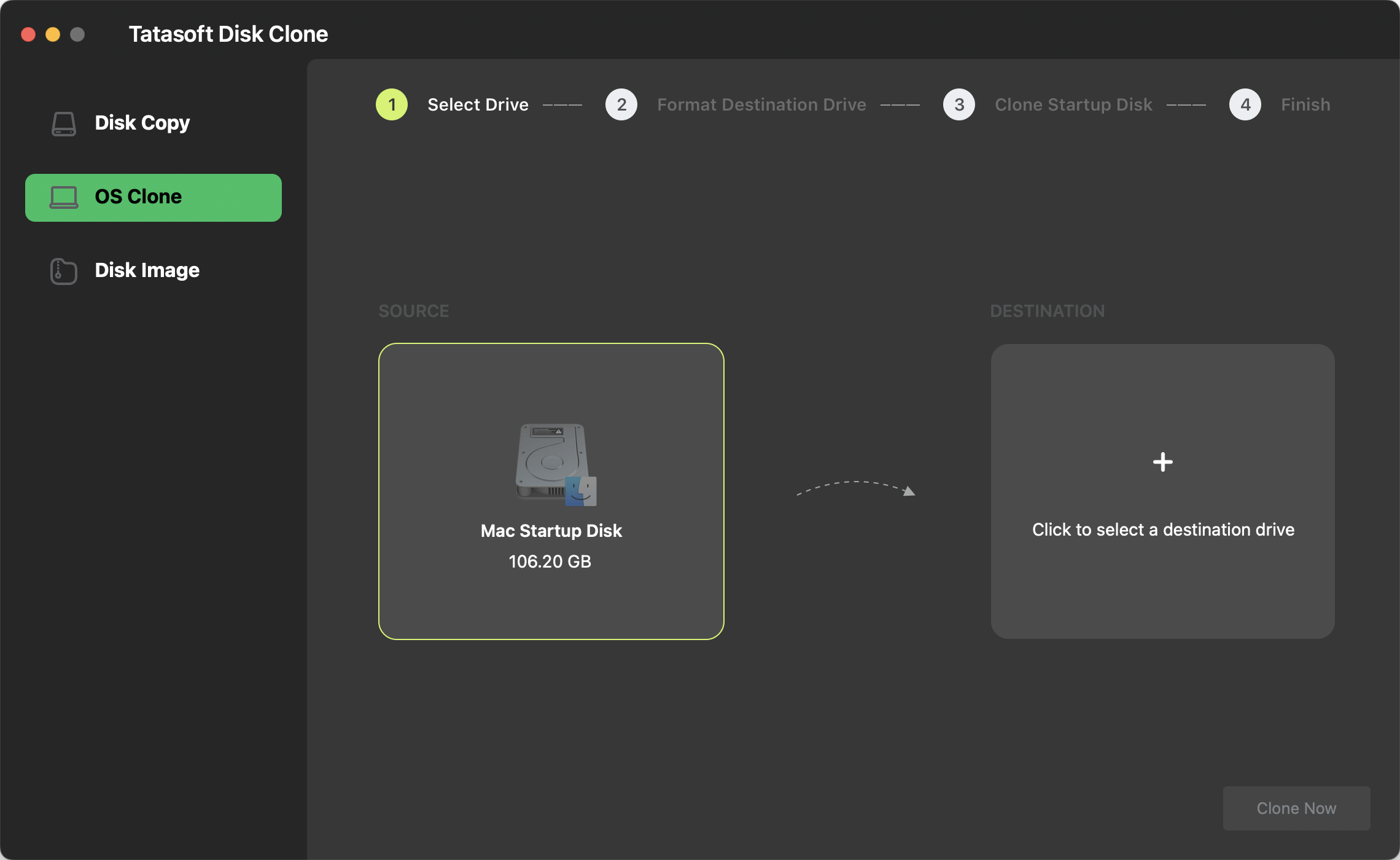
Step 4: Start the Cloning Process
1. Apple Silicon MacBook Pro (M1, M2, M3, M4, M5)
Apple Silicon Macs use a "Startup Manager" that is accessed via the power button.
2. Intel MacBook Pro (2018–2020, with T2 Security Chip)
Note: These models require permission to boot from external drives.
Step 1: Enable External Booting
Step 2: Select the Drive
3. Intel MacBook Pro (2017 or older, without T2 Chip)
Disk Utility is free and built-in but is generally less reliable for creating bootable system copies.
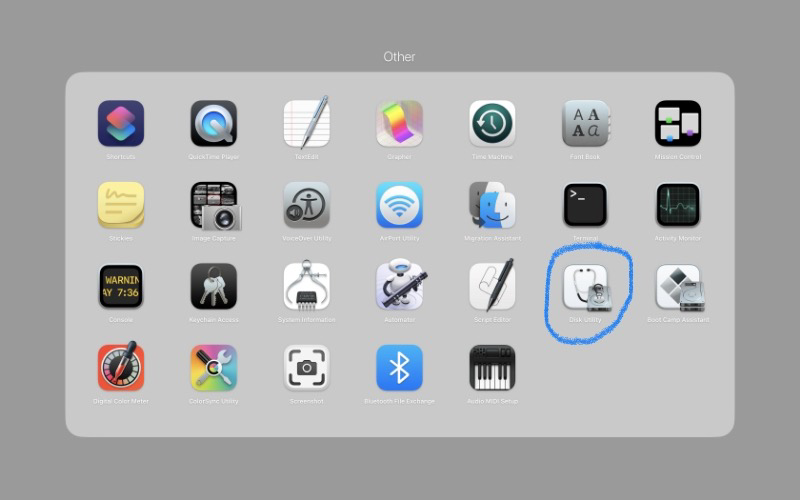
Step 1. Open Disk Utility: Found in Applications > Utilities.
Step 2. Select Destination: Choose the external drive in the sidebar and click the "Restore" button.
Step 3. Choose Source: In the "Restore from" dropdown, select your internal hard drive.
Step 4. Execute: Click "Restore". Warning: This erases all data on the destination drive.
If your MacBook Pro won't boot from the cloned drive:
Cloning your MacBook Pro hard drive is essential for protecting your data and ensuring smooth upgrades. It doesn't have to be a gamble. While basic tools like Disk Utility exist, they often struggle with the complex security protocols of modern Mac systems. Choosing a professional mac disk clone software like Tatasoft Disk Clone for Mac ensures a 100% bootable result by creating an exact, bit-for-bit replica of your entire environment.
Tatasoft stands out for its superior compatibility, working seamlessly across different MacBook Pro generations—from older Intel-based models to the latest Apple Silicon (M1 – M5) chips. Don't wait for a hardware failure or data loss to catch you off guard. Download Tatasoft Disk Clone today and follow our comprehensive guide to secure your data and enhance your productivity.
A dedicated technical writer at Tatasoft with over four years of specialized expertise in computing technology. She crafts actionable, user-centric content for tech niches, specializing in disk cloning, data management, and video solutions for Windows and Mac.
Read full bio
This article has been approved by Ben Lee. Ben's dedication to excellence and his comprehensive knowledge of Windows and Mac technologies make him an essential part of any technical writing team. With a career marked by continuous learning and adaptation to new technologies, Ben remains at the forefront of the ever-evolving tech landscape.