
Written byJanet BashorunUpdated on Mar 05, 2026

Brief introduction: Copying data from one USB to another is a fundamental skill for anyone managing digital files. Whether you are looking to copy USB to USB for backing up critical documents, transferring photos or sharing large media files, speed and data integrity are key. This guide will provide you with 3 methods to copy USB to USB, highlighting the benefits of professional tools like Tatasoft Disk Clone for more complex tasks.
In this article
1. Data Backup
Creating backups of important data is one of the most critical reasons to copy USB to USB. Backups protect against hardware failure, accidental deletion, or malware.
2. File Sharing
Transferring files between USB drives is an effective way to share documents, photos, and other media with friends or colleagues. It’s especially useful share large files that exceed email limits.
3. Organizing Files
As your collection of digital files grows, it becomes necessary to organize them across multiple USB drives. Copying data allows you to categorize and store files systematically, making them easier to find later.
4. Data Migration
Simplifies moving files when upgrading to a new computer, expanding storage or cloning your OS to an external hard drive, without the hassle of re-downloading or reinstalling applications.
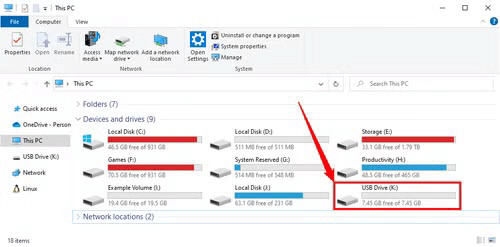
This is the most common method for simple file transfers.
For large volumes of data or when you need a bit-for-bit replica or clone a bootable USB to another drive, Tatasoft Disk Clone is the superior choice. It ensures no files are missed and is perfect if you also need to clone an HDD to a USB.
Step 1: Select Disk Clone: launch Tatasoft Disk Clone and choose the Disk Clone.
Step 2: Select Source & Destination: Pick the USB you want to copy from (Source) and the one you are copying to (Destination).

Step 3: Edit disk layout: If your destination USB is larger than the source, use "Autofit the disk" or "Edit disk layout" to resize and extend the partitions, ensuring no "Unallocated Space" is left on the new drive.
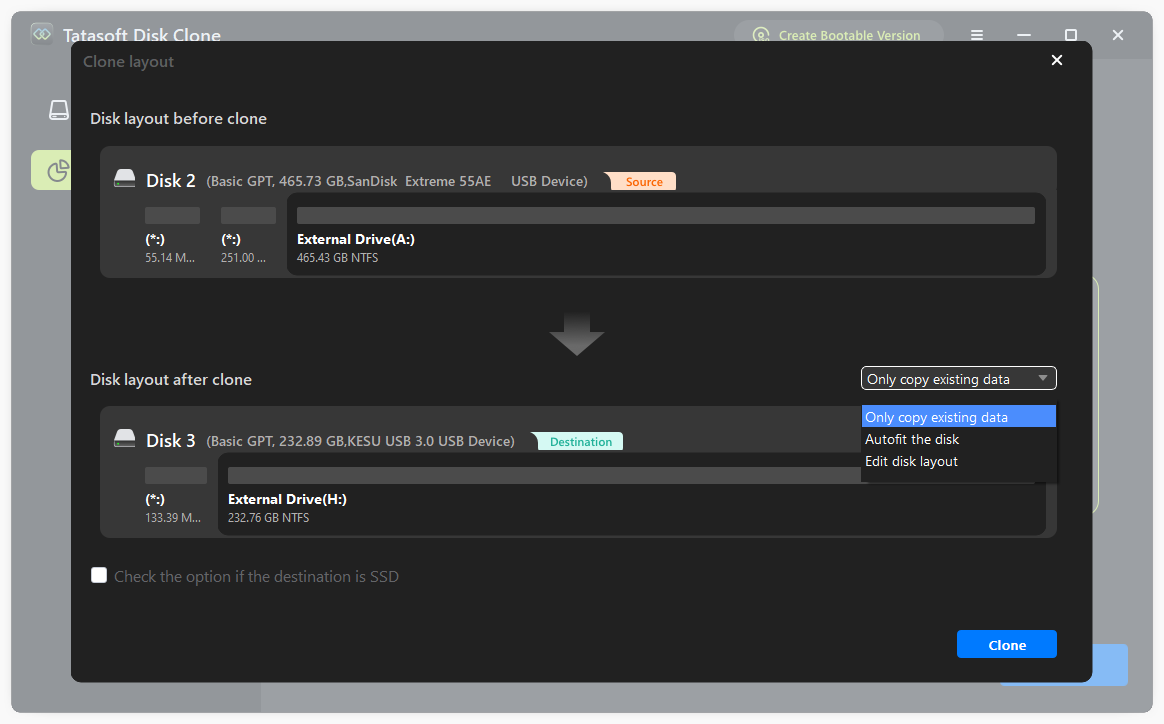
Step 4: Start Cloning: Click Clone Now to initiate the high-speed transfer.
If you prefer a command-line interface, Xcopy is an efficient built-in Windows tool to copy disk via Command Prompt.
1. Run Command Prompt as an administrator: Press `Windows + R`, type `cmd`, and hit Enter.
2. Type the command:
xcopy E:\*.* F:\ /s /e
Replace `E:` with the source USB drive letter and `F:` with the destination USB drive letter.
3. Press Enter: This command will copy all files and subdirectories from the source to the destination.
Knowing how to copy USB to USB effectively protects your digital life from unexpected data loss. For the most reliable experience, especially with large data sets - we recommend using Tatasoft Disk Clone. Don't wait for a data disaster to occur - take proactive steps today to safeguard your files. tart copying your files with confidence.
Typically, no; a computer is required to facilitate the transfer unless you use specialized hardware duplicators.
Yes, the cloning process usually overwrites the destination drive. Always back up important data on the target USB before starting.
Yes, as long as the used data on the source drive does not exceed the total capacity of the destination drive. Professional disk copy software like Tatasoft allows you to clone from a larger disk to a smaller one.
Use USB 3.0 drives and ports for faster data transfer rates. Also, ensure that your computer's performance is not hindered by background processes.
A dedicated technical writer at Tatasoft with over four years of specialized expertise in computing technology. She crafts actionable, user-centric content for tech niches, specializing in disk cloning, data management, and video solutions for Windows and Mac.
Read full bio
This article has been approved by Ben Lee. Ben's dedication to excellence and his comprehensive knowledge of Windows and Mac technologies make him an essential part of any technical writing team. With a career marked by continuous learning and adaptation to new technologies, Ben remains at the forefront of the ever-evolving tech landscape.