
Written byJanet BashorunUpdated on Jan 24, 2026

Brief introduction: Many Mac users need to download YouTube videos on Mac for offline learning, creative research, or uninterrupted entertainment. While streaming is convenient, videos can be removed or privatized at any time. To ensure you always have access to your favorite content in high quality, using a dedicated YouTube downloader like Tatasoft Video Tool for Mac is essential. It provides a secure, high-speed solution to save YouTube videos offline while fully preserving 4K or even 8K resolution.
In this article

MacOS is known for its robust security, which often makes direct browser downloads difficult. Unlike generic online tools that risk quality loss or privacy breaches, a professional desktop application ensures stability. Whether you need to download online videos for a presentation or archive a tutorial, a specialized tool is the most reliable path.
With dozens of downloader options available, selecting the right one makes all the difference. The best YouTube video downloading software for Mac should check the following boxes:
Professional tools like Tatasoft Video Tool for Mac embody these qualities, offering reliability and ease of use while respecting your device’s security limits. Unlike random browser plug-ins, Tatasoft is fully compliant with macOS privacy standards. It avoids intrusive permissions, protects your data, and ensures smooth downloading without system slowdowns.
Tatasoft is designed to handle various content types seamlessly:
Using Tatasoft is the most efficient way to download YouTube videos Mac users can find today. Follow these simple steps:
Step 1: Download and install Tatasoft Video Tool for Mac.
Step 2: Find your target video on YouTube and copy its URL: tap "Share" → "Copy Link".
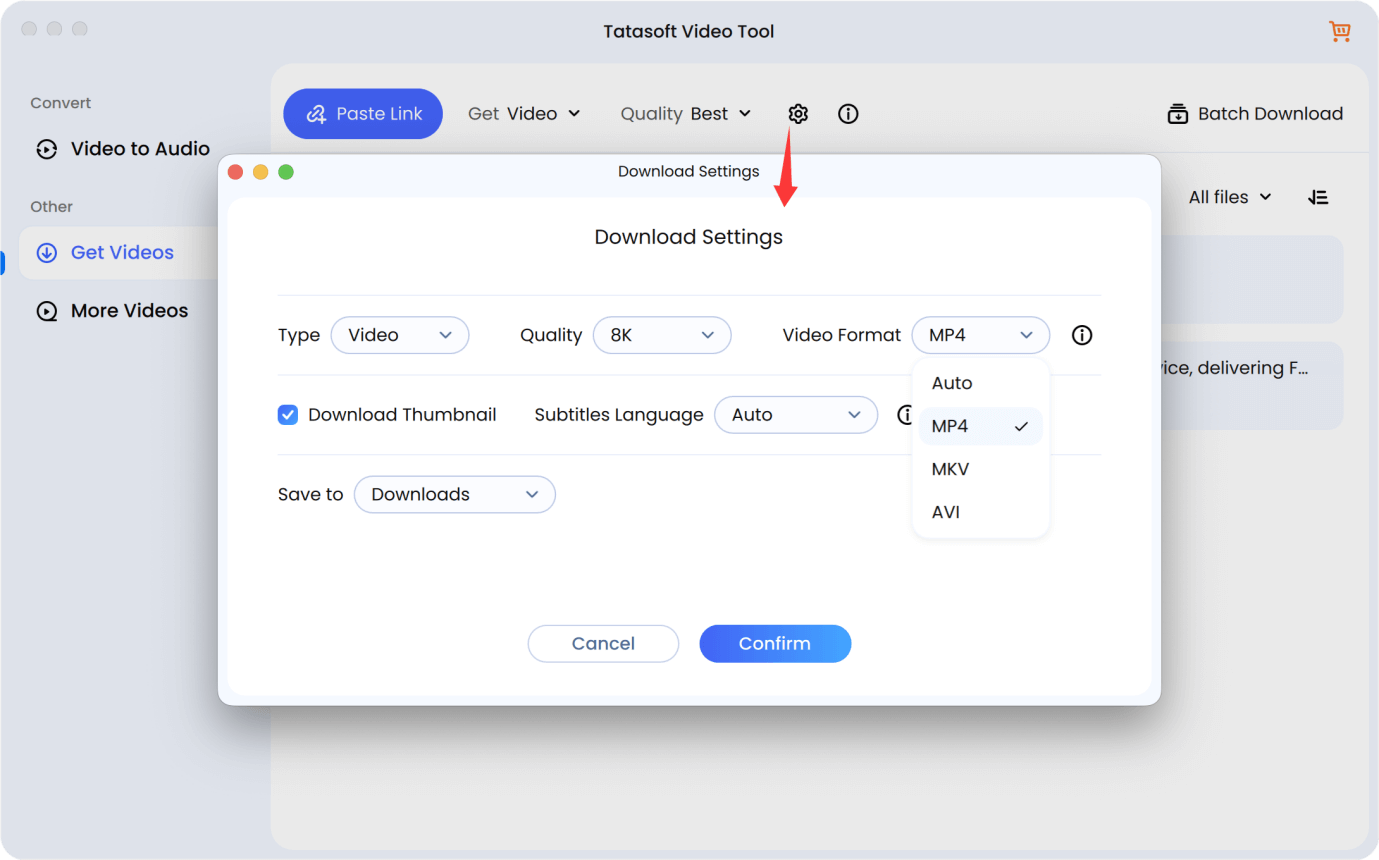
Step 3: Launch the software and change to Get Videos. Click the Download Settings icon to choose your preferred resolution (up to 8K) and format (MP4 or MOV).
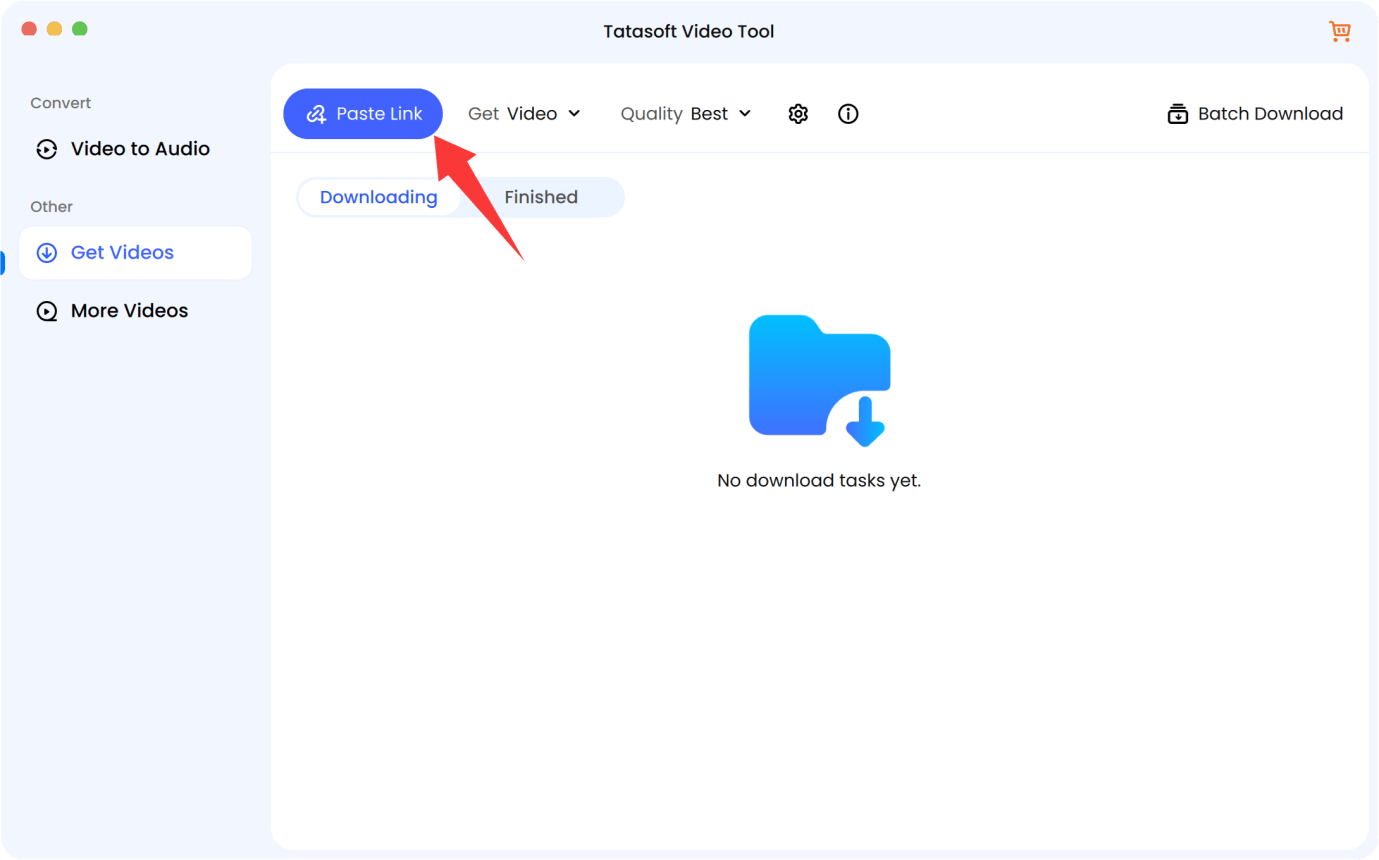
Step 4: Use the "Paste Link" feature to download video from link instantly.
Step 5: The software will start to analyze the link and download video automaticallY. Once finished, the video appears in your chosen folder — clean, high-resolution, and watermark-free.
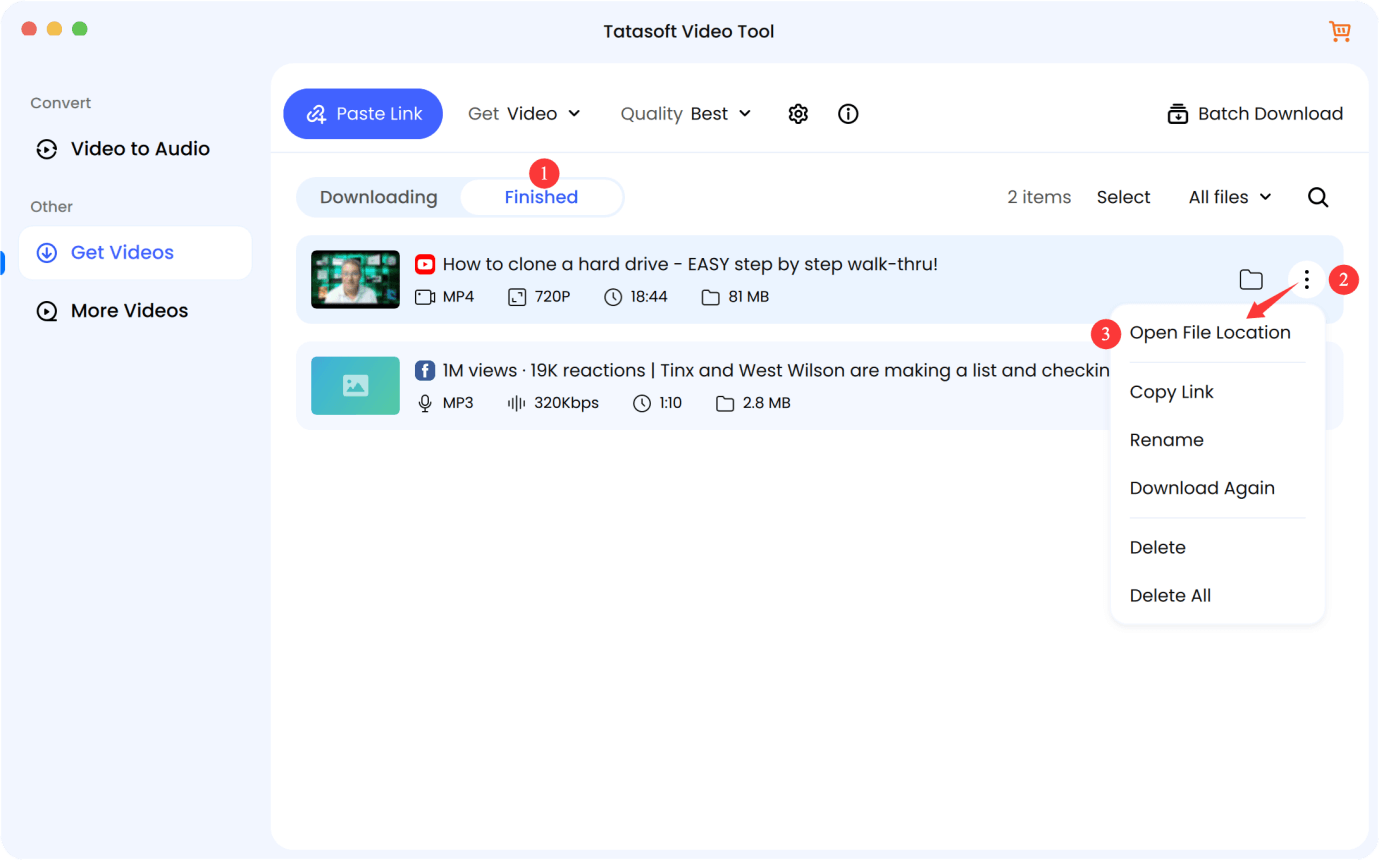
That’s it — within minutes, your YouTube video downloading on Mac task is complete, with guaranteed clarity and reliability.
YouTube Premium allows limited offline viewing, but those files remain encrypted within the app not reusable or editable. macOS itself doesn’t permit direct downloads via Safari or Chrome extensions for security reasons.
Typical user steps and their limits:
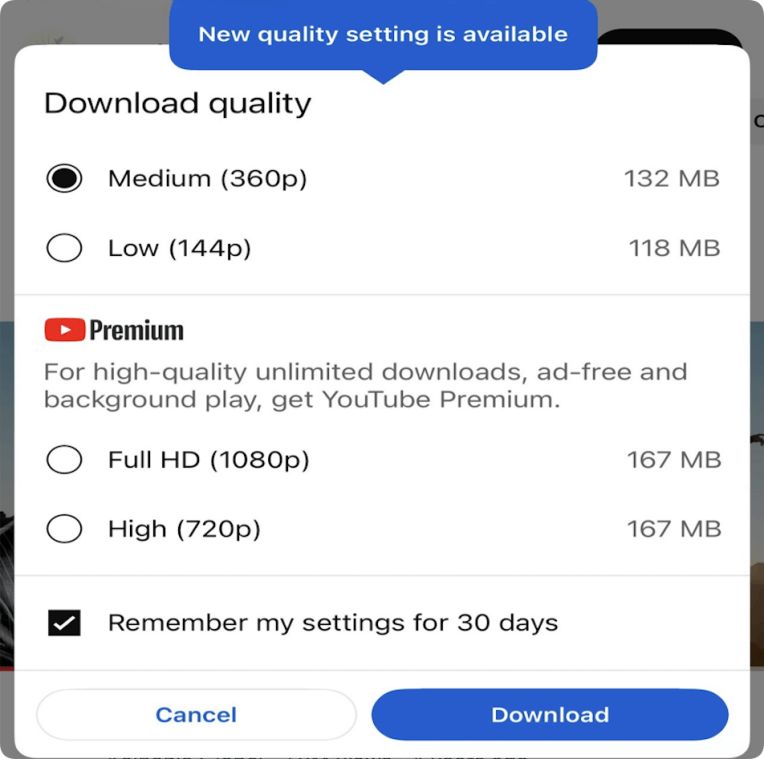
However:
That’s why dedicated software is the only way to download YouTube Videos on Mac with full control and lasting storage.
Although Tatasoft offers the smoothest experience, other options exist for users exploring alternatives. These tools vary in usability, performance, and safety, and while they can serve occasional needs, they rarely match the reliability of a professional-grade downloader.
1. 4K Video Downloader:
Excellent for preserving video resolution and audio clarity. However, it lacks full optimization for newer macOS versions and may experience compatibility issues during frequent system updates.
2. ClipGrab:
Known for its simple interface and lightweight installation. It performs well for small files but sometimes struggles with batch downloads or longer videos, especially when internet speed fluctuates.
3. YTD Video Downloader:
Once a popular option for Mac users, it remains functional but often displays ads or introduces speed limitations in the free version. Its interface also feels slightly dated compared to newer, more seamless tools.
4. Browser Plug-ins:
Convenient for quick downloads directly from YouTube pages. However, many plug-ins request unnecessary permissions, which can expose user data or even inject adware and malware into browsers.
These alternatives can work for occasional downloads but fall short in long-term consistency, security, and performance compared to professional tools like Tatasoft Video Tool for Mac, which ensures smoother operation and privacy protection with every use.
While many online tools claim to make downloads easy, macOS users know that system security and app sandboxing make the process tricky. Safari’s strict permissions, Apple’s notarization policies, and the lack of native downloaders all mean users must choose carefully.
Key challenges include:
By recognizing these risks early, Mac users can avoid unsafe shortcuts and instead focus on verified, secure, and ethical solutions like dedicated desktop downloaders built for macOS.
When you download YouTube Videos on a Mac, not all files behave the same way. YouTube hosts several formats, and understanding them ensures your software handles them correctly:
Identifying the content type helps you select suitable settings in your downloader — resolution, format, and file organization ensuring smooth playback and editing on your Mac.
Downloading YouTube videos for offline use doesn’t alter YouTube’s metrics. Offline views, unlike streamed plays, don’t register in YouTube’s analytics or impact the creator’s engagement statistics.
That means saving content for personal learning, research, or reference won’t distort a creator’s performance data. This allows users to study video pacing, transitions, and engagement techniques responsibly.
Marketers and educators who download YouTube videos on Mac for analysis can still benefit from in-depth observation—evaluating editing flow, audience retention tactics, and storytelling methods—without affecting the creator’s official numbers or ad revenue.
For ethical balance, it’s best to stream the content online periodically to support creators while also keeping downloaded files for offline accessibility. This way, users enjoy the benefits of both convenience and fairness in the content ecosystem.
Downloading YouTube videos on Mac is just the first step to truly benefit, you need an organized system for managing your offline library. Without structure, your collection can quickly become cluttered, making it hard to find videos when needed.
Tips for effective management:
By keeping downloaded videos structured and easy to navigate, you turn your Mac into a reliable offline content hub. This ensures that whether for research, entertainment, or creative projects, your videos are always accessible and ready for use.
The ability to download YouTube Videos on Mac transforms how users learn, work, and create. Offline access turns YouTube from a streaming platform into a personal content library, one that’s secure, organized, and instantly available. For those who value quality, privacy, and simplicity, Tatasoft Video Tool for Mac stands out as the smart choice. It’s built for professionals and everyday users who want to store, study, or edit videos safely without losing resolution or risking data integrity.
Experience smarter downloading today and enjoy seamless, secure YouTube video downloads fully optimized for macOS.
A dedicated technical writer at Tatasoft with over four years of specialized expertise in computing technology. She crafts actionable, user-centric content for tech niches, specializing in disk cloning, data management, and video solutions for Windows and Mac.
Read full bio
This article has been approved by Ben Lee. Ben's dedication to excellence and his comprehensive knowledge of Windows and Mac technologies make him an essential part of any technical writing team. With a career marked by continuous learning and adaptation to new technologies, Ben remains at the forefront of the ever-evolving tech landscape.